Barbie Adventure: Riding Club
Windows - 1998

| Alt names | Barbie Aventure: Aventures Equestres, Barbie: Aventuras a Caballo, Barbie: Zauberhafte Pferdewelt, Barbie Avventura: Il Club di Equitazione |
|---|---|
| Year | 1998 |
| Platform | Windows |
| Released in | Spain (1998) Germany (2001) |
| Genre | Educational, Sports |
| Theme | Ecology / Nature, Horse / Derby, Licensed Title |
| Publisher | Mattel Media |
| Developer | Human Code, Inc. |
| Perspectives | 1st-Person, Side view |
Description of Barbie Adventure: Riding Club
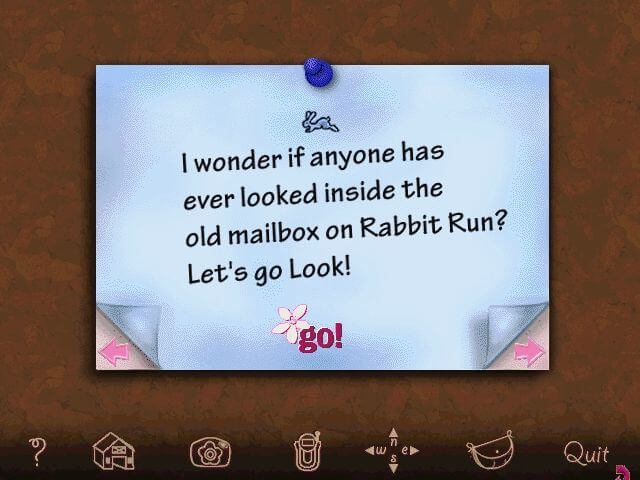
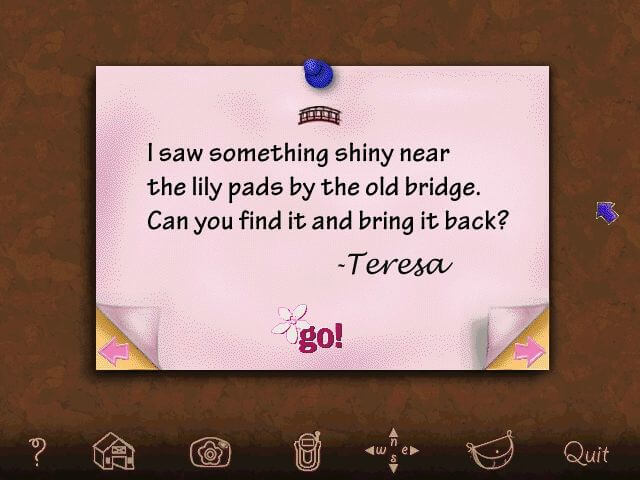
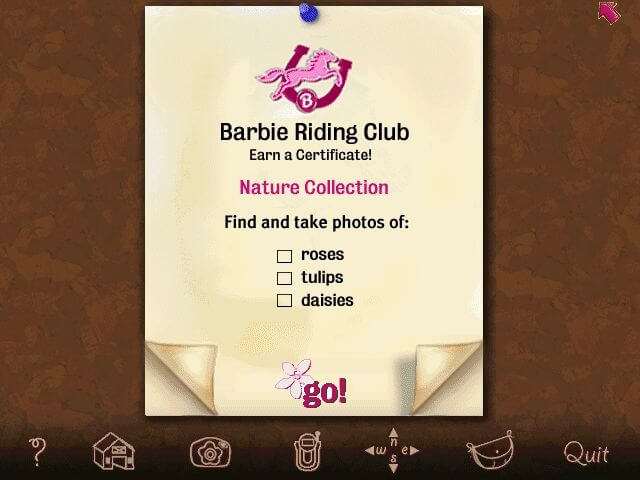
1998, the year Barbie Adventure: Riding Club was released on Windows. Made by Human Code, Inc. and published by Mattel Media, this educational and sports game is available for free on this page.
External links
 Wikipedia Entry
 PCGamingWiki
 IGDB
IGDB MobyGames
Captures and Snapshots
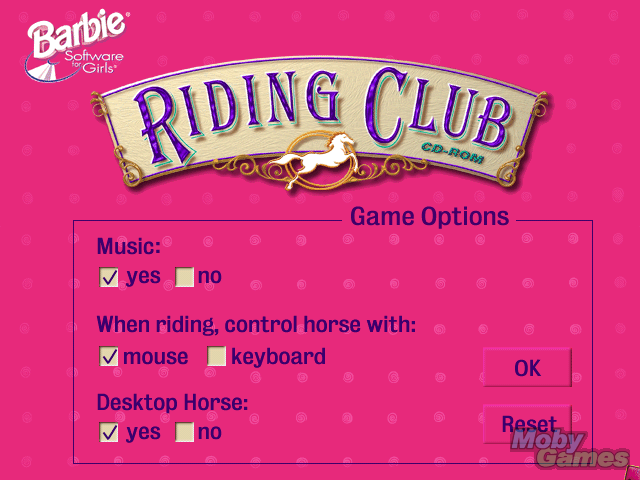
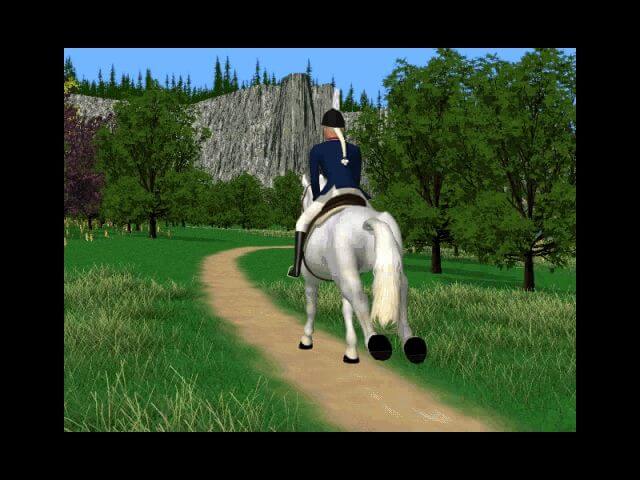
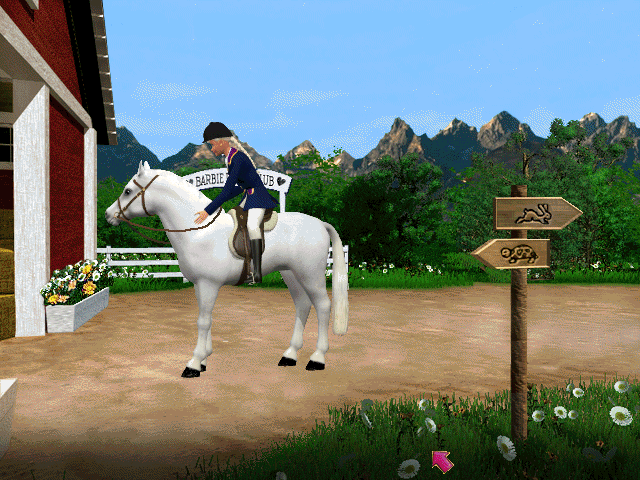
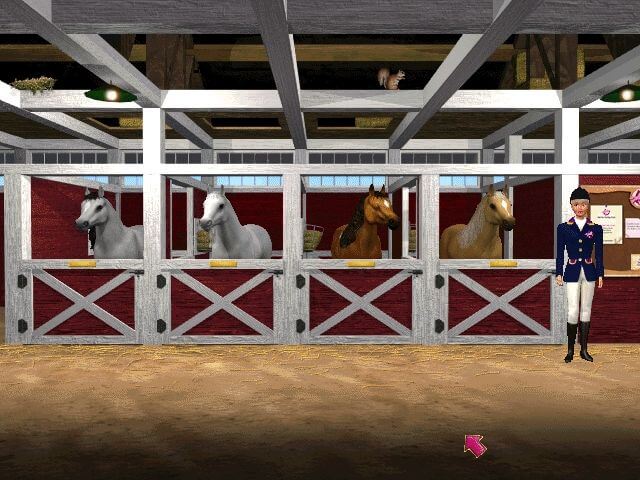
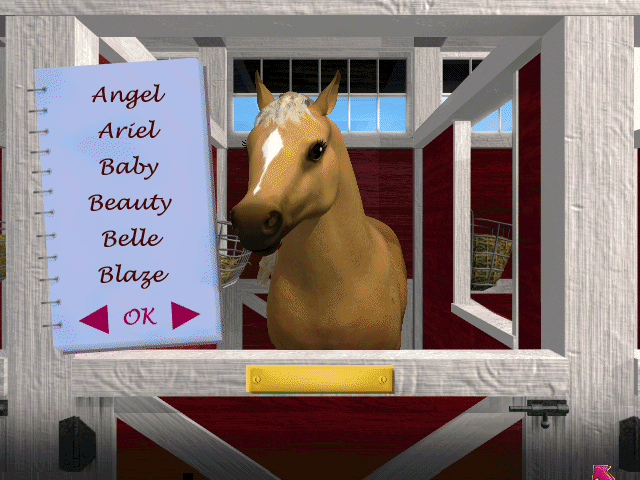
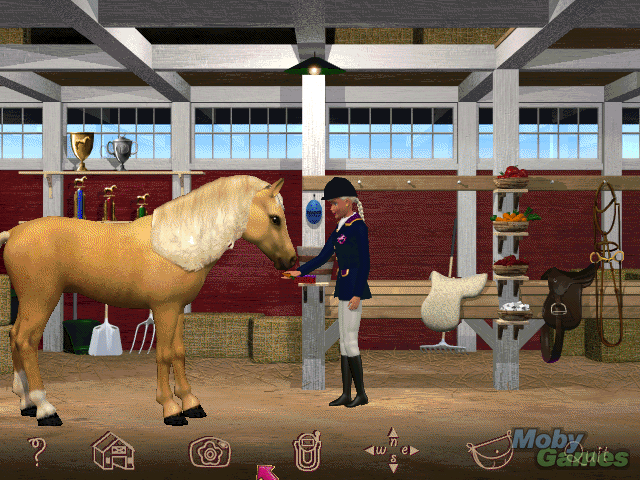
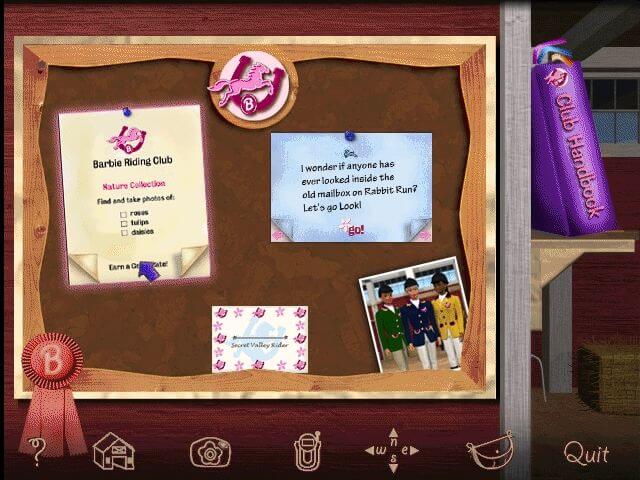

Comments and reviews
lucia 2026-06-26 0 point
no me deja dios me dice q necesita cd, no me sale la opcion de compatibilidad ayuda
ivory 2026-06-18 3 points
if your having issues try this! The game would run for me but the display would turn into multiple grayscale boxes during cutscenes & riding. This fixed it!
credit to laternwretch
Got this bad boy to play with no problems. Follow these instructions, see if it helps!
1. Download and unzip.
2. Create a new folder on your desktop.
3. Mount the ISO and with file explorer open, right-click on the Mounted BRC CD and click copy.
4. Paste that into the new folder on your desktop.
5. In the pasted folder, right-click on the SETUP.exe and go to Properties.
6. In the Compatibility tab, check the box to run it in compatibility mode for Windows XP Service Pack 2.
7. Click OK, then right-click the SETUP.exe and run as Administrator.
Chances are you’re get the Windows pop-up to start the installation, but nothing will happen. If that’s the case, read on. If the set-up runs fine, go to Step 8 and skip the next paragraph.
After you run the SETUP.exe as Administrator, open task manager. You should see something like Setup32 or something in the Background Processes in the Processes tab. Go over to the Details tab, find that Setup32 process and right-click. Select Analyze Wait Chain. The set-up is the first option, and anything under it is prevent it from continuing. Close that. The set-up should instantly start.
8. Start the SETUP, let it install the game.
9. Once installed, go to the first folder, not your copied folder. You want the OG Unzipped folder. Find the Barbie Riding Club application in there, right click, and go to properties.
10. Go to compatibility mode, have it run in Winodws XP Service Pack 2.
11. Turn on reduced color mode to the 8-bit setting and click OK to save your settings.
12. Using that same application in the original unzipped folder (Not your copied folder!) Open the game and run it.
13. When you get to the part where you enter your name, don’t enter anything. For some reason, entering anything will crash the game. Just click the stable button.
Baddaboom. That’s exactly what I did and I experienced 0 issues. Everything funcitons correctly, no weird grey boxes, no sideways against the screen nonsense. Just me and my nostalgia from 26 years ago for an hour.
Hope this helps someone!
ashweeeee 2025-12-29 1 point
I have changed display settings and compatibility mode, but anytime riding is 1st person the display switches to four small black and white videos like another person said. I haven't been able to find a work around.
For anyone getting the CD Rom error, once extracted, go into the folder and run SETUP Application. I had to follow a prompt from Microsoft to download something to allow use of the 16bit installer. Again, I am still getting issues in first person, but this will at least allow you to launch and play!
Wren 2025-08-11 2 points
Did everything that was suggested and the game didn't work... Any suggestions?
Cathy 2024-10-11 0 point
Se ve lindo el juego lo voy a provar, ademas ami me encantan los caballos entonces me la paso buscando juegos o de: EQUITACION, POLO, ETC...
Me encantan asique lo provare el juego se ve bueno asique.... VAMOS A ALLA!!!
Chau!
x 2024-04-28 2 points
Game is okay during some parts but the riding gives me 4 black and white images - when I stop riding full colour returns and it's fine
Annoyed 2024-02-17 1 point
I did every single step below and the main menu of the game finally worked and I got excited but the second the game starts all the visuals are still messed up and I can't play.
1. Download and install the game
2. Create a desktop shortcut to the application
3. Right-click the desktop shortcut and select "properties". Go to the "compatibility" tab.
4. Check "run this program in compatibility mode for" and select Windows 95
5. Also check these options:
- Reduce color mode (16-bit color)
- Run in 640 x 480 screen resolution
- Run this program as Administrator
Palomino 2024-02-14 1 point
I just get a blank screen after I do the install and compatibility instructions :( disappointing
Cat 2023-10-15 -1 point
Once I check my options on the main screen, the screen goes black and it doesn't proceed, is there any way around that?
grace_grape 2023-09-01 12 points
Fix the color / aspect ratio display issues with these steps!
1. Download and install the game
2. Create a desktop shortcut to the application
3. Right-click the desktop shortcut and select "properties". Go to the "compatibility" tab.
4. Check "run this program in compatibility mode for" and select Windows 95
5. Also check these options:
- Reduce color mode (16-bit color)
- Run in 640 x 480 screen resolution
- Run this program as Administrator
Apply changes. Open the application and it should work!
Write a comment
Share your gamer memories, help others to run the game or comment anything you'd like. If you have trouble to run Barbie Adventure: Riding Club (Windows), read the abandonware guide first!
Download Barbie Adventure: Riding Club
We may have multiple downloads for few games when different versions are available. Also, we try to upload manuals and extra documentation when possible. If you have additional files to contribute or have the game in another language, please contact us!
Windows Version
 547 MB
 521 MB
 601 MB
 513 MB
Similar games
Fellow retro gamers also downloaded these games: