Battlefield 2: Complete Collection
Windows - 2007
| Alt names | Battlefield 2: Полная коллекция, Battlefield 2: Polnaja kollekcija |
|---|---|
| Year | 2007 |
| Platform | Windows |
| Released in | Brazil, Czechia, Germany, Ireland, Russia, United Kingdom, United States (2007) Ireland, United Kingdom (2008) Worldwide (2009) Austria, Germany, Switzerland (2010) Germany (2014) |
| Theme | Compilation / Shovelware |
| Publisher | Electronic Arts, Inc., ak tronic Software & Services GmbH |
Description of Battlefield 2: Complete Collection
In 2007, Electronic Arts, Inc., ak tronic Software & Services GmbH publishes Battlefield 2: Complete Collection on Windows. This video game is now abandonware and is set in a compilation / shovelware theme.
External links
 MobyGames
 Wikipedia page
 PCGamingWiki
 WSGF
WSGF Mod DB
 Gameplay video
How to play Battlefield 2: Complete Collection Windows
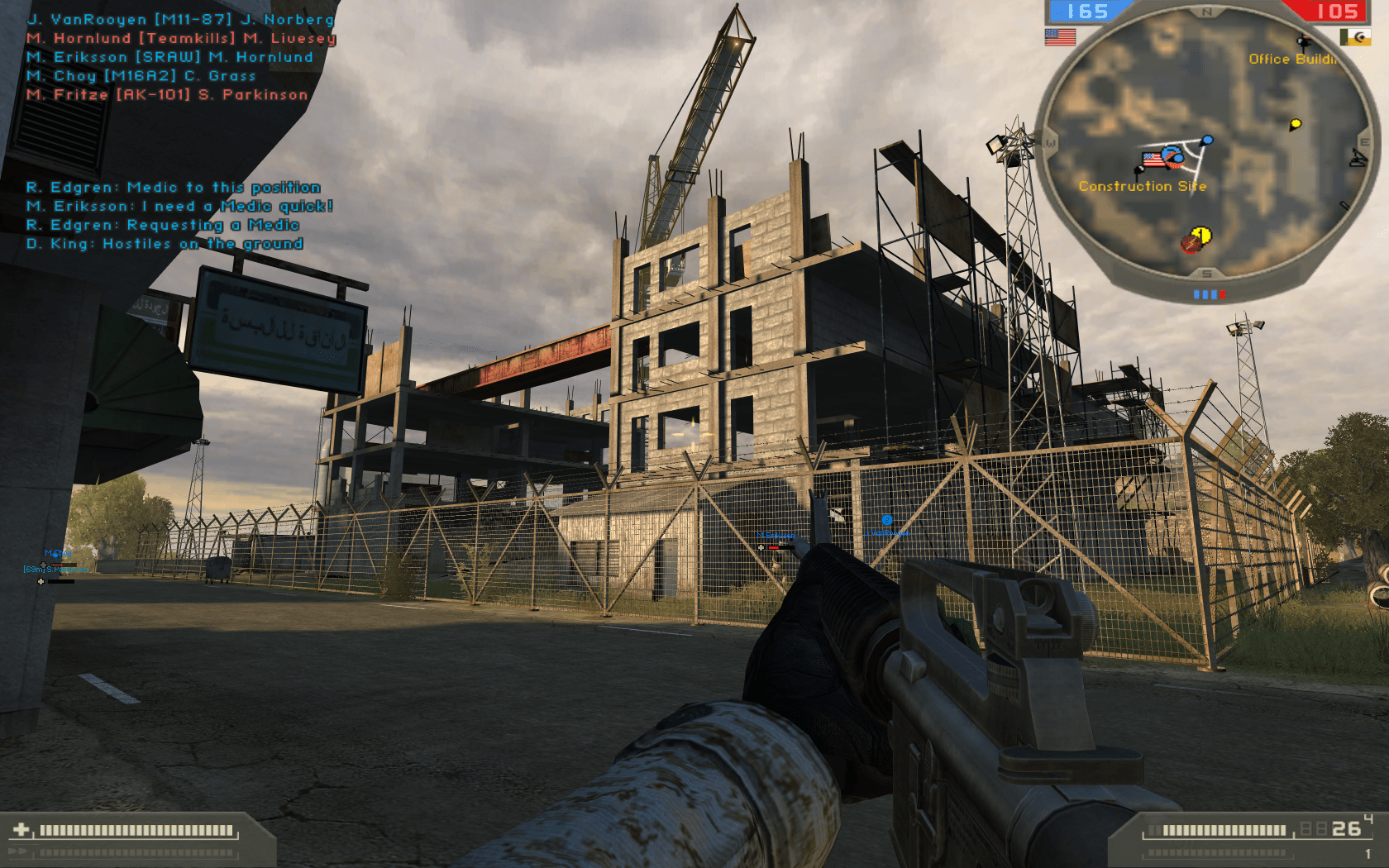
Battlefield 2: Complete Collection is a compilation that includes Battlefield 2 with Special Forces expansion packs and both Booster Packs: Euro Force and Armored Fury. The game is multilingual, with support of 12 languages: English, French, German, Spanish, Italian, Dutch, Swedish, Polish, Japanese, Korean, Traditional Chinese and Thai languages. You can use Language Changer if you want to change the language of installed game.
The game has been tested on Windows 7 64-bit, Windows 8, 8.1, Windows 10 and Windows 11, it works fine. You may experience some small troubles when you play the game on modern systems, check our Guide and Notes for details
Install & play guide:
- Mount the disc image of DVD. You will need the utility for mounting disc image files, like WinCDEmu, UltraISO, Alcohol 52%/Alcohol 120% or Daemon Tools Lite
- Launch the installation. The installation happens in few stages - first the base Battlefield 2 will be installed, then Battlefield 2: Special Forces expansion pack, and then both Booster Packs. Battlefiled 2 and Battlefield 2: Special Forces has separate CD keys, the text-files with CD keys are included in the archive
- It is recommended to install the game not in default path but in some other, non-system folder, like
C:/Games/Battlefield 2, so you won't have troubles with fixes or mods - Skip the installation of PunkBuster, its support were discontinued; uncheck the box "Install PunkBuster". Also skip the installation of GameSpy app, GameSpy servers were closed in 2014 and doesn't work anymore
- After you installed all of content from DVD, you will have Battlefield 2 v1.41 with all additional content. After that, you need only to install the patch v1.50 (and optionally the hotfix for the patch v1.50 that fixes the crash issue when using Alt+Tab). The patch v1.50 is the latest official patch for the game. Patch v1.50 removes DRM protection, so you don't need to use any NoCDs!
- Open the game folder and find BF2.exe. Right-click on BF2.exe -> Properties -> Compatibility -> Set "Run this app in compatibility mode with Windows XP" and "Run as Administrator"
- Launch the game and play. If the game doesn't work in compatibility mode with Windows XP - try to launch it in compatibility mode with other version of Windows (Windows 95, 98, 2000, etc.)
How to play Battlefield 2 in the multiplayer and find the multiplayer servers:
- The official GameSpy servers of the game were closed in July, 2014 at the same time as GameSpy service has "died". The most popular way to play Battlefield 2 in multiplayer after the official GameSpy servers were closed is to use BF2Hub client. You simply install BF2Hub client on your computer, run Battlefield 2 through that client and register account through in-game menu as in this guide (the registration may take few minutes). After you registered the account, you can connect to multiplayer servers in the game; if you want to edit your BF2Hub account, you can do it on the BF2Hub website. BF2Hub client is also used on the servers of 2F4Y community, one of the biggest community of Battlefield 2 players
- Another popular multiplayer client is PlayBF2. PlayBF2 project has its own launcher and client, check the website for more details. It is possible to use both BF2Hub and PlayBF2 clients to play the game in multiplayer since the clients don't conflict with each other
- Also, you can always manually connect to the servers through IP-address, by clicking "Connect to IP" button on server selection screen or by using BF2 Launcher. Check BF2.CX, BF2.TV, GS4u.net or GameTracker to find the list of live servers. Or you can use the multiplayer utilities like OpenSpy or GameRanger to host or play the multiplayer matches with your friends
- If the connecting to account server takes a long time - go to
Documents/Battlefield 2/Profiles/<your-profile>and open General.con file in Notepad, delete all lines starting withGeneralSettings.addServerHistory. Alternative method is to use Conman tool, check this guide for details - There could be an issue with random server kicks when you try to connect the multiplayer server. If the BF2-client loads the map faster than the BF2-server, players get kicked from the server stating that “This server allows players with unmodified content to join”. To fix it use Battlefield 2 mapload-delayer tool that artificially delays the mapload of the BF2-client
About the mods:
- Battlefield 2 has tons of mods, including custom maps, rebalance and graphics mods, and even the total conversions that change the gameplay and setting. You can find most of the mods and custom maps on ModDB, NexusMods, 3DShooterLegends, BF-Games.net or Gau-Games.de. We recommend to check this overview guide with the list of most popular Battlefield 2 mods
- The game also has many total conversions mods with standalone clients that doesn't require the base game, such as World War II-themed mod Battleground 44 or very popular Project: Reality mod that adds more realism to the base Battlefield 2 gameplay formula. Check this thread for more information about standalone mods
Notes:
- If the installation doesn't start - try to launch Setup.exe in compatibility mode with old version of Windows (98, 2000 or XP)
- It is recommended to install all versions of Microsoft Visual C++ Redistributable and NET Framework for the correct work of the game. Also it is recommended to install K-Lite Codec Pack for the correct work of in-game videos
- The game works on DirectX 9, so if you're using Windows 8, 8.1, 10 or 11 - you need to enable DirectPlay: Go to Control Panel, and select 'Programs'. Select 'Turn Windows features on and off', click on 'Legacy Components' and check the box 'DirectPlay'. Select OK, once the installation is done, restart your computer
- We added text-file with a lot of CD keys, but if none of them works - use the keygen to generate new CD key. Keygen may trigger generic warnings by your antivirus, but it is safe to use, here's VirusTotal scan report. You can run the keygen on Virtual Machine, for 100% safety
- The original retail release of the game was protected with SafeDisc 3 DRM. But DRM protection was officially removed in the patch v1.50. In case if for some reason you don't want to update the game to v1.50, we also added NoCD for v1.41. Please note that most of the multiplayer servers work ONLY with the game v1.50
- If you have previously installed Battlefield 2 and installed it again, and now the game crashes to the desktop or show the black screen - delete the game and game's folder in
Documentsdirectory, and after that make the clean installation - Make sure to install the patch v1.41 before installing the patch v1.50, otherwise you will get the error. If the installer for the patch v1.41 shows "Can't find install folder" error: open Registry Editor (press Win+R -> type regedit.exe), go to
HKEY_LOCAL_MACHINE\SOFTWARE\Wow6432Node\Electronic Arts\EA Games\Battlefield 2path, right-click in the folder and select New-> String Value and create a new string withInstallDirname. Then right-click onInstallDirand select "Modify", in theData Valuefield enter the path to the folder where you installed the game (for exampleC:\Games\Battlefield 2) - If you get "Invalid CD key" message at the launch of the game or when you try to connect to online servers - use BF2 CD-Key Changer or BF2 Key Manager utilities. Or manually edit the Windows Registry entry and enter a new CD key (use the keygen to generate new CD key): open Registry Editor (press Win+R -> type regedit.exe), go to
HKEY_LOCAL_MACHINE\SOFTWARE\WOW6432Node\Electronic Arts\EA Games\Battlefield 2\ergcpath for Battlefield 2, and edit the(Default)entry - delete everything except thex9392part, then copypaste a new CD key (without hyphens!). If you installed Battlefield 2: Special Forces, repeat the same process, the Windows Registry path for BF2: Special Force isHKEY_LOCAL_MACHINE\SOFTWARE\WOW6432Node\Electronic Arts\EA Games\Battlefield 2 Special Forces\ergc. That method also works if you want to change the CD key of installed game - If the game crashes to desktop at launch: make sure that the refresh rate in game settings matches the display's refresh rate - go to
Documents/Battlefield 2/Profiles/Defaultfolder, open Video.con file in Notepad and find the lineVideoSettings.setResolution 800x600@60, change60to the refresh rate of your display. Save the changes and try to run the game, it should help. If it didn't work - make Video.con file as Read-only after the changes, and try to run the game again. You can also use BF2 Launcher to change the refresh rate. BF2 Launcher is a small utility that allows to configure the settings of Battlefiled 2 and BF2: Special Forces without launching the game, to use it simply show the path forDocuments/Battlefield 2/Profilesfolder - If the game crashes when entering a game: multiple input audio devices can lead to a crash when entering a game, disconnect all input devices like Bluetooth headsets or similar. Also, try to change the CD key as in the note above
- If the game crashes often with no error: disable desktop composition for BF2.exe - right-click on exe-file or desktop shortcut -> Properties -> Compatibility; if it didn't help - try to disable some of the Windows visual effects in Performance Options. Additionally, try to set core affinity for BF2.exe to one core, you can do it by selecting "Low Priority" in BF2 Launcher, through Task Manager when the game runs or by creating a custom shortcut, check this guide
- If you have rendering issues or visual glitches. Certain graphics card drivers cause visual issues with the game, such as black terrain and/or models, objects, black spots on the map, and others. First try to set "Terrain" quality to low. If it didn't help - use Shaders Client Fix, copy terrainshader_hi.fx file into shaders_client.zip archive in
Battlefield 2/mods/bf2folder, then delete the cache folder inDocuments/Battlefield 2/mods/bf2folder, that will force Battlefield 2 to recompile the shaders and fix the issues with black environment textures. Please note that with this fix the game cannot be played on PunkBuster-protected servers - Optionally, if you have rendering issues or random crashes, you can try to run the game through one of DirectX display wrappers, such as dgVoodoo 2, DXVK or WineD3D, it should help. The game with dgVoodoo 2 has been tested on Windows 10 and 11, it works fine
- Patch v1.50 add the support for wide and high screen resolutions up to 4k, the new screen resolution can be selected in game options. However, the HUD will be stretched, use BF2 HUD fix to play with the correct non-stretched HUD. If you want to change FOV (Field of View), you can do it by using the same BF2 HUD fix or Widescreen Fixer
- If you cannot find the desired screen resolution in game settings, you can use BF2 Launcher to set the new screen resolution. Or run the game with the next command line argument:
+szx 1920 +szy 1080 +menu 1 +widescreen 1where the numbers are desired screen resolution (in example, if you want to run in 2560x1440 screen resolution, enter2560and1440instead of1920and1080) - You can also launch the game in Windowed mode with BF2 Launcher or by using
+fullscreen 0command line argument. To position the game window, use+wx (number)and+wy (number)command line arguments - Battlefield 2 had a long-time issue with mouse skipping on modern hardware, when moving the camera horizontally, there are sharp jerks in the viewport. Luckily, that problem was fixed, use Mouse skipping fix if you have such an issue
- By default the framerate of the game is capped at 100 FPS. If you want to unlock the framerate cap, follow this guide. It can be useful if you have a display with high refresh rate, like 120 Hz or higher
- The game has the option to enable Vertical sync (Vsync) but it is hidden in config-file. To enable Vsync you need to edit GameLogicInit.con files in
Battlefield2/mods/bf2andBattlefield2/mods/xpackfolders. Open both GameLogicInit.con files in Notepad and add the linerenderer.vsync 1at the end. Save the changes and run the game. If you want to disable Vsync, change1to0or delete the line. Also, it is not possible to force Vsync in the game through GPU control panel, use D3DOverrider tool to be able to force Vsync - On some hardware or when using DirectX wrappers, the game may show the message that you need to update your video driver. To remove that message use Driver Version Fix
- For owners of Nvidia video cards: you can enable Ambient Occlusion (HBAO) in the game with Nvidia Inspector Tool, check this guide how to do that. That method works only with the game v1.50!
- The game has support of Surround sound but only for Creative X-Fi cards, you can enable Surround sound by selecting Creative X-Fi as audio renderer in the in-game audio settings. If the game crashes after you enabled Surround sound - replace OpenAL files as in this guide. There can also be some Creative X-Fi related sound issues, such as an audio corruption or missed sound effects, check this guide for solutions
- The game was using PunkBuster anti-cheat software, and EvenBalance officially discontinued the support of PunkBuster in Battlefield 2. Most of the servers doesn't have it enabled anymore. As such, you can skip the installation of PunkBuster when you install the game. In case if for some reason you need to update the PunkBuster software, here's the instruction how to do it manually
- If you want to play the singleplayer matches with bots, it is recommended to use some mods for better gameplay experience: Offline Rank & Stats or Weapon Unlocks mods to be able to use all weapons, and AI Commander Fix that fixes the AI commander during offline matches. Check ModDB and NexusMods for other offline mods for Battlefield 2
- You can tweak a lot of game options through the in-game console with console commands, or by editing the config-files. Check tweaking guide for all possible options
- The game can also be played on Linux systems, check this guide. If you have Linux system and want to host a dedicated server, follow this instruction
- Don't forget to check PCGamingWiki if you have troubles, it is very useful!
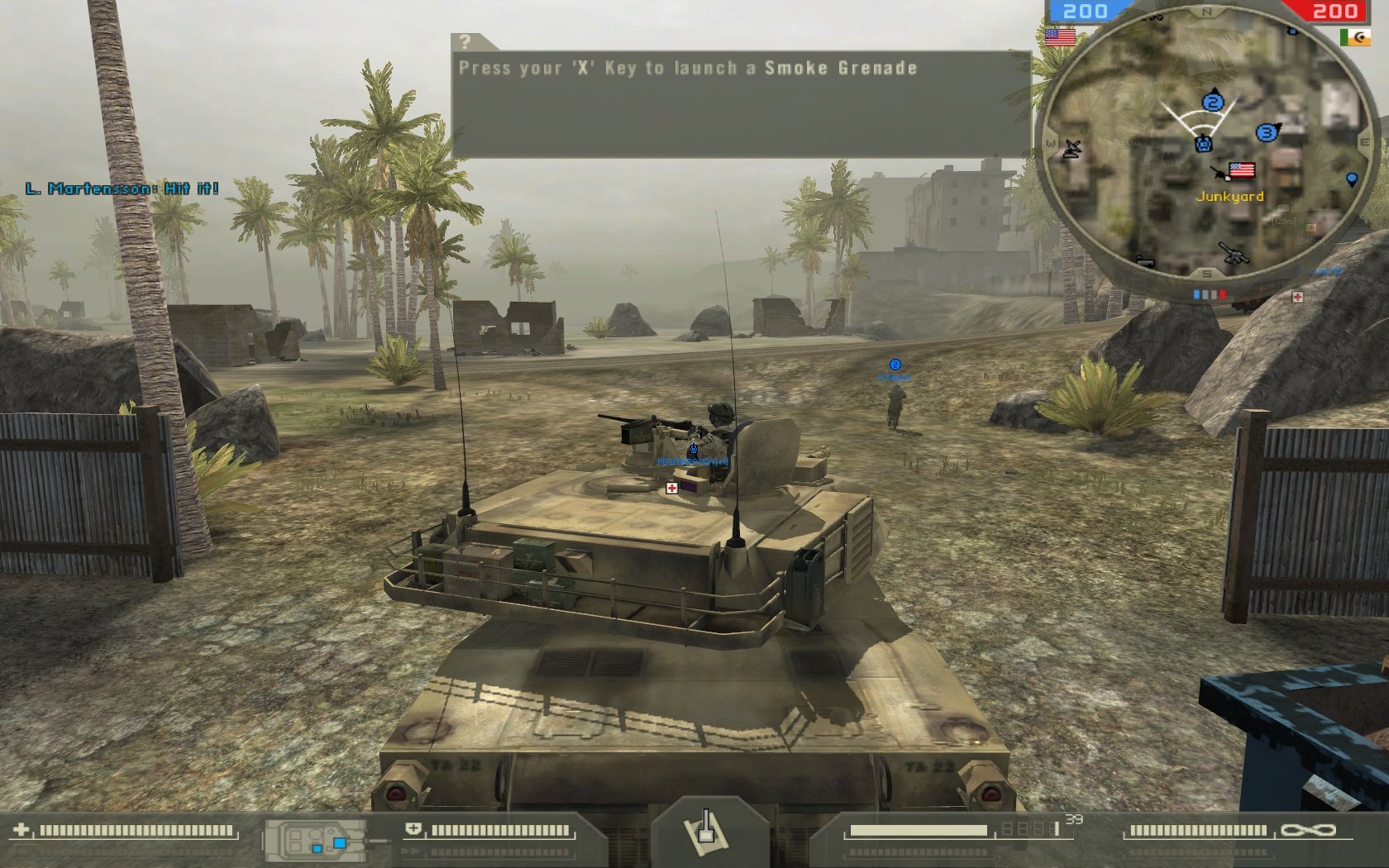
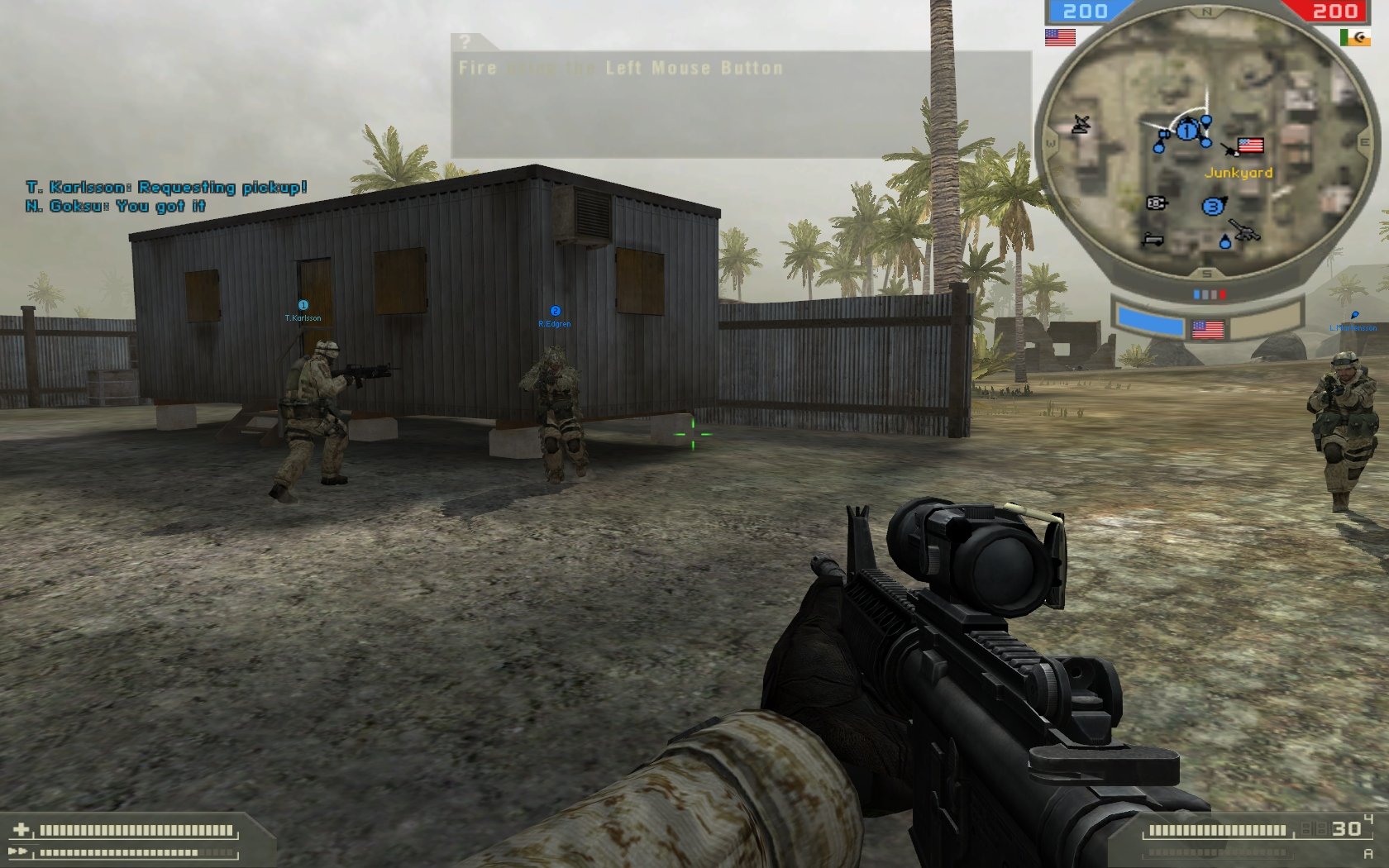
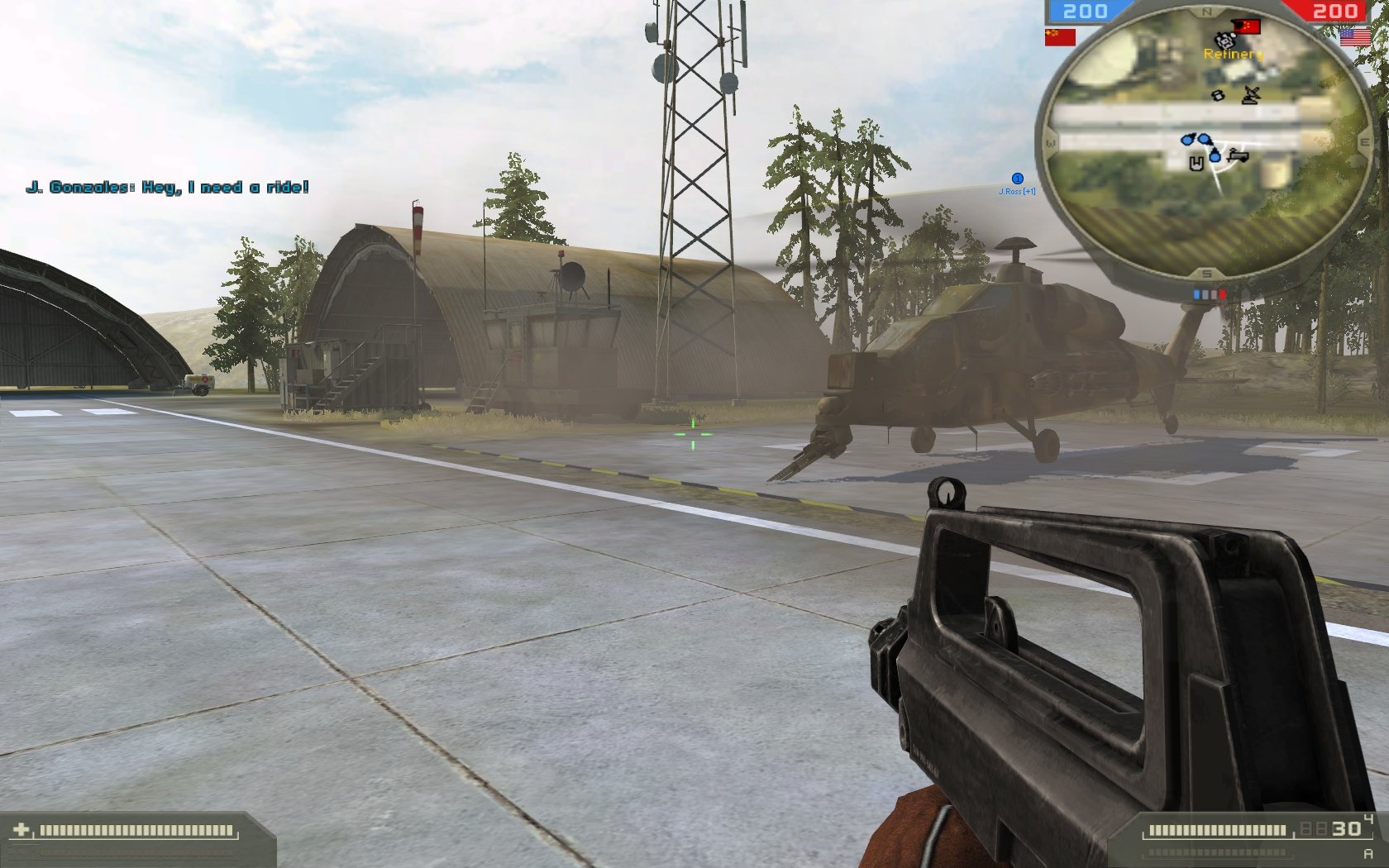
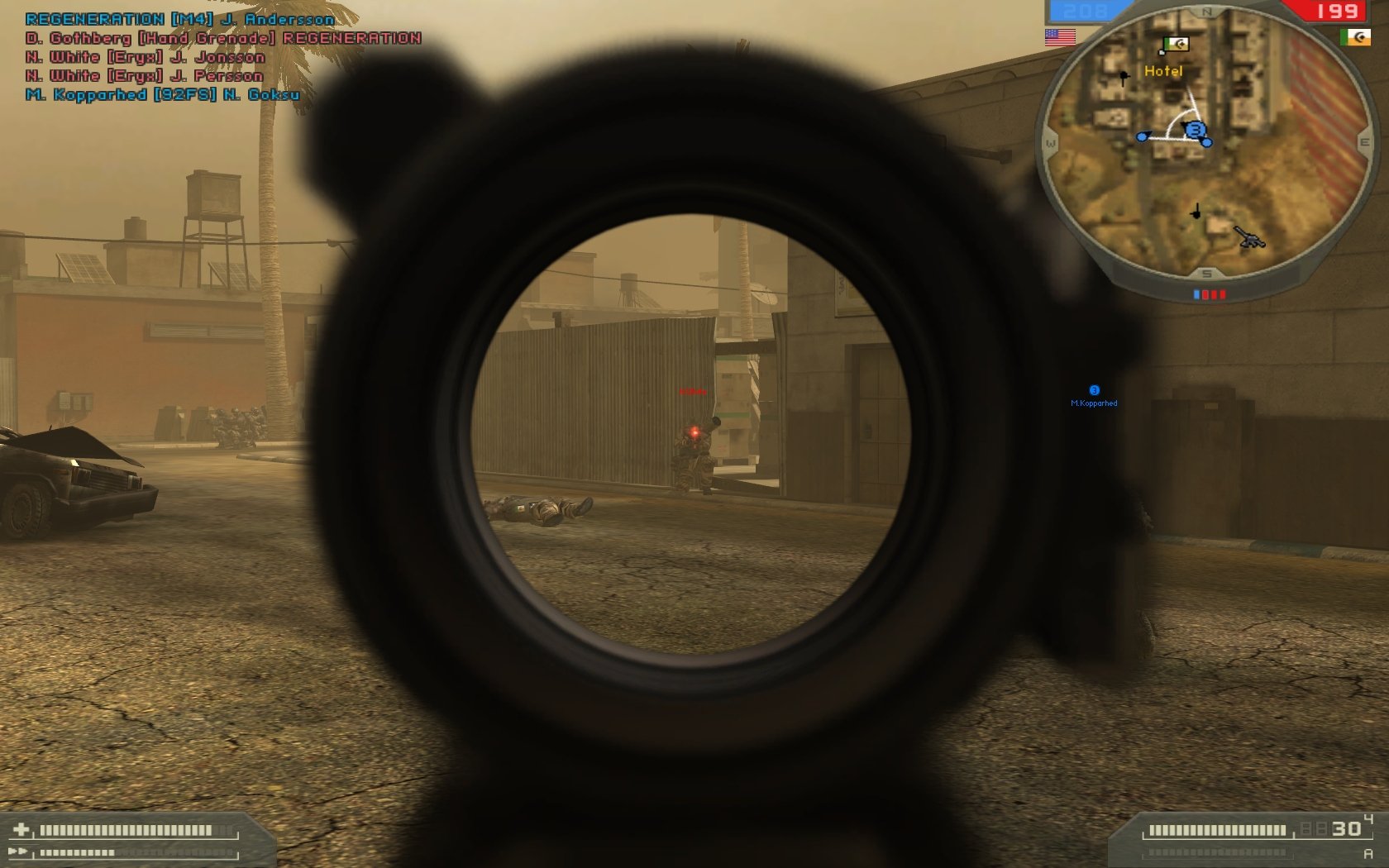
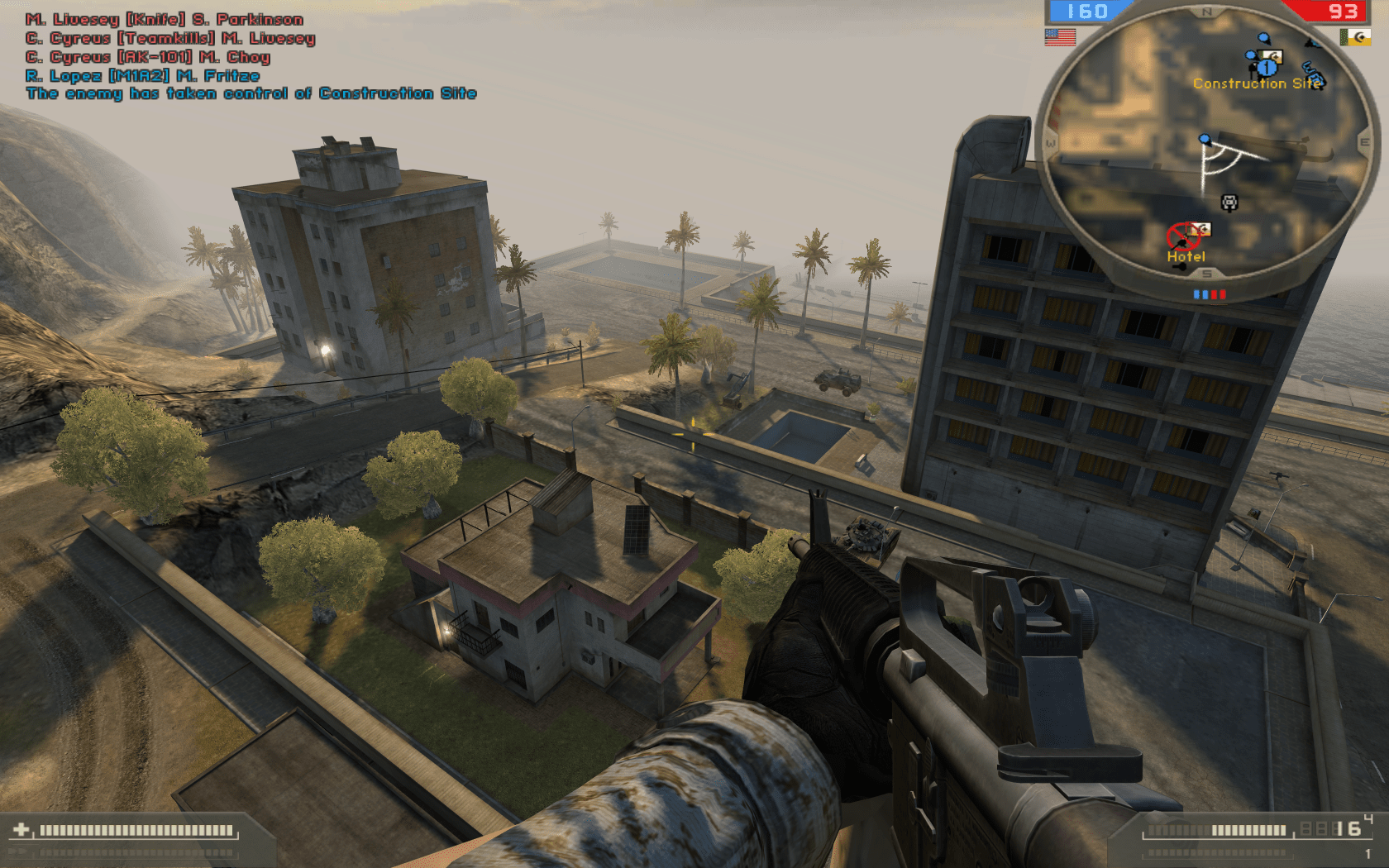
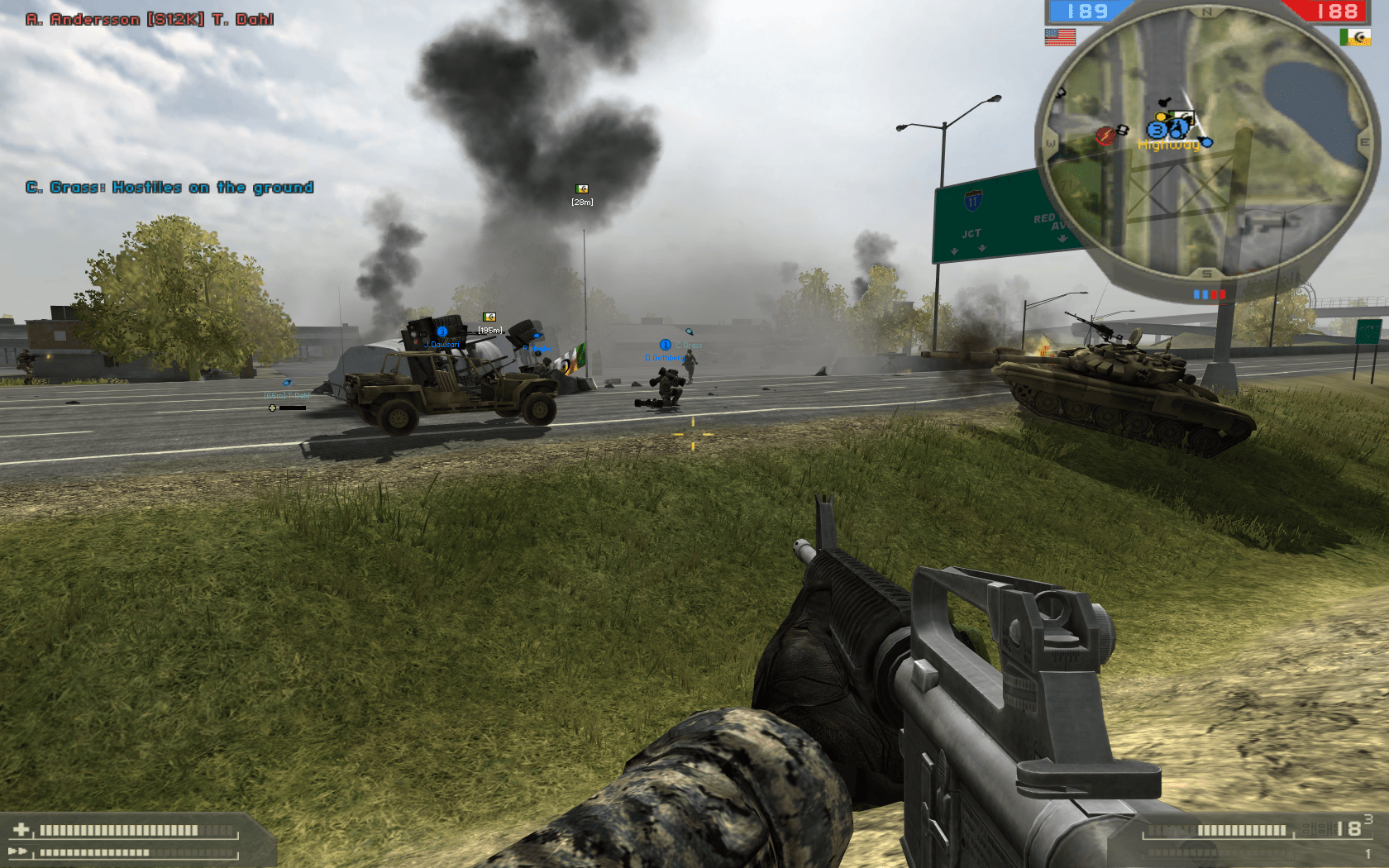
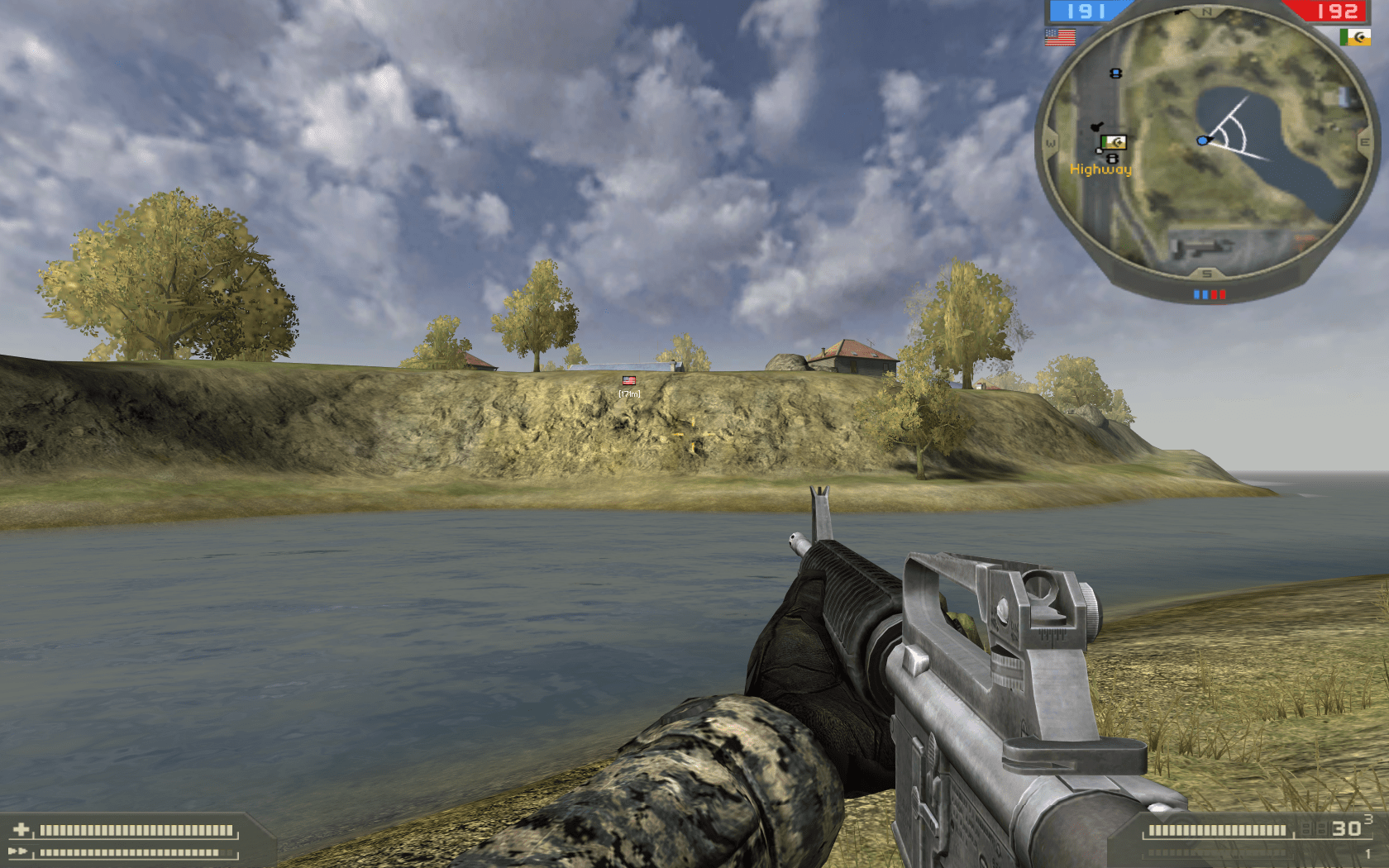
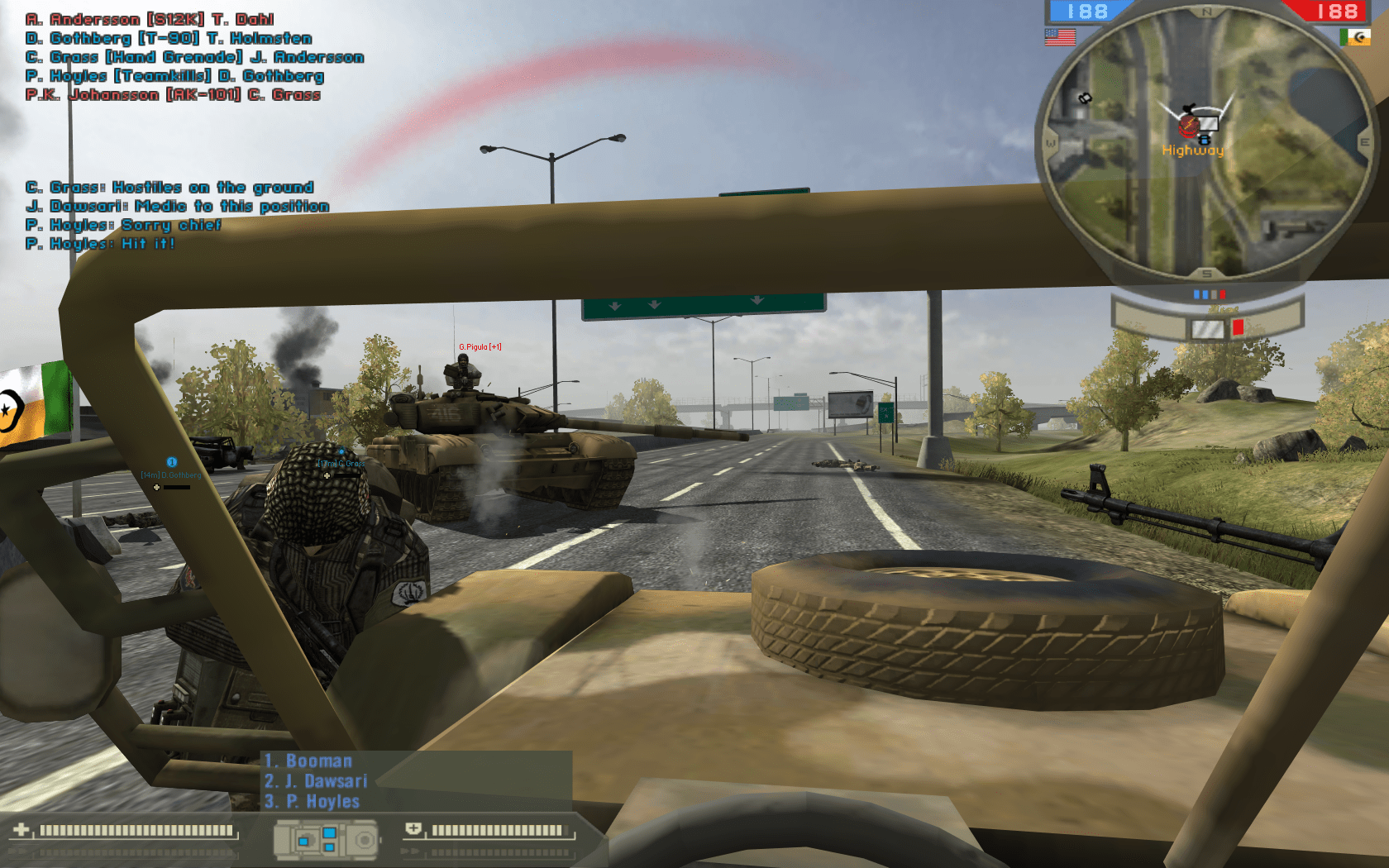
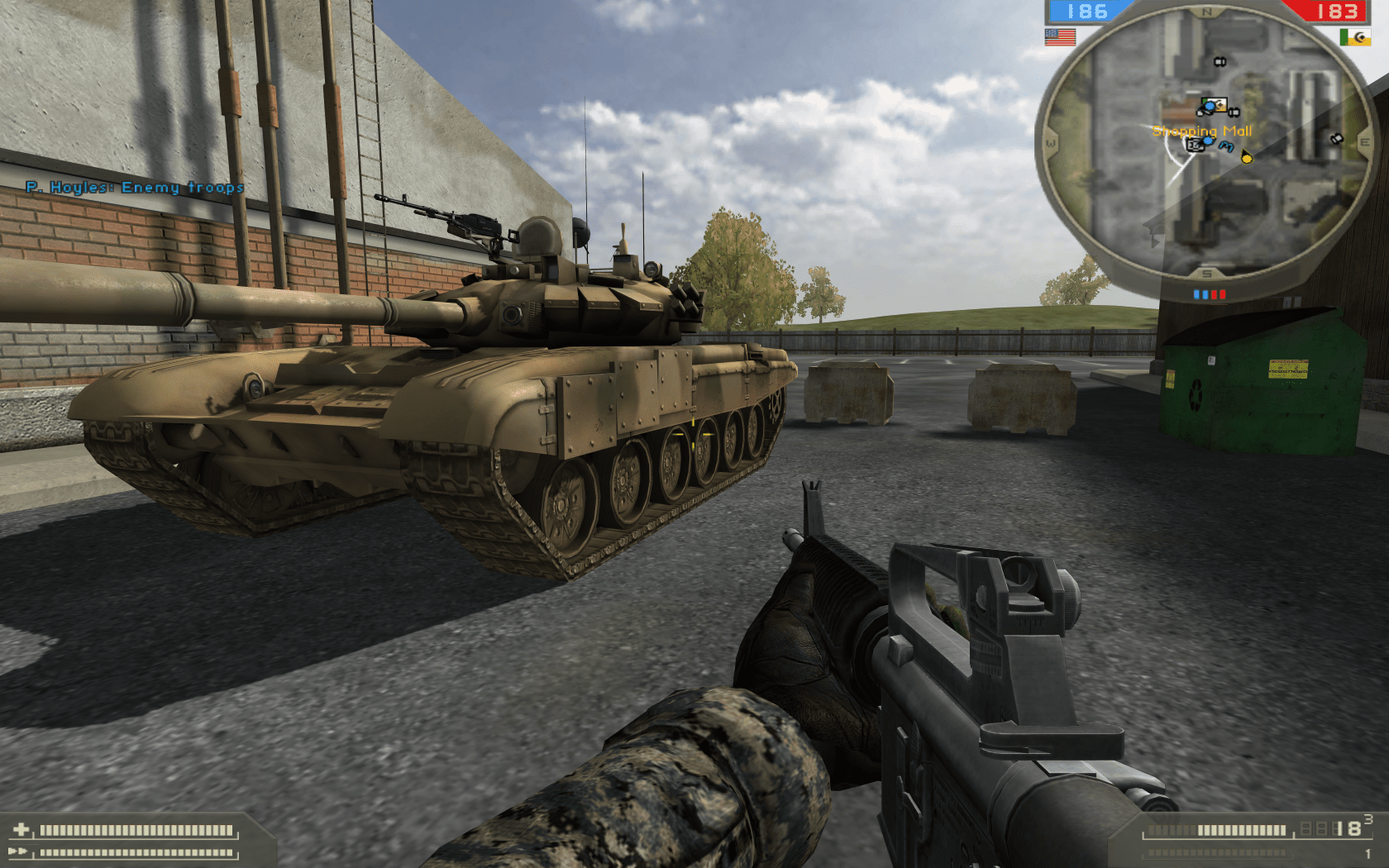
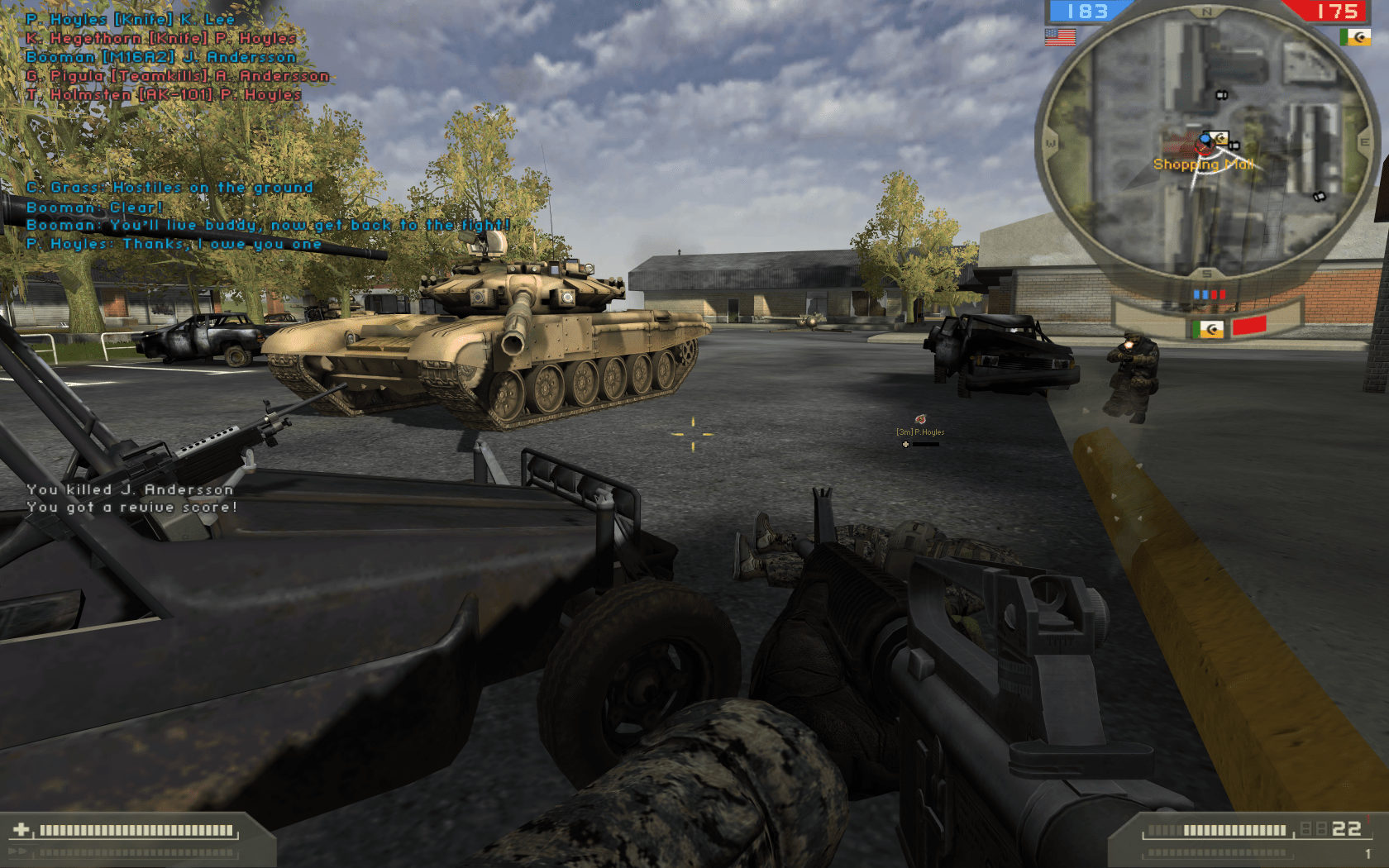
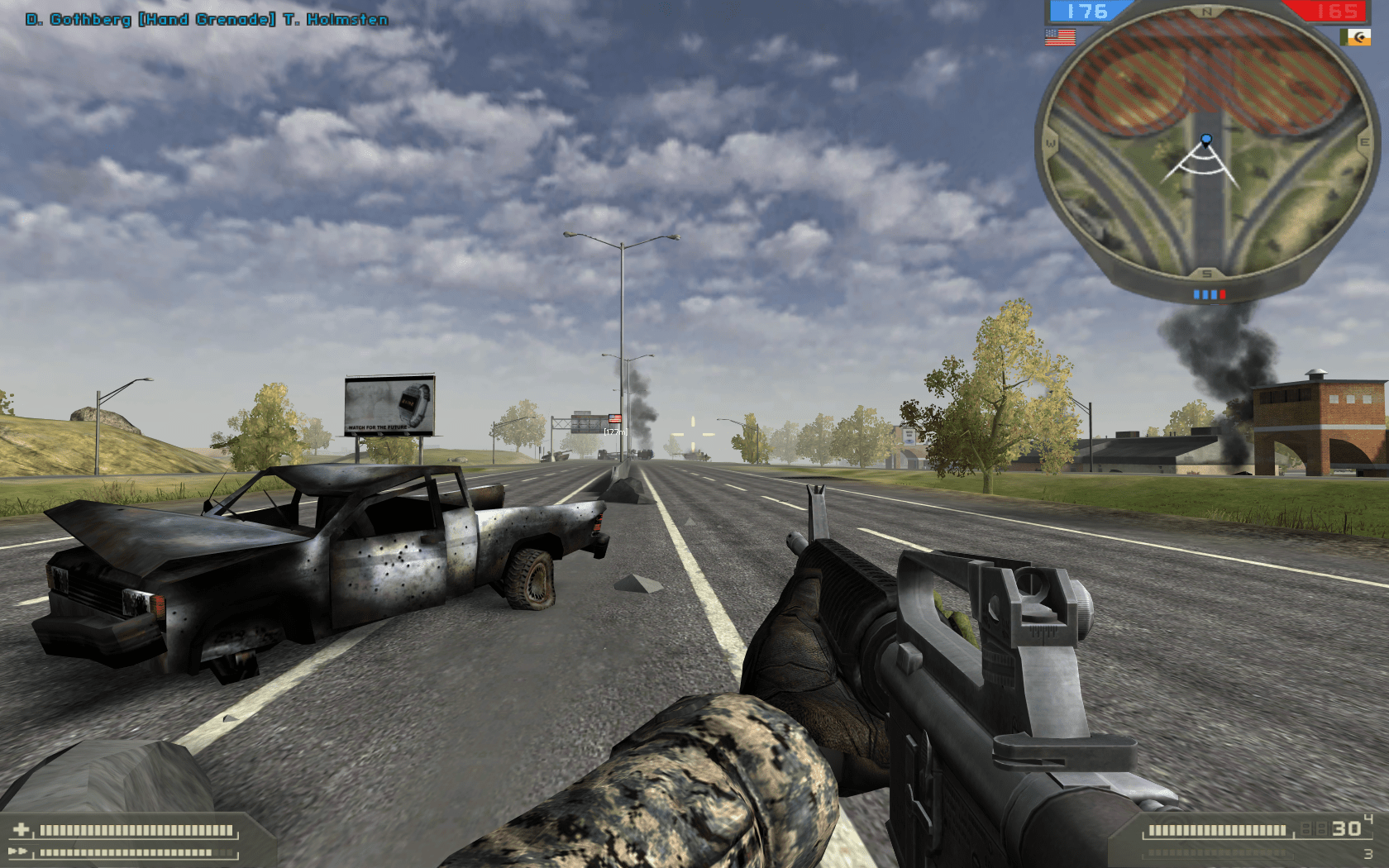
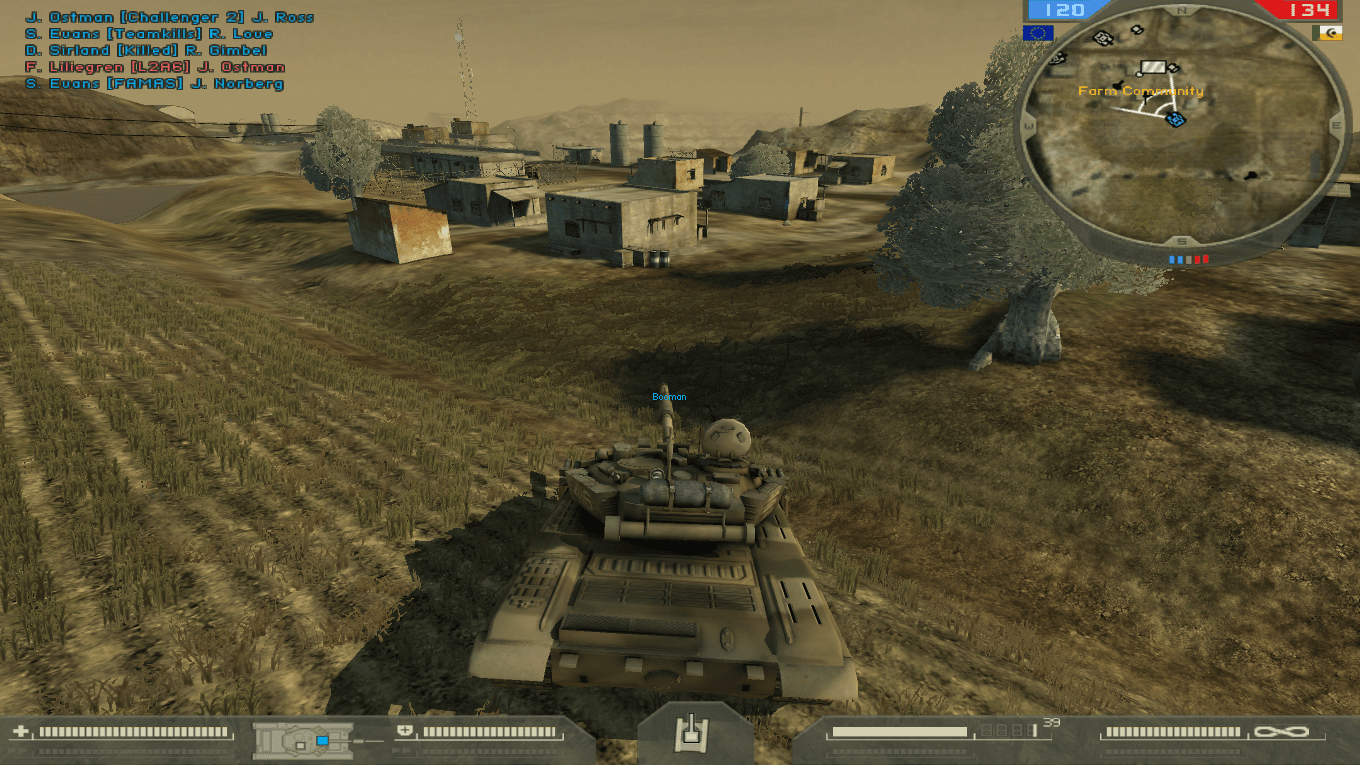
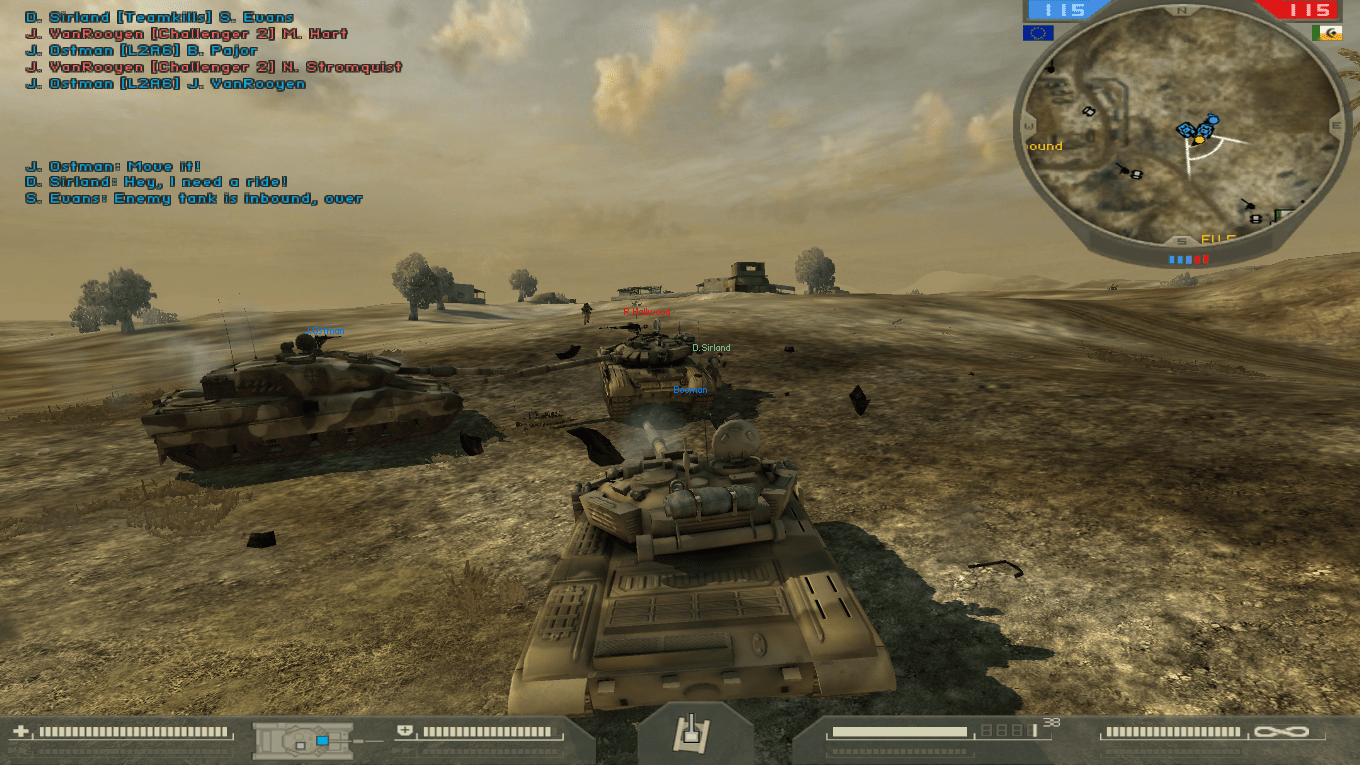
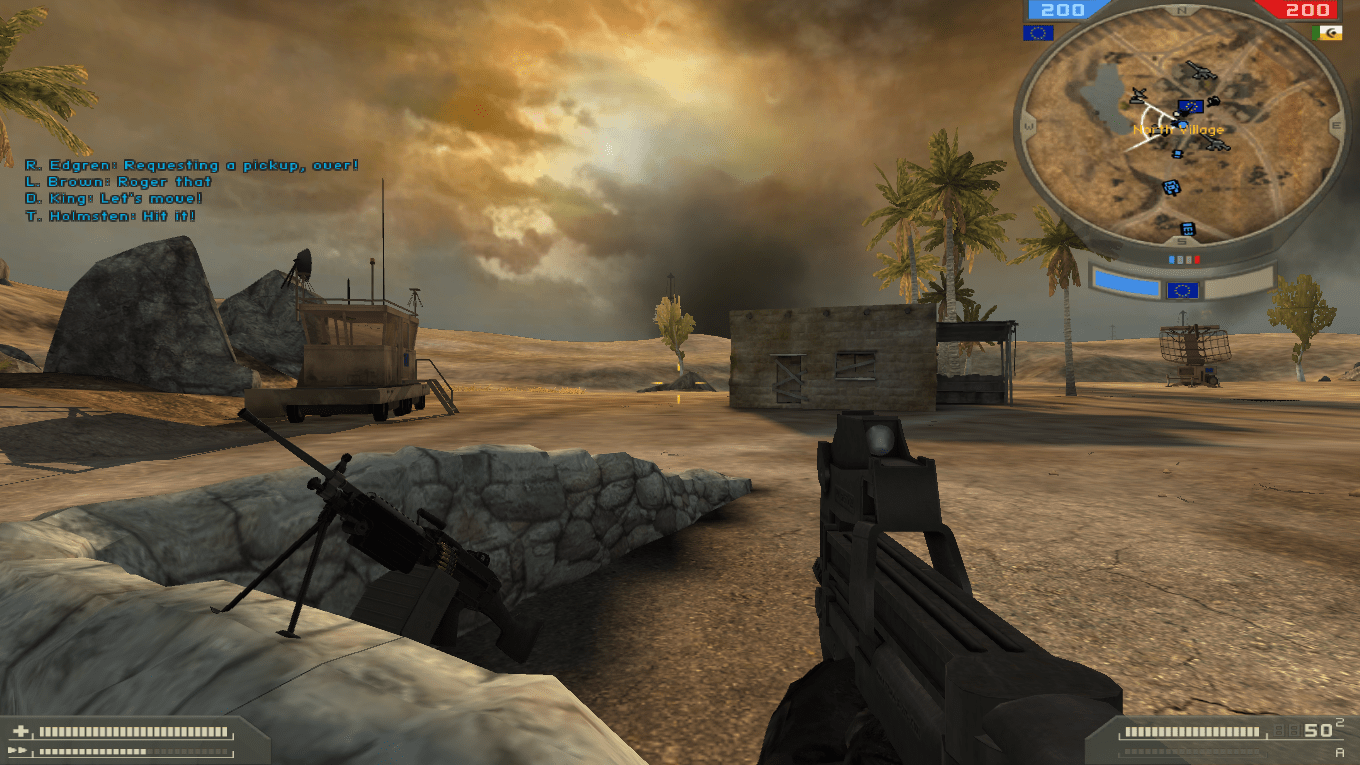
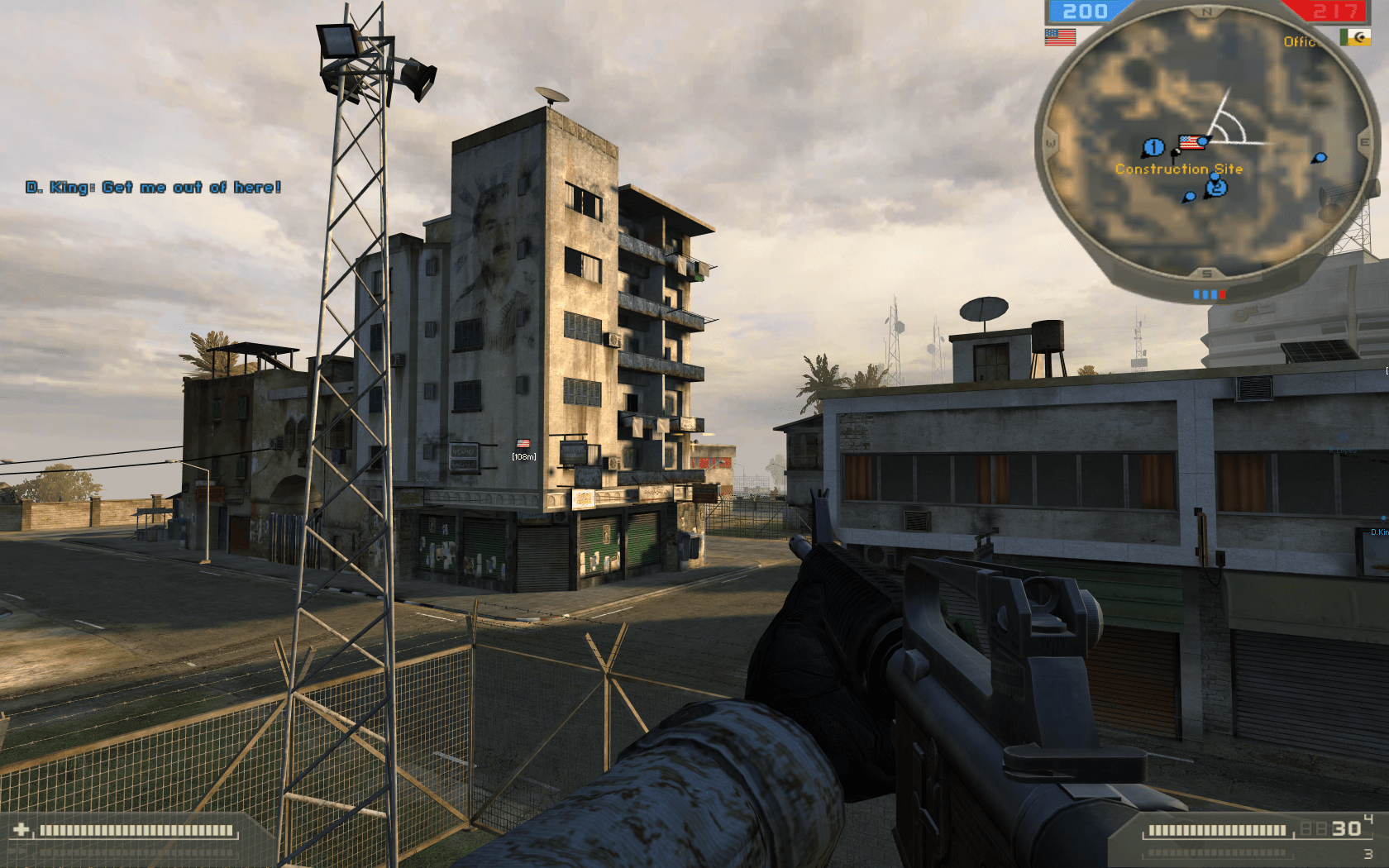
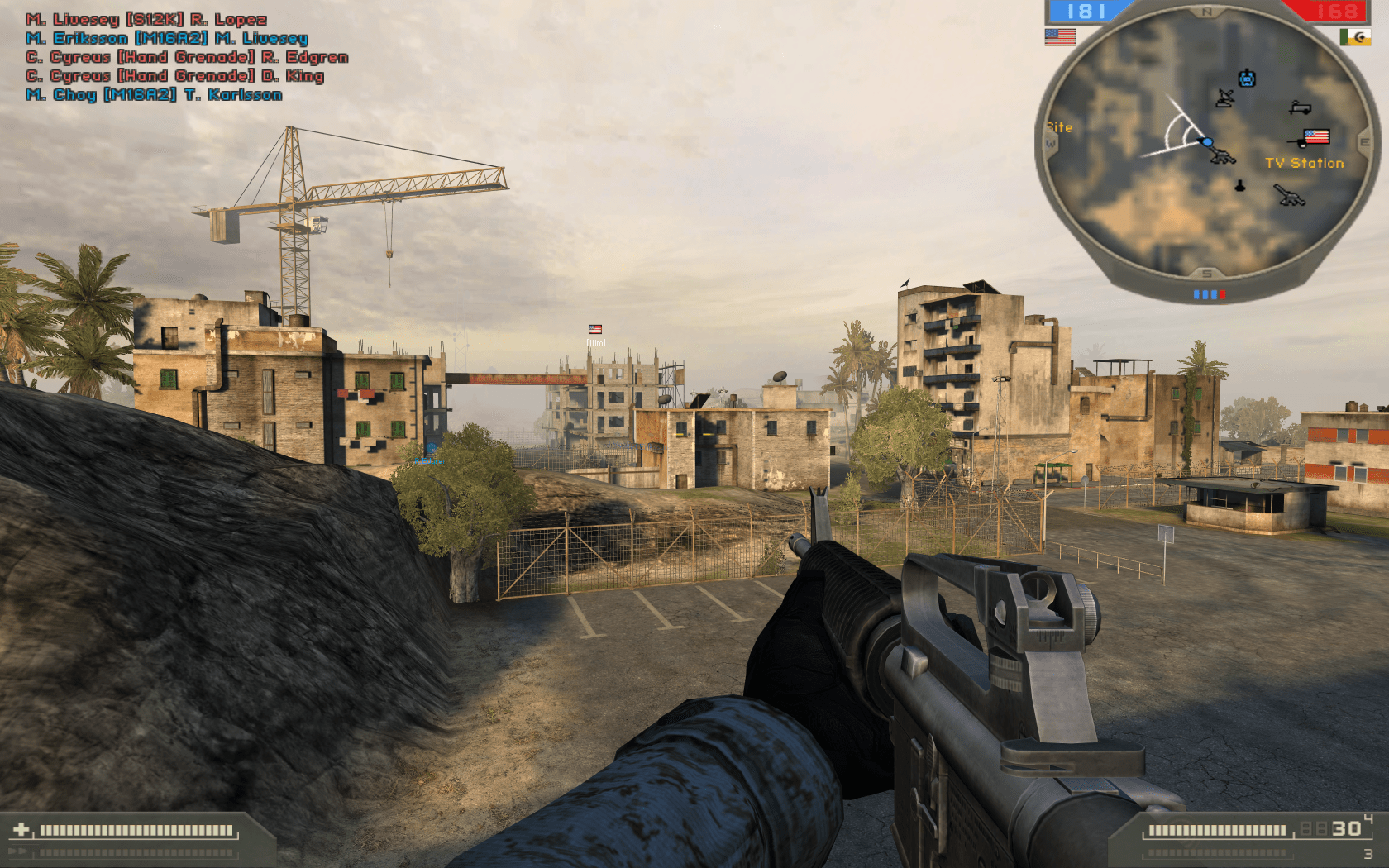
Captures and Snapshots
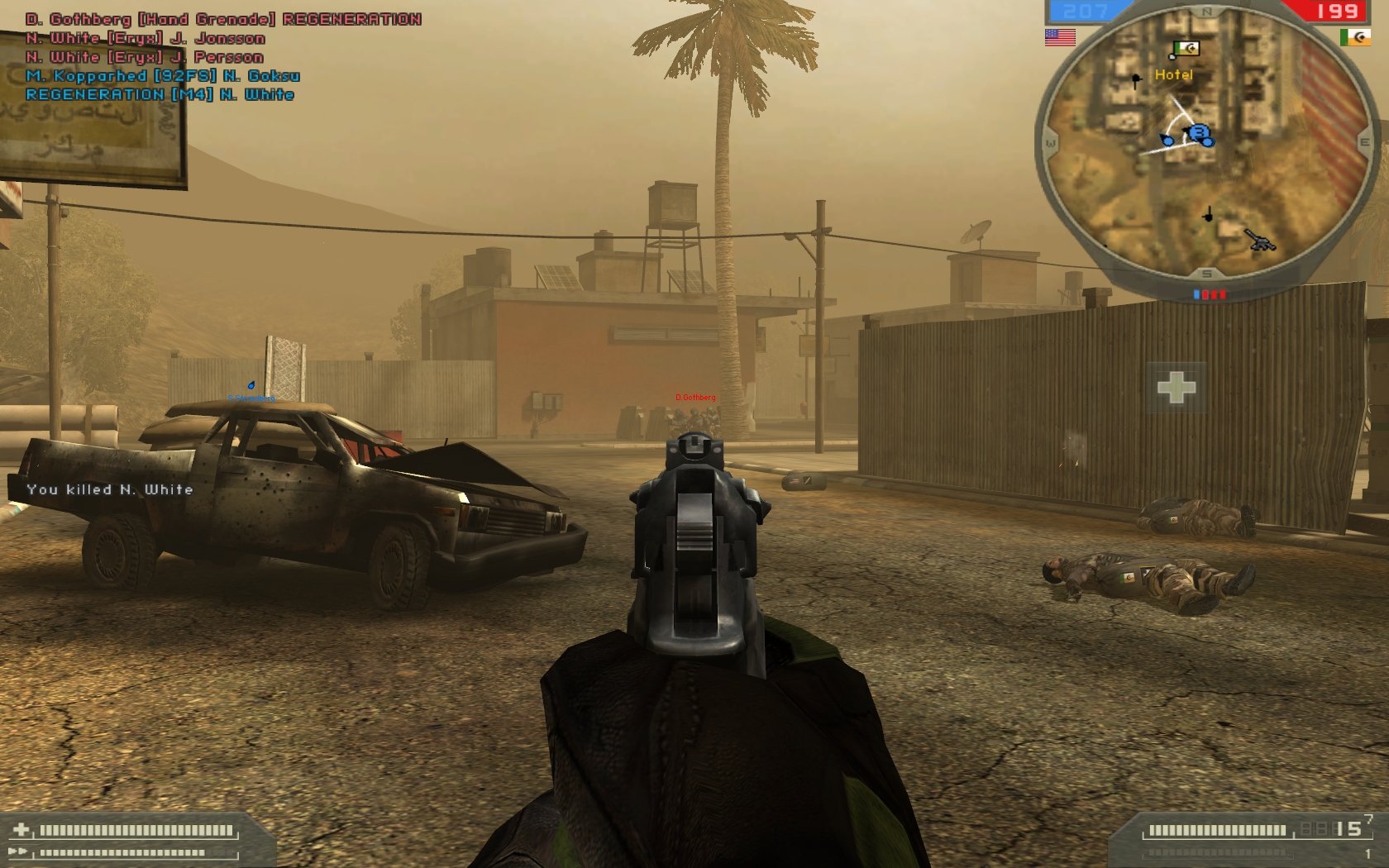
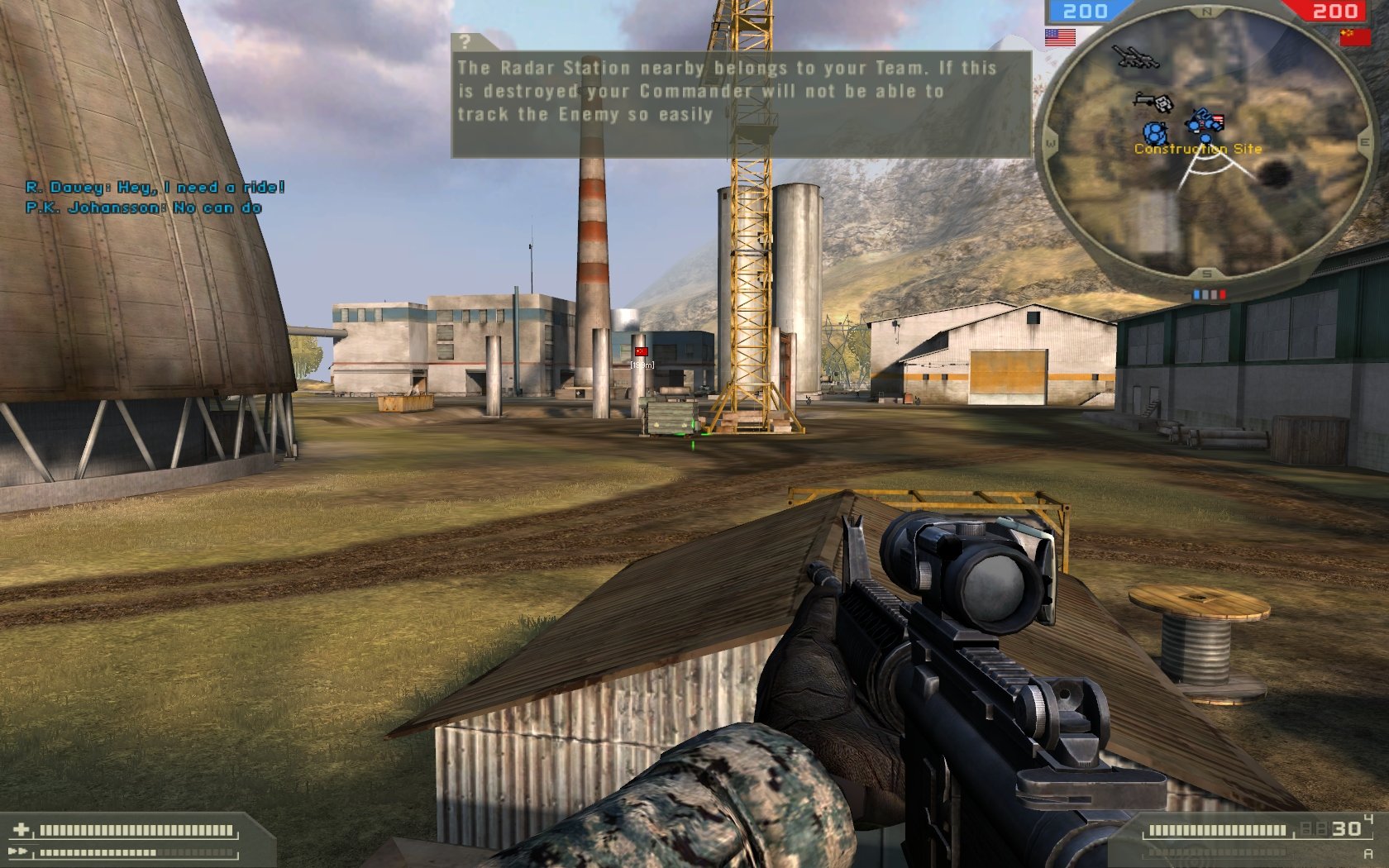
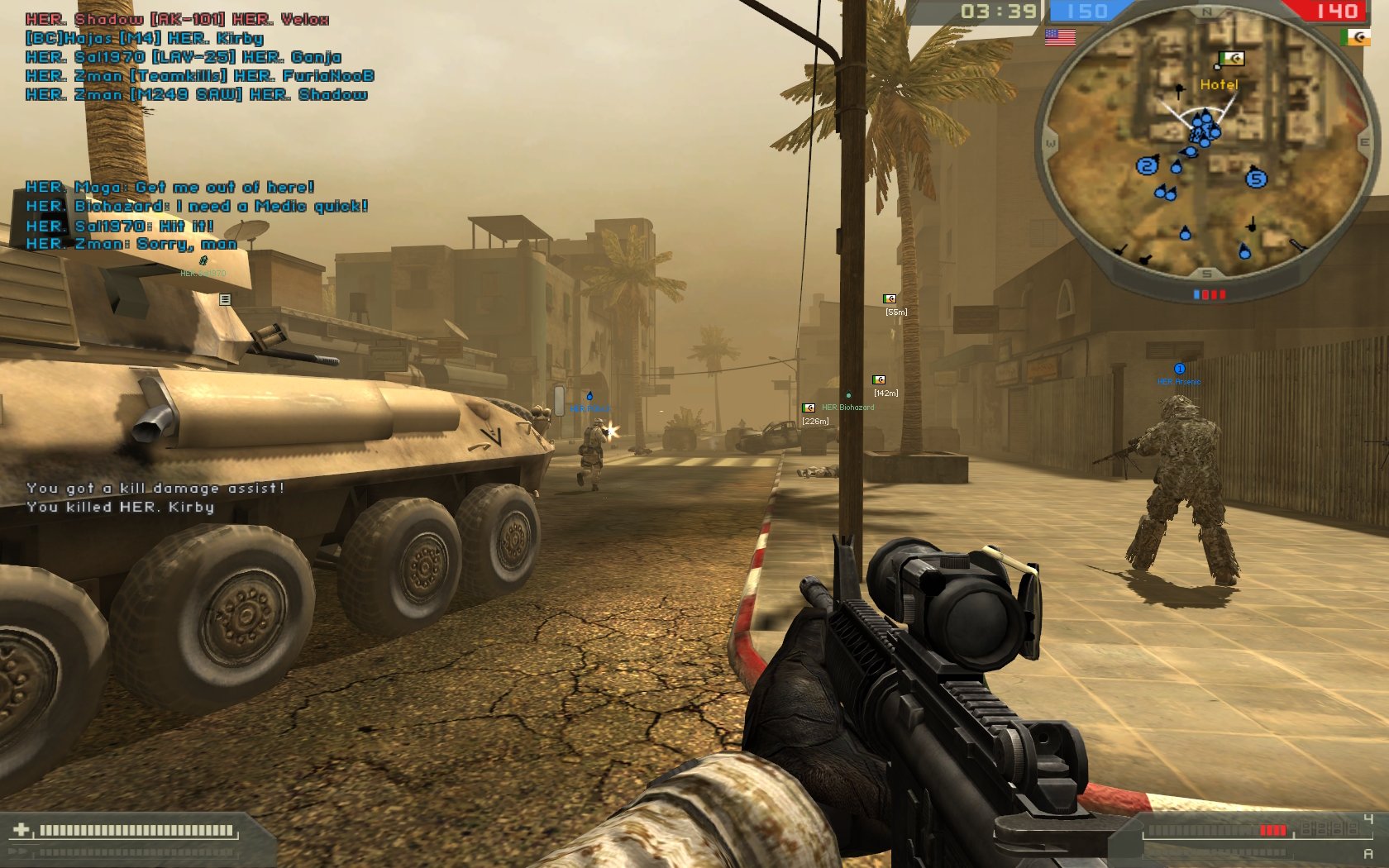
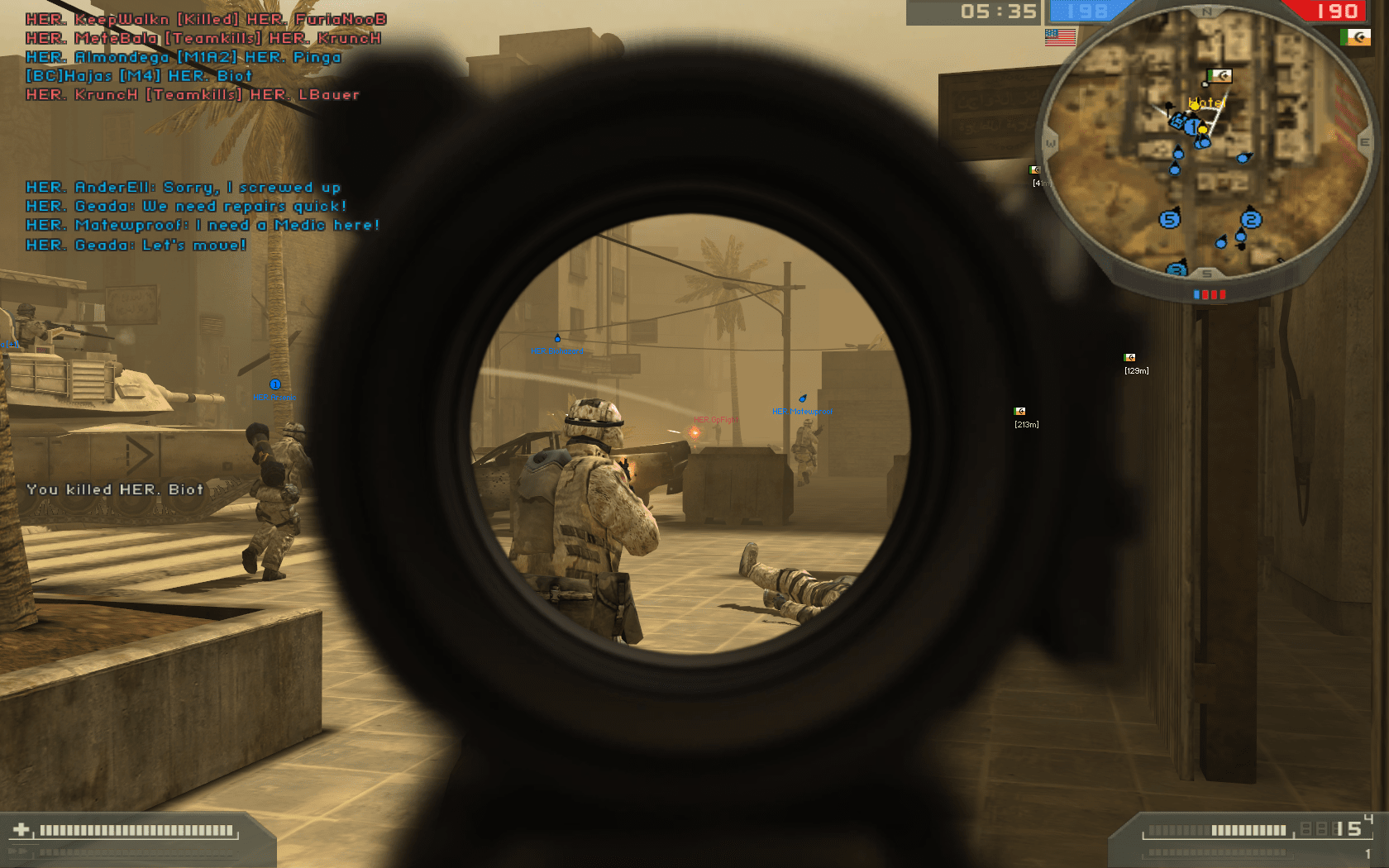
Comments and reviews
abstriker 2026-09-22 -1 point
THANK YOU MYABANDONWARE. There is an elamigos version here:-
https://www.elamigosweb.net/game/battlefield-2-complete-collection-pc-espanhol-m
sINAMA 2026-07-26 1 point
Better Bots Game Mod: https://www.moddb.com/mods/allied-intent-xtended
Brunoki22 2026-07-24 1 point
I fr had this game this entire time on my shelf and did not think of sending it here. And I bought it back when that was new! Now I feel ashamed of myself. lol
Write a comment
Share your gamer memories, help others to run the game or comment anything you'd like. If you have trouble to run Battlefield 2: Complete Collection (Windows), read the abandonware guide first!
Download Battlefield 2: Complete Collection
We may have multiple downloads for few games when different versions are available. Also, we try to upload manuals and extra documentation when possible. If you have additional files to contribute or have the game in another language, please contact us!
Windows Version
Game Extras
Various files to help you run Battlefield 2: Complete Collection, apply patches, fixes, maps or miscellaneous utilities.
The last official patch, includes Euro Force & Armored Fury booster packs, removes DRM protection


 1.9 GB
FixHotfix for the patch v1.50
1.9 GB
FixHotfix for the patch v1.50Fixes the crash issue when using Alt+Tab to switch to desktop
978 KB
FixBF2 HUD fix v0.7 by marekzajac97Fix for the correct non-stretched HUD in widescreen resolutions, works only with the game v1.50
938 KB
FixShaders Client FixFix to resolve the rendering issues when some textures turn black
6 KB
FixMouse skipping fixFixes camera “jerks” when mouse is moved horizontally
9 KB
FixBattlefield 2 mapload-delayerArtificially delays the mapload of the BF2-client so the BF2-server won't kick you
7 MB
MiscCD keys 2 KB
MiscKeygen (safe to use)Use if none of CD keys work
194 KB
MiscDedicated server for the game v1.50 310 MB
MiscLanguage Changer for Battlefield 2 and Battlefield 2142Allows to change the language of installed game
423 KB
MiscBF2 LauncherAdvanced launcher that allows to configure the game settings
333 KB
MiscHungarian translation patchShowed few generic warnings, safe to use
 3 MB
MiscPolish translation patch (only for the base Battlefield 2)
3 MB
MiscPolish translation patch (only for the base Battlefield 2)Showed some adware warnings, safe to use
229 KB
MiscPortuguese and Brazilian translation patches 
 843 KB
MiscRussian translation patch
843 KB
MiscRussian translation patch  5 MB
MiscSlovak translation patch (only for the base Battlefield 2)
5 MB
MiscSlovak translation patch (only for the base Battlefield 2)  2 MB
GuidePrima's Official Game Guide 11 MB
NocdNoCD for version 1.41
2 MB
GuidePrima's Official Game Guide 11 MB
NocdNoCD for version 1.41Not required if you use the patch v1.50
8 MB
Manual 5 MB
ManualManual from US release 4 MB
Manual 4 MB
Manual
4 MB
Manual 3 MB
Manual 3 MB
Manual 5 MB
Manual 5 MB
Manual 4 MB
Manual 3 MB
Manual 5 MB
Manual 3 MB
3 MB
Manual 3 MB
Manual 5 MB
Manual 5 MB
Manual 4 MB
Manual 3 MB
Manual 5 MB
Manual 3 MB
Similar games
Fellow retro gamers also downloaded these games: