Syndicate
Windows - 2012
| Alt name | Project RedLime |
|---|---|
| Year | 2012 |
| Platform | Windows |
| Released in | Czechia, Slovakia, United States |
| Genre | Action |
| Theme | Cyberpunk / Dark Sci-Fi, Sci-Fi / Futuristic, Shooter |
| Publisher | Electronic Arts, Inc. |
| Developer | Starbreeze Studios AB |
| Perspective | 1st-Person |
| Tested on | Windows 10, Windows 11 |
Description of Syndicate
Here is the video game “Syndicate”! Released in 2012 on Windows, it's still available and playable with some tinkering. It's an action game, set in a cyberpunk / dark sci-fi, sci-fi / futuristic and shooter themes.
External links
 MobyGames
 Wikipedia page
 PCGamingWiki
 WSGF
WSGF Mod DB
 Gameplay video
 IGDB
IGDBHow to play Syndicate Windows
Attention! Both NoDVDs showed a lot of generic warnings but they are safe to use! NoDVD by Skidrow showed 12 generic warnings, NoDVD by 3DM showed 32 generic warnings. NoDVDs are required to play the game, simply add the files to antivirus exceptions.
The game with NoDVD has been tested on Windows 7 64-bit, Windows 10 and Windows 11, it works fine. The game supports widescreen and high resolutions up to 4K. You may experience some small troubles when you play the game on modern systems, check our Guide and Notes for details
Install & play guide (for DVD version):
- Mount the disc image. You will need the utility for mounting disc image files, like WinCDEmu, UltraISO, Alcohol 52%/Alcohol 120% or Daemon Tools Lite. Or extract the files from ISO image with WinRAR, 7-zip or another file archiver tool
- Open the disc and find Syndicate.zip archive. Copy that archive to your hard drive, to some non-system folder, like
D:/Games. Extract the archive, it includes the files of installed game - (Extra note: if you try to run Autorun.exe or Setup.exe, it will start the installation of obsolete EA Origin app and will show the error)
- After you extracted Syndicate.zip archive - use NoDVD, simply copy the files from NoDVD and put them into
Syndicate/System/Win32_x86_Releasefolder, agree to replace the original files. NoDVD by Skidrow is for 32-bit variants of Windows XP, Vista and Windows 7 (maybe will work for 32-bit variants of Windows 8, 8.1 and 10), NoDVD by Fling (3DM Team) is for 64-bit variants of Windows 7, 8, 8.1, 10 and 11 - Right click on Syndicate.exe in
Syndicate/System/Win32_x86_Releasefolder -> Properties -> Compatibility -> Set "Run this app in Compatibility mode with Windows 7" and "Run as Administrator" - Launch the game and play. If the game doesn't work in compatibility mode with Windows 7 - try to launch it in Compatibility mode with other version of Windows (Windows XP, Vista, etc.)
If the installation instruction sounds too complicated for you, you can use Setup variant, it has a simple installer but doesn't include NoDVD, you will need to use NoDVD after the installation. Or you can use repack by ElAmigos, it has a simple installer and features both NoDVDs to choice from
How to disable Bloom and tweak graphical settings:
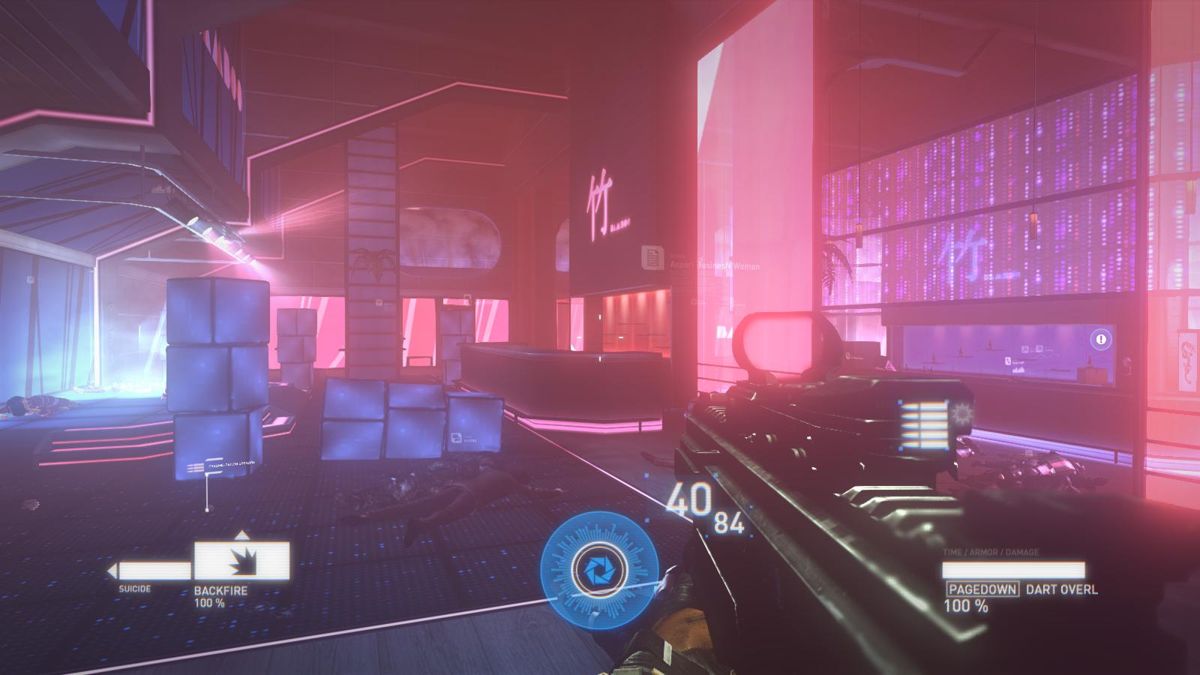
- The game has pretty aggressive Bloom effect that can be uncomfortable for the eyes. If you want to disable Bloom effect, use Syndicate DeBloom mod, it disables Bloom effect and as a side effect, disables the blue color correction. To use the DeBloom mod you need to run the game without mod at least once, to create a config-file. Here's the example screenshots how the game looks with Bloom effect and without it
- If you don't like Post effects such as Lens Flares, Motion Blur or Film Grain, you can disable them in config-file - go to
Documents/Syndicatefolder, open Environment.cfg file in Notepad and change the next parameters: changeXR_FLARES=-1toXR_FLARES=0to disable Lens Flares; changeXR_MOTIONBLUR_DOF=1toXR_MOTIONBLUR_DOF=0to disable Motion Blur (that parameter will disable Depth of Field AND Motion Blur, when character is running glow will be also disabled and picture become darker); changeXR_GRAIN=1toXR_GRAIN=0to disable Film Grain effect. If you want to return that Post effects back, just revert the changes of parameters - You can also use Syndicate Advanced Config Tool to tweak all of graphical settings, like changing the screen resolution (you can enter custom resolutions too), changing the level of Anti-aliasing and Texture filtering, enabling/disabling Post effects, etc. Also, some of hidden graphical settings can be changed through in-game console, check this guide
Notes:
- If the installation doesn't start - try to launch Setup.exe in compatibility mode with old version of Windows (98, 2000 or XP)
- It is recommended to install all versions of Microsoft Visual C++ Redistributable and NET Framework for the correct work of the game. Also it is recommended to install K-Lite Codec Pack for the correct work of in-game videos
- The game works on DirectX 9, so if you're using Windows 8, 8.1, 10 or 11 - you need to enable DirectPlay: Go to Control Panel, and select 'Programs'. Select 'Turn Windows features on and off', click on 'Legacy Components' and check the box 'DirectPlay'. Select OK, once the installation is done, restart your computer
- About NoDVDs - the game was protected with combination of SecuROM 8 and EACore DRMs and required the online activation. NoDVDs are "cracking" DRM protection and allows to play the game. There were two NoDVDs for the game: NoDVD by Skidrow that works only on 32-bit variants of Windows XP, Vista and Windows 7 (maybe will work for 32-bit variant of Windows 10 but we didn't test it), and NoDVD by Fling (3DM Team) that works on 64-bit variants of Windows 7, 8, 8.1, 10 and 11. To use NoDVD simply replace the files in
Syndicate/System/Win32_x86_Releasefolder. Both NoDVDs showed a lot of generic warnings but they are safe to use, just add NoDVD files to antivirus exceptions - If the game doesn't run or crash on start-up, here's some tips. First make sure that you added NoDVD files to antivirus exceptions, and try to run the game directly from Syndicate.exe in
Syndicate/System/Win32_x86_Releasefolder. Run Syndicate.exe in Compatibility mode with Windows 7 and as Administrator, if it didn't work - try Compatibility modes with other Windows (XP, Vista, etc.). If you have 2 or more graphics cards - select only one GPU for the game in video card control panel, additionally disable Crossfire/SLI if you use it. If you have a laptop with integrated and discrete GPUs - select discrete GPU for the game (if you use Nvidia, in Nvidia Control Panel open "Manage 3D settings" and selectPreferred graphics processor, then the game will use discrete Nvidia GPU) - If the game still doesn't start - try to add Syndicate.exe to exceptions of DEP (Data Execution Prevention), here's the guide with pictures how to add an app to DEP exceptions list. For users of Windows 10 & 11: if the game still doesn't run after you added it to DEP exceptions, or it crashes with 0xc0000005 error - that means that mandatory ASLR prevents game from running. To fix the error open Windows Defender, in
App & browser controlopenExploit protection settings, and inProgram settingsadd an exception for Syndicate.exe and disable "Force randomization for images (Mandatory ASLR)" - For users of Windows 11: on Windows 11, especially Windows 11 24H2, the game crashes after the first cutscene when the actual gameplay begins; usually that happens on newer GPUs or integrated GPUs. To fix the crash you need to use DXVK utility, to bypass D3D9 crash by converting DirectX 9 to Vulkan (you graphics card must have support of Vulkan API). Download the latest release of DXVK, extract the archive, open
x32folder and copy d3d9.dll and dxgi.dll files intoSyndicate/System/Win32_x86_Releasefolder, next to Syndicate.exe. Then launch the game, it should work. If the game still crash, try to run it again, the game may crash on the first boot, but it should work correctly afterward - For owners of Nvidia graphics cards: if the game crashes on your system, open Nvidia Control Panel and manage 3D Settings, set
Threaded Optimizationto ON. Also, if you have a laptop with Nvidia GPU and Nvidia Optimus utility, that utility might be the reason of crashes; if you have the installed Nvidia Optimus and the game crashes, configure the utility like in this guide - If the game crashes with Visual C++ Runtime Error R6034 on start-up - go to
Syndicate/System/Win32_x86_Releasefolder and remove or rename atiags.dll file - If you get "Could not Activate" error on the launch - use NoDVD and make sure that your antivirus didn't delete the files of NoDVD. If you still get that error - go to
Program Files (x86)/Electronic Arts/EA Services/License(for 32-bit Windows the path is the same but inProgram Files) and remove 71061.dlf file - The game had online cooperative mode but the official online service was shut down on June 15, 2023, so better do not try to launch Coop game, otherwise the game may crash, endlessly trying to connect to disconnected servers
- For owners of 11th and 12th gen Intel CPU: the game crashes on that CPUs because the versions of OpenSSL 1.0.2 beta to OpenSSL 1.0.2k contain bugs that either cause a crash or bad SHA (Secure Hash Algorithm) values on processors with the SHA extensions. That bugs were fixed years ago but still may cause the crash in old games or applications. To fix the crash you need to configure the settings of your system as in this guide
- The game has 6 languages, with full audio & text for English, French, German & Italian languages and text & subtitles for Spanish & Russian languages. You can easily change the language of installed game through Windows Registry. Press Win+R, type regedit.exe and press Enter to open Registry Editor, go to
HKEY_LOCAL_MACHINE\SOFTWARE\WOW6432Node\Starbreeze\Syndicatepath (if you use 32-bit system, the path is the same but withoutWOW6432Node) and change theLocaleparameter: enteren_ENoren_USfor English language,fr_FRfor French,de_DEfor German,it_ITfor Italian,es_ESfor Spanish,ru_RUfor Russian. If you did everything correctly, the game should automatically change the language on the next launch, but if you still have the old language, go toDocuments/Syndicatefolder, open Environment.cfg file in Notepad and changeDEFAULTGAMEPATH=andLANGUAGE=lines, that lines should be set to the language you need (the language's folder in the game directory), like if you want to set the Spanish language, it should beDEFAULTGAMEPATH=Content;Content_Spa,LANGUAGE=Spa - There might be the game-breaking bugs on high framerates. The game has maximum framerate cap at 200 FPS, but there can be glitches and bugs on high framerate. As example, on DownZone Level the main character falls through the ground if the framerate is above 140 FPS. The solution is to set the framerate cap, either with one of framerate limiter utilities or by enabling Vertical Sync (Vsync) in the game, with Vsync the game will run with framerate equal to screen refresh rate (framerate in FPS = refresh rate in Hz, for example if you set 60 Hz refresh rate, the game will run with 60 FPS). The recommended framerate cap is somewhere between 60~120 FPS
- Enabling Vertical Sync (Vsync) in the game may result to mouse lag. If you notice that mouse movement is lagging, disable Vsync in the game and enable Vsync in control panel of your video card, for example, Nvidia Fast Sync will eliminate both mouse lag and tearing
- The game supports widescreen and high resolutions up to Ultra HD 4K. Unfortunately, the subtitles doesn't scale and can be too small to read at 4K, but all other text and HUD scales properly. The game doesn't let you to select some screen ratios and screen resolutions, like 15:9 screen ratio or 1360x768 resolution; but you can enable them through config-file: go to
Documents/Syndicatefolder, open Environment.cfg file in Notepad and setVID_DWIDTH=andVID_DHEIGHT=to the desired values (for example, if you want to set 1920x1080 screen resolution, enterVID_DWIDTH=1920andVID_DHEIGHT=1080). Tweaking graphical details will not alter the resolution setting. That way you can set any desired screen resolution, even for ultra-wide displays or multi-monitor setups, check WSGF page for more details and example screenshots - The default Field of View (FOV) in the game is 70°, and it is not possible to change FOV in the game. To change FOV in the game use Syndicate FOV mod - choose a fitting FOV and copy its GameClasses_Win32_x86_Release.dll file to
Syndicate/Contentfolder. Please note that modified FOV doesn't scale well with Iron-sights, also on Windows 10 & 11 this hack may result in game's not being able to save its settings and campaign progress - If you want to run the game in Windowed mode, go to
Documents/Syndicatefolder, open Environment.cfg file in Notepad and in the lineVID_FULLSCREEN_WINDOWED_TOGGLE_ENABLED=0enter1instead of0. Save the changes, now when you run the game next time you'll be able to toggle between Fullscreen and Windowed modes by pressing Alt+Enter. That edit of config-file is also required if you want to run the game through Borderless Gaming app - If you have no sound or weak sound when you play the game on Windows XP, Vista or Windows 7, try the methods from this guide. Additionally, try to change the system's sound quality to 24 bit, 48000 Hz or 24 bit, 44100 Hz, here's the guide how to do that
- The game has controller support but only for XInput-type controllers (Xbox gamepad or similar). If you have another type of gamepad or the game doesn't recognize your controller - try to use one of the additional tools from PCGamingWiki guide for controllers. If you want to remap the controller, go to
Documents/Syndicate/SaveGames/defaultfolder and open _ profile file in Notepad, the mappings marked with the“2” e.g *ACTION_SPRINT2 166 - There's a bug in the game that if you have both the keyboard and gamepad connected, the game will be showing only the gamepad controls. To fix it make sure that any physical gamepads or joysticks are unplugged, additionally check any gamepad entries in Device Manager as in this guide. If it didn't help, you will need to HeX-edit MSystem.dll file of the game to remove the controller support, here's the guide how to do that (don't forget to make a back-up copy of original file!)
- If you have a gaming software by Logitech, such as an utilities for Logitech G-series keyboard or Logitech SetPoint tool - you need to manually create a profile for the game, because Logitech gaming software doesn't create profiles for the game automatically. Follow this guide how to create a profile for the game in Logitech gaming software
- Don't forget to check PCGamingWiki if you have troubles, it is very useful!
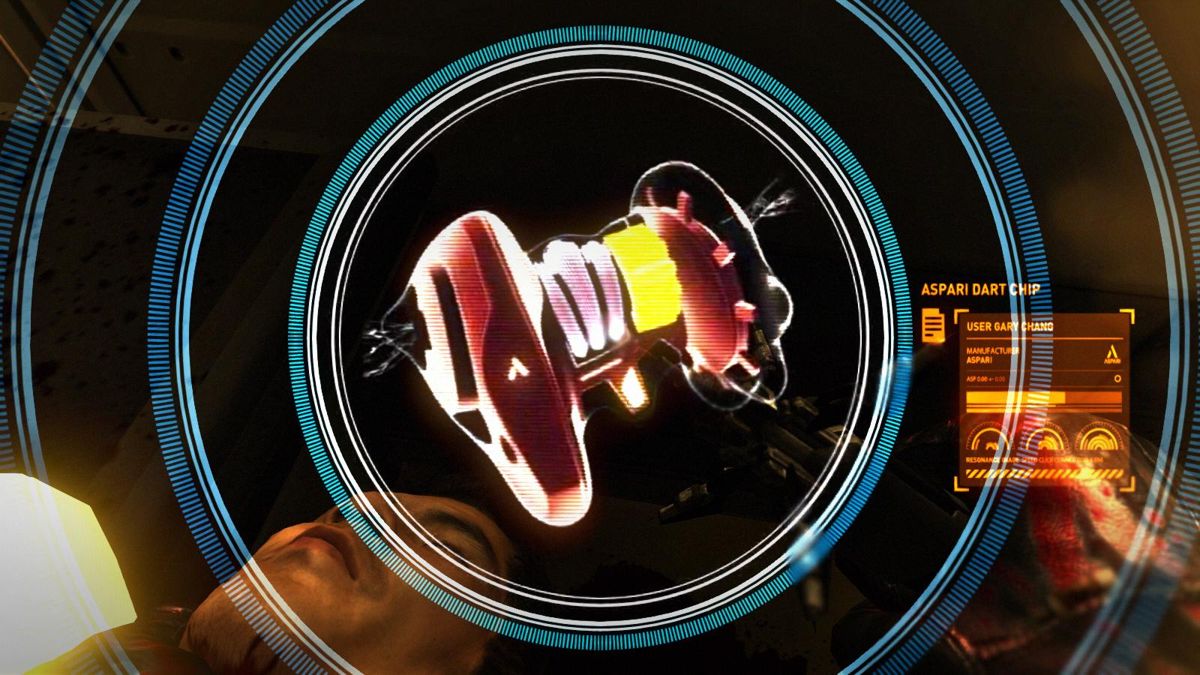
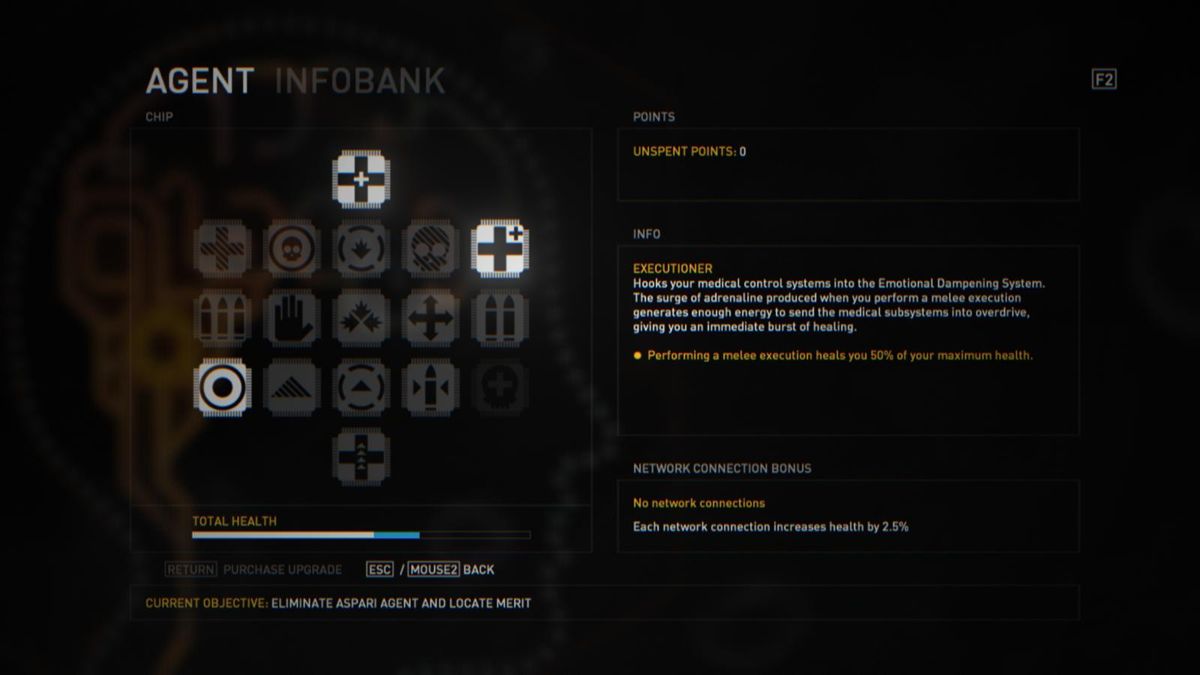
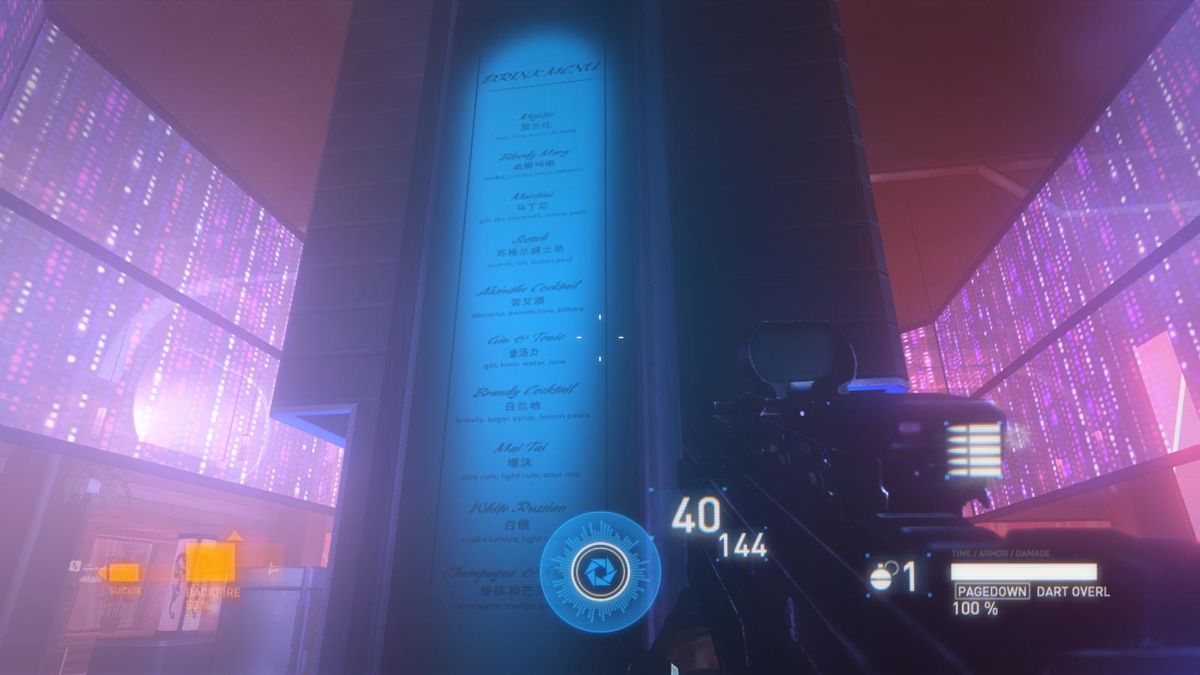
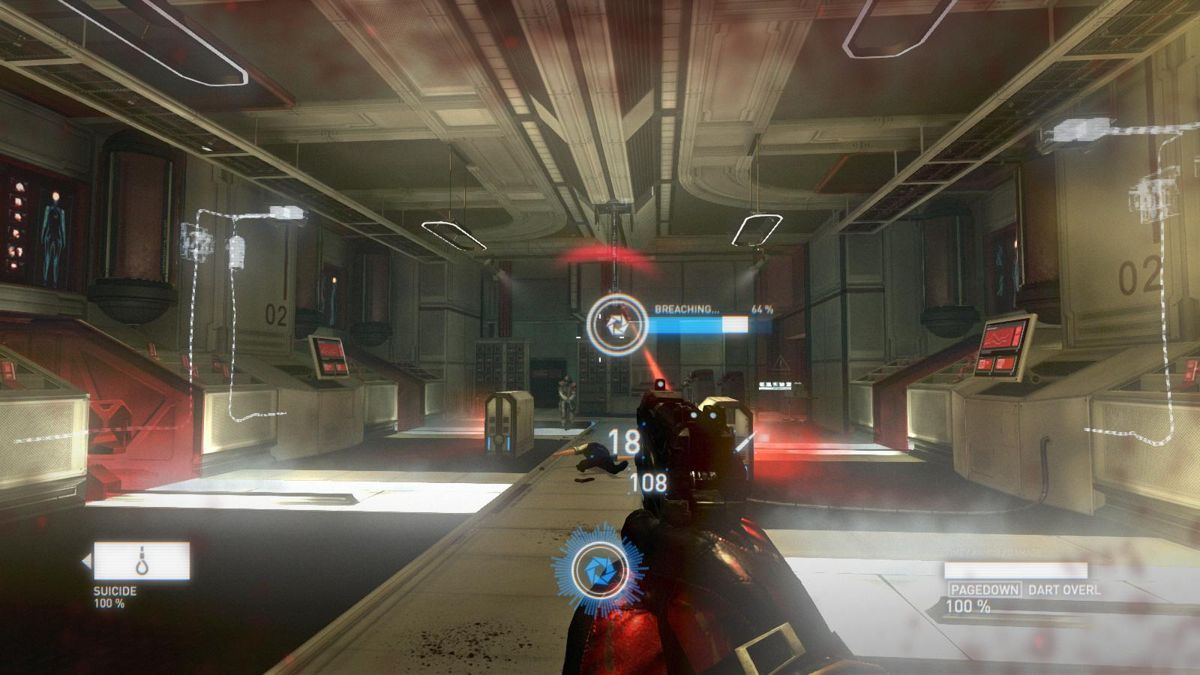
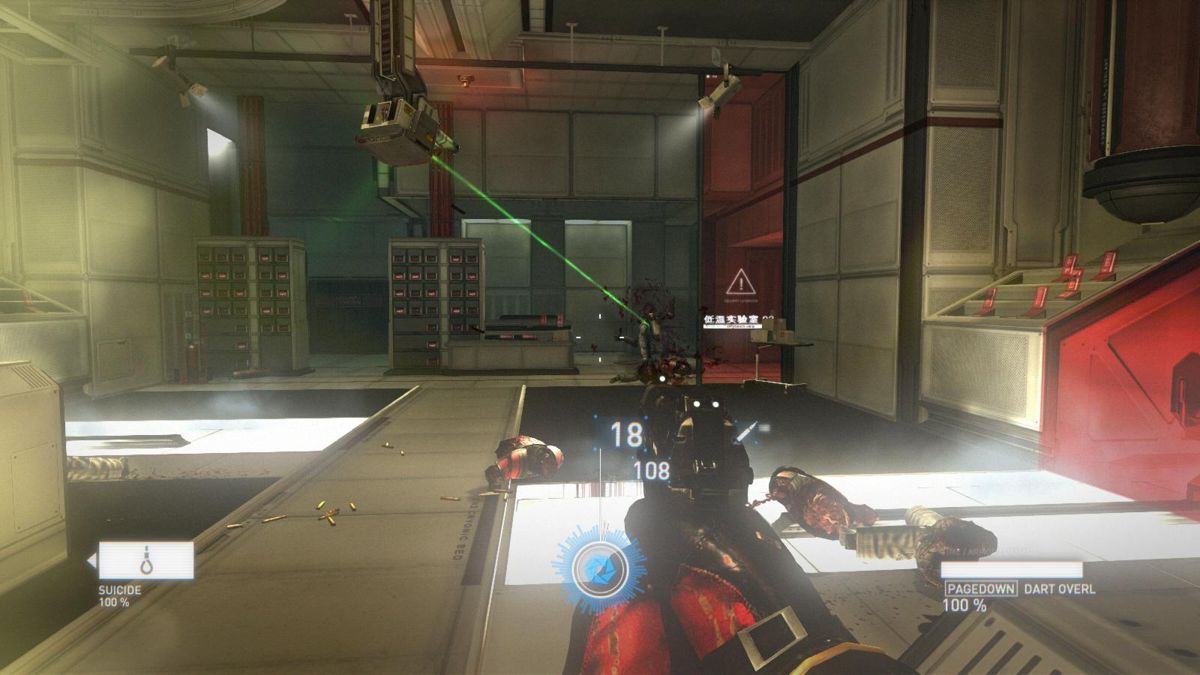
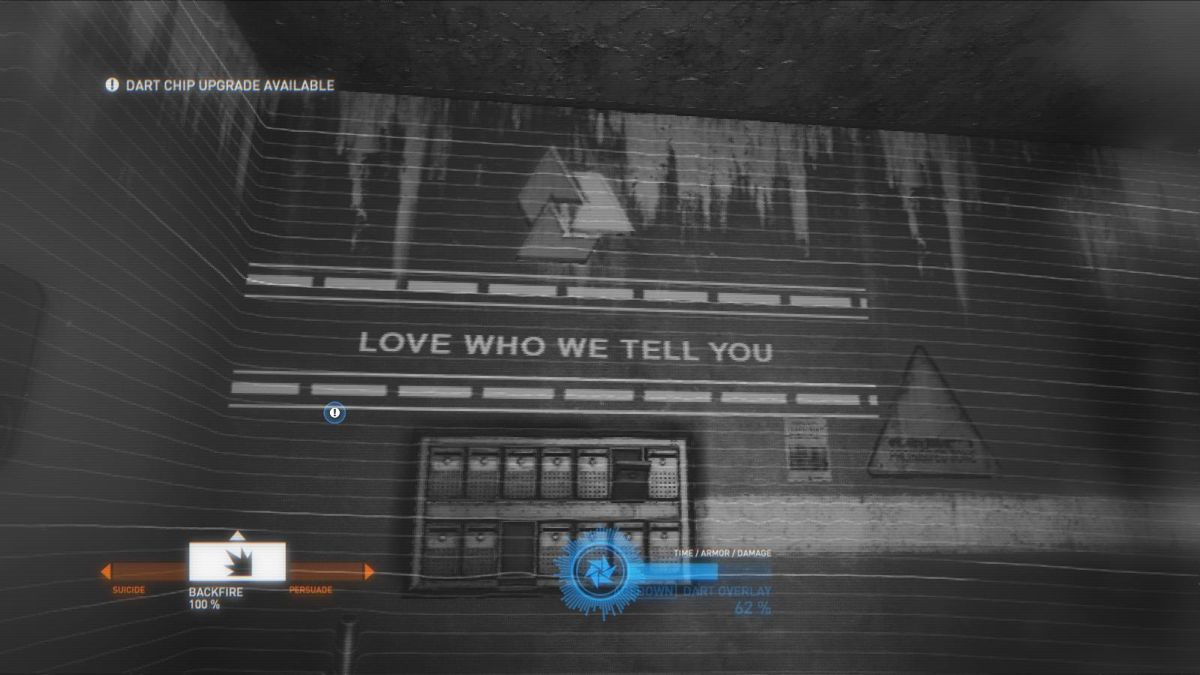
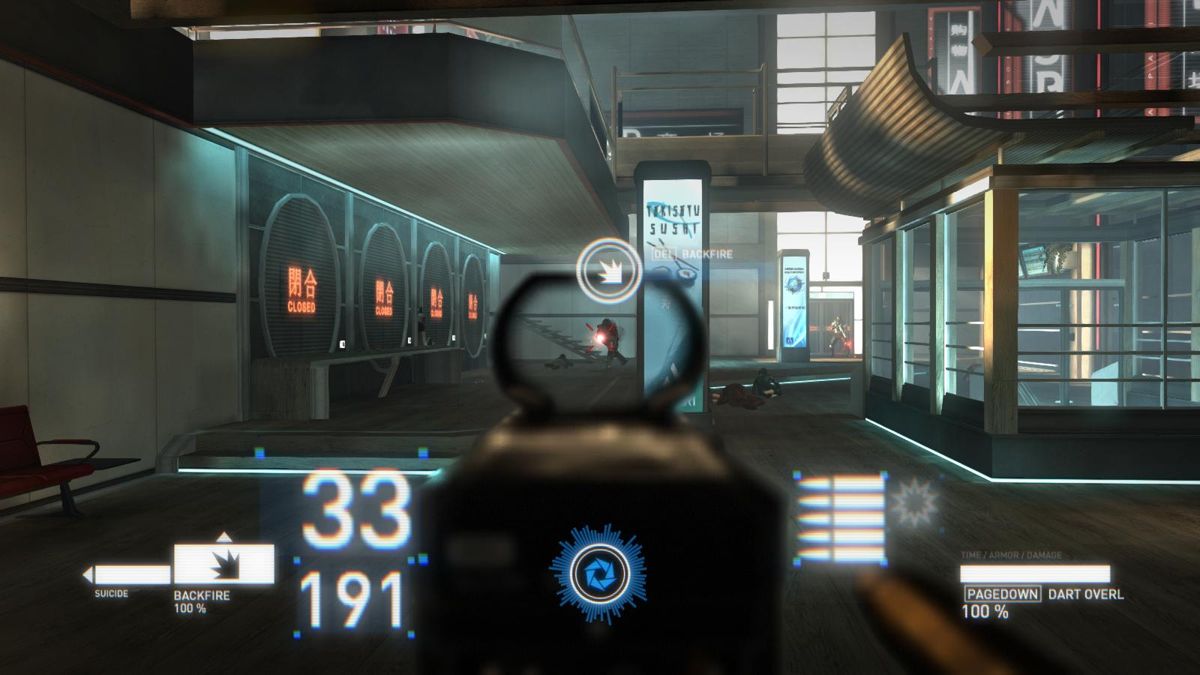
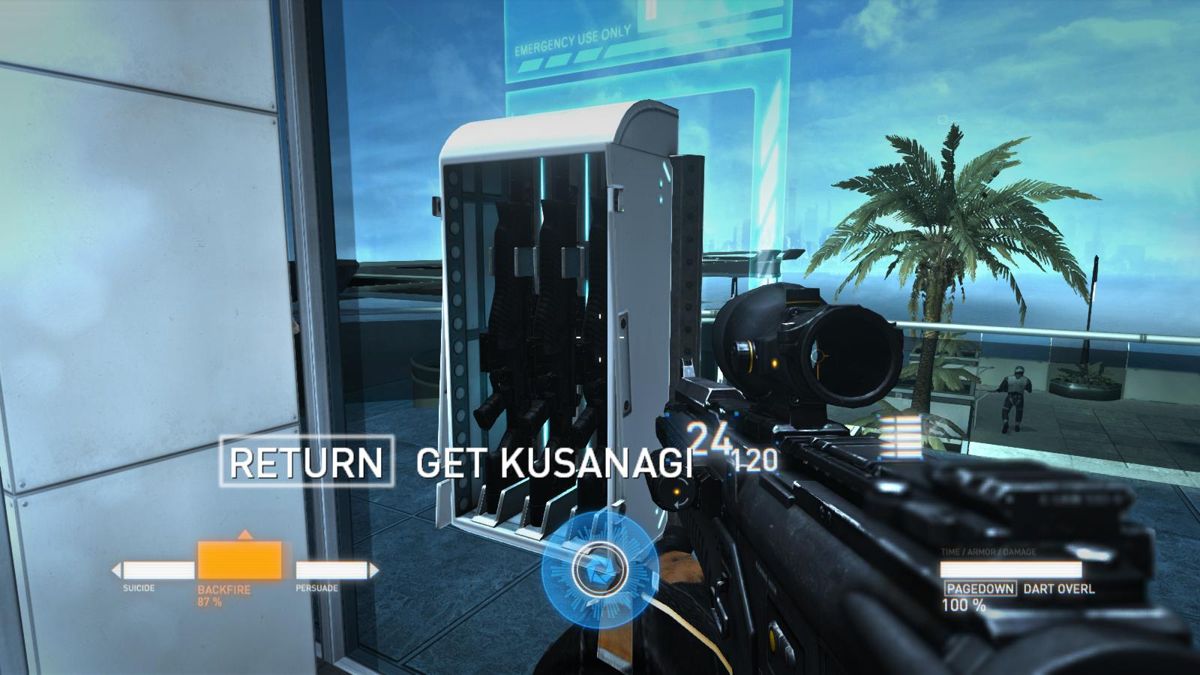
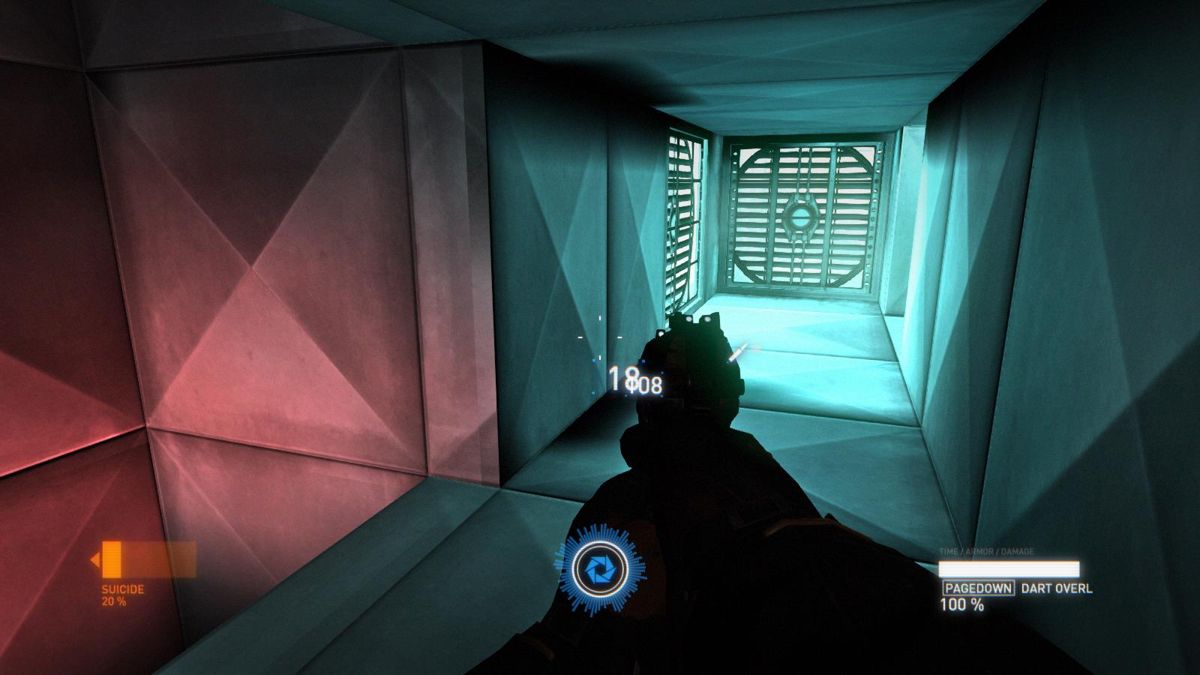
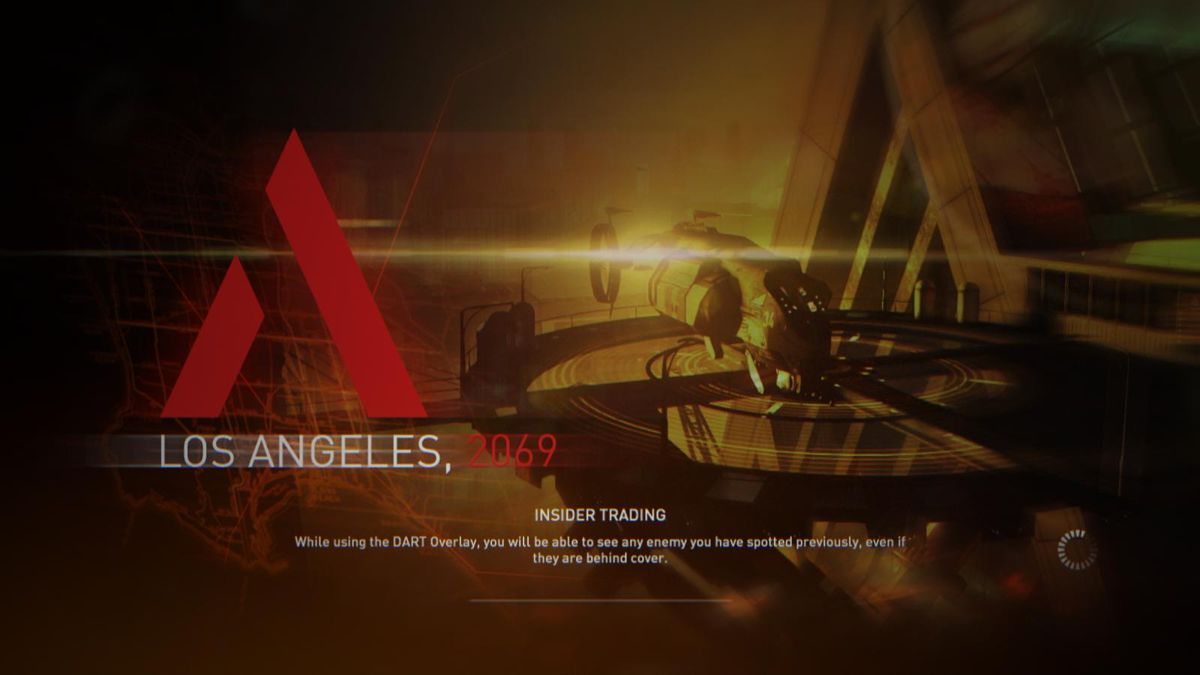
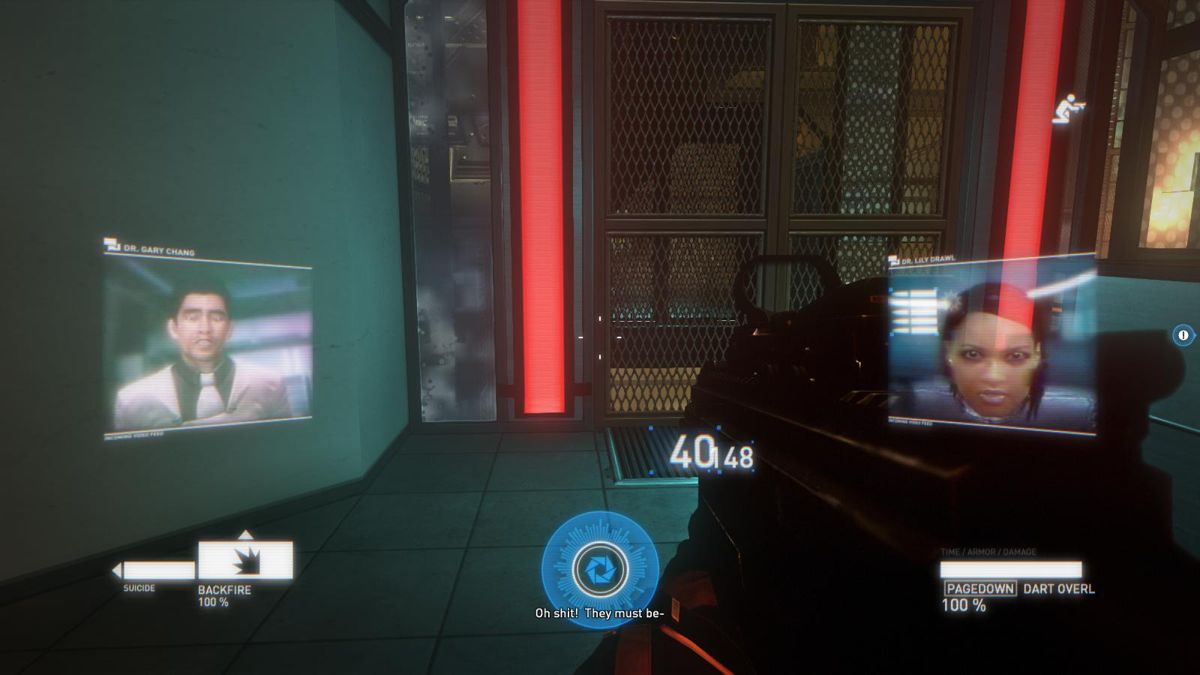
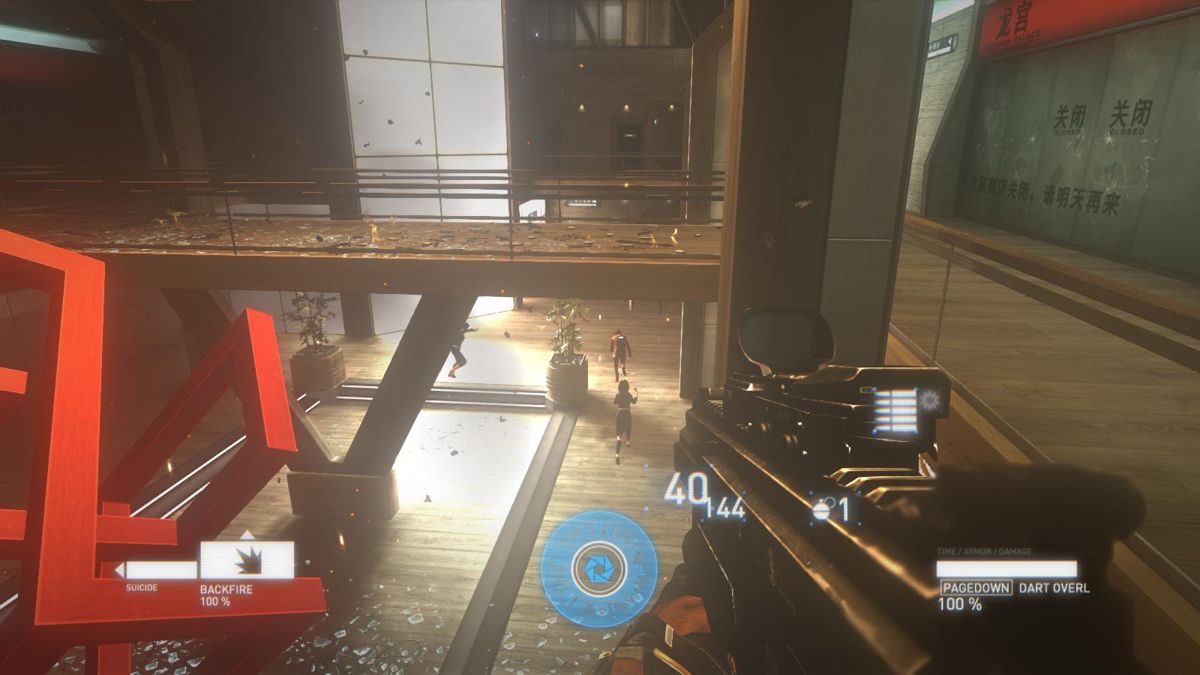
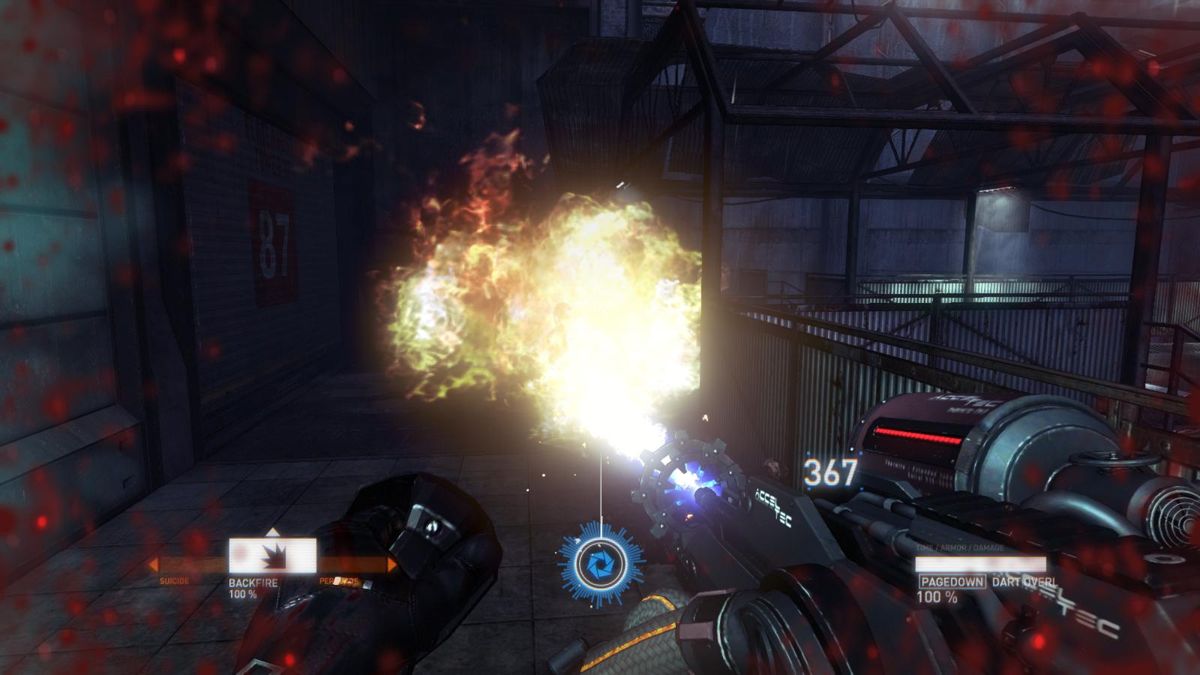
Captures and Snapshots
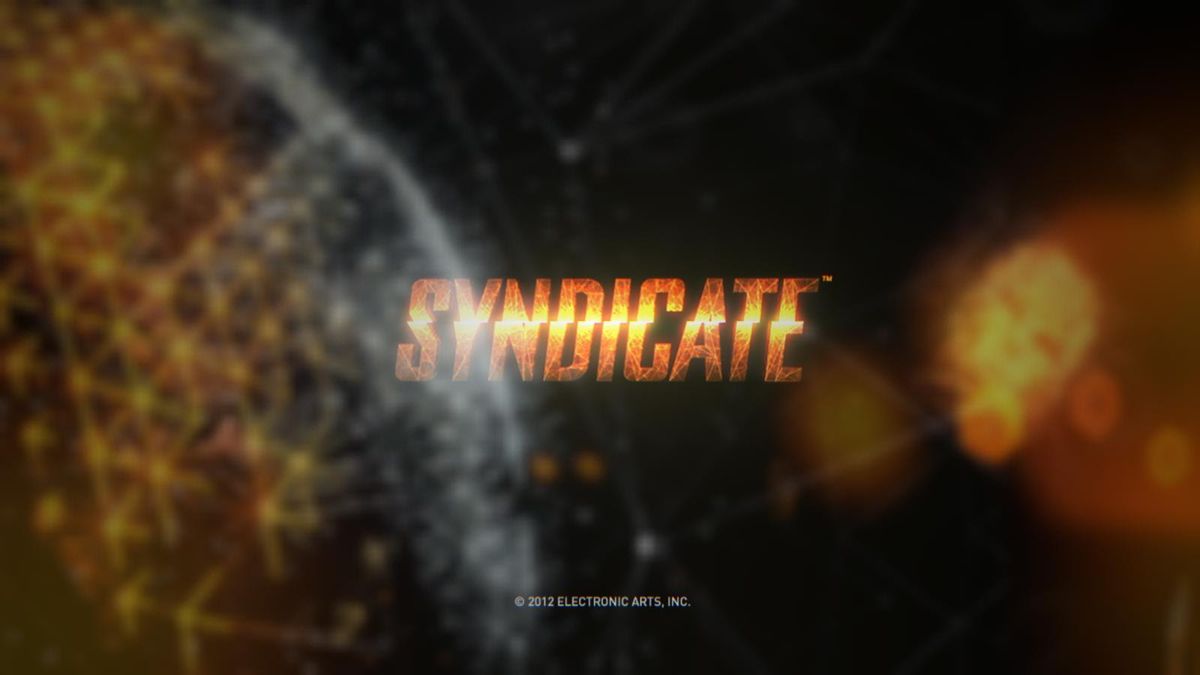
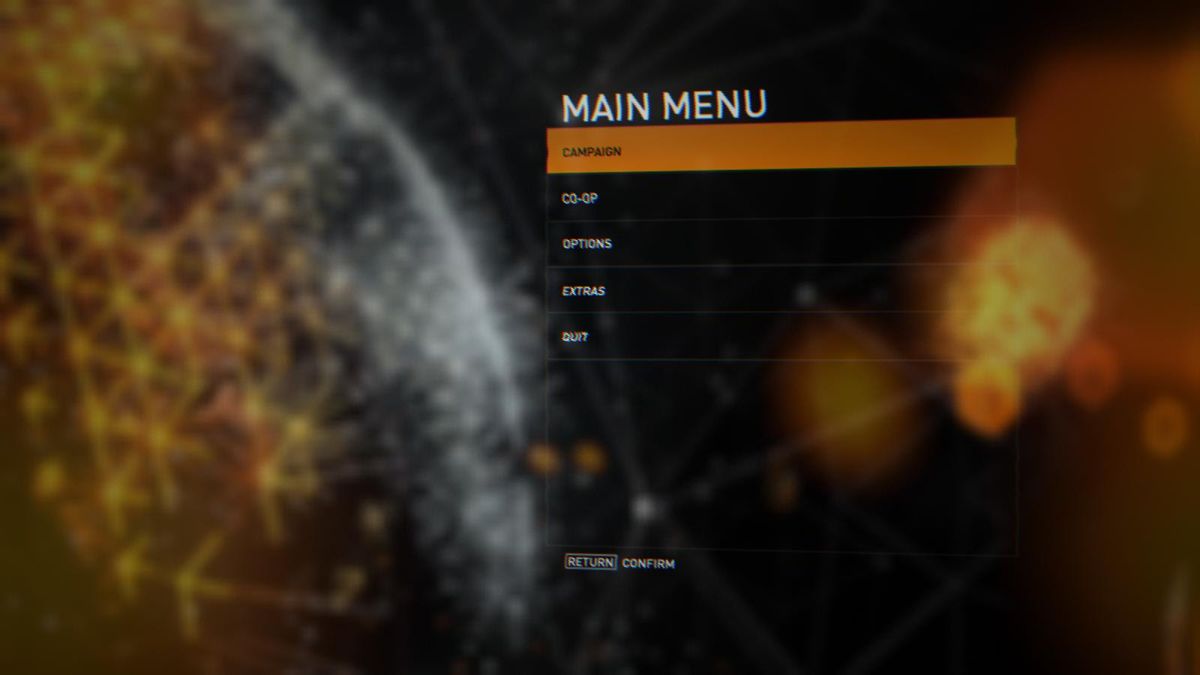
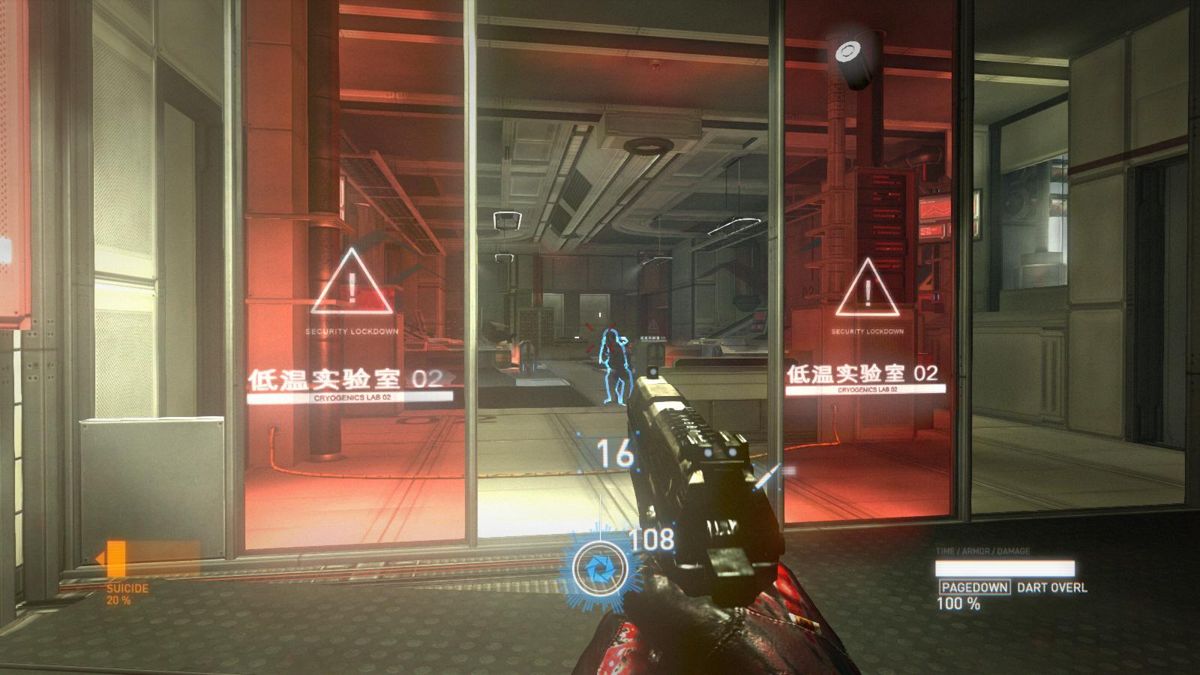
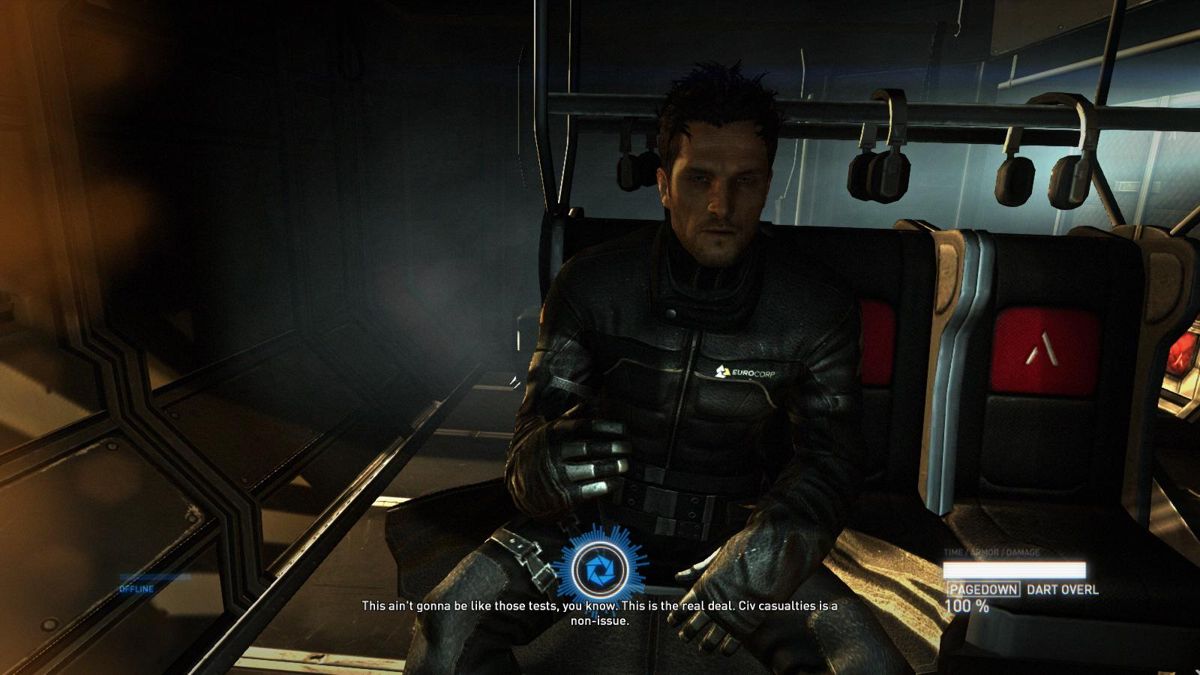
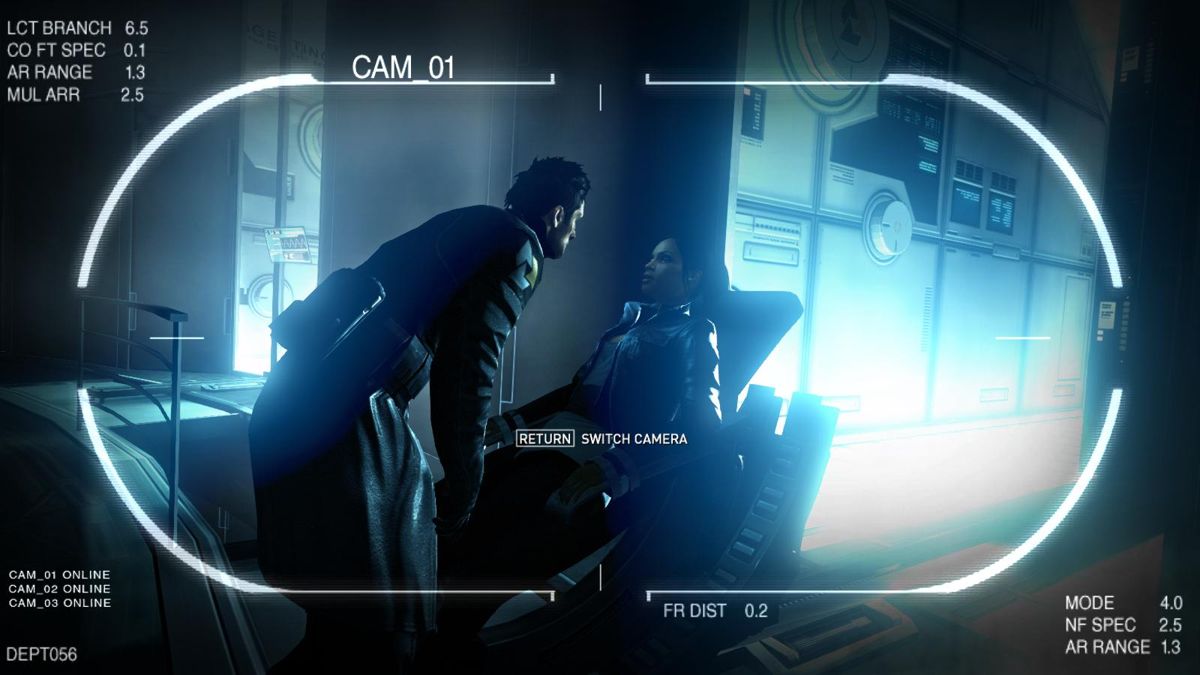
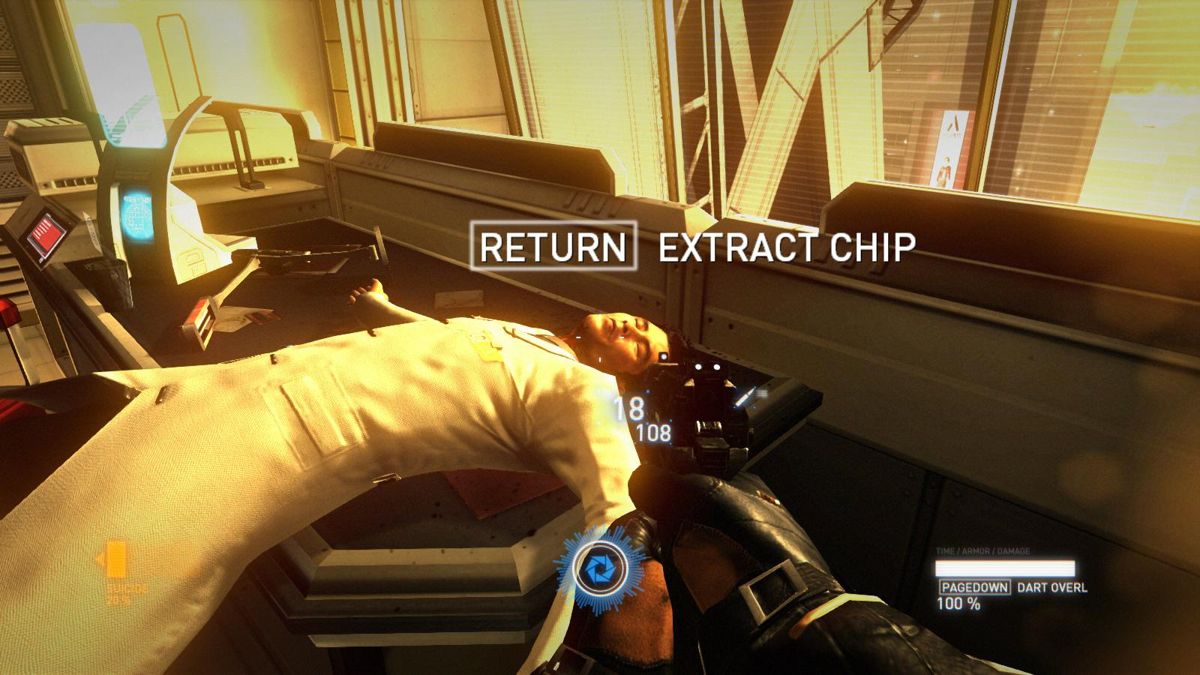
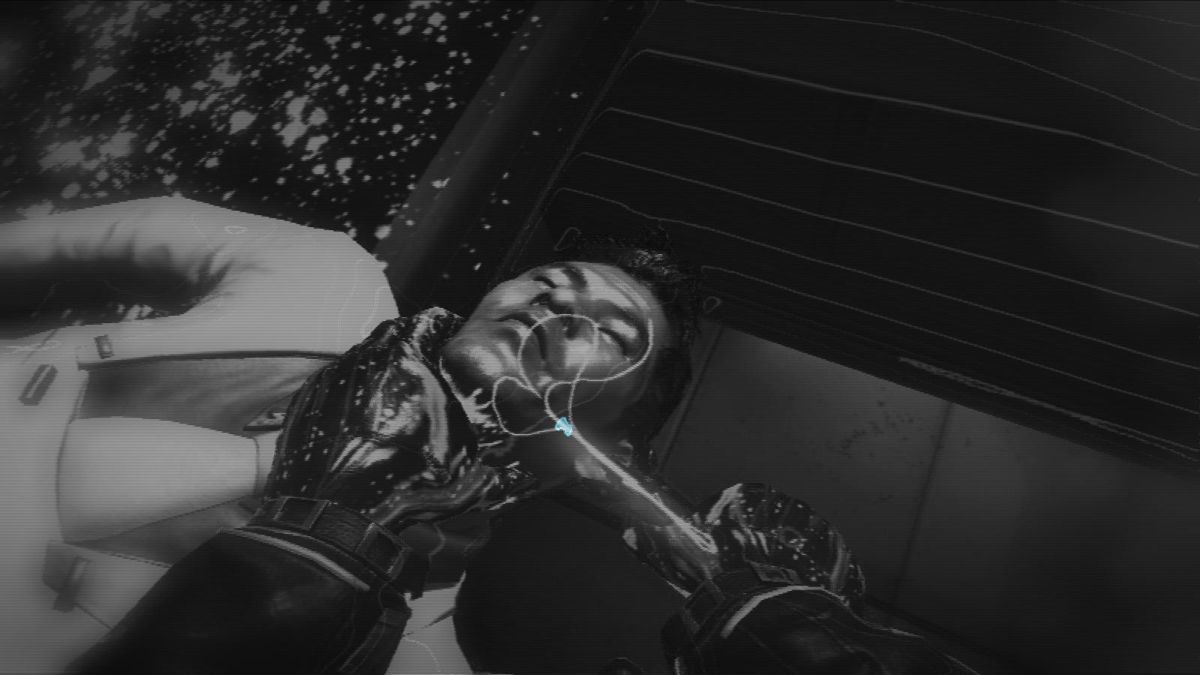
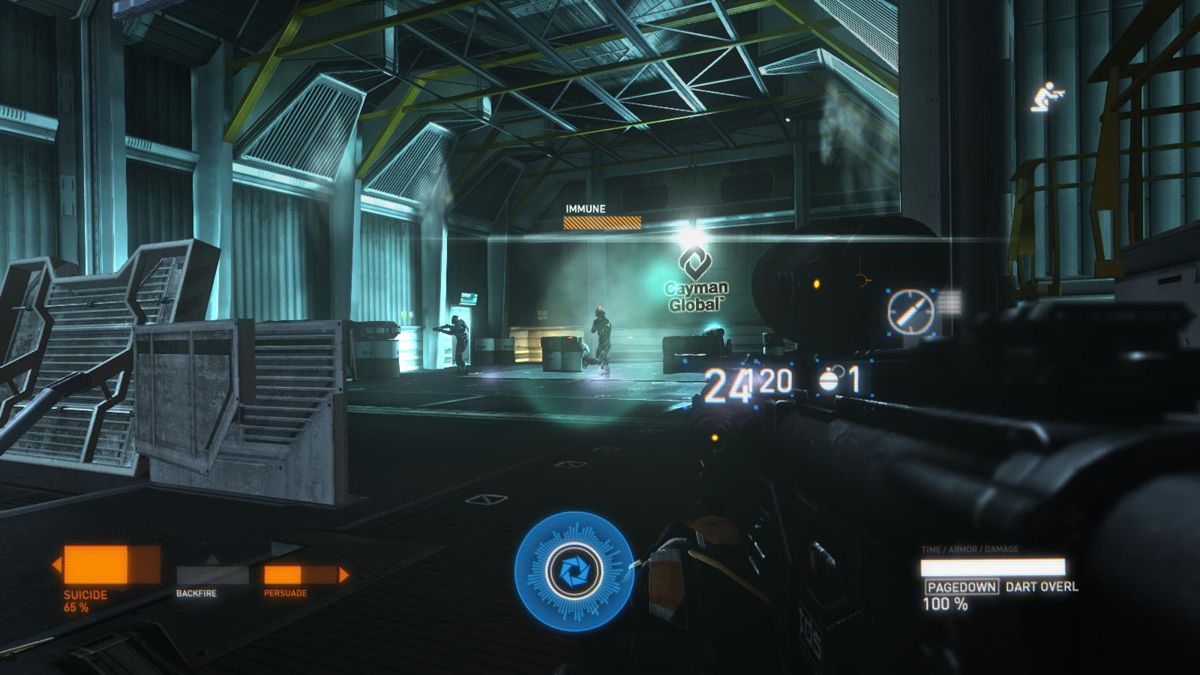
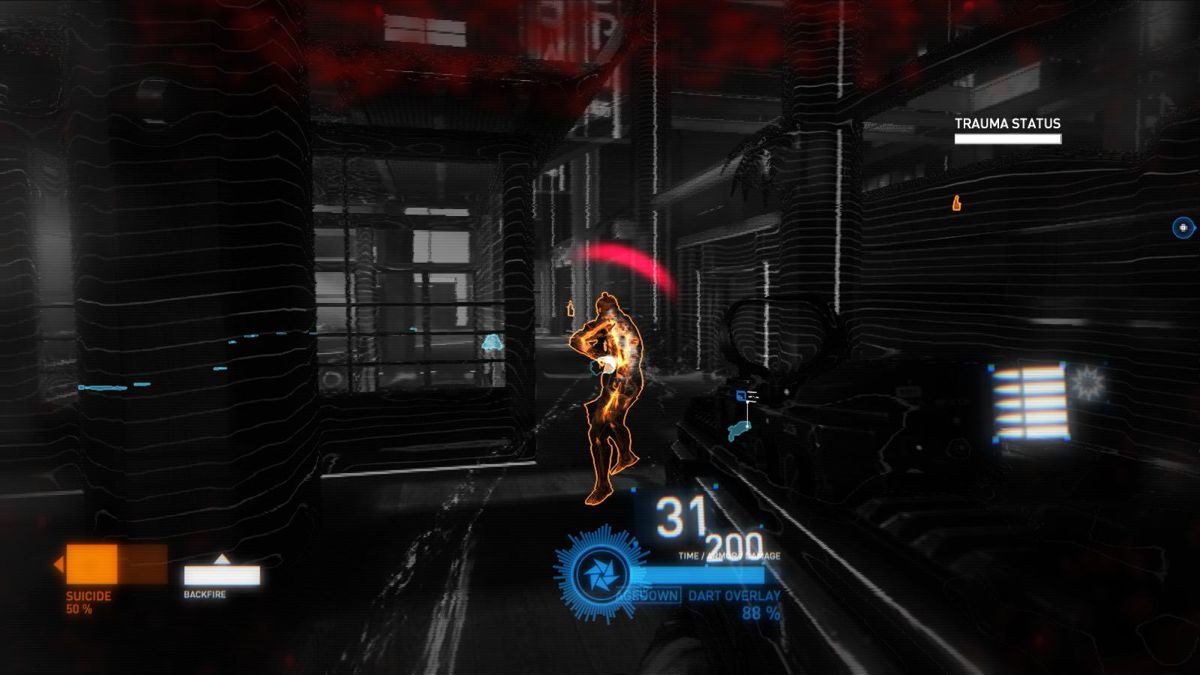
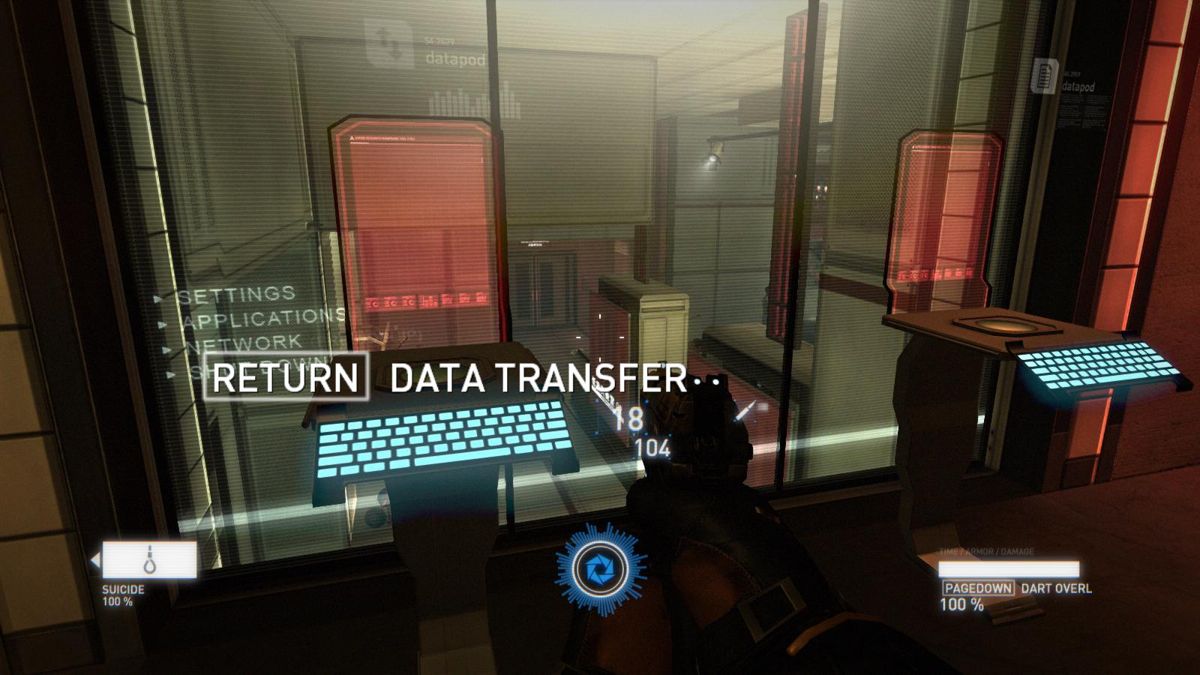
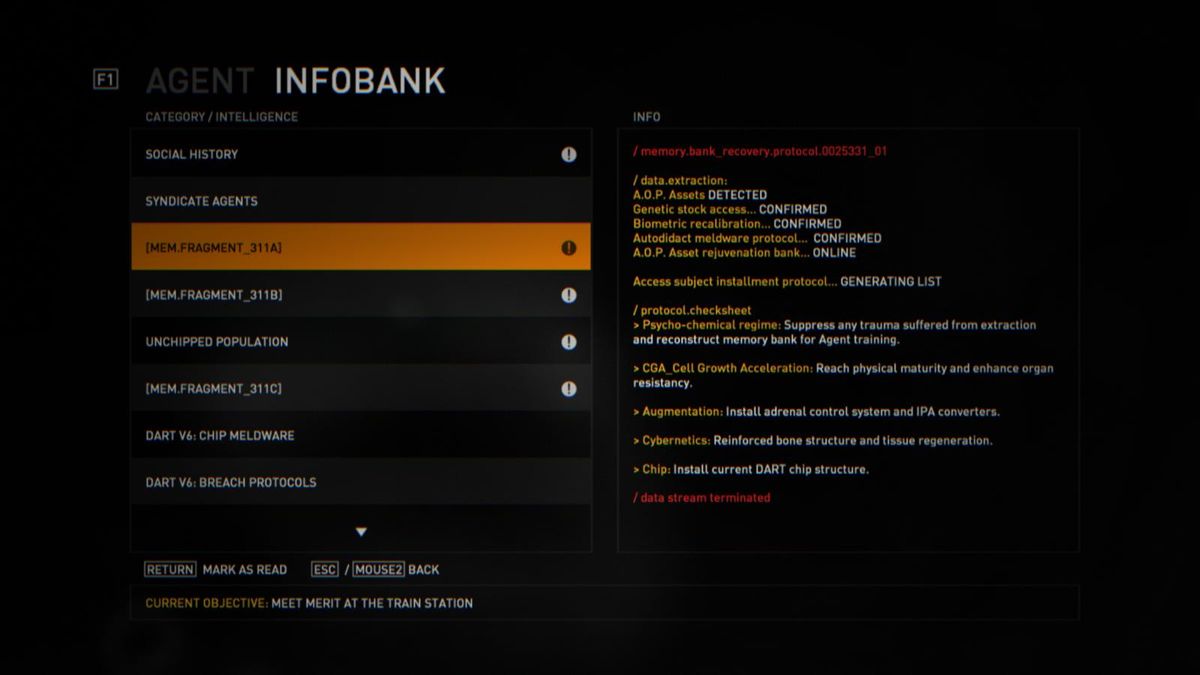
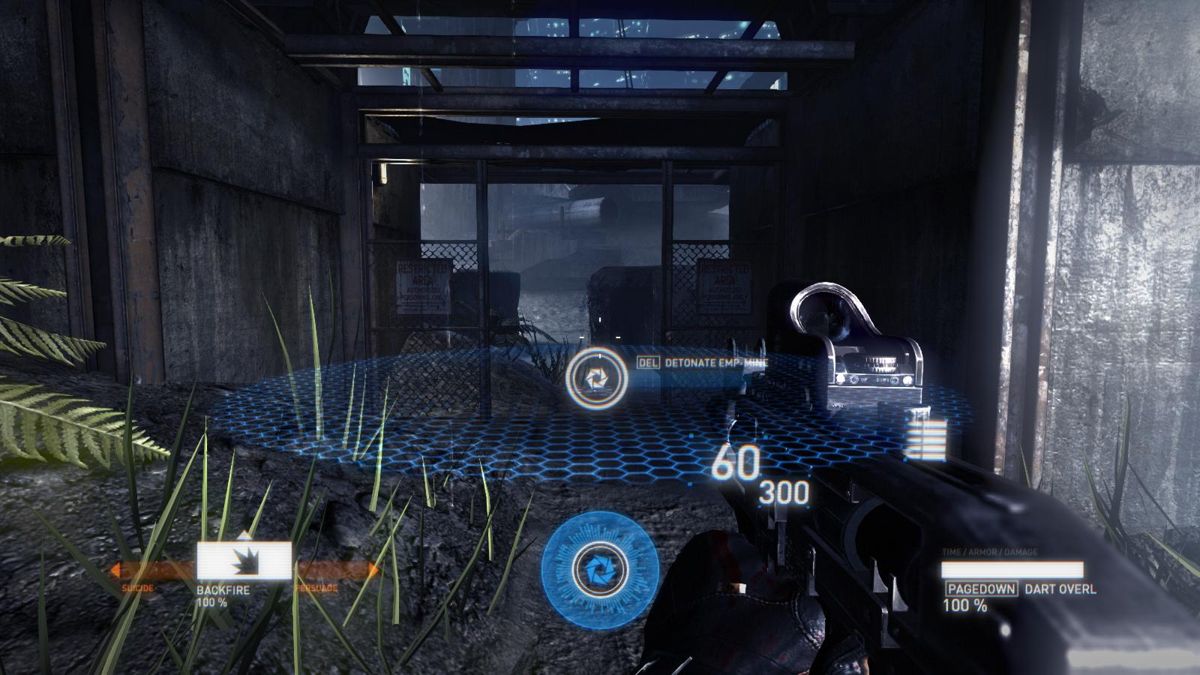
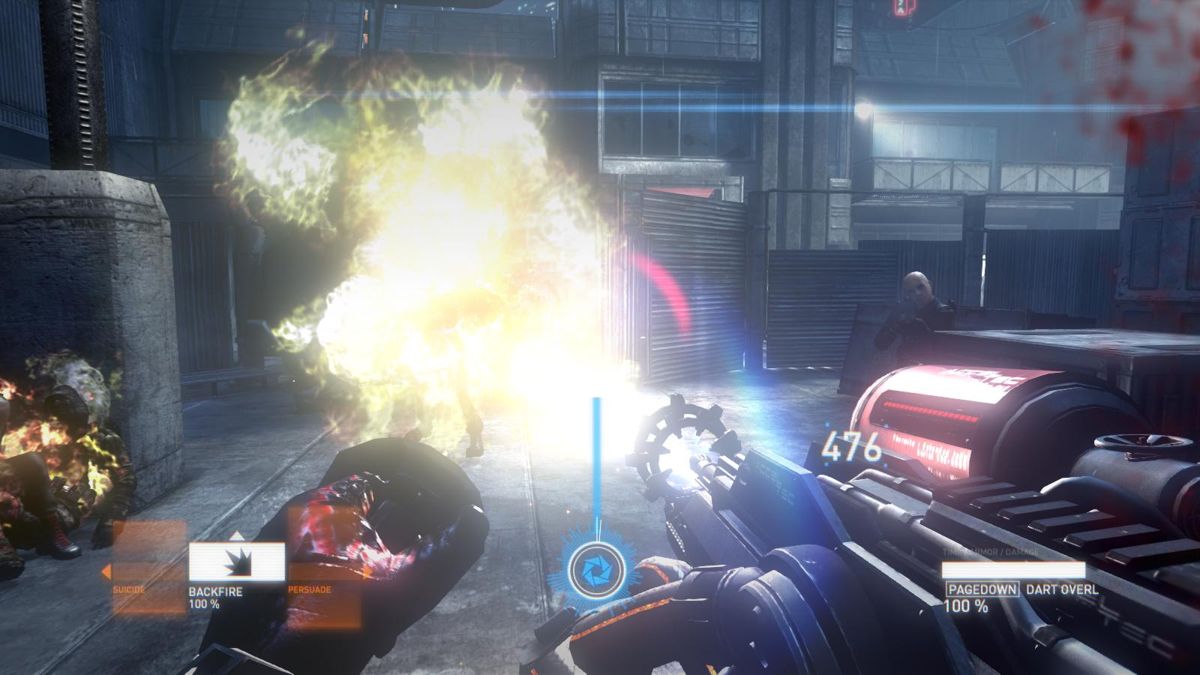
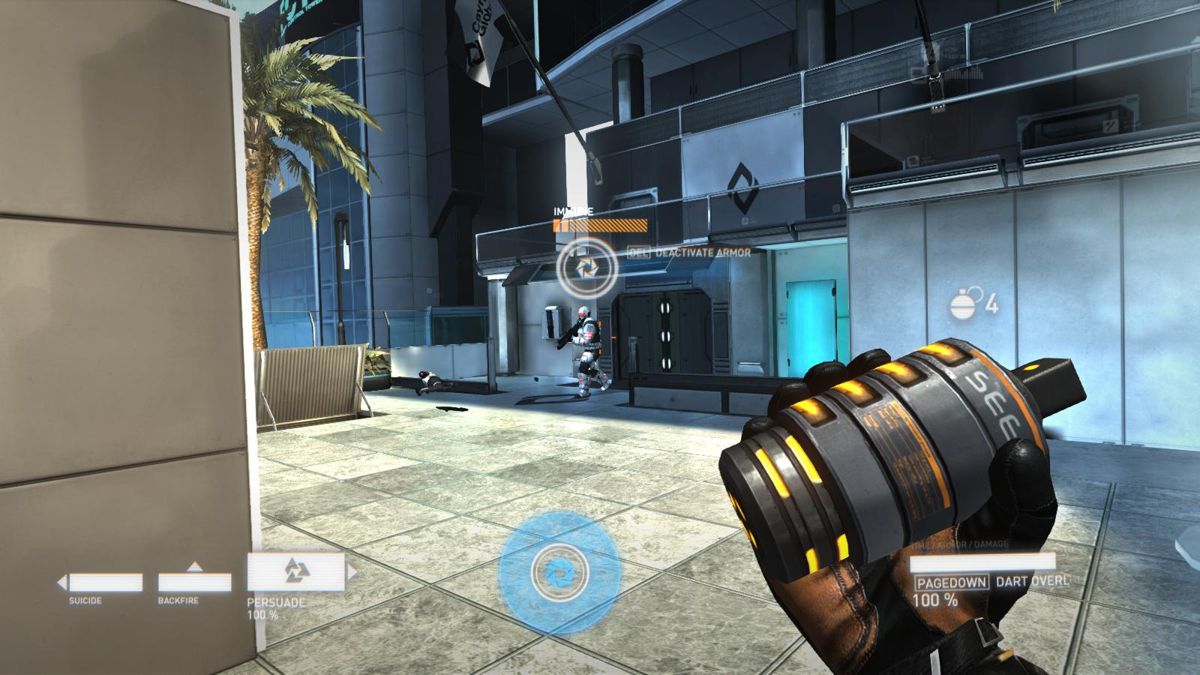
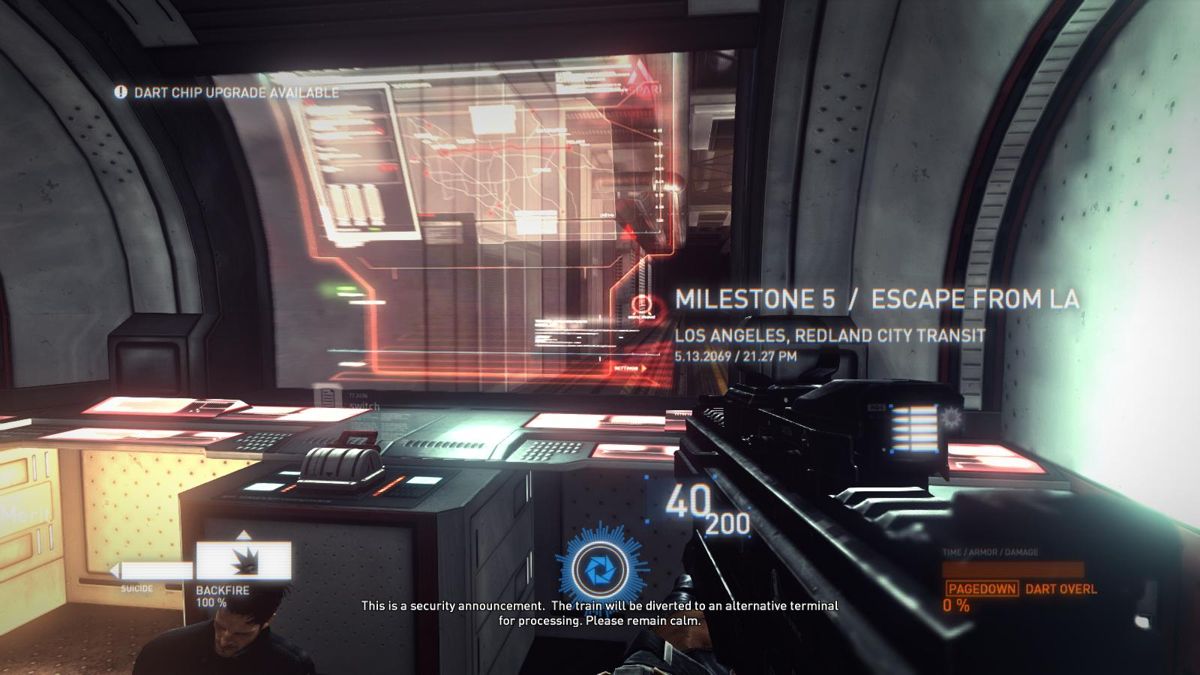
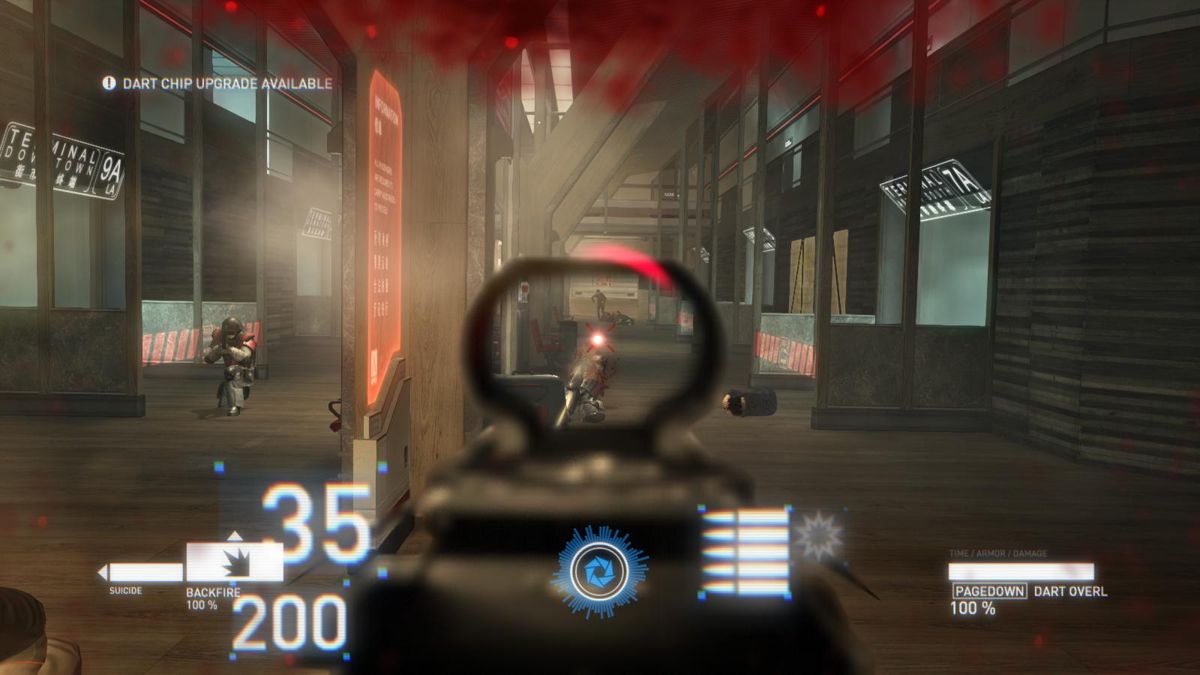
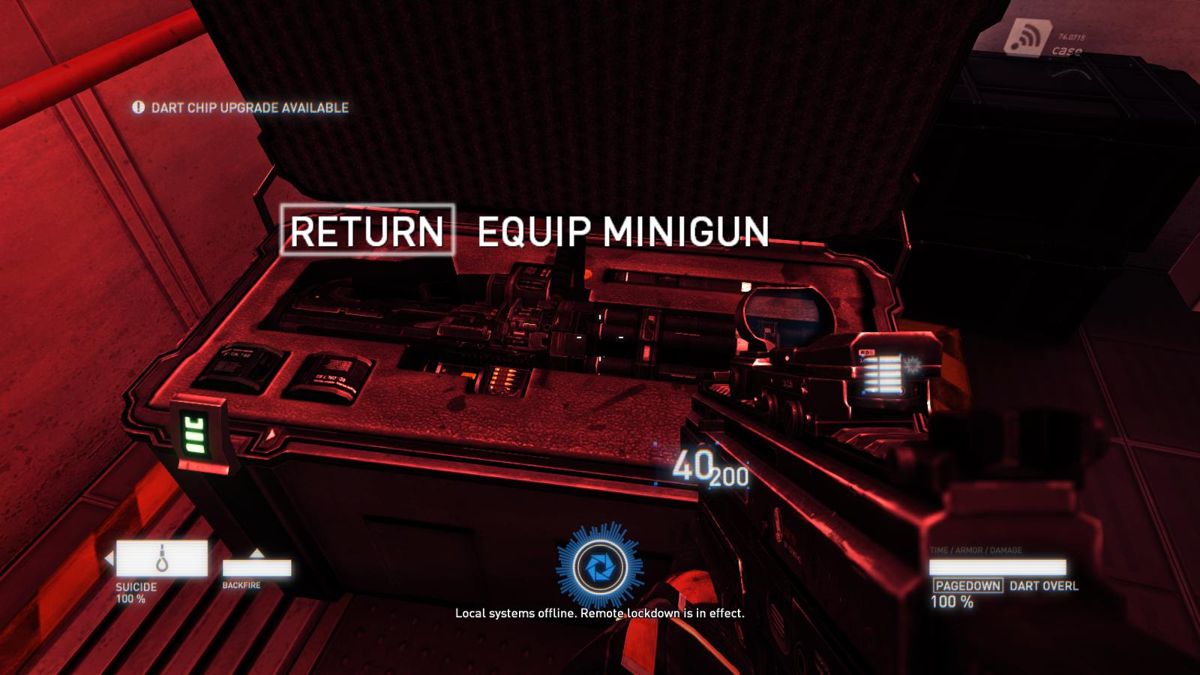
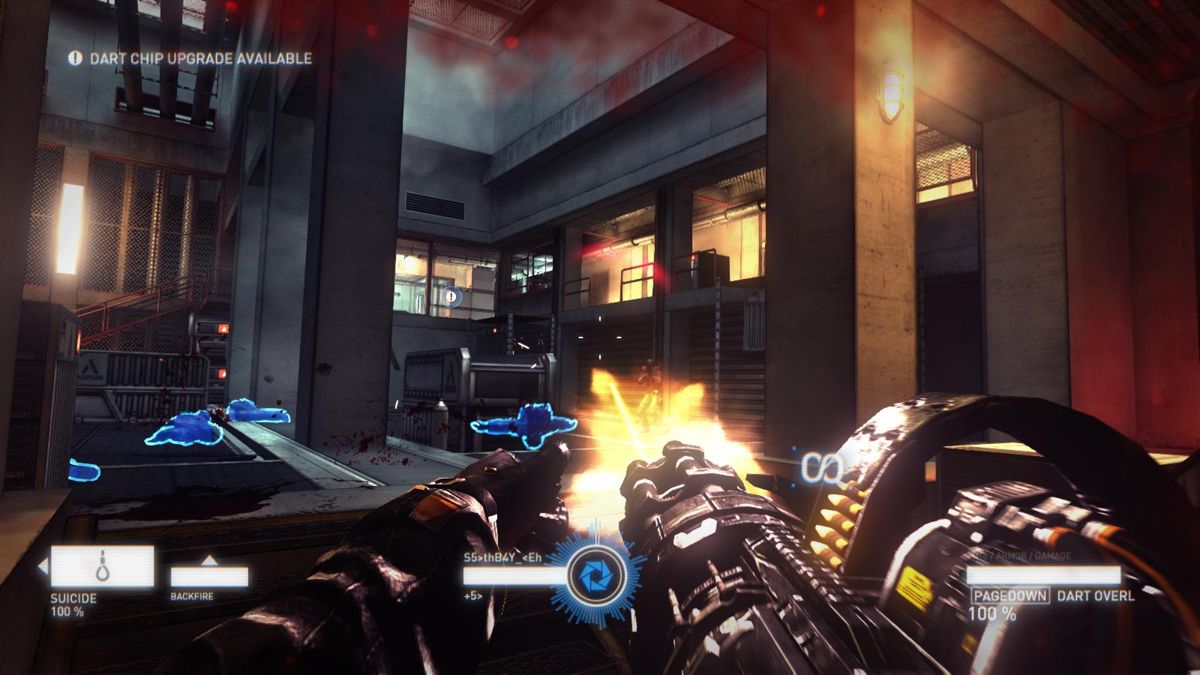
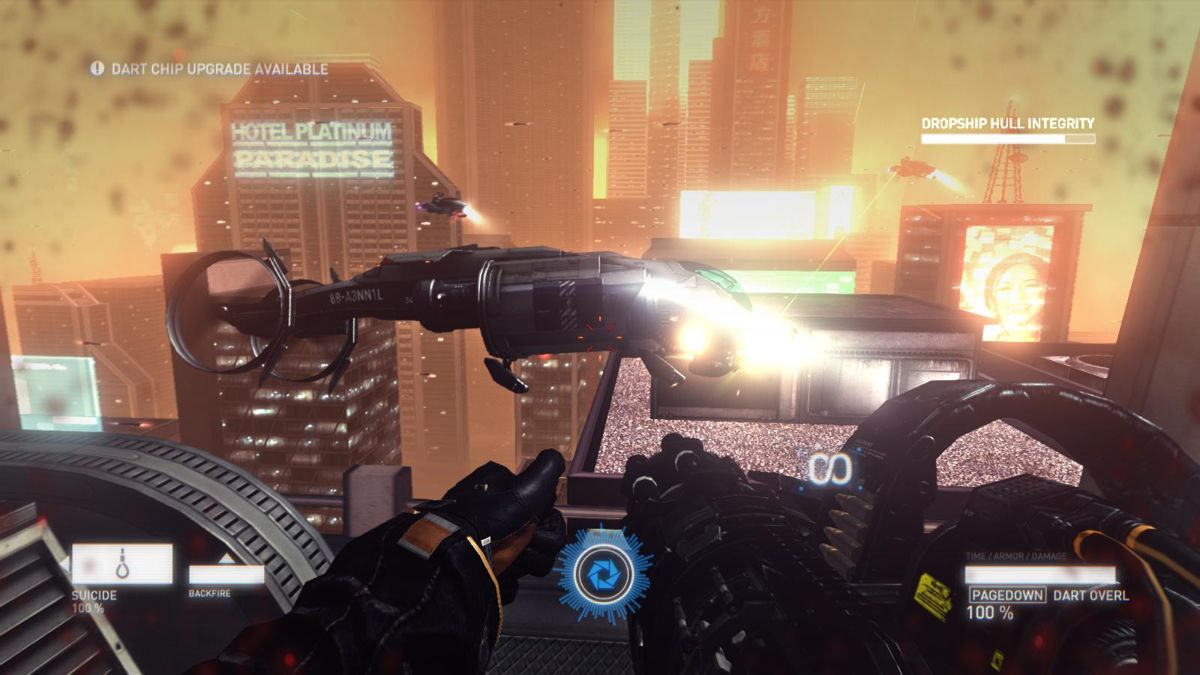
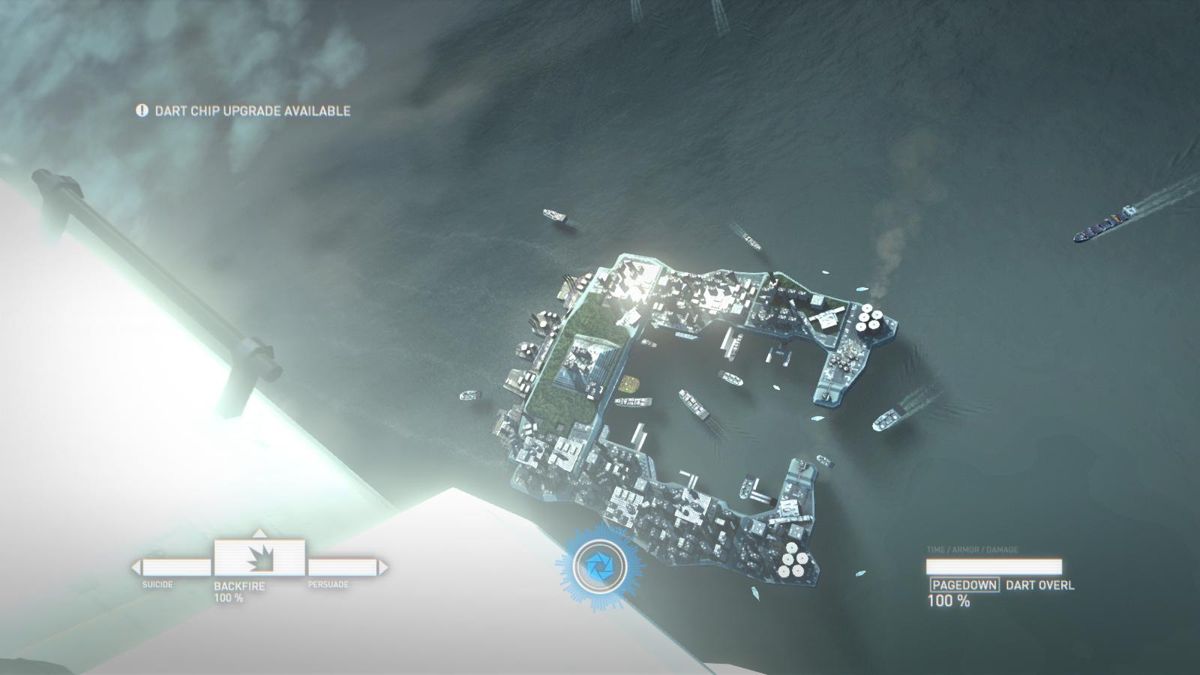
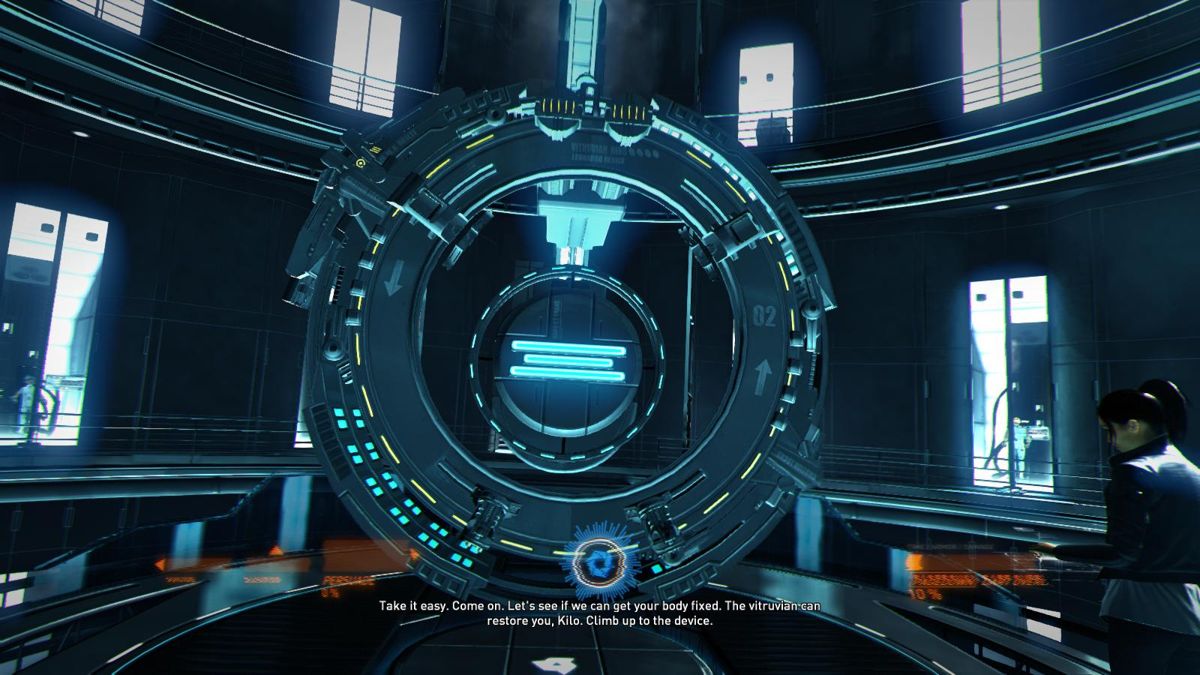

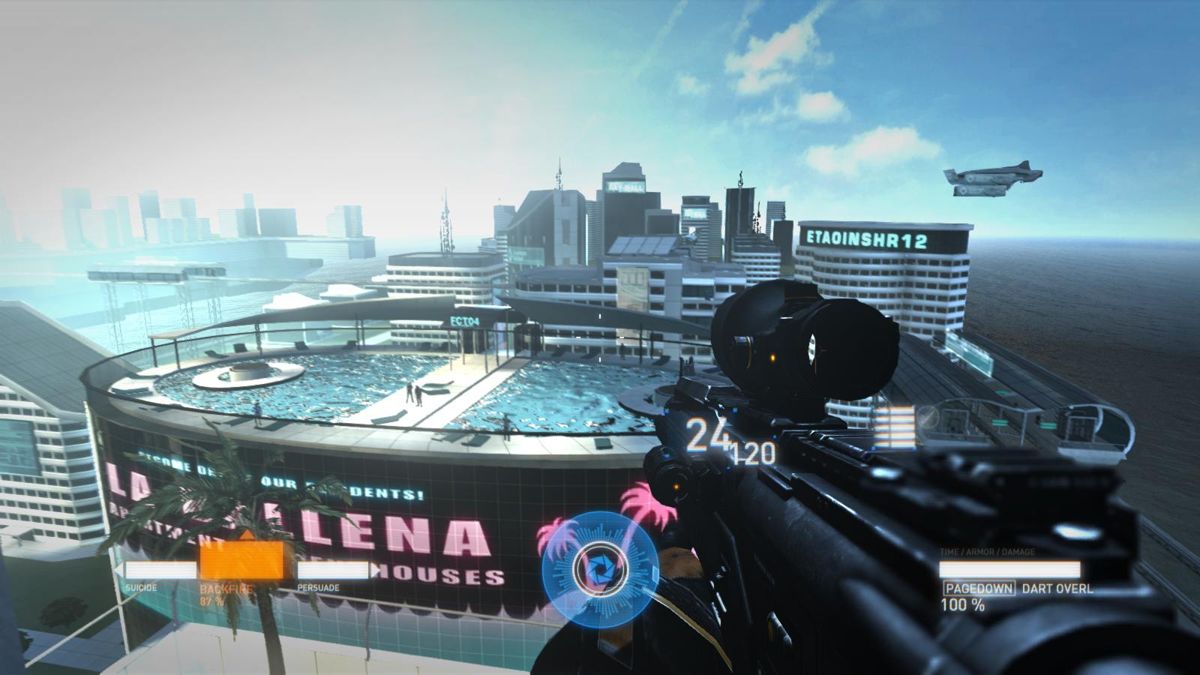
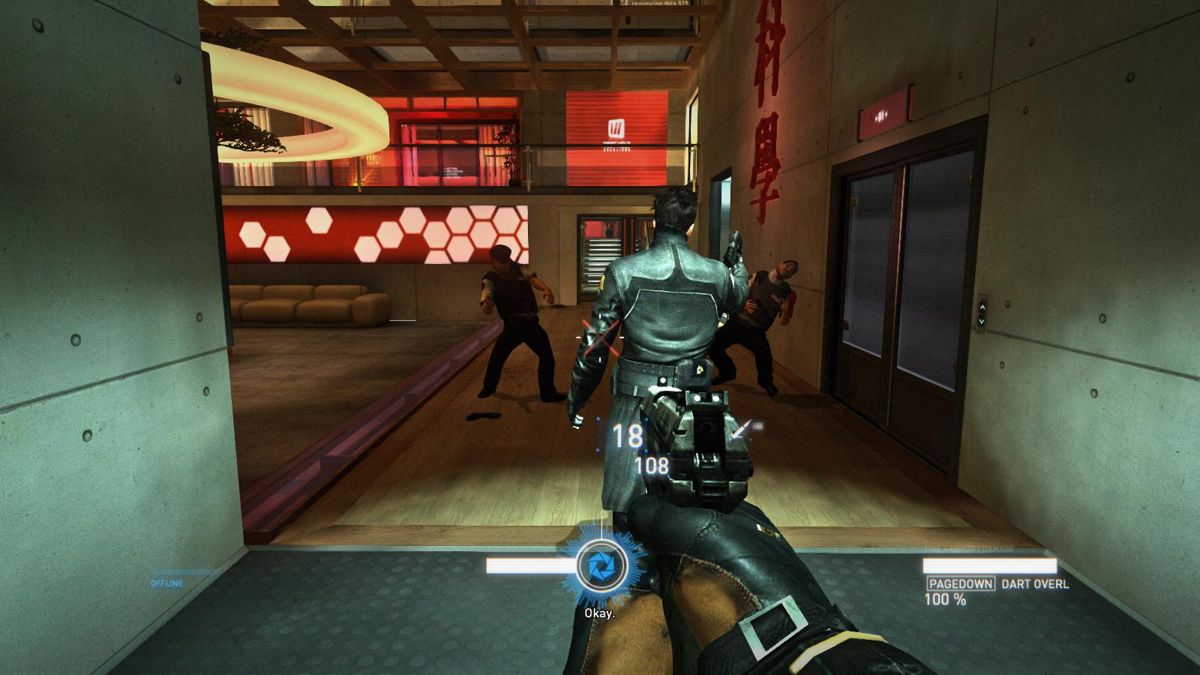

Comments and reviews
Bob 2026-09-22 0 point
Anyone try linux/steamDeck?
I get a loading bar that goes 80% then crashes. Game never starts
ABSTRIKER 2026-09-06 0 point
THANK YOU MYABANDONWARE. CONFIRMED "NoDVD by Fling (3DM Team)" HAS A VIRUS. .DLL AND .EXE FILES ARE FLAGGED AS VIRUSES BY MULTIPLE SCANNERS IN VIRUS TOTAL.
Coqui 2026-05-26 -2 points
i downloaded NoDVD by Fling (3DM Team) and my system detected a trojan, is it safe to play?
ZooLeeRetro 2026-05-25 2 points
I can confirm the same error as @Croaked. I'm using an original copy of the game on the EA app, and it gets the same error: no matter what I do, no matter is DXVP is present, compatibility mode is on or the settings are downgraded to the absolute minimum (including the disabling of the blur and lens flare via the config file), the game ALWAYS crashes during the Milestone 7 when you get to the big explosion after the shootout featuring the second shielded enemy. If anybody was able to find a solution that fixes this, any help would be much appreciated, I really want to play through this game, but it seems to be impossible with the PC version.
Croaked 2026-02-21 3 points
Seems this game is pretty picky about what hardware you're running it on, seems like having a card with raytracing (from what I've gathered) causes it to crash at the very beginning of milestone 7/the New York chapter. Even using console commands to pick a map past that point doesn't work. Was using the Elamigos repack with the Fling/3DM NoDVD on a W11 with a 5 3600 and 6700 XT.
pk9k 2026-01-28 1 point
Any potential fix to stop frame rate drops and eventual freezes? I'm using AMD hardware (Ryzen 5 5600G, RX 6700 XT) so I'm not sure if it's the reason like in Mirror's Edge. I'm using the Elamigos repack (Win 10) and my frames would drop from 120+ down to 5, or the game would just freeze right then and there.
Bob 2026-01-27 -1 point
Thanks for upload.
Im presuming the Coop mode isnt accessable?
I know i used to do runs solo on the xb360, but had to be online.
I guess no one has found a workaround to fool the server check? Im sure the gameplay ran local.
Also does this install/work same on SteamDeck/SteamOS/Linux?
bbmg 2026-01-26 0 point
My game starts but only shows as a small view screen in the top of my screen, what is the issue?
Kobe 2026-01-22 -3 points
***WARNING***
The patch "NoDVD by Fling (3DM Team)" has a virus detected by VirusTotal and by Windows defender.
LazarheaD 2026-01-10 2 points
Nice! Glad this is available here. Not a fan of the boring turn-based one.
Donkeyote 2026-01-08 1 point
Thank you, Admin, I have tried all of those things, apart from the cores and using DXVK. I tried the ElAmigos repack on my other PC, a Lenovo laptop, and it worked first time, without having to change anything at all, not even setting compatibility! So all is good! Thanks for the great game!
admin 2026-01-08 1 point
@Donkeyote - Make sure that you use NoDVD by Fling (3DM Team), and check your antivirus, maybe it blocked some files of it.
About changing screen resolution and graphics settings - better do it manually in config-file or with Syndicate Advanced Config Tool, if the game reverts the settings to default.
About loading problem - check DEP and ASLR settings, maybe they block the game from loading. And that thing with setting the number of cores for the game in Task Manager - try it, perhaps that is the thing.
Optionally, try to run the game with DXVK. DXVK method was recommended on PCGamingWiki for Windows 11 users, but maybe it will help in your case
Donkeyote 2026-01-08 0 point
ps I have a Ryzen 9 3950X, with 16 cores, I read somewhere before about having to disable the number of cores used by a game, in order to allow it to run, I wonder if that applies to my CPU with Syndicate?
Donkeyote 2026-01-07 0 point
Thanks for uploading this game. I have Windows 10. When I try to start the Syndicate.exe, my screen resolution changes from 4K to 1920 x 1080, a window opens with a loading bar, it gets 80% of the way along, and then nothing else happens. If I use Alt Tab I can see a second Syndicate window on there, completely black, as well as the stuck loading window. I have tried setting Compatibility to every version of Windows available on it, and I run it as Administrator, but no luck. I have been using the Repack by ElAmigos. I have turned off Windows Defender for my Games folder, which contains all my PC games (99% of them are from GOG so should be virus free.)
NOLIKED 2026-01-06 4 points
Finally! The best cyberpunk squad tactical RTS ever made is free for all!
Wait, what is this nerve hacking bloom hell FPS?
Write a comment
Share your gamer memories, help others to run the game or comment anything you'd like. If you have trouble to run Syndicate (Windows), read the abandonware guide first!
Download Syndicate
We may have multiple downloads for few games when different versions are available. Also, we try to upload manuals and extra documentation when possible. If you have additional files to contribute or have the game in another language, please contact us!
Windows Version

English, French, German, Spanish, Italian & Russian languages


 7.3 GB
DownloadMultilingual setup
7.3 GB
DownloadMultilingual setupEnglish, French, German, Spanish, Italian & Russian languages
7.2 GB
DownloadRepack by ElAmigosMultilingual, includes both NoDVDs on choice
5.7 GB
Game Extras
Various files to help you run Syndicate, apply patches, fixes, maps or miscellaneous utilities.
Allows to tweak graphical settings
81 KB
MiscJapanese translation patch  2 MB
MiscBrazilian translation patch
2 MB
MiscBrazilian translation patch  2 MB
ModSyndicate DeBloom mod
2 MB
ModSyndicate DeBloom modAllows to disable the extreme Bloom effects
3 MB
NocdNoDVD by SkidrowFor 32-bit Windows XP, Vista and Windows 7 (maybe will work on 32-bit Windows 8, 8.1 & 10)
16 MB
NocdNoDVD by Fling (3DM Team)For 64-bit Windows 7, 8, 8.1, 10 & 11
19 MB
Similar games
Fellow retro gamers also downloaded these games: