Wallace & Gromit in Project Zoo
Windows - 2003

| Alt name | Уоллес и Громит. Ужасная зоопарка |
|---|---|
| Year | 2003 |
| Platform | Windows |
| Released in | Sweden |
| Genre | Action |
| Theme | Licensed Title, Movies, Platform, Puzzle elements |
| Publisher | Acclaim Entertainment, Inc. |
| Developer | Frontier Developments Ltd. |
| Perspective | 3rd-Person |
Description of Wallace & Gromit in Project Zoo
If you haven't played Wallace & Gromit in Project Zoo or want to try this action video game, download it now for free! Published in 2003 by Acclaim Entertainment, Inc., Wallace & Gromit in Project Zoo (aka Уоллес и Громит. Ужасная зоопарка) is still a popular licensed title title amongst retrogamers, with a whopping 4.5/5 rating.
External links
 PCGamingWiki
 Wikipedia Entry
 IGDB
IGDB MobyGames
How to play Wallace & Gromit in Project Zoo Windows
All files are clean, even the trainer has a very low flag score on VT, safe to use.
Captures and Snapshots
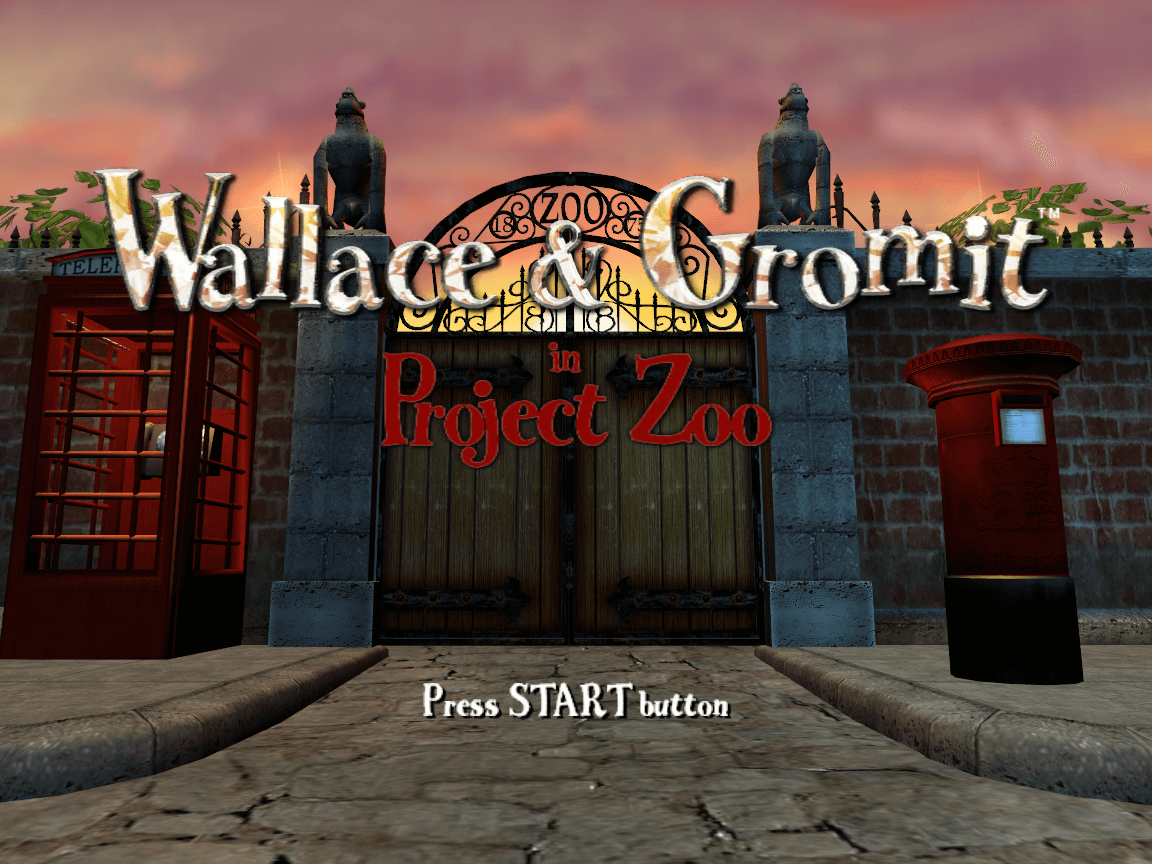
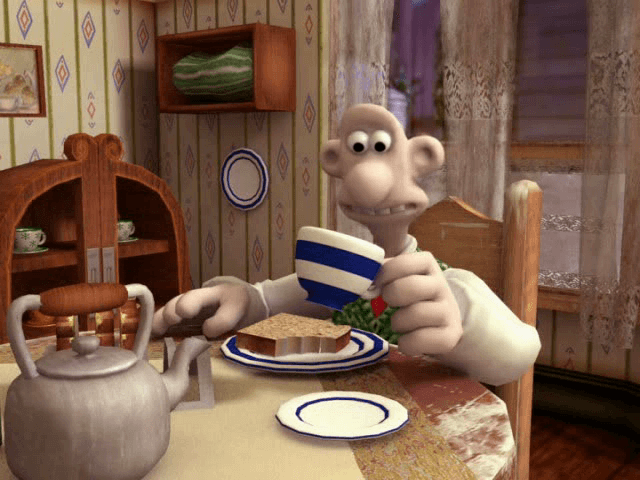
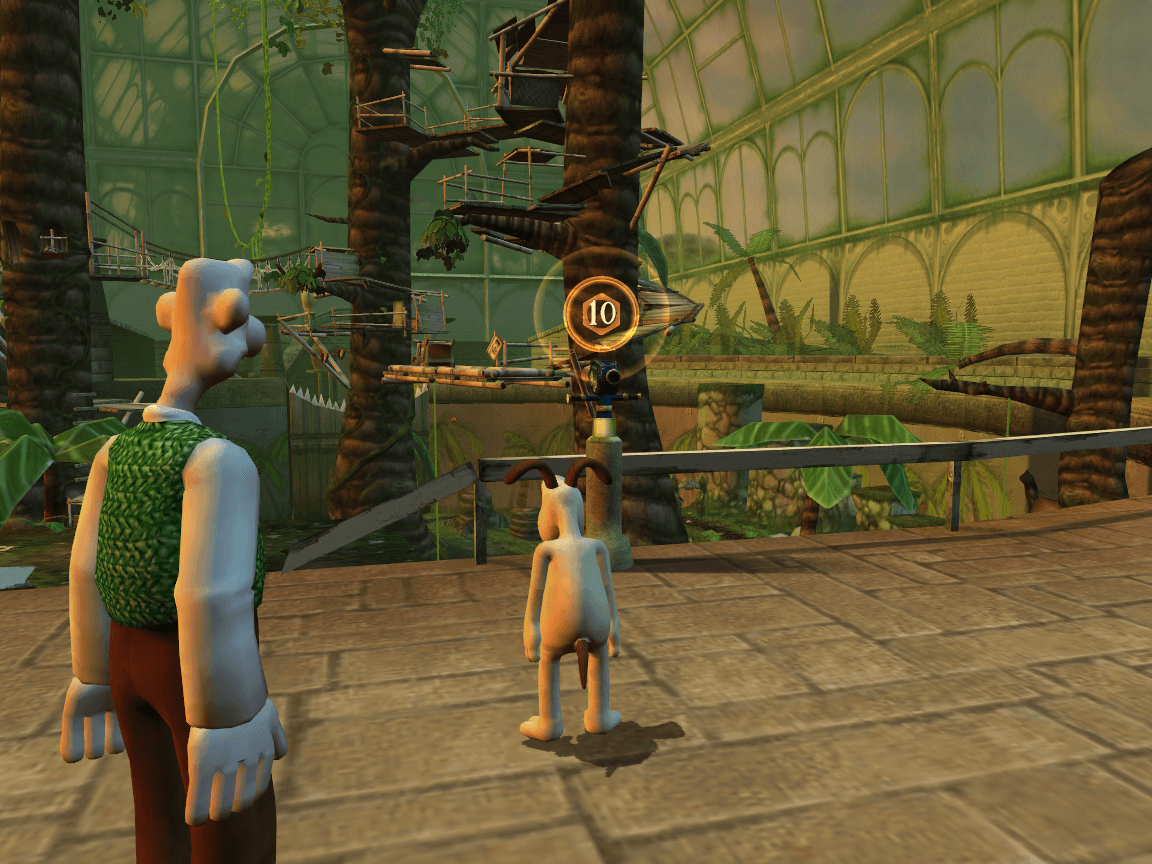
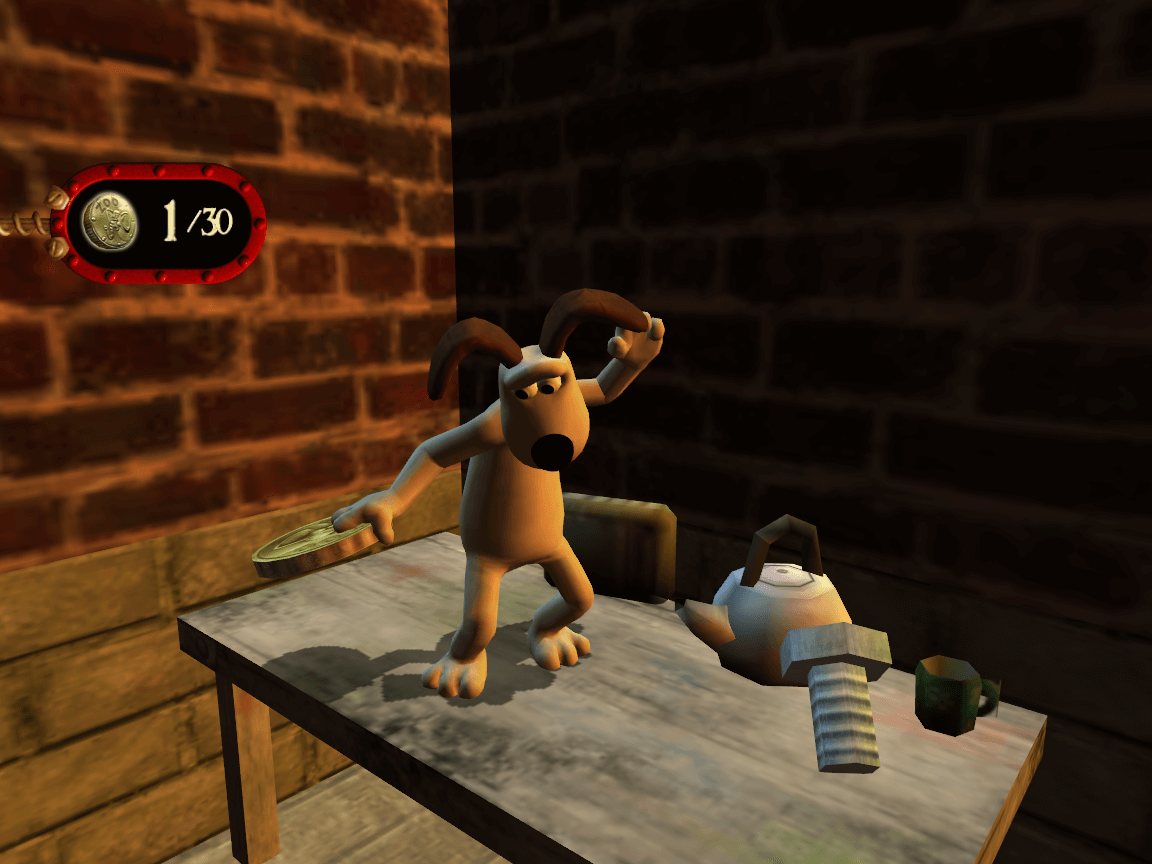
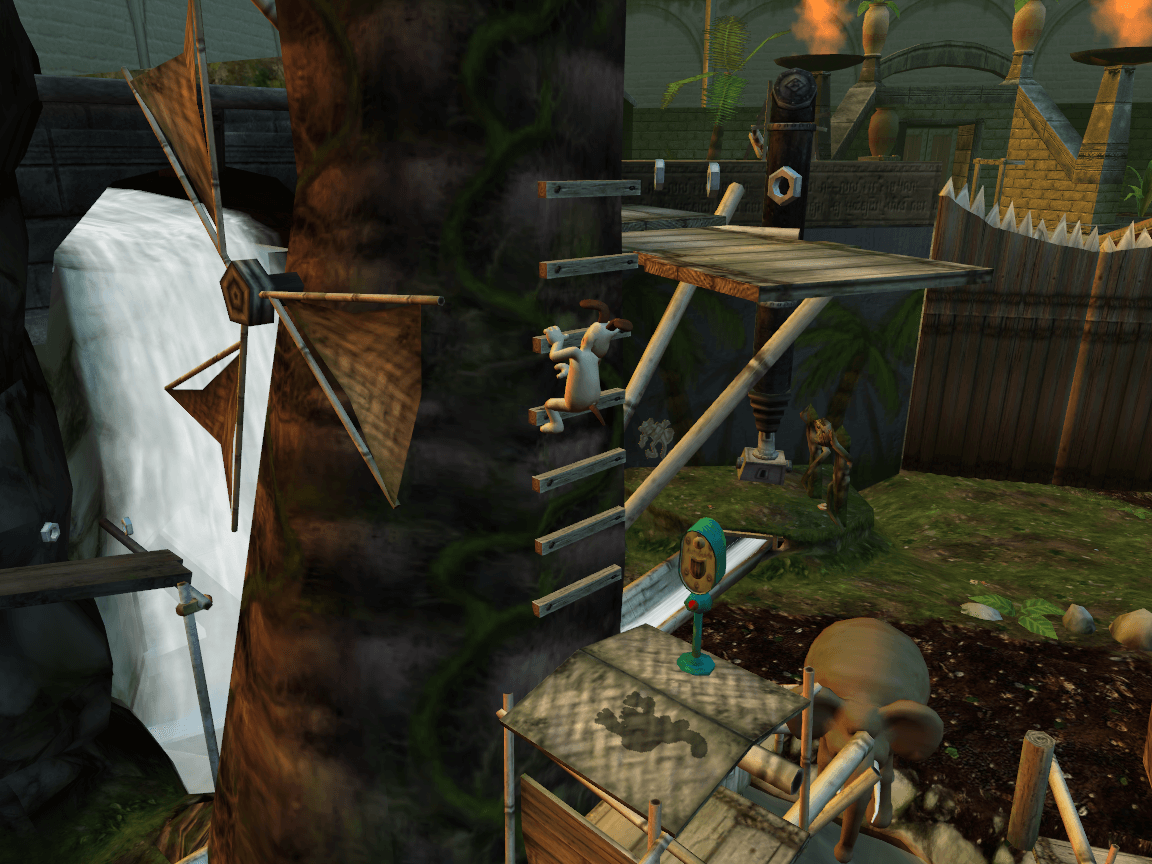
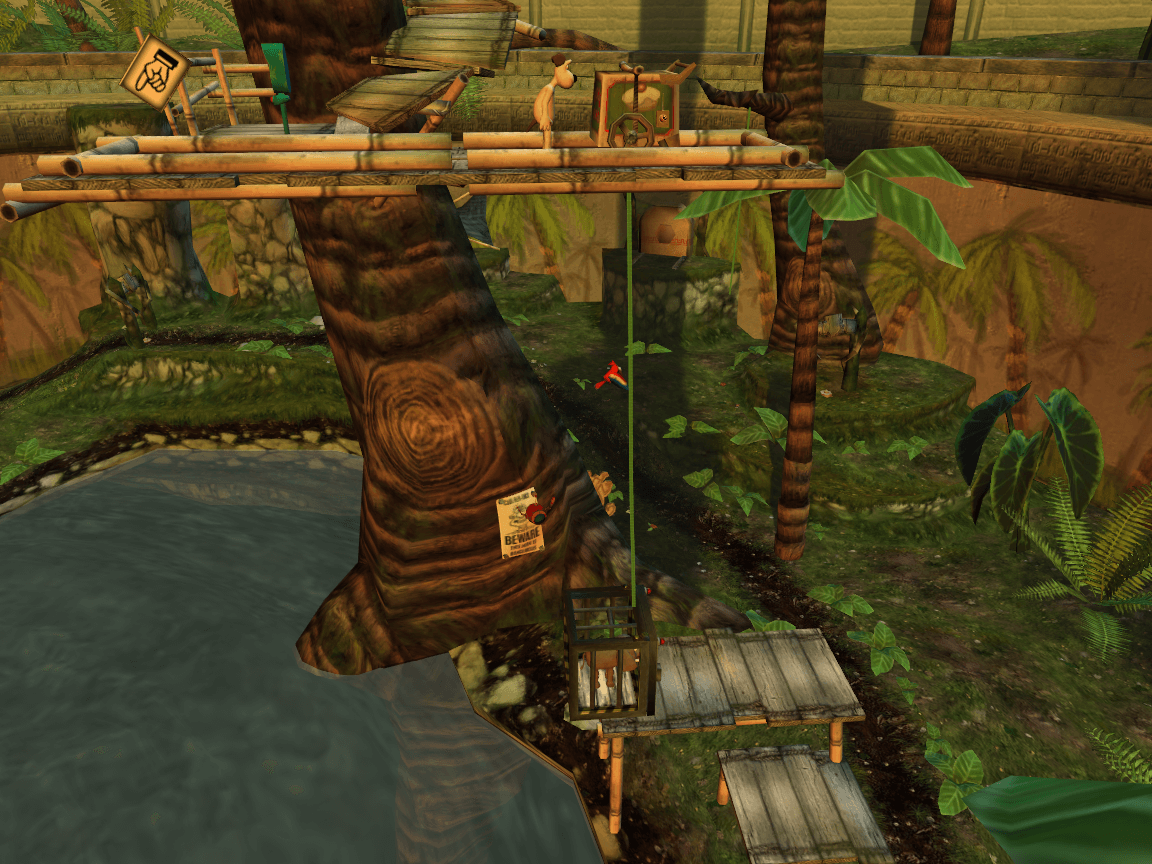
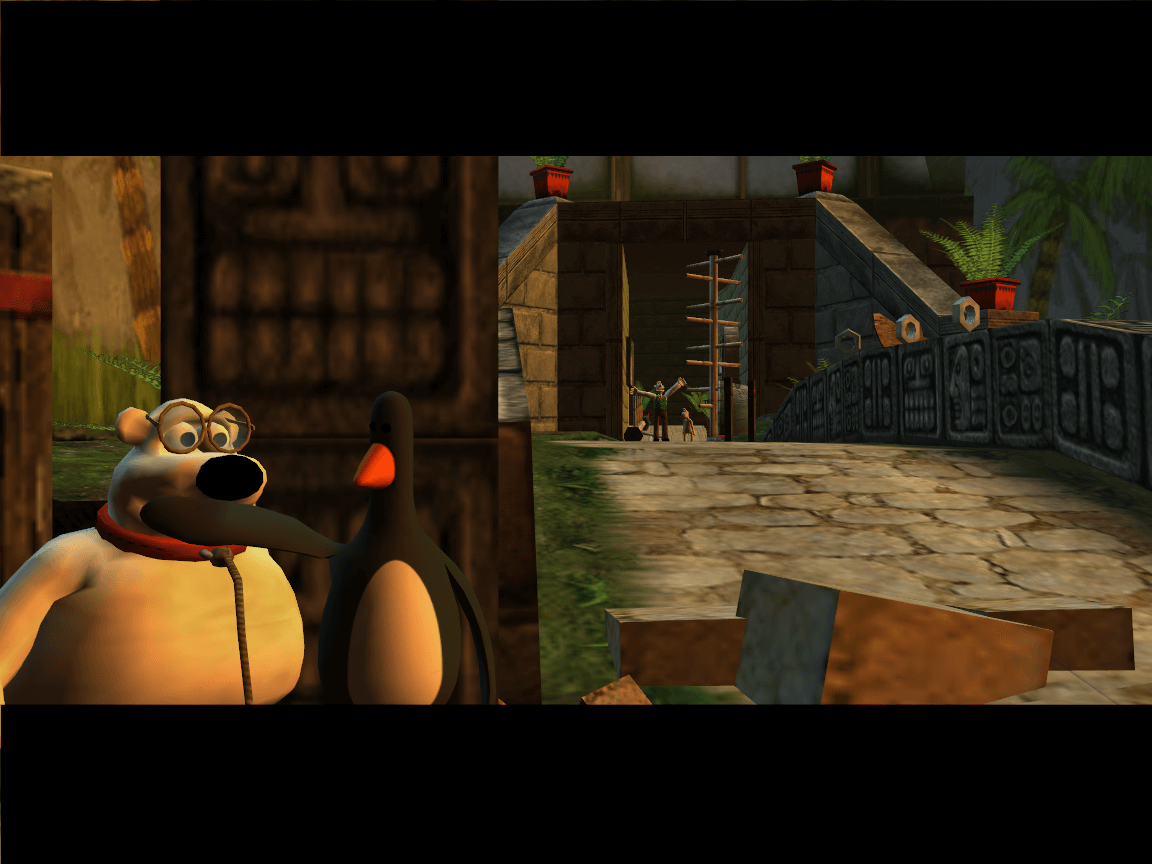
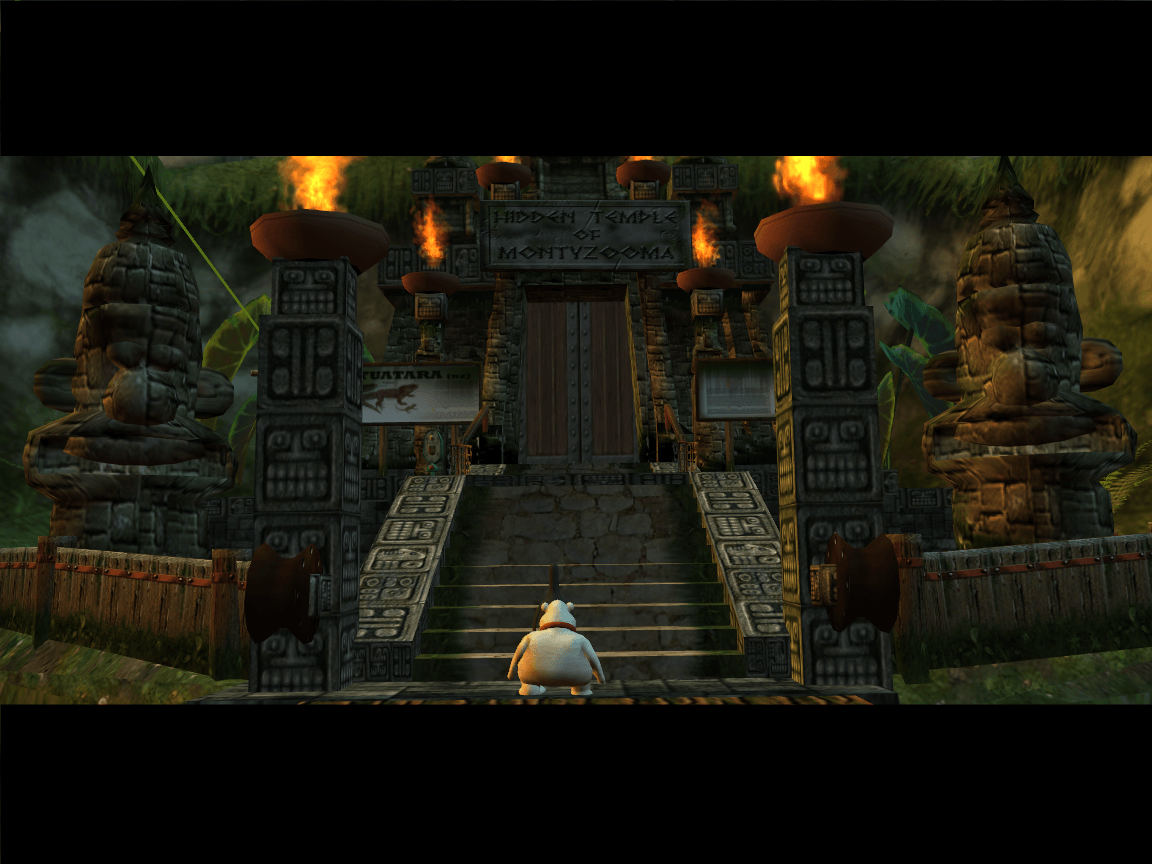
Comments and reviews
Matthew 2026-10-01 0 point
Plese can i play Wallace and Gromit project in zoo on may Xbox 360 console
Matthew cox 2026-08-18 0 point
Can you install Wallace and Gromit in project zoo Xbox disk on uour newest
Xbox 360 console
KASUMI65 2026-01-17 0 point
Spanish :
https://archive.org/details/WallaceGromitInProjectZooPC
Russian 2-CDs :
https://archive.org/details/zoo-pc-1
Serhii 2025-11-03 2 points
Works perfectly fine on my Win11 laptop, so here's how I ran it:
1. Download ISO with English version (543MB), not English-Italian one
2. Download separately NOCD (3MB)
3. Extract Project Zoo.zip and mount zoopc100en.iso from it
4. Select newly created DVD Drive and run InstallZoo.exe on it and complete installation
5. Then on this DVD open DirectX81 folder and install dxsetup.exe
6. On this DVD open English folder and copy all-two files (Options.txt & ZooLaunch.exe)
Go to the folder where you installed your game and paste those 2 files there with replacement
7. Back to DVD open ZooFiles folder and copy all-four files (overlay.zip, Preload.dat, Zoo_no_sse.exe, Zoo_SSE.exe)
Go to the folder where you installed your game and paste those 4 files there with replacement
8. Next we extract files from separetly downloaded Wallace-Gromit-in-Project-Zoo_NoCD_Win_EN.zip, we not using NoCD from Project Zoo.zip
9. There you copy two-four files (Zoo_no_sse.exe, Zoo_SSE.exe) again and paste those 2 files into your game folder with replacement
10. In that game folder you should apply compatability settings for all 3 files (Zoo_no_sse.exe, Zoo_SSE.exe & ZooLaunch.exe) in their properties:
- Run this program in compatability mode for Windows XP (Service Pack 2)
- Run in 640 x 480 screen resolution
- Disable fullscreen optimization
- Run this program as an administrator
* Here I suggest you try to start the game from Zoo_no_sse.exe and see if it runs.
If it does - start a new game, watch first cutscene and let Wallace build Banana Gun (don't forget that for moving we use NumPad for now, we'll change it later), after that escape to menu and Save the game (don't worry, you'll be able to start again a new game after we do a bit of settings), and exit the game.
So for Screen settings we open our ZooLaunch.exe, and make sure you applied compatability settings listed above or it might crash-close when we open Screen & Graphics Options.
1. In Screen & Graphics you drag resolution to 1920 x 1080 Widescreen
2. Select Colour Depth 32-bit
3. Enable Hardware Acceleration, Enable Shadows, Enable Heat-Haze Effects
Press OK, Exit and when it'll prompt you - press Save.
* Now you can run the game using said Launcher or Zoo_no_sse.exe to test your save that we created earlier if those settings were applied.
! Optional note - you might skip it if the game runs every time with saved settings. I don't know if it actually does something but in the game folder will be file Options.txt, so you can change it defaults to what we've done in the launcher:
ScreenSize:1920
ScreenHeight:1080
Widescreen:1
Format:3
Acceleration:1
Fullscreen:1
Heat Haze:1
Entity Shadows:1
Language:1
! Optional second note - in the windows root folder enable to view hidden folders and files, and go into ProgramData, ProjectZoo where we can find the same file Options.txt along with save data and controls. You'll need to open Options.txt as admin copy-paste that settings again and save.
The fun part begins with controls, and if you played the game back in the days on PC you might have not so great experience with this. Now we'll change keyboard mapping and then we'll map our controller for how it was meant to be played.
1. Start the ZooLaunch.exe go to Keys and Controller, there you can get familiar with intended controls, make screenshot or write those default controls down, and there you'll also see the instructions how to reassign keys.
* Here I suggest you try out my personal mapping:
Action - Key:
Go Forward - Up (Arrow)
Go Front Right - none
Go Right - Right
Go Back Right - none
Go Back - Down
Go Back Left - none
Go Left - Left
Go Front Left - none
Jump - Space
Fire (Attack) - F
Use (Action, Whistle for Wallace) - G
Inventory - E
Look (Aim Weapon, Camera View) - D
Roll (Crouch) - S
Pause / Start - Esc
Camera Left - Num 4
Camera Right - Num 6
Camera Up - Num 8
Camera Down - Num 2
Camera Toggle - Num 0 (looks like it does nothing, it won't even maps for controller)
Menu Select - Enter
Menu Back - Esc
To center camera view around Gromit default key is Z
2. Press OK, Exit and when it'll prompt you - press Save.
* Now you can run the game using said Launcher or Zoo_no_sse.exe to test your save that we created earlier if those keyboard settings were applied.
For better experience I strongly recommend using the controller. I'm using the generic one that make my PC think it's an xbox360 controller. So button mapping below will be for that instance. (For your controller buttons you may use windows calibration tool to know what their corresponding numbers). This mapping mimics original controls from PS2, Xbox, GameCube.
1. Start the ZooLaunch.exe go to Keys and Controller, click mouse in the button field and press controller button it will auto place your input number there.
* Here I suggest you try out my personal mapping:
Action - Button:
(Go / Camera buttons will be assiggned to Left ThumbStick / Right ThumbStick by default)
Go Forward - none
Go Front Right - none
Go Right - none
Go Back Right - none
Go Back - none
Go Back Left - none
Go Left - none
Go Front Left - none
Jump - 1 (it will be A button)
Fire - 3 ( X )
Use (Action, Whistle for Wallace) - 4 ( Y )
Inventory - 2 ( B )
Look (Aim Weapon, Camera View) - 5 ( Left Bumper)
Roll (Crouch) - 6 ( Right Bumper )
Pause / Start - 8 ( Start )
Camera Left - none
Camera Right - none
Camera Up - none
Camera Down - none
Camera Toggle - none
Menu Select - 1 ( A )
Menu Back - 2 ( B )
To center camera view around Gromit default button is 7 ( Back )
! Enable Camera Axes - that's important for camera controls with Right Stick
Pan Axis - 4 (move RS - left / right)
Tilt Axis - 3 (move RS - up / down)
2. Press OK, Exit and when it'll prompt you - press Save.
* Now you can run the game using said Launcher or Zoo_no_sse.exe to test your save that we created earlier if those controller settings we've applied.
Note that to exit the game you still need to use Esc on keyboard.
One more thing - camera controls are inverted by default, that's how developers have done it. You'll get use to it in 10-15 minutes, especially if you're using gamepad.
At this point the game should be completely playable at their best available native settings. You can launch via ZooLaunch.exe then press Launch, or with executing Zoo_no_sse.exe, and start a new game save.
Enjoy the game, find bonus levels and remember to get back to lost & found room once you gain all control of the zoo
Don't forget to save manually
Also in the game menu options enable subtitles
:3 2025-01-22 2 points
я если что бываю путаю то что пишу, просто у мене Zoo_no_sse.exe не запускается просто загружается что делать перезапускать ноут не хочу по сто раз
controller problem 2025-01-20 3 points
If your controls don't work. Open the file project zoo start Zoo_no_sse.exe.
Obviously don't forget to extract the files before hand and load the game. At first it won't work (at least for me). Then start the game again but as I said at the beginning.
Lemon 2025-01-02 0 point
This was working perfectly for me once I'd used the fixes mentioned in the comments, but I've got to the beginning of the panda level and it's stopped. The previous cut-scene ended and loaded to a black screen, although I could hear the ambient level sounds. I hit esc and the menu popped up like normal, hit it again and voila I thought, black screen is gone and I can see again. However then it froze immediately on hitting any other key, and this bug repeats on reloading the game.
mouni 2024-08-29 0 point
the game launches normally but gromit doesn't walk don't know why can anyone explain what should I do?
Chumpus 2024-06-19 0 point
I installed the NOCD version and ran into a problem where the game says "The code execution cannot proceed because ijl15.dll was not found." I reinstalled it multiple times and it says the same thing as before. Please let me know if I did something wrong.
Tom 2023-05-30 1 point
The Chicken Run video game (based on the movie of the same name from the creators of Wallace and Gromit) seems to be an abandonware too. Will you upload it here too please?
Thanks,
STM 2023-01-01 1 point
Why when I go for a lvl 4 (after saving monkeys) my PC shows just black screen? How can I fix this bug?
ttea 2021-10-07 11 points
Wrong disc inserted, someone posted a fix but I don't understand any of it, could someone post one step by step simplified version for a dumbass like me
Nathanael Swayne 2021-09-24 2 points
I downloaded the game but when I run it, it freezes my computer up....rip
Alex Hobson 2021-05-13 0 point
not downlaoding always failing on firefox chrome and internet explorer
Froggy 2021-01-30 1 point
Cutscenes were working at first in-game, but now only the audio does. When I tried playing the cutscenes in the game folder, they work fine, but it says a plugin is broken. Can anyone help me please?
Don'tWorryPals 2020-10-07 8 points
-Extract the .rar anywhere
-Run installZoo
-A folder named "Project Zoo" will be created
-Copy the exe files from crack.rar (don't extract them, just copy them)
-Paste them in the folder "Project Zoo" (You'll need to change the name of 2 files named the same in that folder)
-Run the exe file "zoo_no_sse"
-Enjoy!
3EGaming 2020-07-10 -4 points
FIX FOR "wrong disk inserted": copy the files from deviance/crack.rar to the install path, then open Zoo_no_sse.exe. then your game should load.
how to fix the no cd or wrong disc 2019-03-19 0 point
what might help is installing the game and then changing the ISO from the game files with a crack version it worked with the hobbit game from 2003
Steve 2018-06-09 1 point
When I get to the first boss fight (stomping on drilling machine part), the game freezes. Help please
Bottlehead 2018-03-07 7 points
You have to copy the 2 exe files in the crack.rar file from the iso to the game directory. It is in the iso's deviance folder.
Write a comment
Share your gamer memories, help others to run the game or comment anything you'd like. If you have trouble to run Wallace & Gromit in Project Zoo (Windows), read the abandonware guide first!
Download Wallace & Gromit in Project Zoo
We may have multiple downloads for few games when different versions are available. Also, we try to upload manuals and extra documentation when possible. If you have additional files to contribute or have the game in another language, please contact us!
Windows Version


 547 MB
DownloadISO Version 543 MB
DownloadDisc Image
547 MB
DownloadISO Version 543 MB
DownloadDisc Image  618 MB
DownloadDisc Image (2CD)
618 MB
DownloadDisc Image (2CD)  1.0 GB
Game Extras
Various files to help you run Wallace & Gromit in Project Zoo, apply patches, fixes, maps or miscellaneous utilities.
Similar games
Fellow retro gamers also downloaded these games: