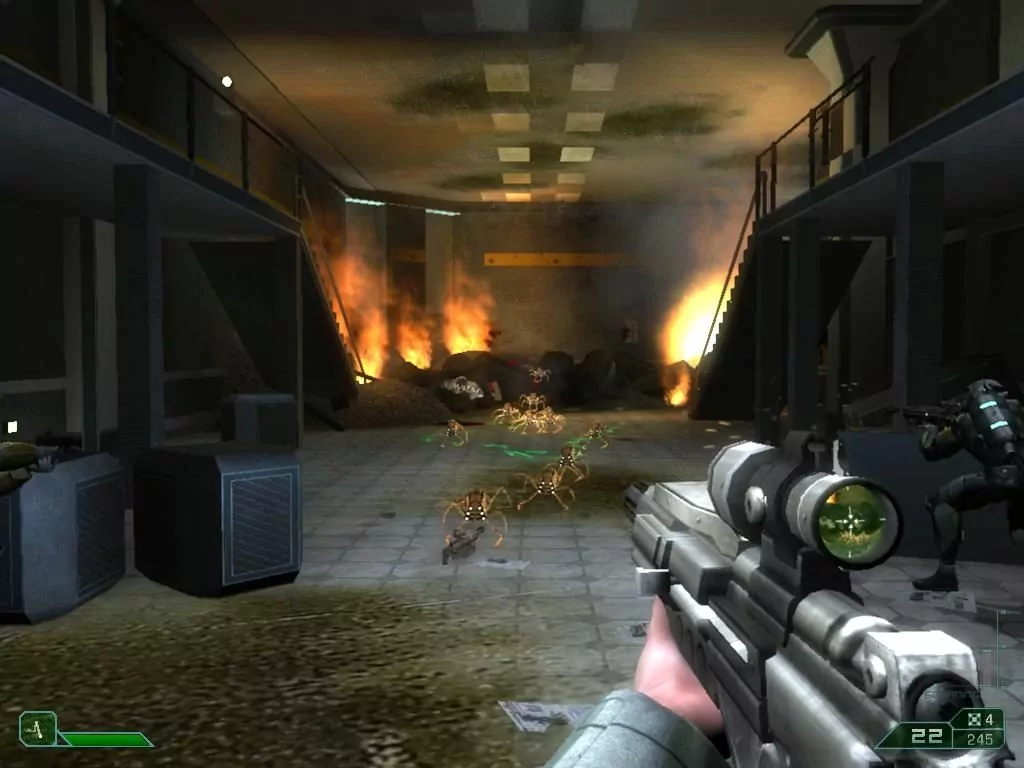
Section 8: Prejudice
Windows - 2011
| Year | 2011 |
|---|---|
| Platform | Windows |
| Released in | Worldwide (2011) Worldwide (2015) |
| Genre | Action |
| Theme | Sci-Fi / Futuristic, Shooter |
| Publisher | Atari, Inc., TimeGate Studios, Inc. |
| Developer | TimeGate Studios, Inc. |
| Perspective | 1st-Person |
| Tested on | Windows 10, Windows 11 |
Description of Section 8: Prejudice
In 2011, Atari, Inc., TimeGate Studios, Inc. publishes Section 8: Prejudice on Windows. This action game is now abandonware and is set in a sci-fi / futuristic and shooter themes.
External links
 MobyGames
 Wikipedia page
 PCGamingWiki
 WSGF
WSGF Gameplay video
 Multiplayer Discord server
How to play Section 8: Prejudice Windows
This release was prepared in collaboration with the help of Section 8 community. The fans of Section 8 series are still playing that games in multiplayer, even though the games are not available for purchase anymore. If you want to play Section 8 or Section 8: Prejudice in multiplayer - join them on this Discord server
The game with Title Update #4 and DLC Pack has been tested on Windows 7 64-bit, Windows 8, Windows 10 and Windows 11, it works fine. The game supports widescreen and ultra-high resolutions up to UltraHD 4K. You may experience some small troubles when you play the game on modern systems, check our Guide and Notes for details.
Before installing the game, make sure to install PhysX Legacy Drivers. PhysX drivers are required for the correct work of the game
Install & play guide:
- Mount the disc image. You will need the utility for mounting disc image files, like WinCDEmu, UltraISO, Alcohol 52%/Alcohol 120% or Daemon Tools Lite
- Install the game, using the serial key
11111-11111-11111-11111-11111. It is recommended to install the game not in default path but in some other, non-system folder, likeC:/Games/Section 8 Prejudice, so you won't have troubles with NoDVD or fixes - (The installer will automatically install Games for Windows Live (GFWL) and PhysX drivers, if you don't have them)
- After you installed the game, patch it with Title Update. Title Update #4 is the cumulative patch that includes all official updates for the game. If the installer of Title Update doesn't see the installed game - manually copy all files of the patch to the game directory, next to S9.exe, and run it again
- Then install DLC Pack that adds the content of all 3 official DLCs for the game: Blitz Pack, Overdrive Map Pack and Colonies Map Pack. To install DLCs copy the files from the archive to the game directory, the instruction is inside the archive
- After that use NoDVD, simply copy S9.exe from the archive and put it into the directory with installed game, agree to replace the original file
- Also you will need to use Xliveless to disable GFWL in the game to be able to correctly save the in-game progress. To use Xliveless copy xlive.dll and xlive.ini to
Section 8 Prejudice/Binaries/Win32folder - Open the directory with the game and find S9.exe. Right-click on S9.exe -> Properties -> Compatibility - Set "Run this app in compatibility mode with Windows Vista" and "Run as administrator"
- Launch the game and play. If the game doesn't work in compatibility mode with Windows Vista - try to launch it in compatibility mode with other version of Windows (Windows XP, Windows 7, etc.)
If you have troubles with the installation, you can download the archive of Section 8: Prejudice Revive V3, prepared by Section 8 community. That archive includes the full pre-installed game from the latest Steam build, with all DLC content and required fixes, you can simply extract the archive and play. Make sure to check the Readme-file inside the archive for FAQ.
The game can be played in Singleplayer, it has the Campaign mode with story missions, also you can play any multiplayer map in offline mode with bots. But it is still possible to play Section 8: Prejudice in online multiplayer with other players, by using the extra tools that allows to connect to unofficial servers or host your own dedicated server. For more instructions and details visit Discord server of Section 8 community, you can also find the other players there
Notes:
- If the installation doesn't start - try to launch Setup.exe in compatibility mode with old version of Windows (98, 2000 or XP)
- It is recommended to install all versions of Microsoft Visual C++ Redistributable and NET Framework for the correct work of the game. Also it is recommended to install K-Lite Codec Pack for the correct work of in-game videos
- And you will need PhysX for the correct work of the game, download & install PhysX Legacy Drivers before installing the game
- The game works on DirectX 9, so if you're using Windows 8, 8.1, 10 or 11 - you need to enable DirectPlay: Go to Control Panel, and select 'Programs'. Select 'Turn Windows features on and off', click on 'Legacy Components' and check the box 'DirectPlay'. Select OK, once the installation is done, restart your computer
- Title Update #4 is the cumulative patch that includes all official updates for the game. If you cannot install Title Update #4 because it shows error - first install all previous Title Updates. If the installer of the patch doesn't see the game directory - manually copy all files of the patch to the game directory, next to S9.exe, and run the patch installer again as Administrator. Also make sure that
Section 8 Prejudicefolder is not Read-only: right-click on folder -> Properties -> uncheck the box "Read only" - Section 8: Prejudice had 3 DLCs: Blitz Pack, Overdrive Map Pack and Colonies Map Pack. Blitz Pack added the Napalm Mortar, Incendiary Rounds for the Shotgun, and Blitz Armor. Overdrive Map Pack added two new maps: Abaddon and Sky Dock. Frontier Colonies Map Pack added two more maps: Desolation and Overseer. All DLC content can be used in both the online multiplayer and offline play with bots. To install the DLC Pack, first patch the game with Title Update #4, then copy
DLCfolder from the archive intoS9Game/CookedPCFinaldirectory. If you did everything correctly, you'd be able to select new maps in multiplayer game modes - NoDVD is required for the launch because the game is using SecuROM DRM protection and GFWL, which doesn't work correctly on modern systems. That NoDVD "breaks" DRM protection and allows the game to work on modern systems. If you see the error that there's not enough space on the hard drive when you copy NoDVD files - re-install the game in non-system folder, like
D:/Games/Section 8 Prejudice, Windows Protection may block copying of files to system folders (likeC:/Program FilesorC:/Windows) - The game requires Games for Windows Live (GFWL) for work, but there might be troubles with savegames when youn run the game with GFWL. So it is recommended to disable GFWL in the game, to do that use Xliveless, it is a small dll-file that disables GFWL in the game. To install Xliveless copy the files from Xliveless archive into
Section 8 Prejudice/Binaries/Win32folder (if it didn't work - put the files inC:/Windows/SysWOW64orC:/Windows.system32). After that, the game will be running without GFWL, you can delete GFWL app if you want - The game has 5 languages: English, French, German, Spanish & Italian. It is possible to change the language of installed game by editing UserEngine.ini file in
Section 8 Prejudice/S9Game/Configfolder. Open UserEngine.ini in Notepad and change theLanguageline: enterINTfor English,FRAfor French,DEUfor German,ESNfor Spanish,ITAfor Italian (in example, if you want to switch to German language, enterLanguage=DEU). That way you can easily switch to any of 5 languages. If the language reverts to default one after you edited UserEngine.ini file - make that file as Read-only (right-click on the file -> Properties -> check the box "Read only") - If the game crashes at random moments with no error: switch the game to Windowed mode in settings, that should help. You can use extra utilities to force the game to run in Borderless Windowed mode, here's the list of utilities
- You can change some of the game settings by editing the config-files. For example, you can change Field of View (FOV) by editing S9Engine.ini file, check this or this guide for instructions
- The game has option for Anisotropic filtering, the level of filtering changes when you adjust Texture Detail in graphics settings. But if you want you can change it manually in S9Engine.ini file, check this guide for details. Remember that changing any graphical option will result in a game reverting the settings to original values, so it is recommended to make any config-file that you edited as Read-only after (right-click on the file -> Properties -> check the box "Read only")
- However, there's no option to enable Anti-aliasing in the game. Even though that S9Engine.ini file has the Multisampling option, changing that option does nothing. To enable Anti-aliasing in the game, use SMAA Injector utility or force Anti-aliasing in the control panel of your video card
- Also, since the game works on Unreal Engine 3, you probably could change the other game settings in the config-files, like in any other Unreal Engine 3 game; check this page for more details about Unreal Engine 3 configuration files
- The game natively supports widescreen and ultra-high resolutions, including ultrawide displays and multi-monitor setups. If you play on ultrawide or multi-monitor setup, you probably will want to change Field of View (FOV), check this guide for instructions. If you play on tripplewide screen resolutions, it is recommended to set the FOV to 150 or higher, check WSGF page for example screenshots
- The game has full controller support, it should work fine with any type of gamepads. The game was tested with Xbox One gamepad so it should work with no problem with any XInput-type gamepad. If the game doesn't recognize your controller - try using one of the additional tools from PCGamingWiki guide for controllers
- If you don't want to use Xliveless and want to play with Games for Windows Live (GFWL) - delete the old GFWL that installs with the game, uninstall both Microsoft Games for Windows - LIVE Redistributable and Microsoft Games for Windows Marketplace. Then reboot your PC and install this version of GFWL. The version of GFWL that installs with the game is obsolete and doesn't work correctly on Windows 8 or newer OS, causing the different issues, such as the game doesn't load, crashes randomly or GFWL doesn't open in the game. To play the game in offline mode, create a local GFWL profile as in this guide
- Don't forget to check PCGamingWiki page if you have troubles, it is very useful!
Captures and Snapshots
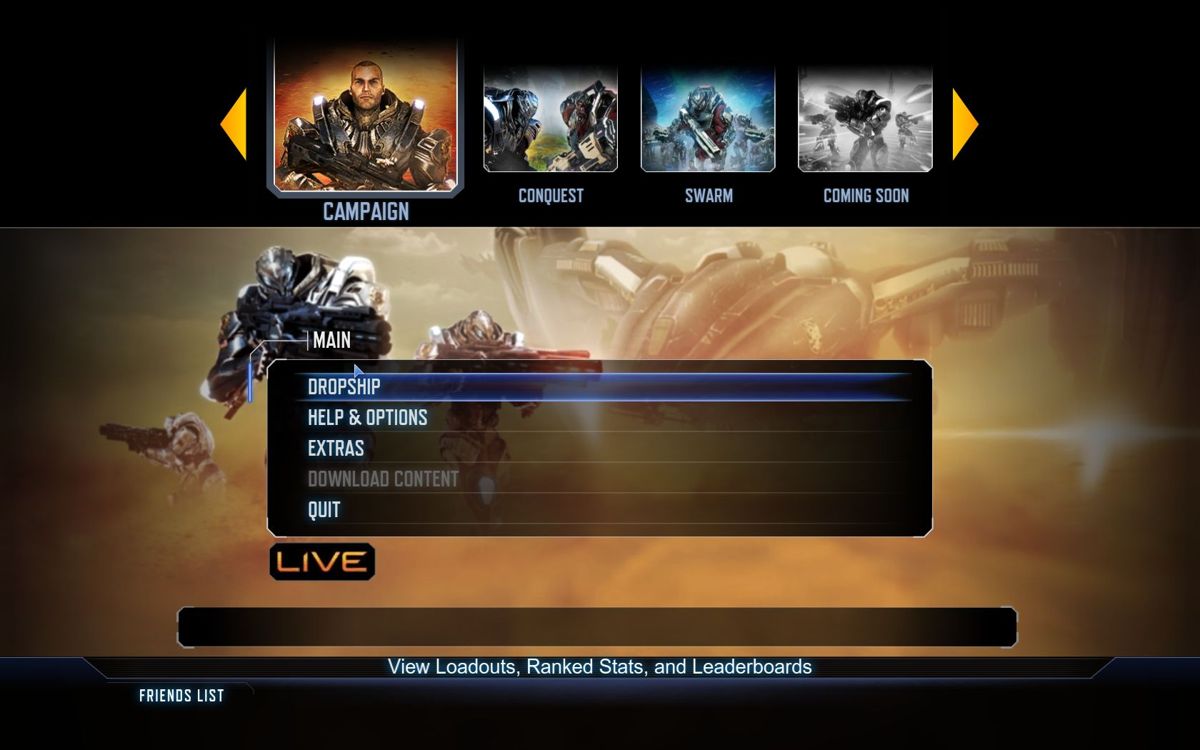
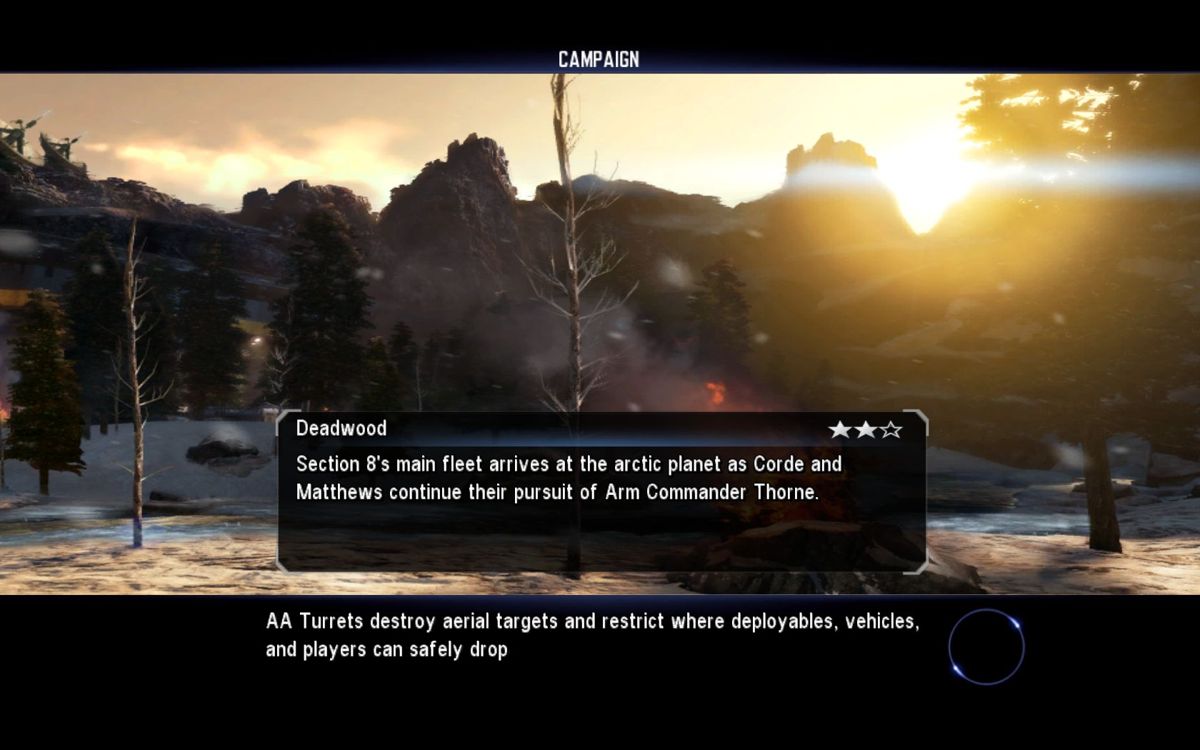
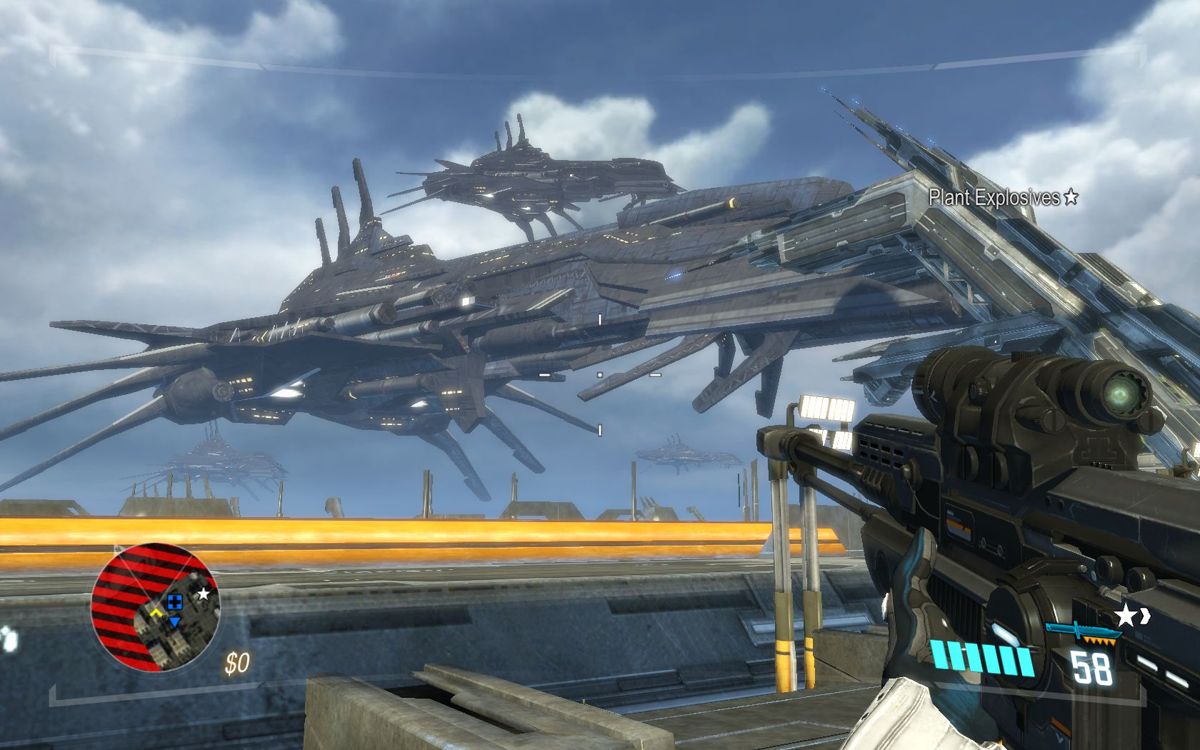
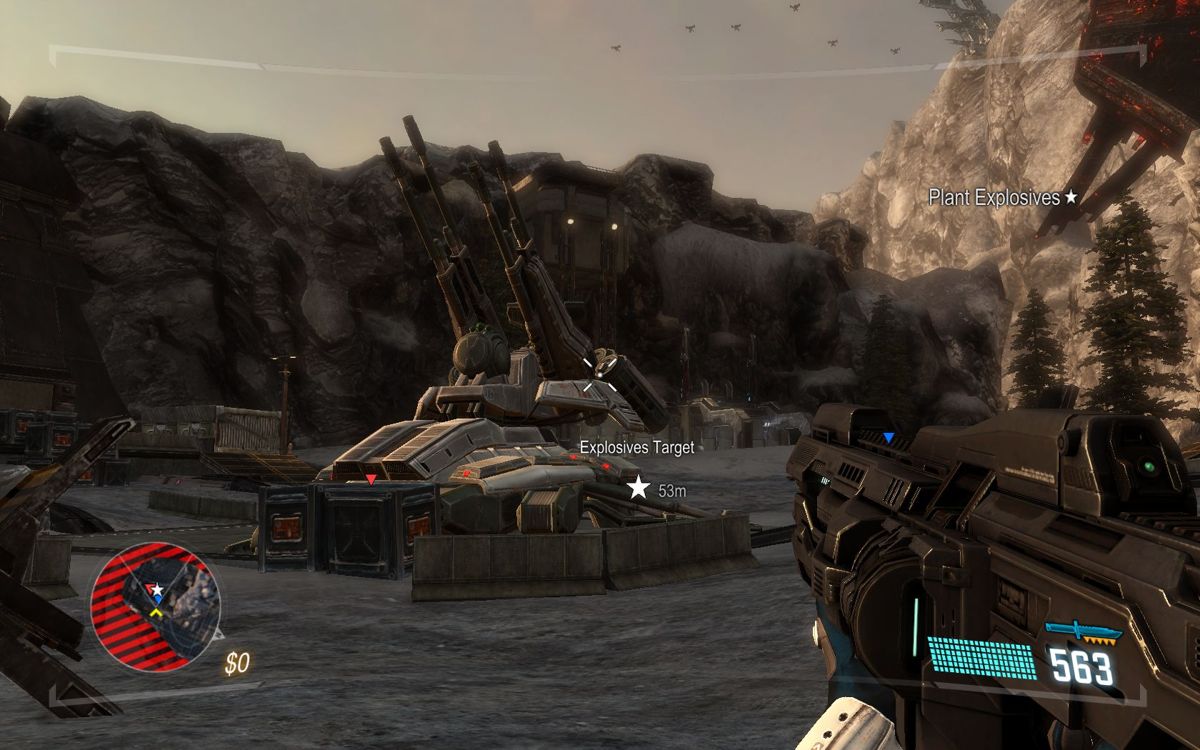
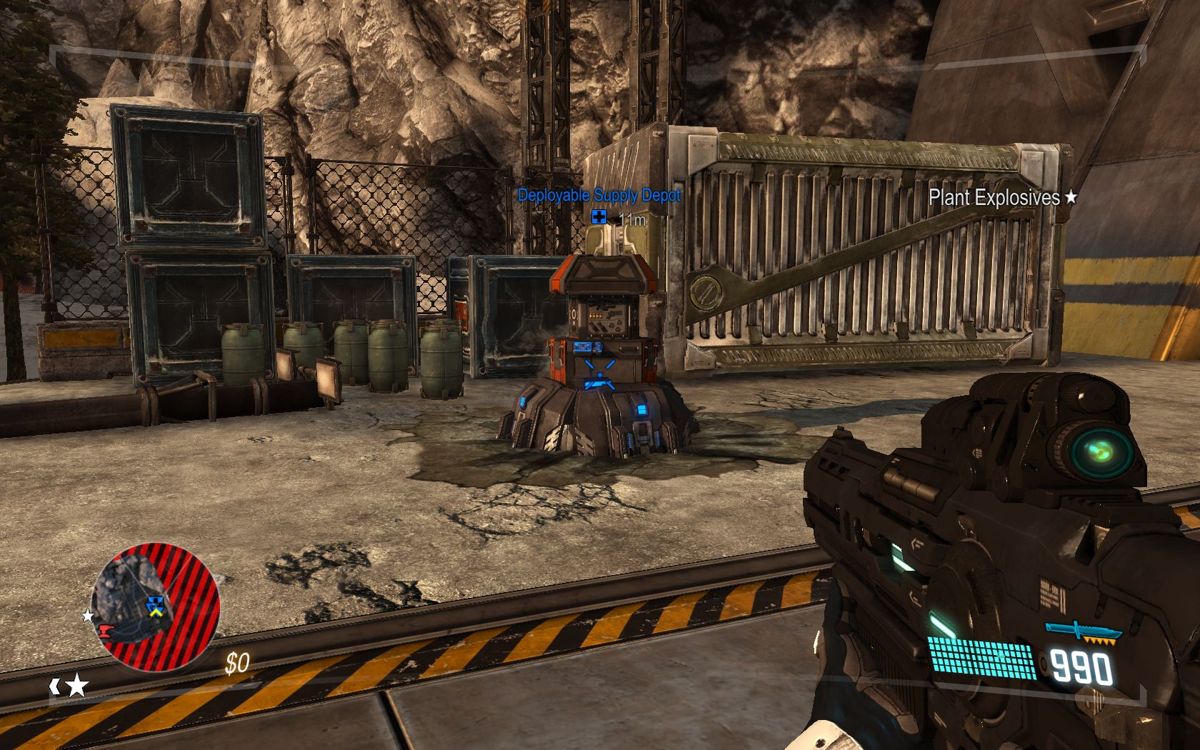
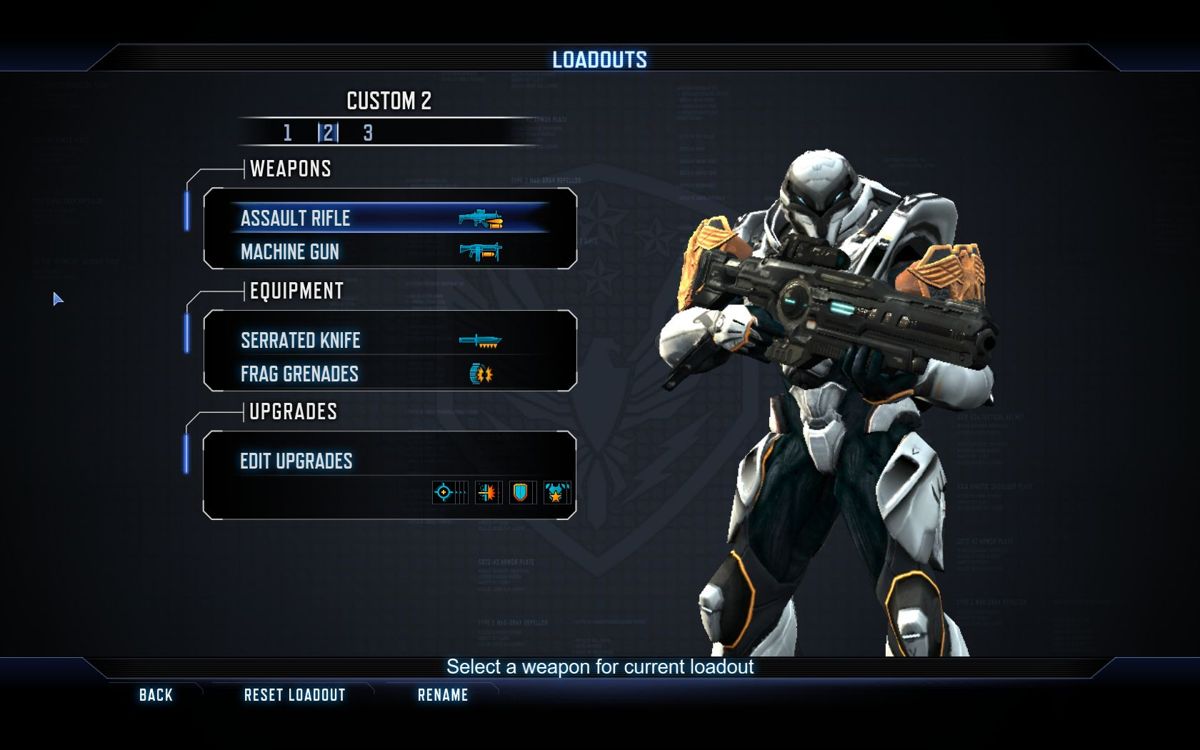
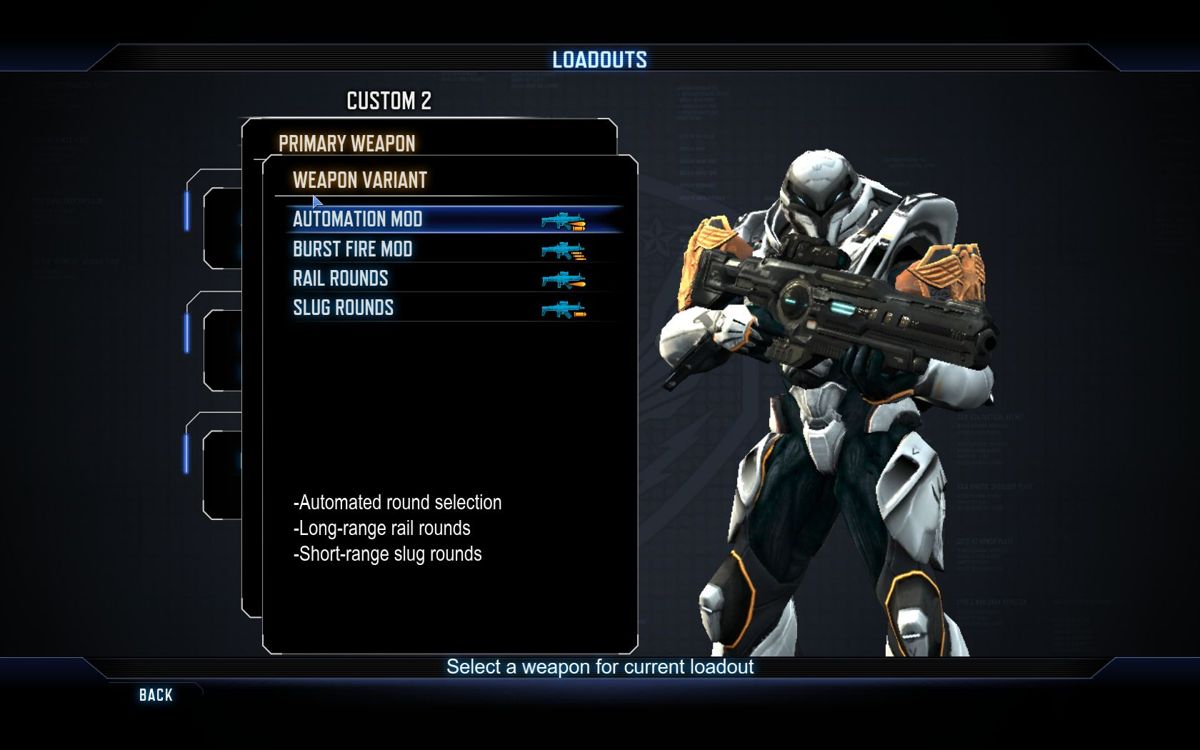
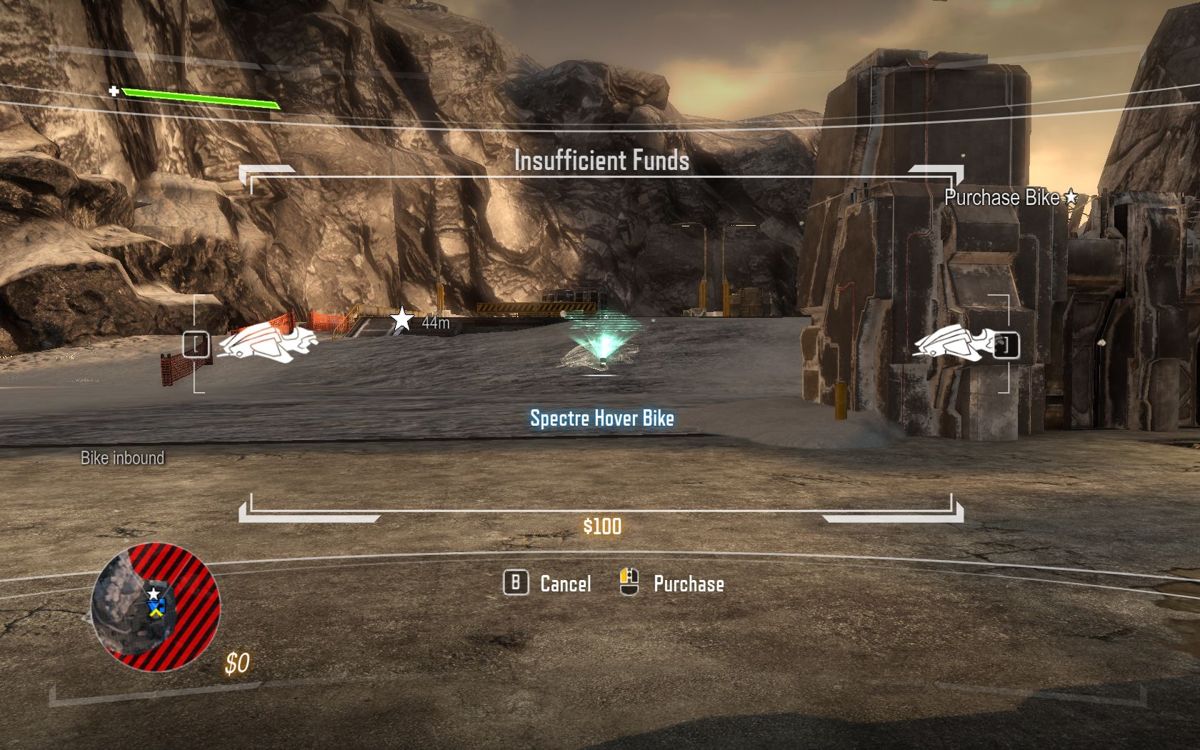
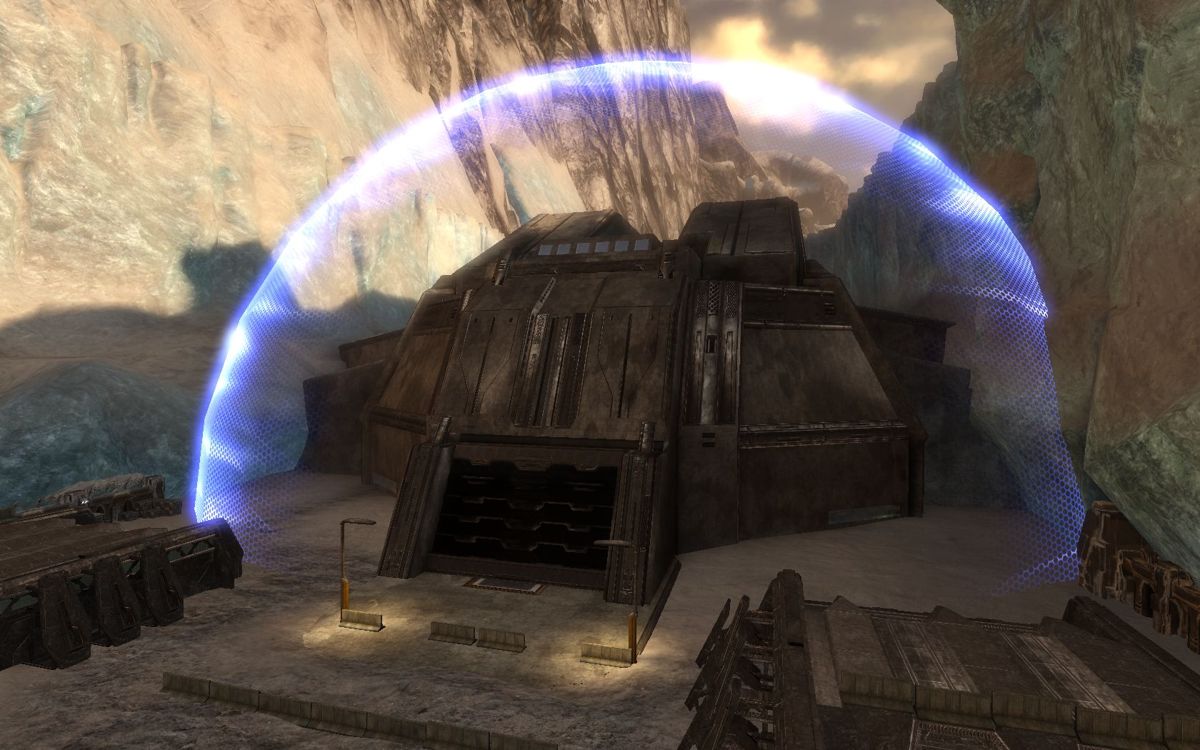
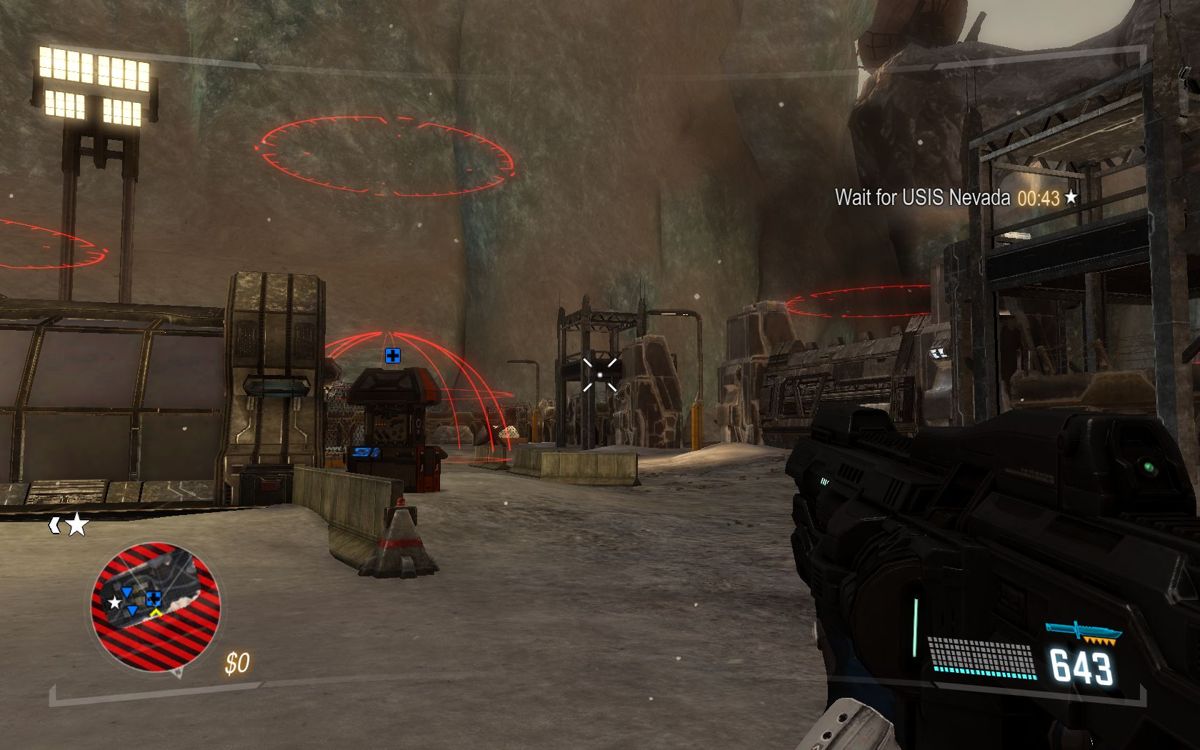
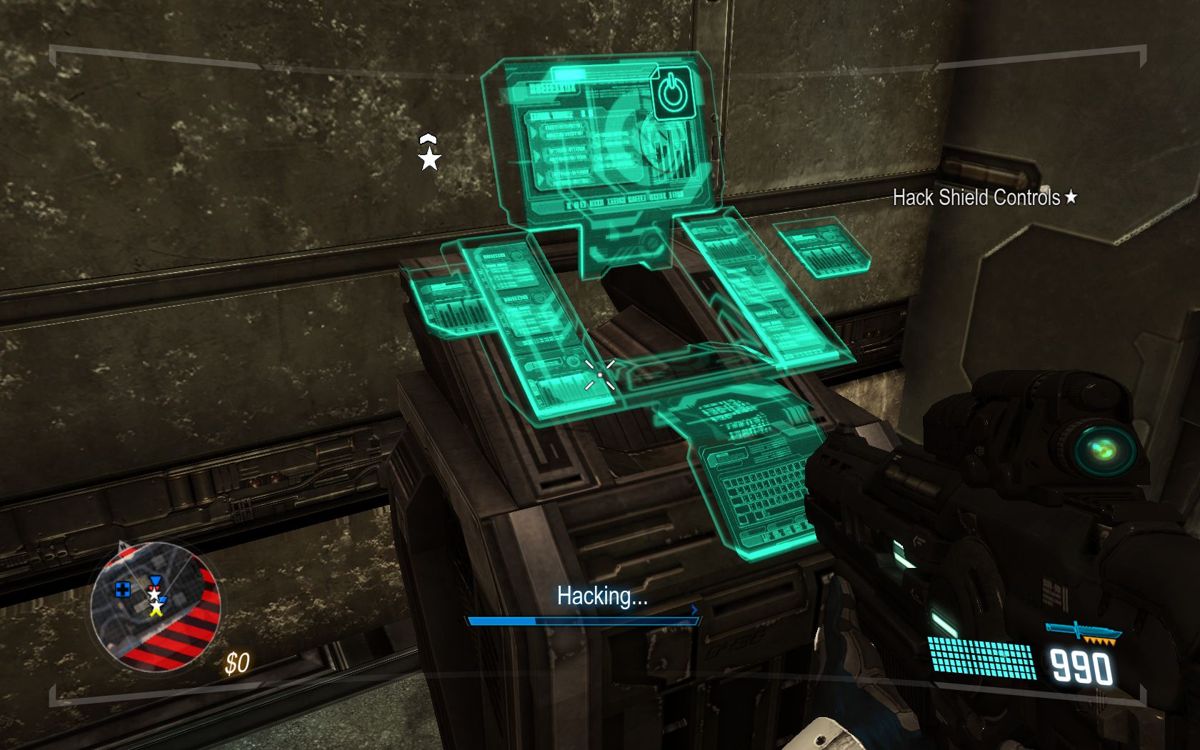
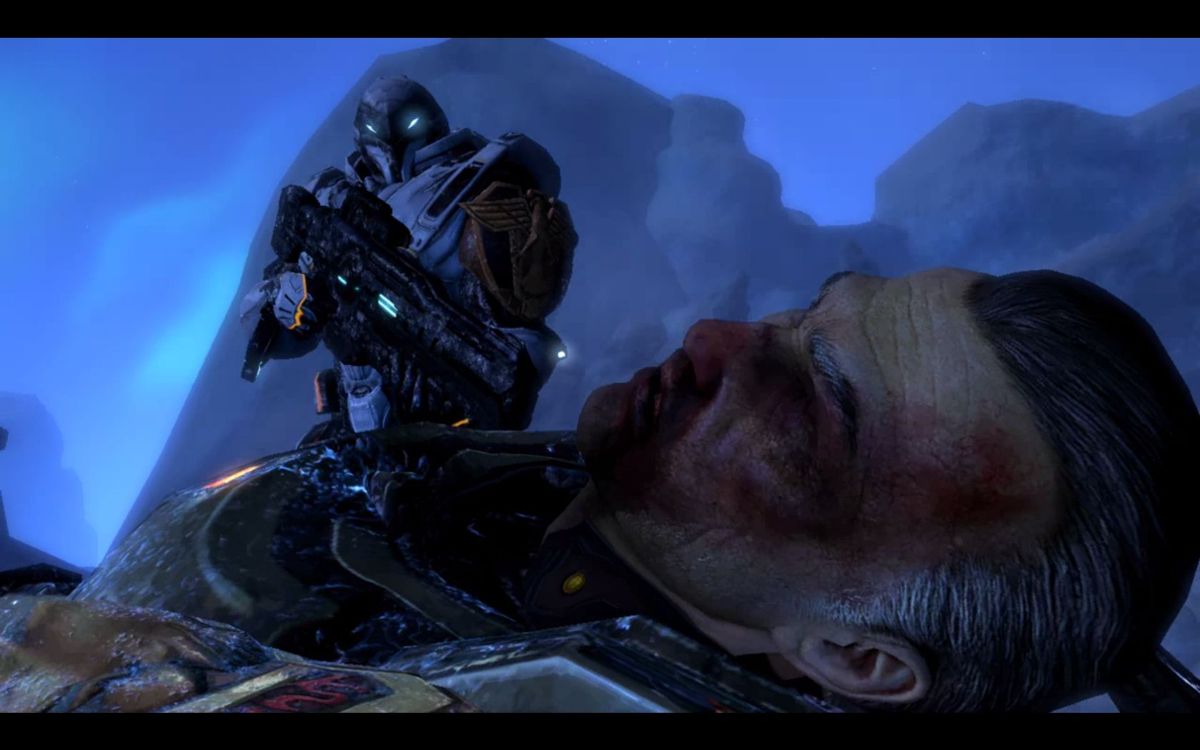
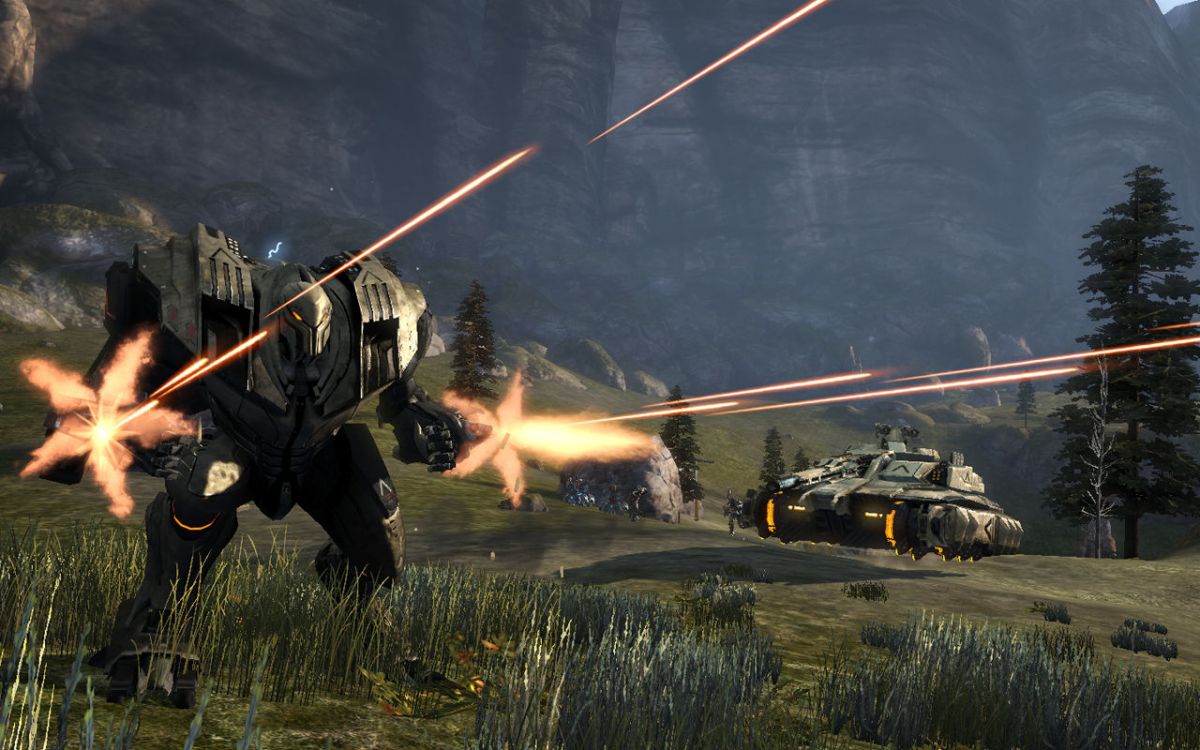
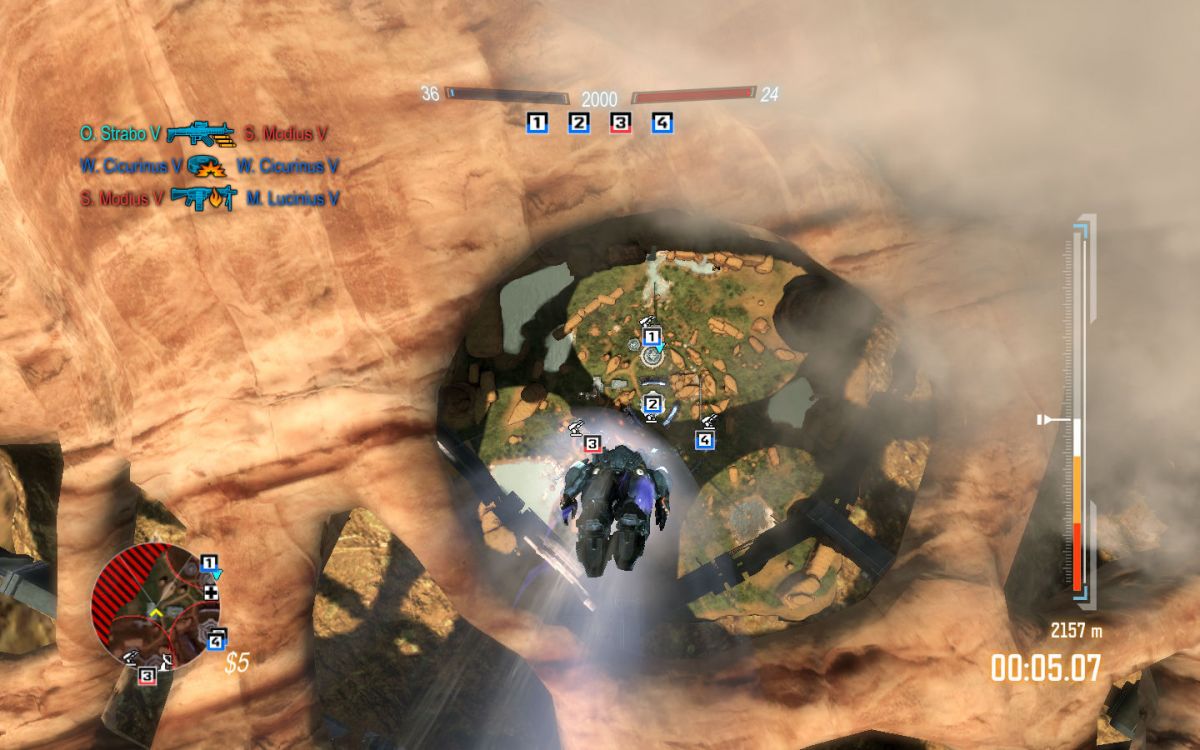
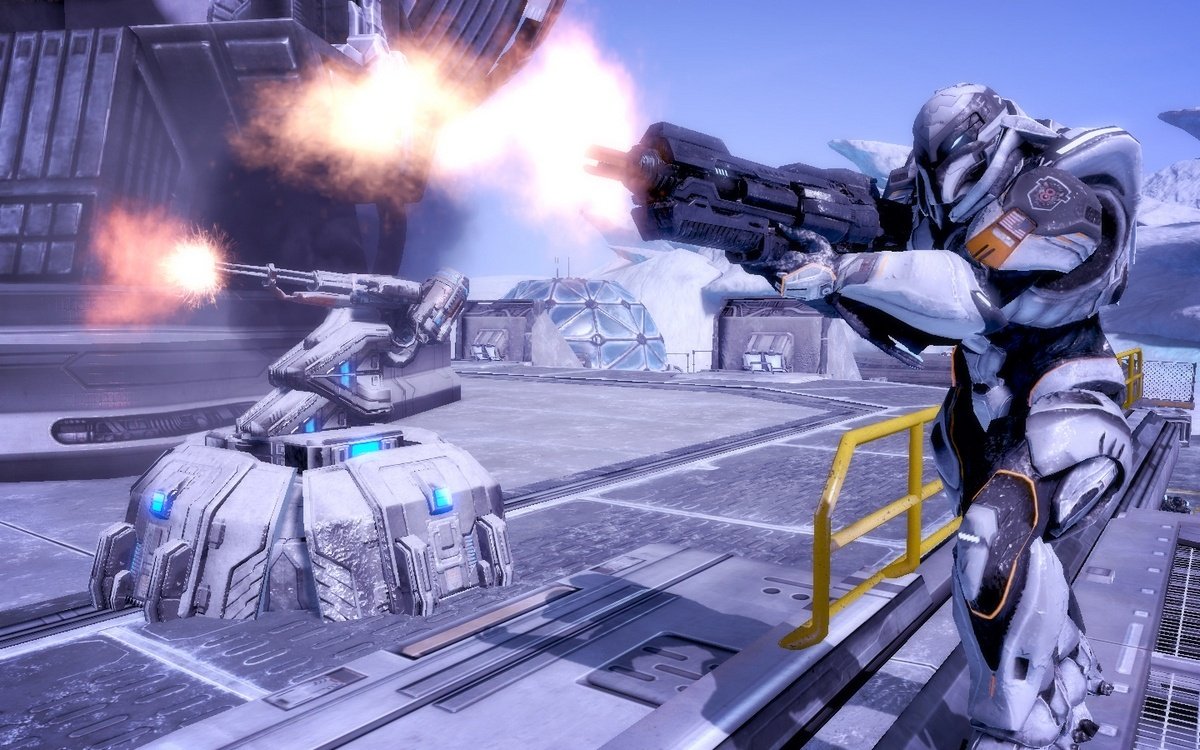
Comments and reviews
Not Bad 2026-09-19 0 point
Hey, that single-player campaign really isn't half-bad! Some really decent production values here, and none of the QTEs or scripted dialogue non-sense you'd find in Battlefield 3 or other cotemporaries! Nothing outstanding, but it has nice guns, good pacing and some interesting set pieces.
Write a comment
Share your gamer memories, help others to run the game or comment anything you'd like. If you have trouble to run Section 8: Prejudice (Windows), read the abandonware guide first!
Download Section 8: Prejudice
We may have multiple downloads for few games when different versions are available. Also, we try to upload manuals and extra documentation when possible. If you have additional files to contribute or have the game in another language, please contact us!
Windows Version
English, French, German, Spanish & Italian languages


 4.6 GB
DownloadSection 8: Prejudice Revive V3 by Section 8 community
4.6 GB
DownloadSection 8: Prejudice Revive V3 by Section 8 communityPre-installed game with all DLCs and required fixes
5.1 GB
Game Extras
Various files to help you run Section 8: Prejudice, apply patches, fixes, maps or miscellaneous utilities.
The archive with all four Title Updates
355 MB
FixXlivelessPut into “Section 8 Prejudice/Binaries/Win32” folder to disable Games for Windows Live
85 KB
MiscDLC Pack that includes the content of all 3 official DLCsIncludes Blitz Pack, Overdrive Map Pack and Colonies Map Pack
787 MB
MiscHungarian translation patch  9 MB
MiscBrazilian translation patch
9 MB
MiscBrazilian translation patch  9 MB
MiscRussian translation patch
9 MB
MiscRussian translation patch  14 MB
NocdNoDVD (compatible with all Title Updates) 370 KB
14 MB
NocdNoDVD (compatible with all Title Updates) 370 KB
Similar games
Fellow retro gamers also downloaded these games: