Team Apache
Windows - 1998
| Year | 1998 |
|---|---|
| Platform | Windows |
| Released in | France, Germany, United States (1998) Germany (1999) |
| Genre | Simulation |
| Theme | Helicopter, Vehicular Combat Simulator |
| Publisher | Mattel Interactive, Mindscape, Inc. |
| Developer | Simis Limited |
| Perspectives | 1st-Person, 3rd-Person |
| Tested on | Windows 10 |
Description of Team Apache
If you haven't played Team Apache or want to try this simulation video game, download it now for free! Published in 1998 by Mindscape, Inc., Mattel Interactive, Team Apache was an above-average vehicular combat simulator title in its time.
External links
 MobyGames
 Wikipedia page
 Gameplay video
 IGDB
IGDBHow to play Team Apache Windows
The game has been tested on Windows 7 64-bit, Windows 8 and Windows 10, it works fine. You may experience some small troubles when you play the game on modern systems, check our Notes for troubleshooting
Install & play guide:
- Mount the disc image with virtual drive utility, like WinCDEmu, UltraISO, Alcohol 52%/Alcohol 120% or Daemon Tools Lite, etc.
- Install the game (if the installation doesn't start - launch Setup.exe in compatibility mode with Windows 95 or 98). It is recommended to install the game not in default path, but in some other, non-system folder, like
C:/Games/Team Apache, so you won't have troubles with fixes - Open the game folder and find Launcher.exe. Right click on Launcher.exe -> Properties -> Compatibility -> Set "Run this app in compatibility mode with Windows 98" and "Run as Administrator"
- Run Launcher.exe and play the game, the disc must be mounted in virtual drive. If the game doesn't work - launch in with dgVoodoo 2, check the instruction in Notes
Notes:
- It is recommended to install all versions of Microsoft Visual C++ Redistributable and NET Framework for the correct work of the game. Also it is recommended to install K-Lite Codec Pack for the correct work of in-game videos
- The game works on Direct3D 6, so if you're using Windows 8, 8.1, 10 or 11 - you need to enable DirectPlay: Go to Control Panel, and select 'Programs'. Select 'Turn Windows features on and off', click on 'Legacy Components' and check the box 'DirectPlay'. Select OK, once the installation is done, restart your computer
- By default the maximum screen resolution supported by the game is 800x600. But you can run the game through dgVoodoo 2 and set the higher screen resolutions in dgVoodoo Control Panel. To install dgVoodoo copy the dll-files from the
MS/x86folder, dgVoodooCpl.exe and dgVoodoo.conf to the game folder, next to Launcher.exe. After that run dgVoodoo Control Panel (dgVoodooCpl.exe) as Administrator and change the graphics settings, you can even enable Texture filtering and Anti-aliasing to get the better graphics. The game with dgVoodoo 2 has been tested on Windows 10, it works fine. We also recommend to use dgVoodoo 2 if you have any compatibility issues with the game! - There's a problem with the stuttering in-game videos when the game is launched on Windows XP or newer systems, if you have a multi-core CPU. To fix it you need to run the game only on 1 core, use this simple CPU Affinity fix: create an empty desktop shortcut (right-click on empty space on desktop -> "Create shortcut") and in the "Location" line write:
cmd.exe /c start "Team Apache" /affinity 1 "C:\Games\Team Apache\Launcher.exe"(where"C:\Games\Team Apache\Launcher.exe"is the path to Launcher.exe in the game directory, make sure to enter your path). After that when you run the game from that desktop shortcut, it will always run only on 1 core, and all in-game videos will be working fine. That simple CPU Affinity fix may also fix the other issues, such as some of key bindings not working in the game - The game has support of Glide API, even though it cannot be selected in the Launcher. So you can run it with nGlide utility, the game works fine with it, it has Playable status on nGlide website. To run the game with nGlide, set Windows 95 compatibility mode for apachefx.exe and launch the game as
'apachefx.exe -aohsn'. If you have a stuttering videos when you run the game in Glide mode (usually happens on Windows XP) - use CPU Affinity fix from the note above - If you don't want to manually run the game through command line, you can make the game to forcefully run in Glide mode every time: first run mprofile.exe from game directory, it will check your system hardware and create mdrivers.dat file; open mdrivers.dat in Notepad and change the line
GLIDE NOTPRESENT 0toGLIDE PRESENT 0; save the changes, rename mdrivers.dat to mprofile.dat and set it as Read-only. The thing is that every time you click "Change Video Driver" in the Launcher, Launcher runs mprofile.exe file, it checks your hardware and creates mdrivers.dat file; when you click OK in Launcher, it deletes mdrivers.dat file and saves the results of hardware check into apexe.dat file. But if you set mdrivers.dat file as Read-only, Launcher couldn't delete it; check this thread for more details - The game doesn't have any DRM protection, only the simple disc check. It is recommended to play the game with disc in virtual drive, for better performance. But if you want to remove the disc check, use NoCD: first copy the
pcdash,redistandVideofolders from the disc to the game directory (the folder where you installed the game); then copy all exe-file from NoCD archive to the same game directory, replacing the original files. In case if it didn't work - try to use NoCD Patcher from GameCopyWorld to remove disc check (we didn't upload that patcher because it showed many generic warnings, here's the scan report) - If you play on Windows 98, there might be a bug with 'crackling' sounds, or audio suddenly breaking up. To fix it install the official Sound Fix; if the installer doesn't run - extract TASOUND.exe with WinRAR or another archiver tool and manually copy the files following the instruction inside
- There's a random bug in the game when the pilot may suddenly yell "There's brains everywhere!" even if he didn't die. That bug is random, here's a video demonstration how it looks
- The game can be played with joystick but it probably won't recognize the modern models of joystic controllers. If the game doesn't recognize your controller - try using one of the additional tools from PCGamingWiki guide for controllers
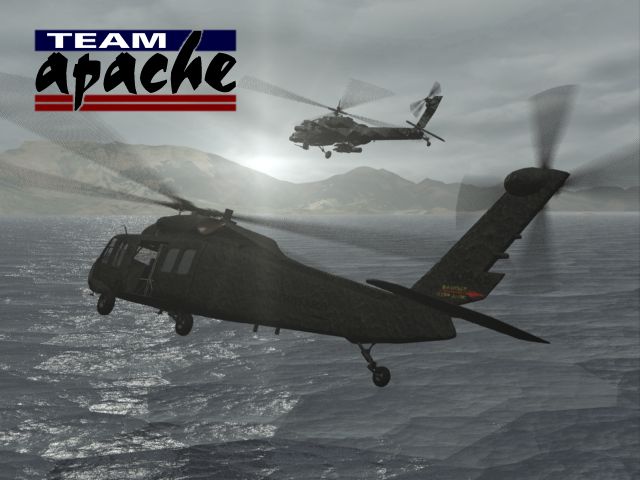
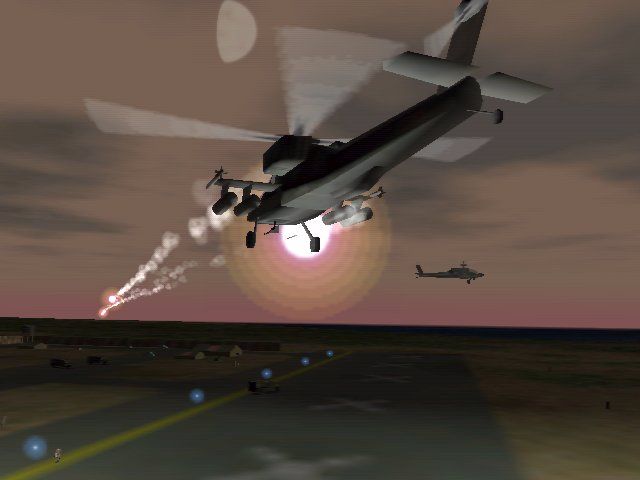
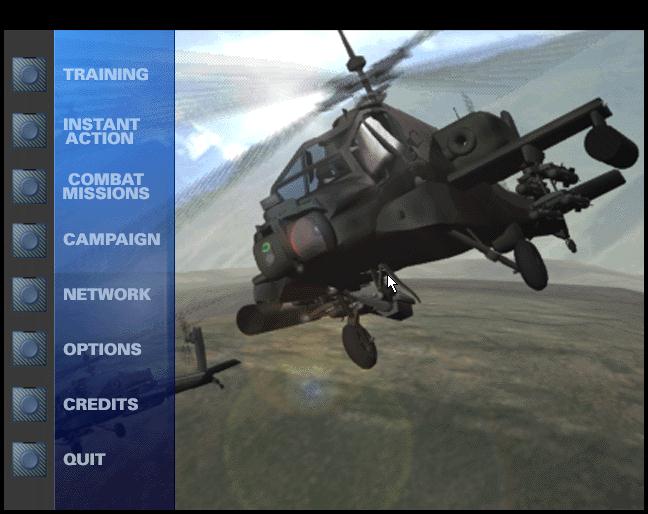
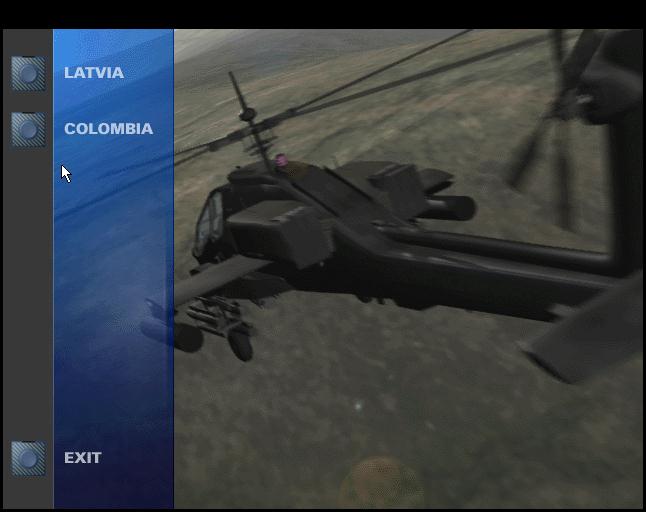
Captures and Snapshots
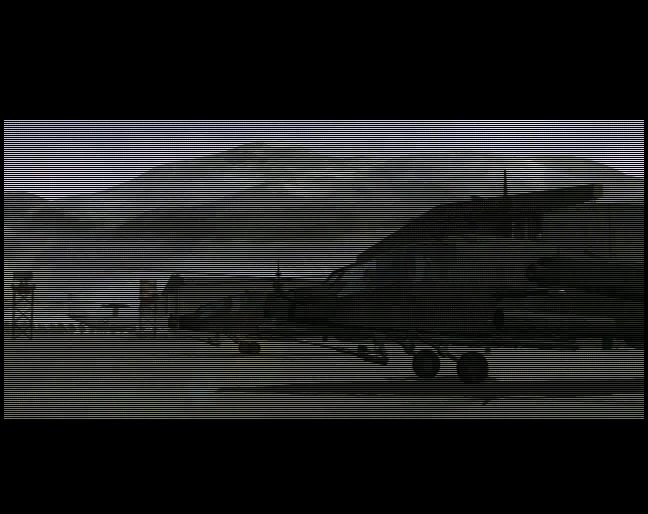
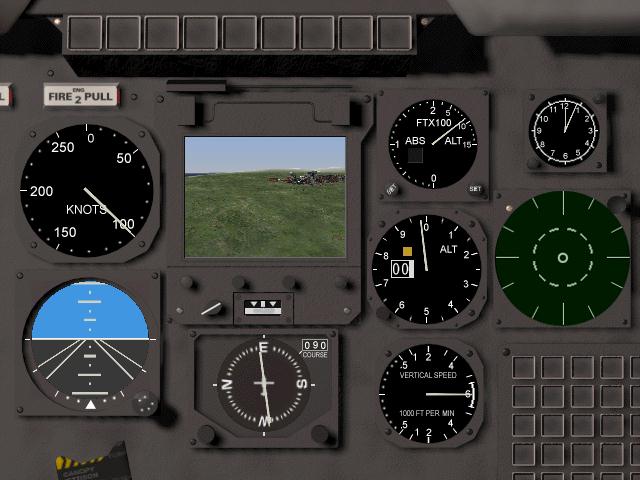
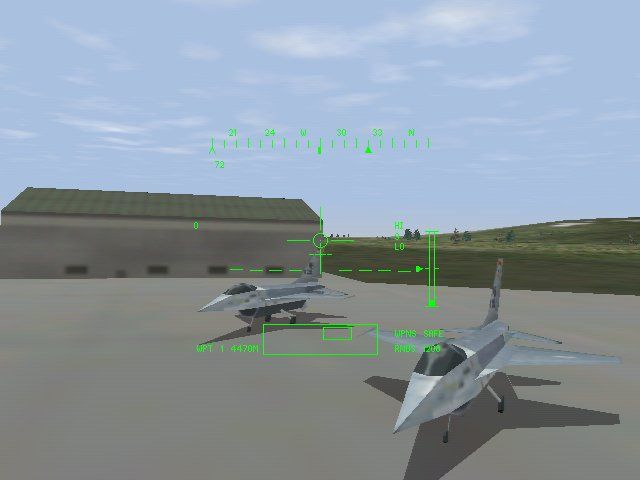
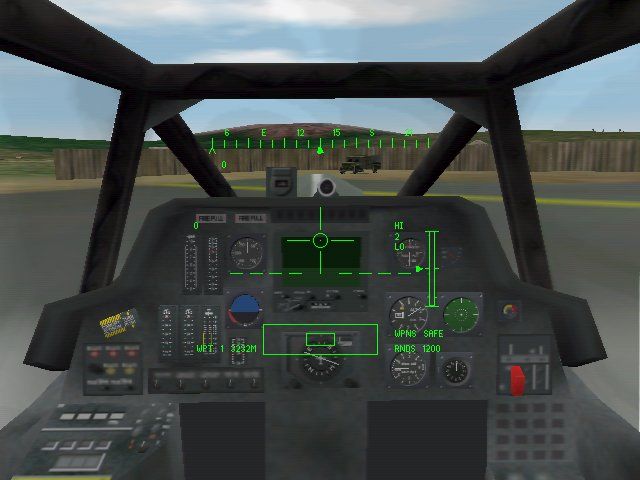
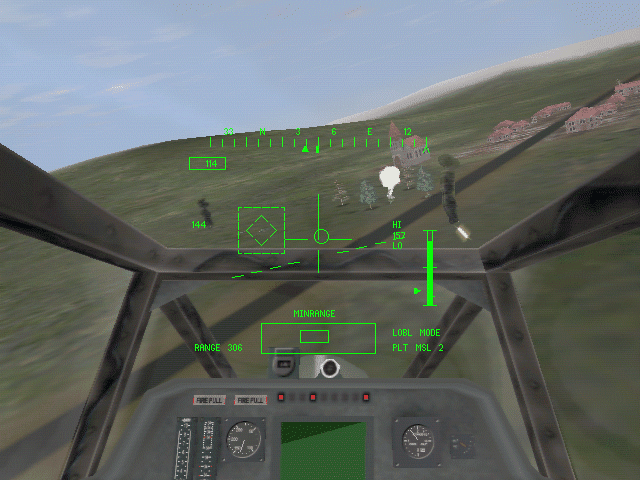
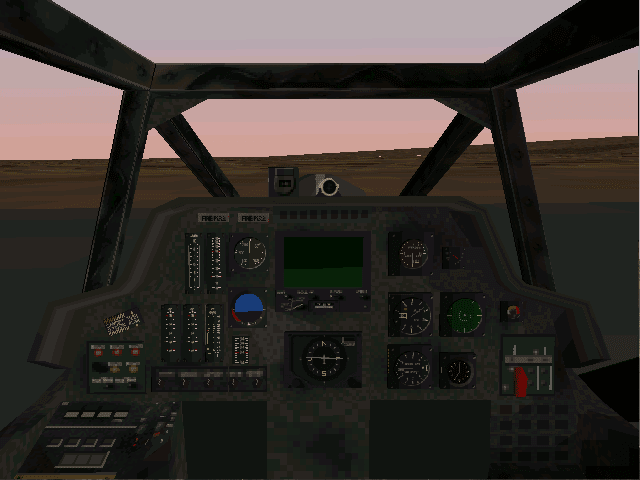
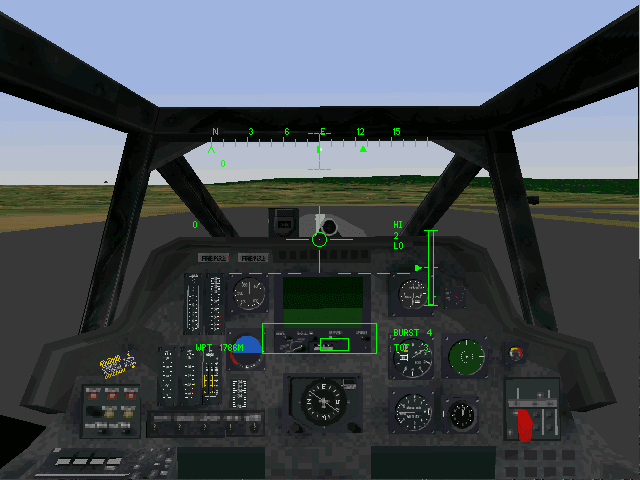
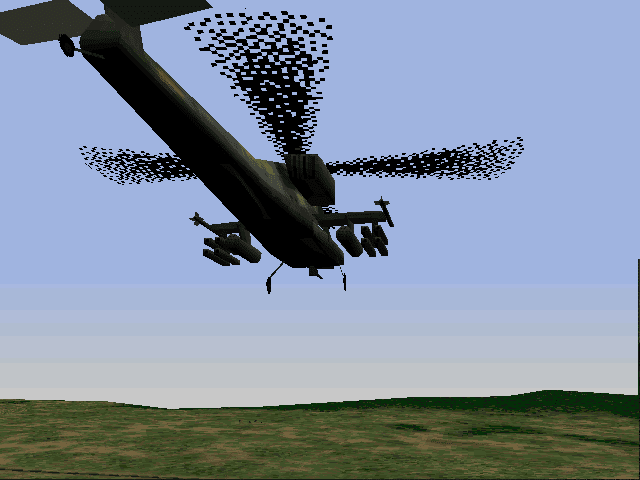
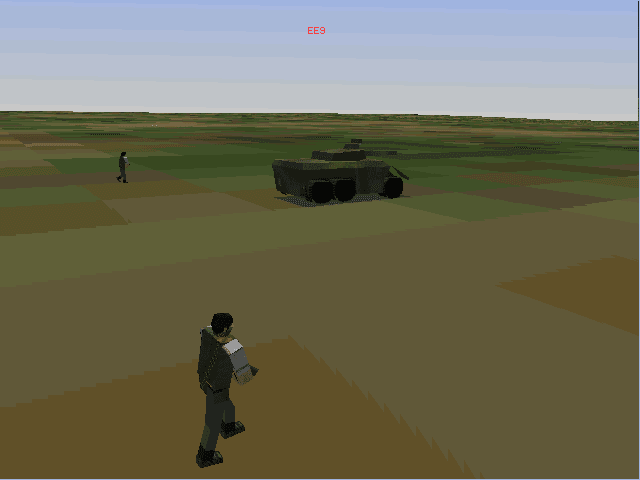
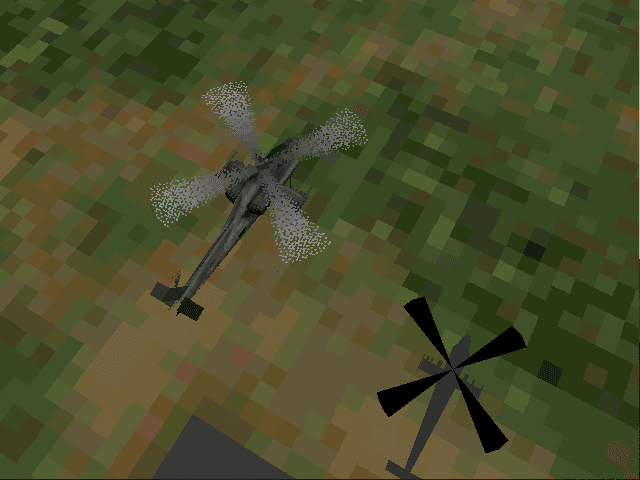
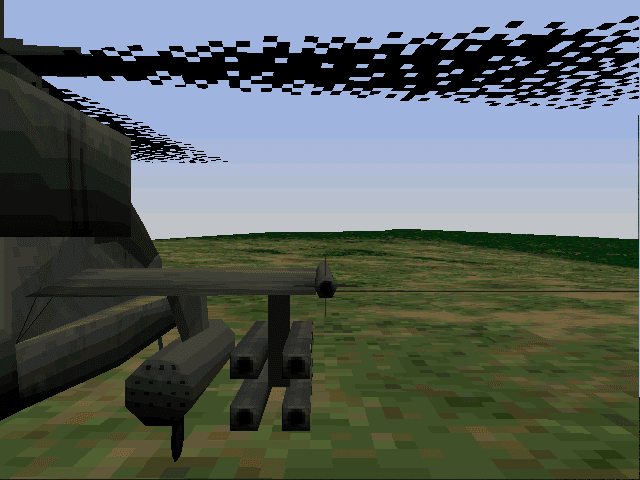
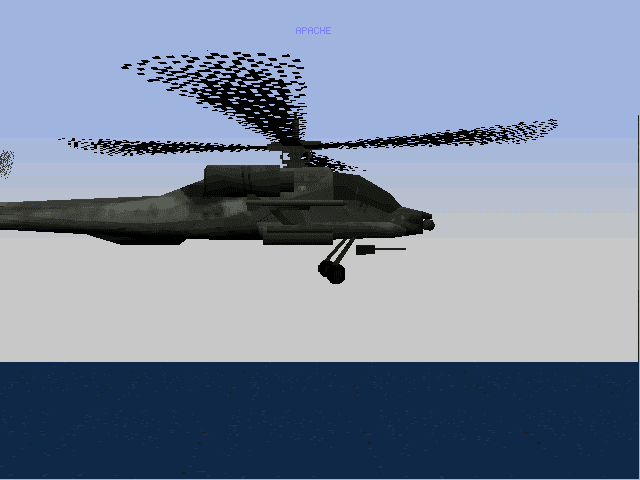
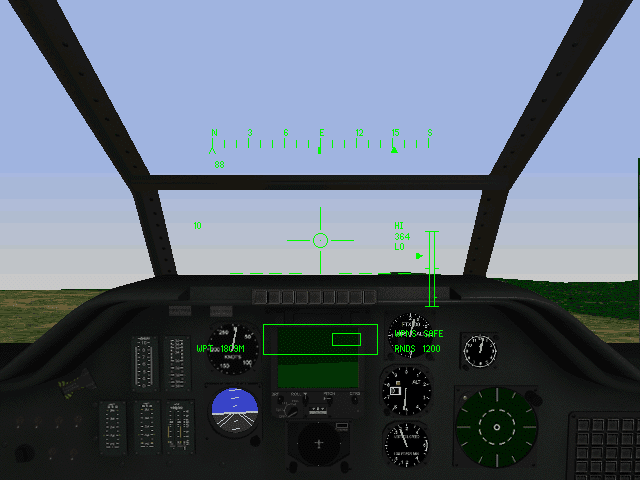
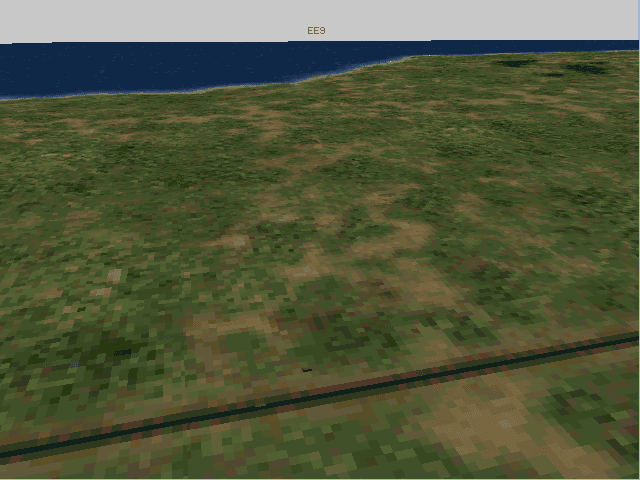
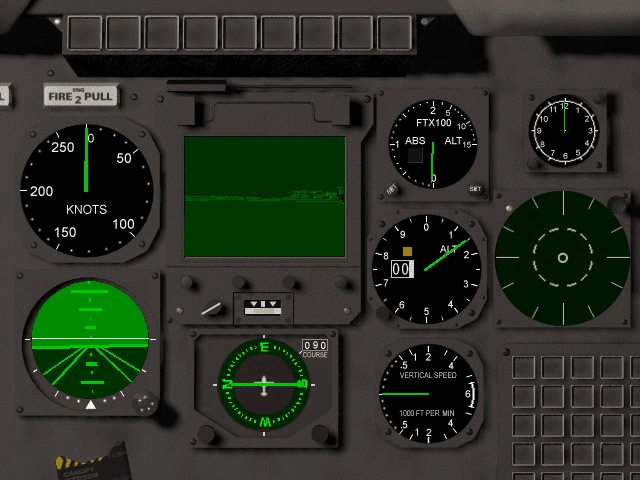
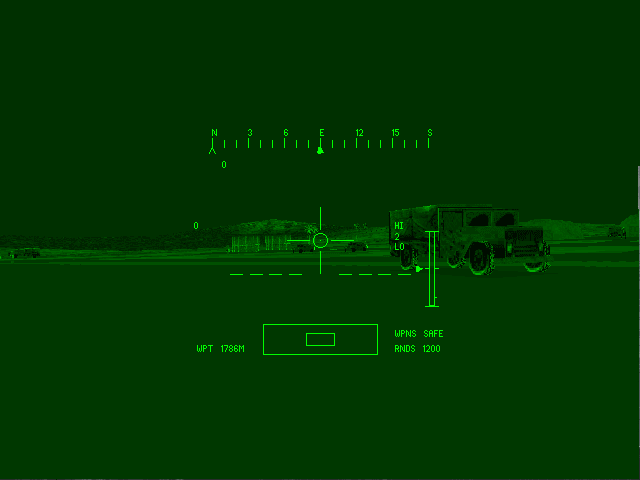

Comments and reviews
There is no comment nor review for this game at the moment.
Write a comment
Share your gamer memories, help others to run the game or comment anything you'd like. If you have trouble to run Team Apache (Windows), read the abandonware guide first!
Download Team Apache
We may have multiple downloads for few games when different versions are available. Also, we try to upload manuals and extra documentation when possible. If you have additional files to contribute or have the game in another language, please contact us!
Windows Version

 373 MB
DownloadRip of English version (no videos, no speech) 36 MB
DownloadGerman version
373 MB
DownloadRip of English version (no videos, no speech) 36 MB
DownloadGerman version  345 MB
Manual 24 MB
345 MB
Manual 24 MB
Game Extras
Various files to help you run Team Apache, apply patches, fixes, maps or miscellaneous utilities.
 3 MB
3 MBSimilar games
Fellow retro gamers also downloaded these games: