| Alt names | Хроники Риддика: Assault on Dark Athena, Kroniki Riddicka: Assault on Dark Athena |
|---|---|
| Year | 2009 |
| Platform | Windows |
| Released in | Czechia, Finland, Italy, Russia, Sweden, Worldwide (2009) Worldwide (2012) |
| Genre | Action |
| Theme | Licensed Title, Sci-Fi / Futuristic, Shooter, Stealth |
| Publisher | Akella, Atari Europe S.A.S.U., Atari, Inc. |
| Developer | Starbreeze Studios AB, Tigon Studios |
| Perspective | 1st-Person |
Description of The Chronicles of Riddick: Assault on Dark Athena
The Chronicles of Riddick: Assault on Dark Athena (aka Хроники Риддика: Assault on Dark Athena), a really nice action game sold in 2009 for Windows, is available and ready to be played again! Also available on Mac, time to play a sci-fi / futuristic, shooter, stealth and licensed title video game title.
External links
 MobyGames
 Wikipedia page
 PCGamingWiki
 WSGF
WSGF Mod DB
 NexusMods
 Gameplay video
 IGDB
IGDBHow to play The Chronicles of Riddick: Assault on Dark Athena Windows
Both NoDVDs showed a lot of false positive warnings, the files are safe to use! NoDVD with DRM-Free files from GOG release showed 33 generic warnings, old NoDVD showed 42 generic warnings. All warnings are generic, about suspicious files, NoDVDs are totally safe to use (approved by GOG Support), simply add the files to antivirus exceptions list.
The game version 1.01 has been tested on Windows 7 64-bit, Windows 8, 8.1, Windows 10 and Windows 11, it works fine. The game supports widescreen and high resolutions up to 4K. You may experience some small troubles when you play the game on modern systems, check our Guide and Notes for details
Install & play guide (for retail DVD release):
- Mount the disc image. You will need the utility for mounting disc image files, like WinCDEmu, UltraISO, Alcohol 52%/Alcohol 120% or Daemon Tools Lite
- Install the game. Select "Custom" installation in the installer and select some non-system folder for installation, like
C:/Games/Riddick AODA. That way you won't have troubles with NoDVD or fixes - After you installed the game - install the patch v1.01. You can also install DLC packs, they add new maps for multiplayer and return Commentary Mode to Escape from Butcher Bay
- Then use NoDVD, simply copy the files from the archive and put them in
Riddick AODA/System/Win32_x86, agree to replace the original files. If you want, you can delete TagesClient.dat and TagesClient.exe files, it is the files of DRM protection and you won't need them if you use NoDVD - Open
Riddick AODA/System/Win32_x86folder and find DarkAthena.exe. Right-click on DarkAthena.exe -> Properties -> Compatibility -> Set "Run this app in Compatibility mode with Windows XP SP3" and "Run as Administrator" - Launch the game and play. If the game doesn't work in compatibility mode with Windows XP - try to launch it in Compatibility mode with other version of Windows (Windows 95, 98, 2000, etc.)
Install & play guide (for DRM-Free GOG release):
- GOG release is DRM-Free and has a simple installer, just install & play. GOG release is identical to retail DVD release, but DRM protection is removed and the game is pre-patched to v1.01. Your antivirus may trigger on some files of installed game, but it is false positive warnings, simply add the game folder to antivirus exceptions list
If you install multilingual version of the game, you can switch the language in the Launcher (DarkAthena_Launcher.exe file inside game folder) or by editing the Environment.cfg file (located in %LOCALAPPDATA%\Atari\The Chronicles of Riddick - Assault on Dark Athena) - open it in Notepad and change the line LANGUAGE=
How to tweak visual and graphics setttings and fix the screen ratio:
- The game has support of widescreen and high resolutions up to Ultra HD 4K. However, non-16:9 resolutions are letterboxed by default. To fix the letterboxing use 16:10 Fix by jackfuste, it includes the fixes for 16:10, 5:4 and 4:3 screen ratios. To use it simply copy the loader to
Riddick AODA/System/Win32_x86folder and run the game via the loader (you also must use NoDVD prior, you can download it here or on our website). If you have letterboxed on 16:9 resolution, open Environment.cfg file in Notepad (file is located in%LOCALAPPDATA%\Atari\The Chronicles of Riddick - Assault on Dark Athena) and make sure thatVID_DWIDTHandVID_DHEIGHTare set to the correct values - If the game window is too large for your monitor, or you set the high resolution but the game automatically sets the lower resolution (like you want to play on 2560x1440 resolution but the game sets 1770x940 resolution) - you need to set Windows scaling mode to "Application": open
Riddick AODA/System/Win32_x86folder and right-click on DarkAthena.exe -> Properties -> Compatibility, click on "Change high DPI settings button", in the "High DPI scaling override" section select "Application" from the drop down list; save the changes and run the game. That problem usually happens on Windows 10 & 11 when the game runs in Full HD or higher screen resolution. Also, if you play on Windows 7, 8/8.1 or 10 and the game window doesn't fit on your monitor in Fullscreen mode - you may need to lower the scaling on font size in Display Settings -> Change the size of text - If you want to play in Windowed mode, press Alt+Enter while you play the game. You can also play the game in Borderless Windowed mode by using DxWnd utility, check this thread for more details
- If the game doesn't save screen resolution or Refresh Rate settings. The game may fail to change the screen resolution on the next launch and run in default 640x480 or 800x600 screen resolution. To fix it set the startup resolution in Environment.cfg config-file (located in
%LOCALAPPDATA%\Atari\The Chronicles of Riddick - Assault on Dark Athena, if you don't see such file - run the game one time) - open the file in Notepad and in the lineVID_MODE=enter the desktop screen resolution and Refresh Rate (for example, if you want to run in 1920x1080 mode with 60 Hz Refresh Rate, enterVID_MODE=1920 1080 32 60). If the game still reverts the settings to default - make the file as Read-only in file Properties. If the game launches with incorrect Refresh Rate every time - open Environment.cfg in Notepad and make sure thatVID_DWIDTHandVID_DHEIGHTare set to the correct values - The game has Anti-aliasing, MSAA and CSAA up to 32x (be careful, Anti-aliasing has a high performance impact, so if you have the performance issues - reduce or disable Anti-aliasing). But enabling Anti-aliasing automatically disable SSAO (Screen Space Ambient Occlusion). To be able to play with SSAO and Anti-aliasing at same time, do the next: enable Anti-aliasing, then press Ctrl+Alt+~ in game to open the console and enter
xr_ssao 1(value 1 for Low option, values 2 and 3 for Medium and High SSAO). You need to enter it on every launch because the console settings are not saved. Also, even the High SSAO option in this game is very low quality and adds a lot of noise and aliasing to the image - Running the game with Anti-aliasing and SSAO at same time may lower the performance of the game, here's a trick to boost the performance: in Environment.cfg enter
VID_GAMMA=0andVID_BLACKLEVEL=0, then run the game and in settings enable Anti-aliasing and set Color mode to 8-bit, then in the game press Ctrl+Alt+~ to open the console and enter the next commands:xr_ssao 1(2 or 3 for higher SSAO),xr_adaptivequalitymode 0. According to this thread, that trick boosts the perfomance of the game - If you want to play with Soft Shadows with High Resolution shadowmaps, do the next: press Ctrl+Alt+~ in game to open the console and enter
xr_softstencil 1to enable Soft Shadows, then enterxr_shadowmapmode 0to replace the low resolution shadow maps with stencil shadows (if you enter onlyxr_shadowmapmode 0, translucent textures lose their shadows but in combination withxr_softstencil 1they return with higher resolution). This tweak makes sense for the Assault on Dark Athena campaign only as the original Escape from Butcher Bay campaign doesn't seem to use any shadow maps. You need to enter it on every launch because the console settings are not saved. Please note that enabling this settings may result in worse performance, so if you have performance issues - restart the game to revert the changes - How to tweak different visual effects. If you don't like "Green color filter/Reduced Color" shading - go to
Riddick AODA/Content/Texturesand remove ColorCorrection.xtc file. If you don't like Grain effect in the game - you can use NoGrain mod; the same author also made NoRGBSaturation mod that reduces the saturation in the game. If you want to reduce Specular Highlight to reduces the shinyness without destroying the look of textures - press Ctrl+Alt+~ in game to open the console and enterxr_shaderspecularscale 1 0.2 1(you need to do that on every launch of the game, because console settings are not saved), that will reduce the shinyness but all blood decals will have a pink color when light reflects on them. You can also remove Bloom-like fog effect in front of the player, by enteringxr_zfog 0in console (Ctrl+Alt+~), but it will disable all fog in the game, not just the one surrounding the player, also "night vision" mode that enables when you crouch will become completely dark instead of slightly lit on some levels (if you don't like the changes, simply restart the game because the settings entered through console are not saved). Optionally, you can also download ClearEyes mod that disables all visual effects, or use one of ReShades
Notes:
- If the installation doesn't start - try to launch Setup.exe in compatibility mode with old version of Windows (98, 2000 or XP)
- It is recommended to install all versions of Microsoft Visual C++ Redistributable and NET Framework for the correct work of the game. Also it is recommended to install K-Lite Codec Pack for the correct work of in-game videos
- The game works on DirectX 9, so if you're using Windows 8, 8.1, 10 or 11 - you need to enable DirectPlay: Go to Control Panel, and select 'Programs'. Select 'Turn Windows features on and off', click on 'Legacy Components' and check the box 'DirectPlay'. Select OK, once the installation is done, restart your computer
- NoDVD is required for launch because the game was protected with Tages DRM with online activation. Tages DRM has serious compatibility issues on modern systems, also you cannot activate the game without the license code. NoDVD "cracks" the DRM protection and allows to run the game without the disc. Both NoDVDs showed many false positive warnings but the files are 100% safe to use, simply add NoDVD files to antivirus exceptions list. If you see the error that there's not enough space on the hard drive when you copy NoCD files - re-install the game in non-system folder, like
D:/Games/Riddick AODA, Windows Protection may block copying of files to system folders (likeC:/Program FilesorC:/Windows). NoDVDs also works with Steam version, you can use it to fix Tages DRM error in Steam release - For users of Nvidia video cards: if the game crashes with no error in "CRenderContextGL::GLSL_LoadSrc" location class and in ".\MRndrGL_GLSL.cpp(829)" SourcePos (the screenshot of crash message) - you need to edit config-files like in this guide; also make sure to run the game in Compatibility mode with Windows XP SP3. If it didn't help - downgrade Nvidia drivers to version 581.80 or older
- If you have Nvidia video card and the game shows poor performance or heavy stuttering: try to disable Threaded optimization in Nvidia Control Panel - open the game profile in Nvidia Control Panel (if there's no profile for the game, create it) and set the "Threaded optimization" option to
Off, then click "Apply" (please note that on some systems it may result in worse performance of the game). The game may also work slow if you use "Prefer layered on DXGI Swapchain" driver option with this game: open the game profile in Nvidia Control Panel and set "Vulkan/OpenGL present method" option toAutoorPrefer native - The game has support of high framerates, including 120 and more FPS. But gravity pull strength is wrong in "Gravity Generator" section of Assault on Dark Athena campaign at FPS above 60. To fix it you need to lock the framerate at 60 FPS or less: either set Refresh Rate to 60 Hz or less in game settings and enable Vsync; or limit the framerate in control panel of your video card or with one of framerate limiter utilities
- For Windows 11 users: the game may crash randomly on Windows 11 if it runs on Refresh Rate higher than 60 Hz. Also, the game may freeze or crash if you press Alt+Tab to switch to other apps or Win+D to switch to the desktop. It seems that that issues happen only on Windows 11, on Windows 10 the game works fine
- The original The Chronicles of Riddick: Escape from Butcher Bay game had a Commentary Mode with audio commentaries by developers. The Dark Athena variant has it too, but to enable it you need to install any of DLCs. By default Commentary Mode unlocks after you finish Escape from Butcher Bay campaign, but if you want to make it availabe from the start, you need to edit config-files, check this guide for details
- Be careful, the screen saver mode deletes the savegame files! Save files will delete themselves if the game is left running and your computer goes into screen saver mode. To avoid this, remember to quit the game before leaving it unattended or disable screen saver mode
- The game has multiplayer mode. The official online servers were closed many years ago, but the game has support of LAN multiplayer, so you can try to play the game in multiplayer with LAN emulators like Hamachi or RadminVPN. There was 4 DLC packs with new maps for the multiplayer mode, you can download them on ModDB or our website
- By default the game makes savegames only at checkpoints, but you can also enable Quick Saves through console: press Ctrl+Alt+~ in game and enter
bind f5 savegame('quick')andbind f8 loadgame('quick'), now you will be able to make quick savegames by pressing F5 and load them by pressing F8 (the game uses F9 to load the most recent save by default). You will need to do that on every launch of the game, use ↓/↑ buttons in the console for quick access to your recent commands - If you want, you can unlock Debug Menu in the game by editing CubeWnd.xrg config-file, pre-edited config-file is available here
- The game has full controller support, it should work fine with any type of gamepads. You must connect both the gamepad and keyboard before the start of the game and then select the controller in game settings. The game was tested with Xbox One gamepad so it should work with no problem with any XInput-type gamepad. If the game doesn't recognize your controller - try using one of the additional tools from PCGamingWiki guide for controllers
- It is possible to play the game on Linux, the easiest variant would be to use Batocera app. Batocera app can be launched on many different devices, including handheld consoles. You can find the files of the game pre-configured for Batocera client in this or this archive
- Don't forget to check PCGamingWiki if you have troubles, it is very useful! You can also check Steam forums and GOG forums, if you didn't find the solution for your problem
Captures and Snapshots
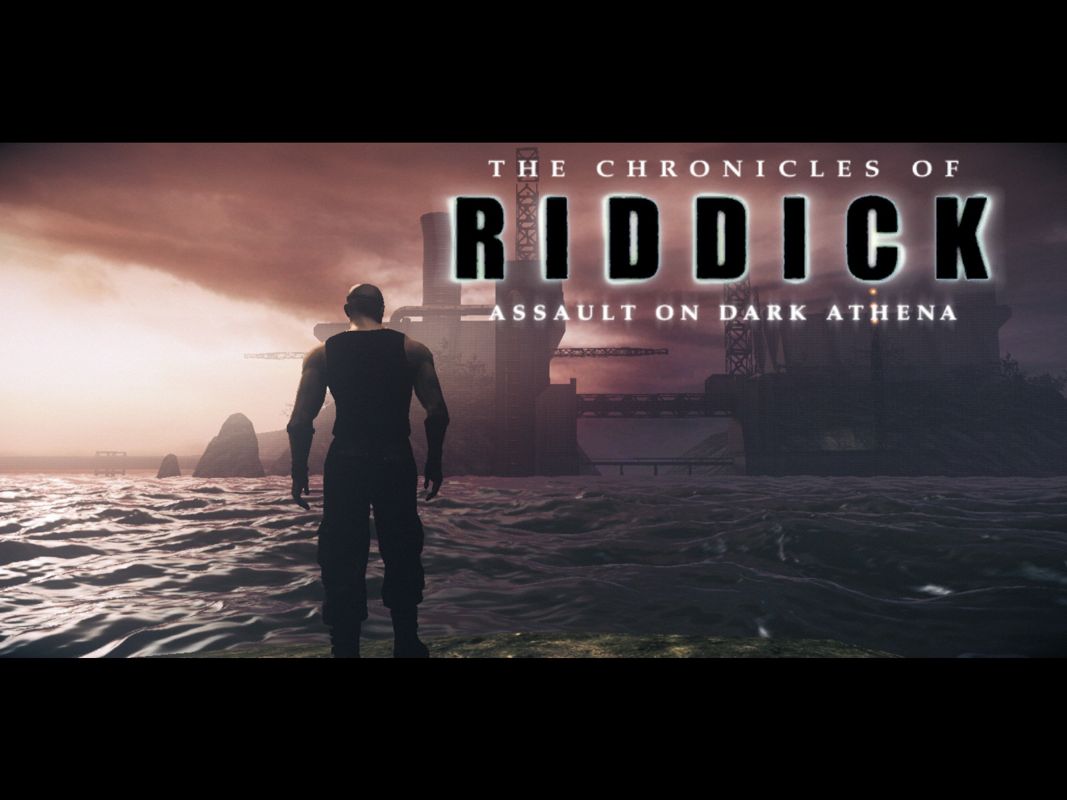
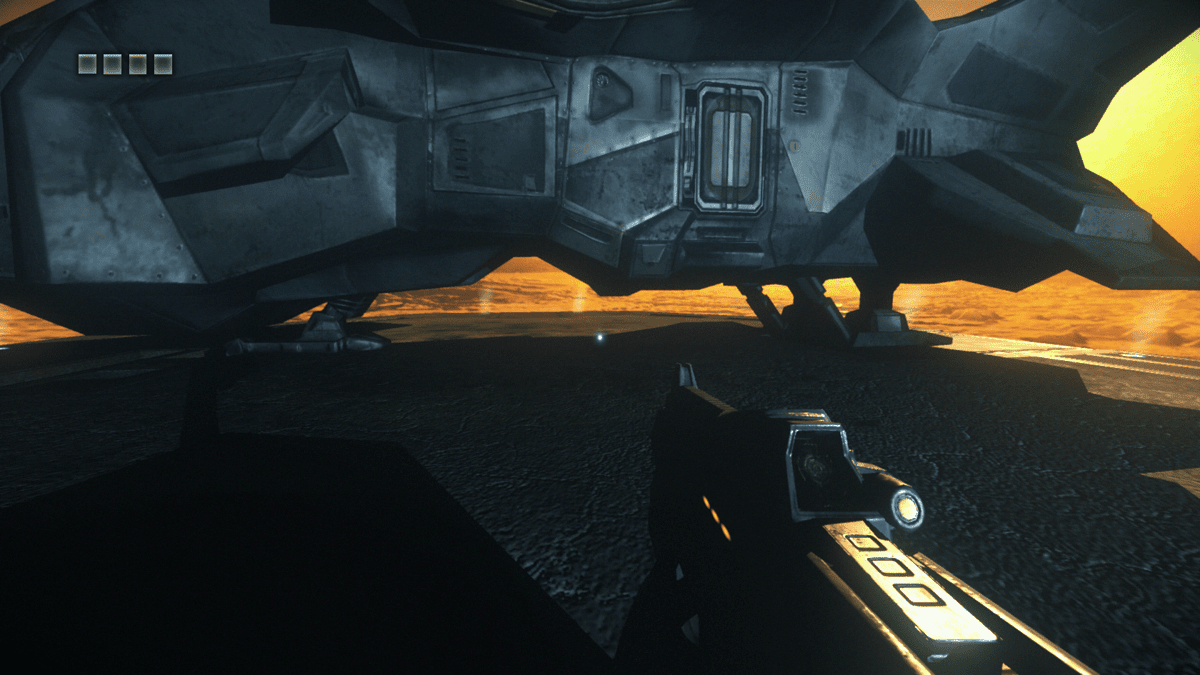
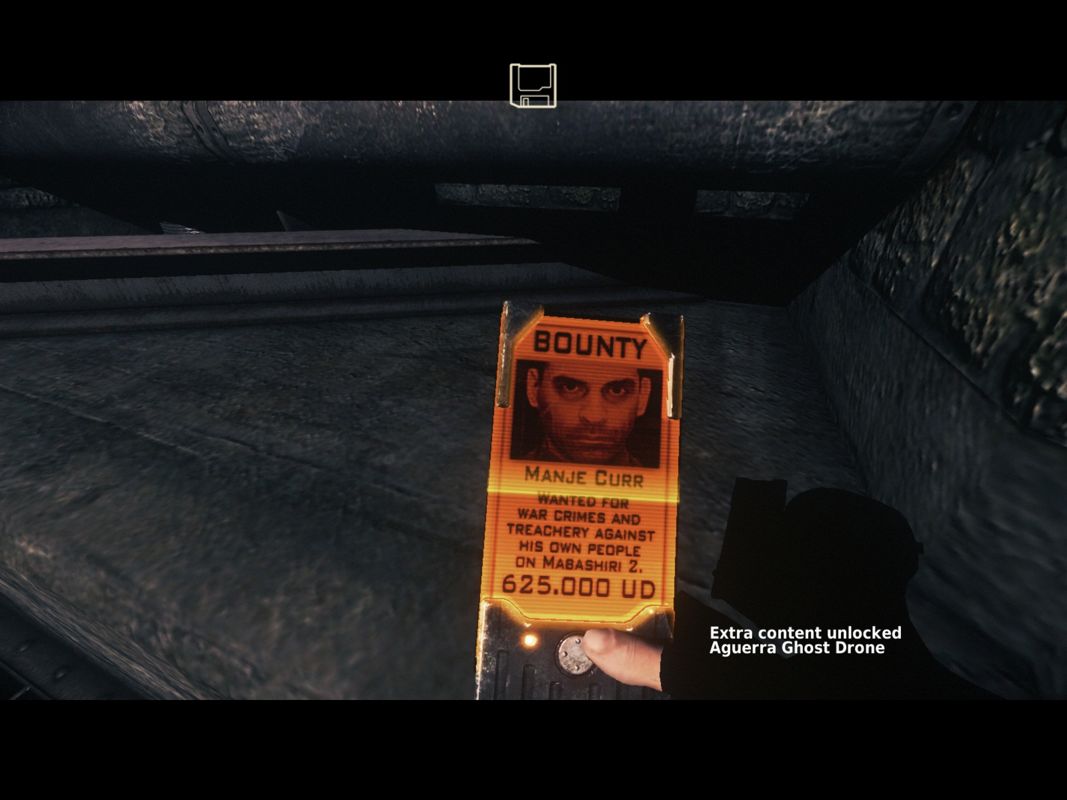
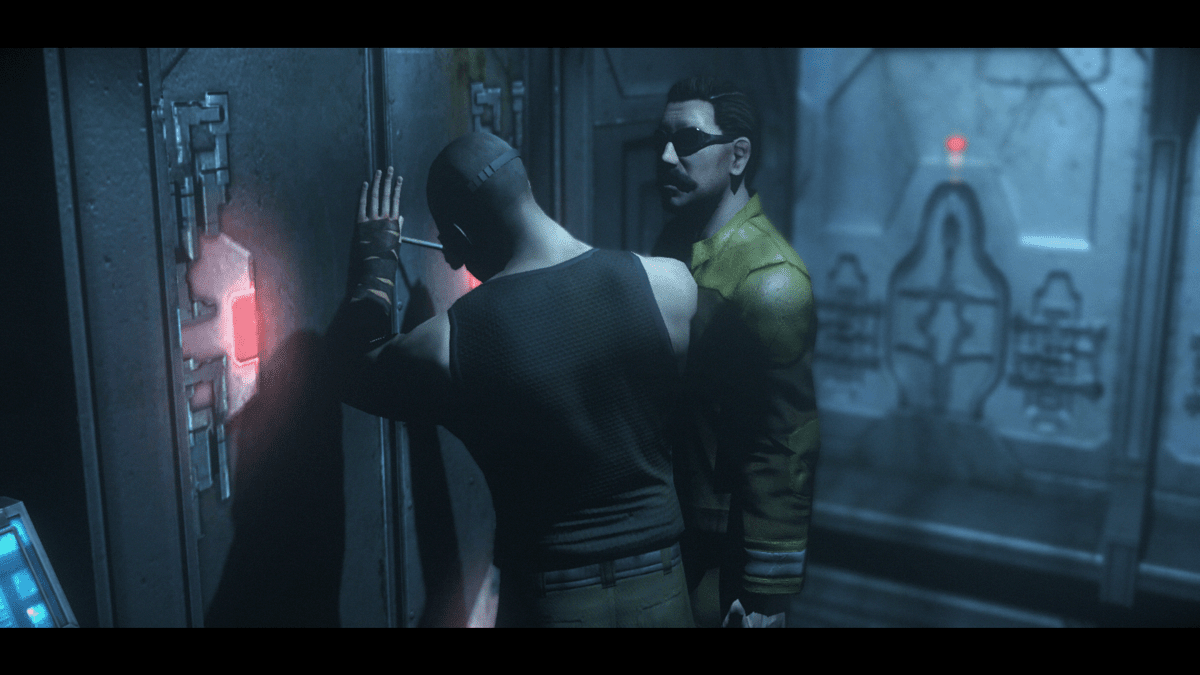
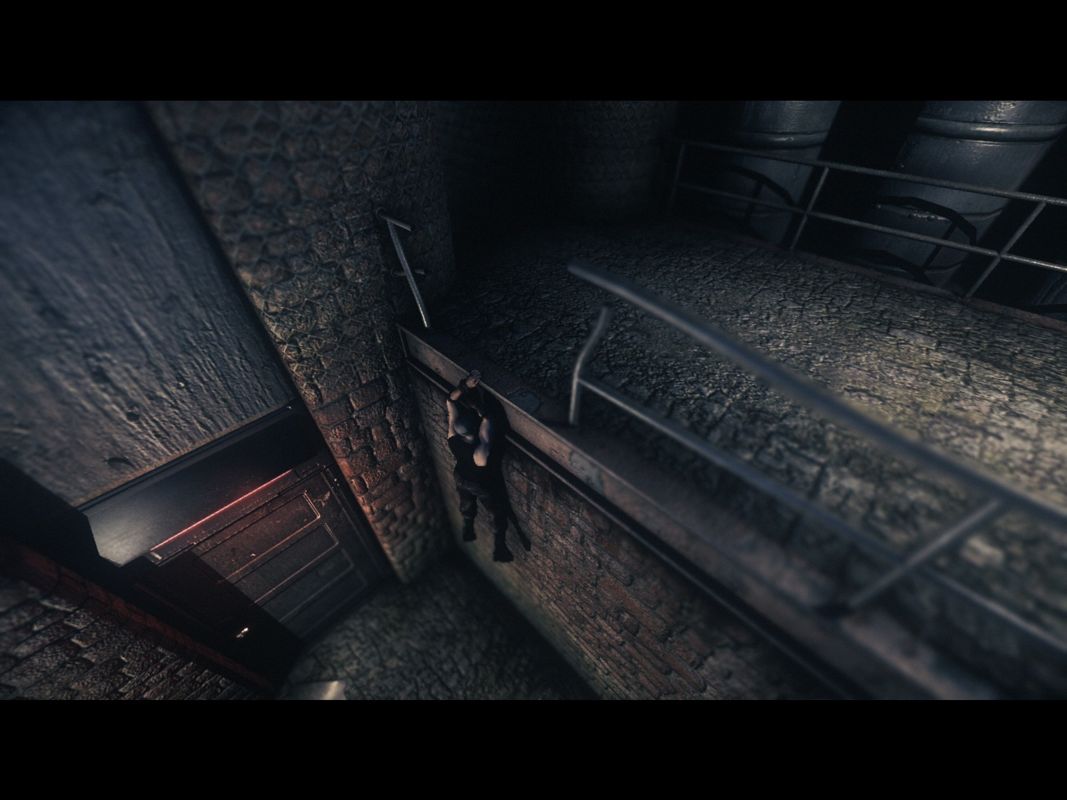
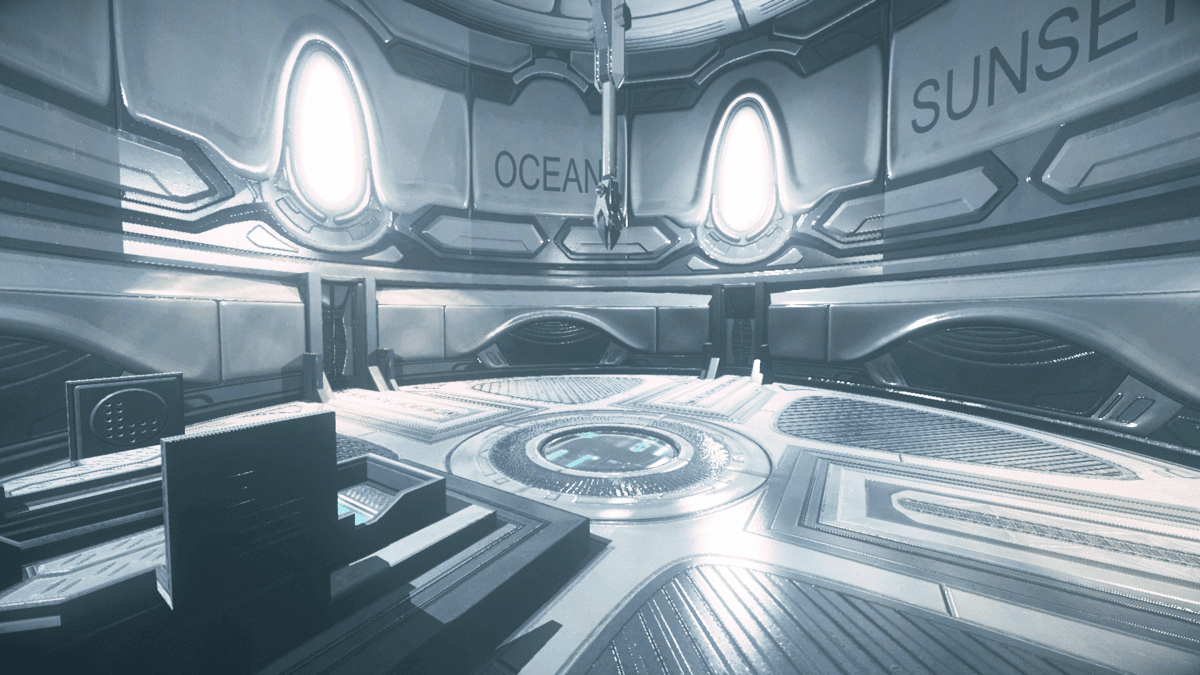
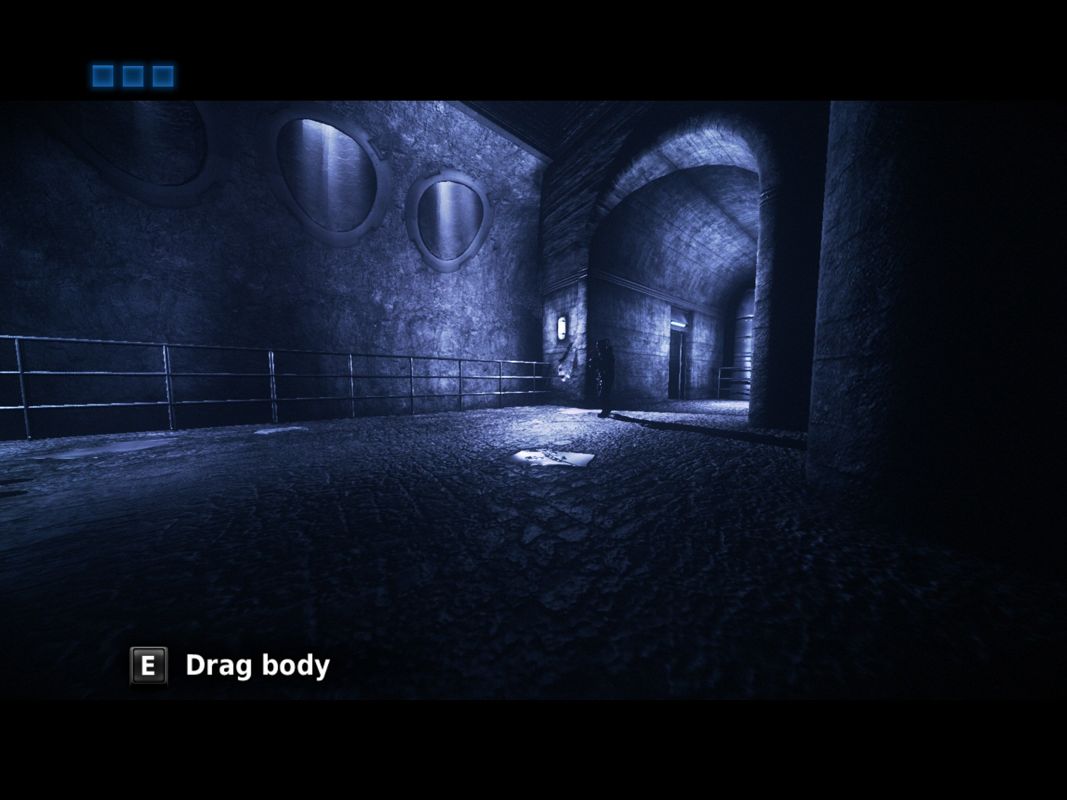
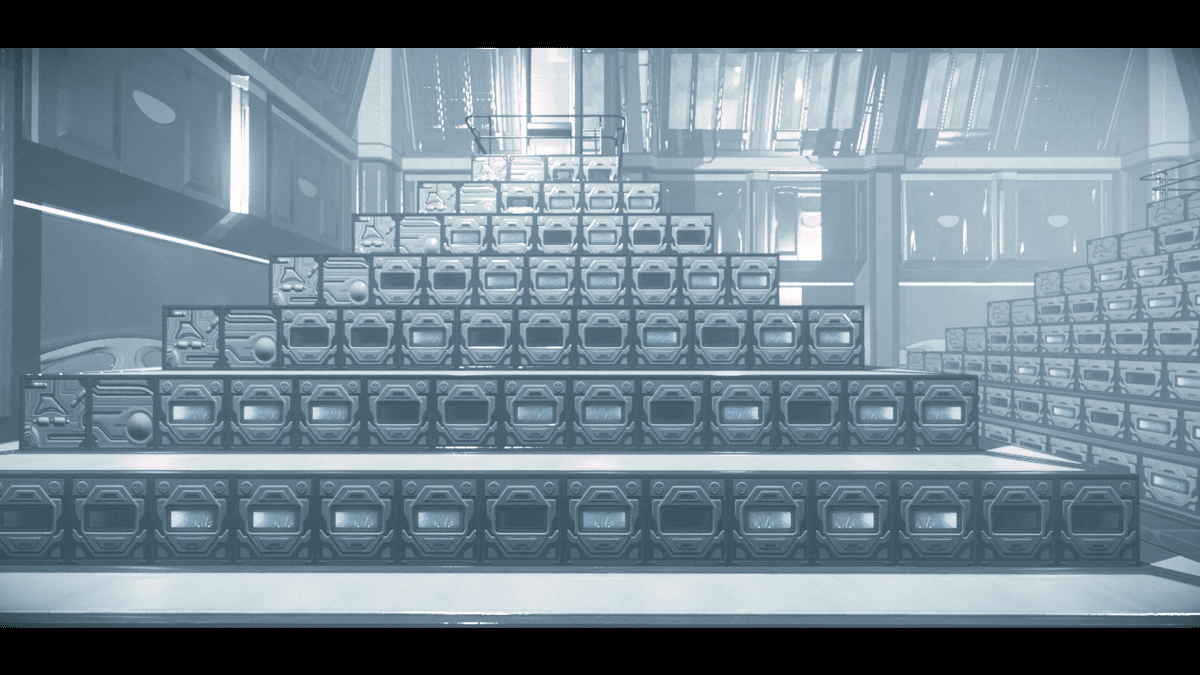
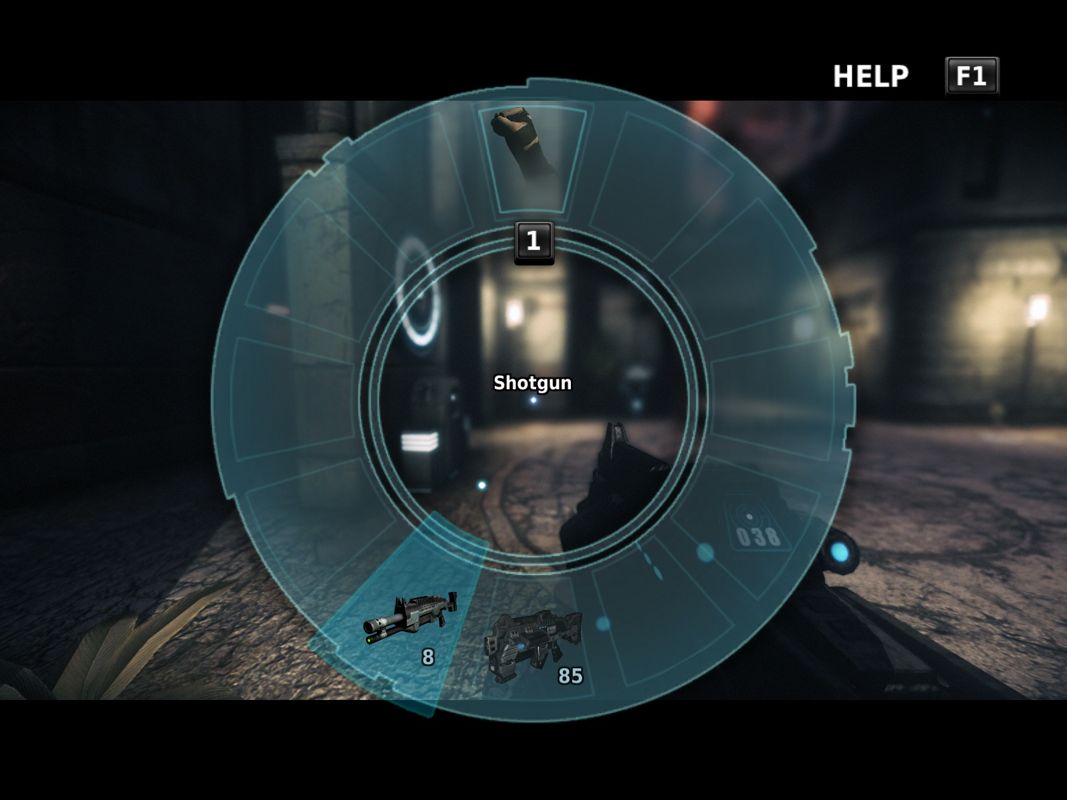
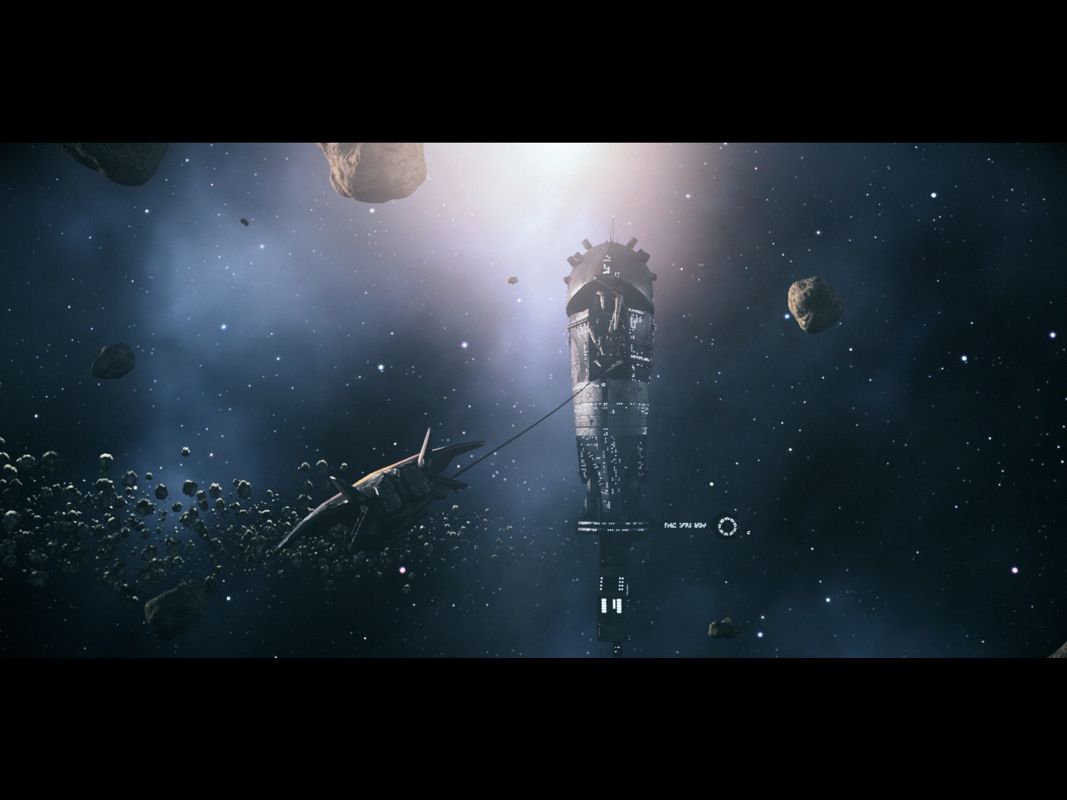
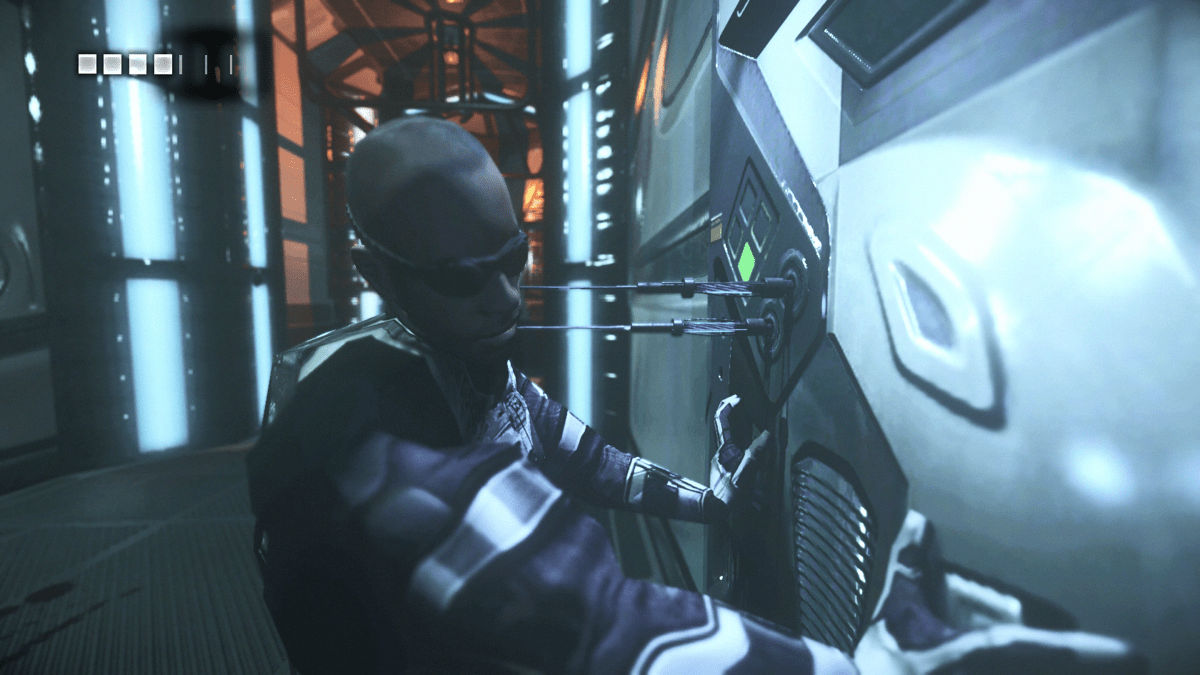
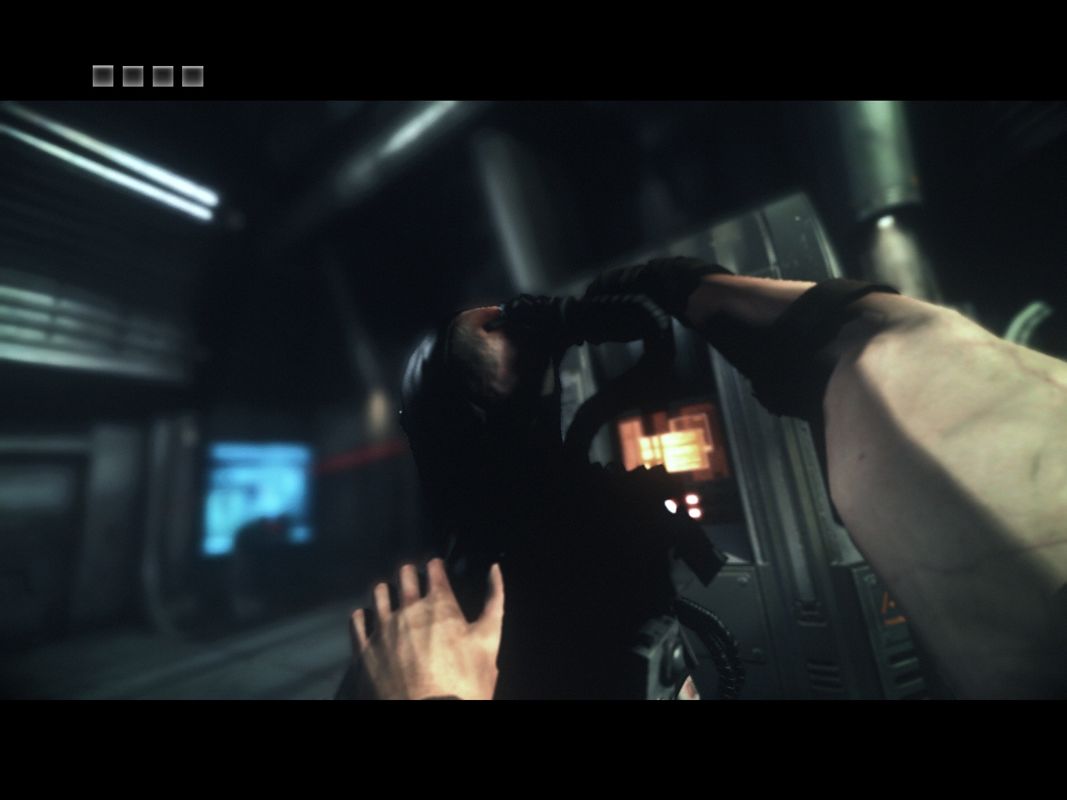
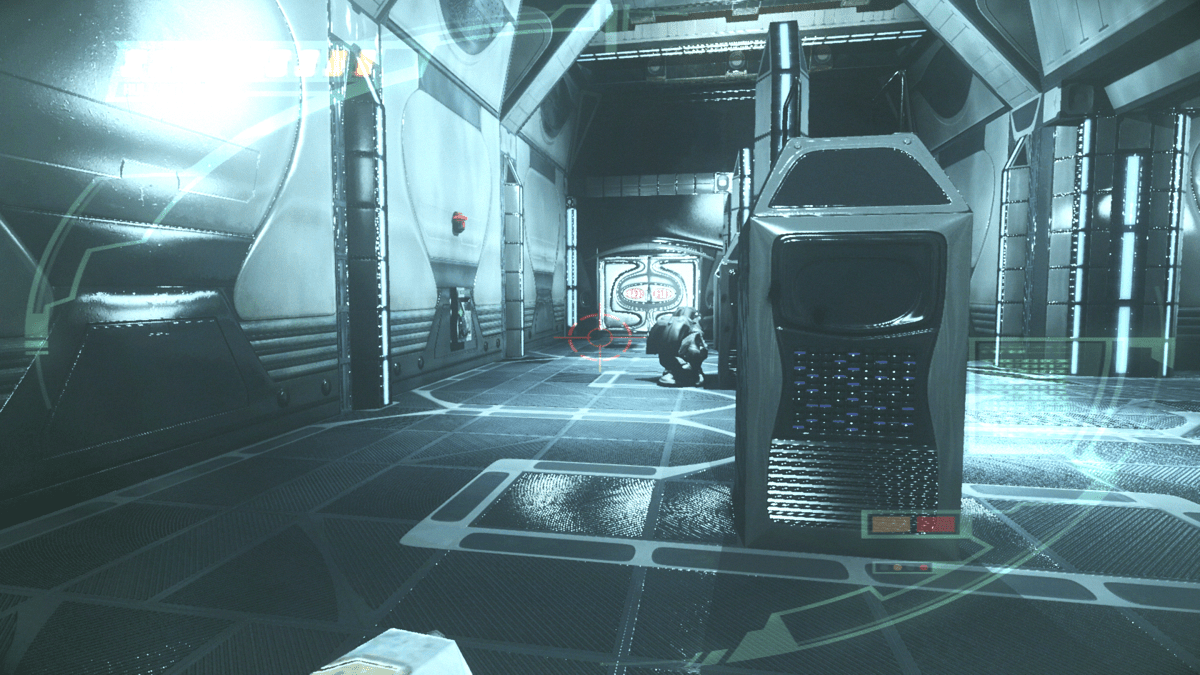
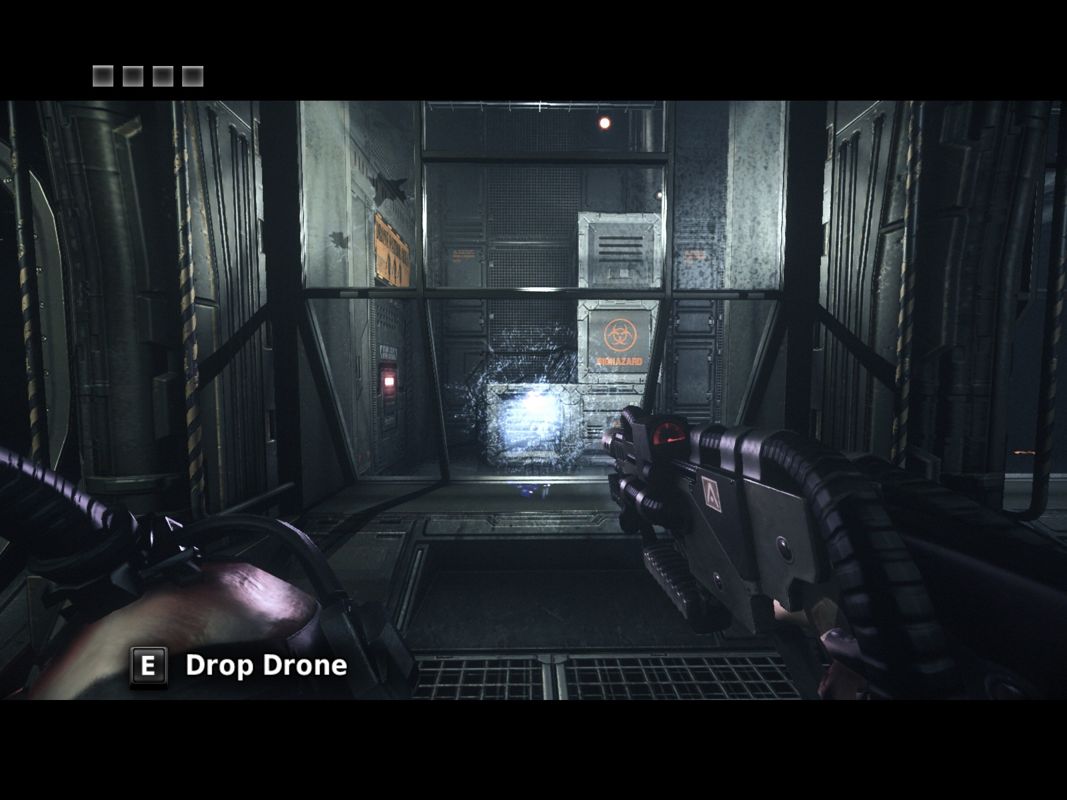
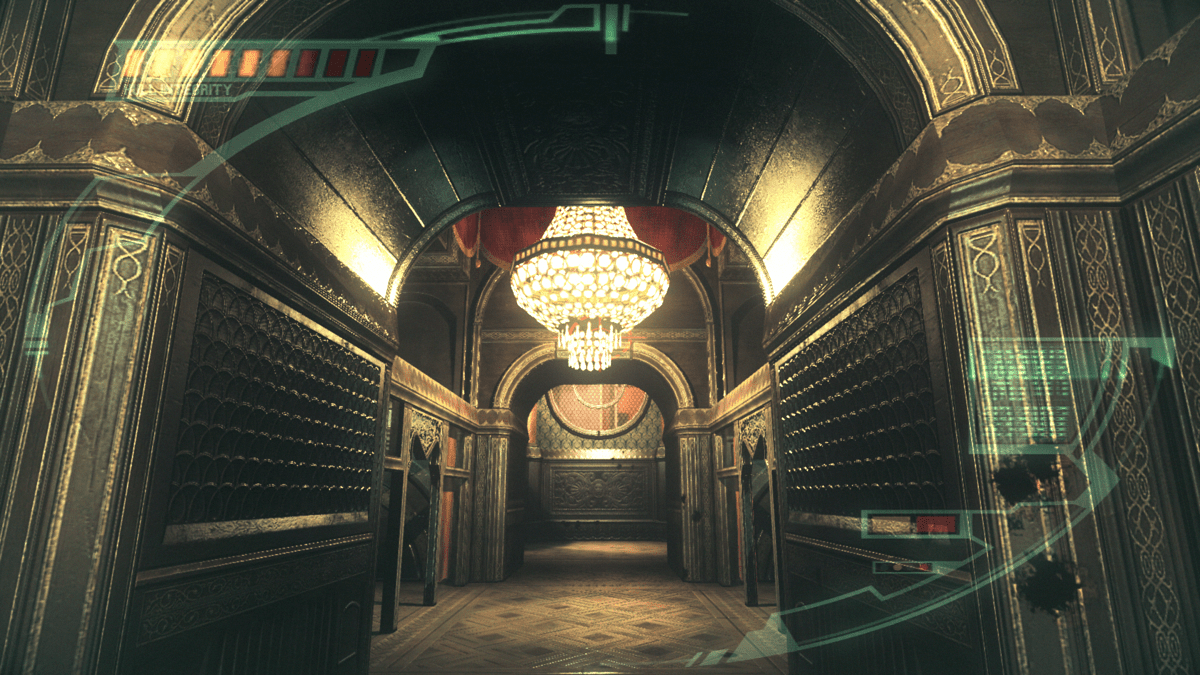
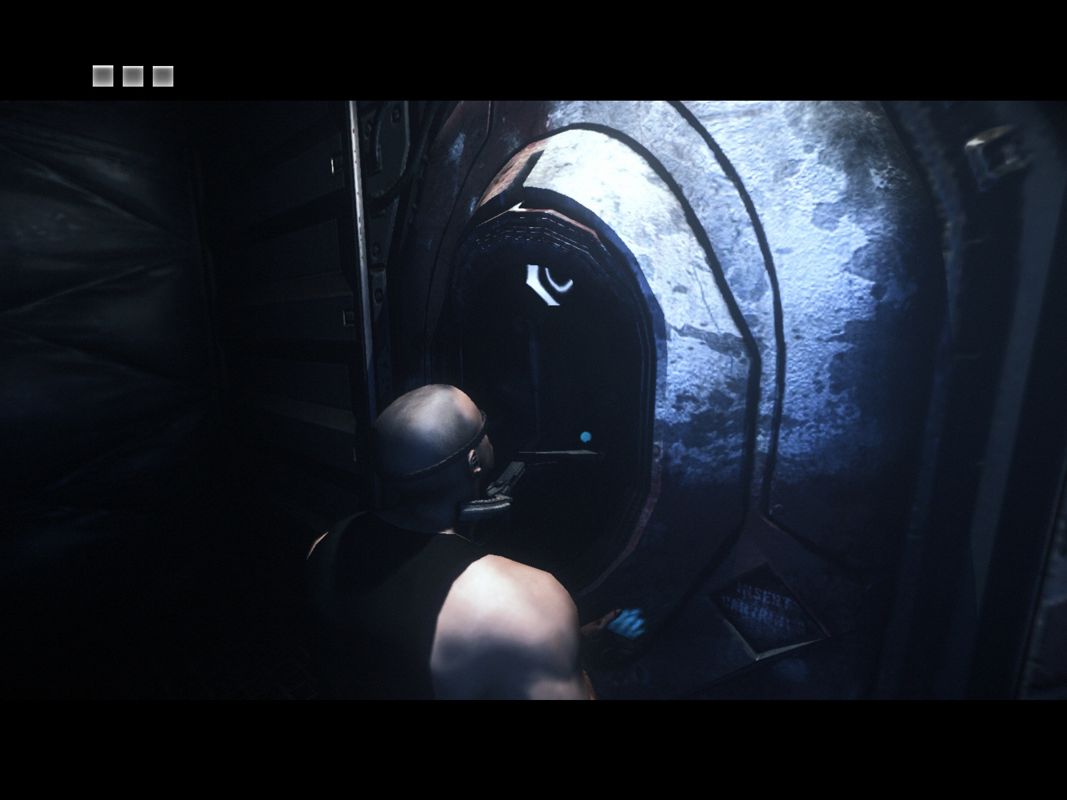
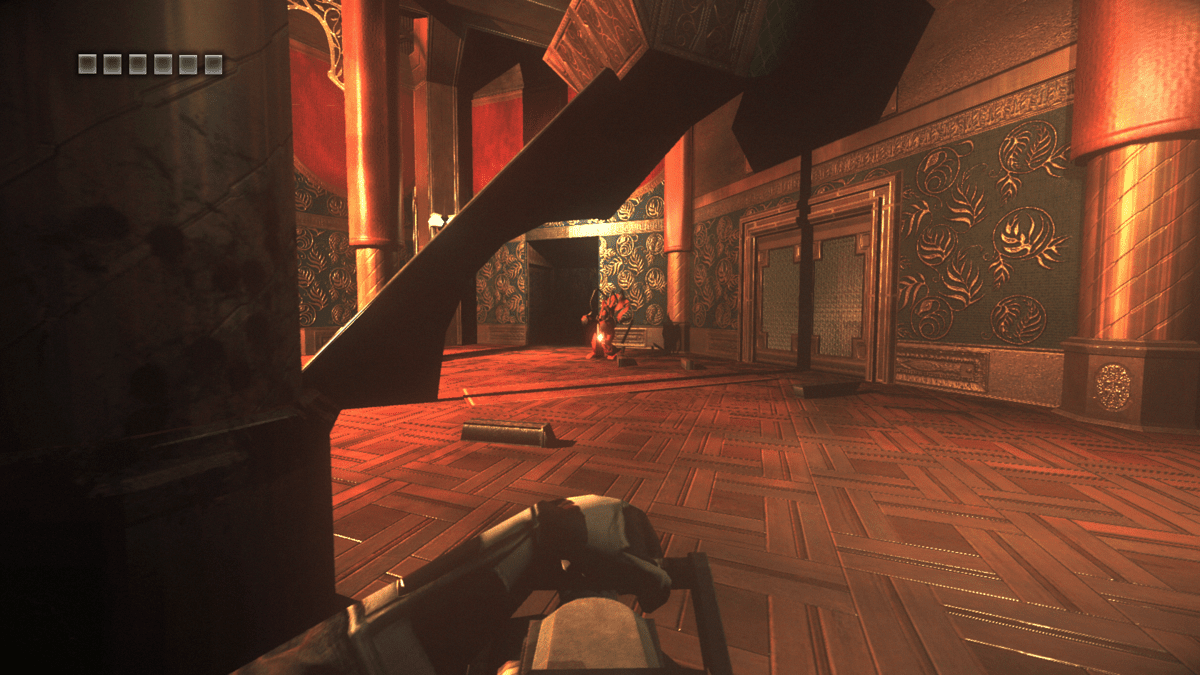
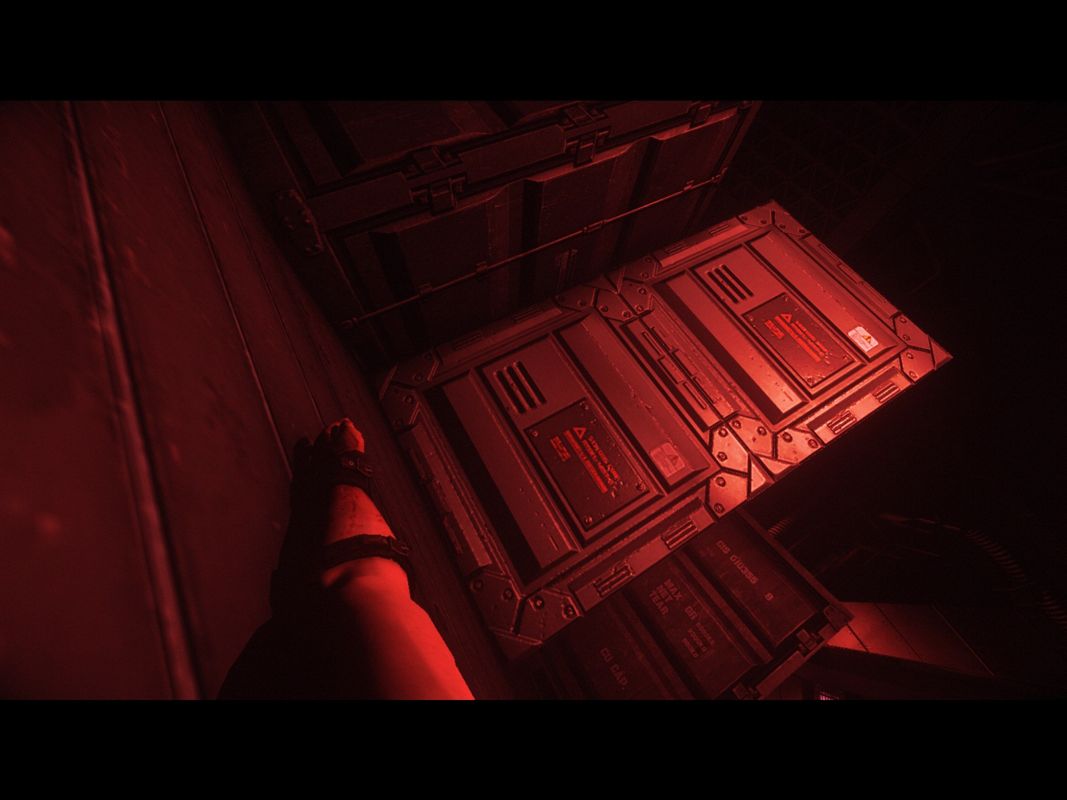
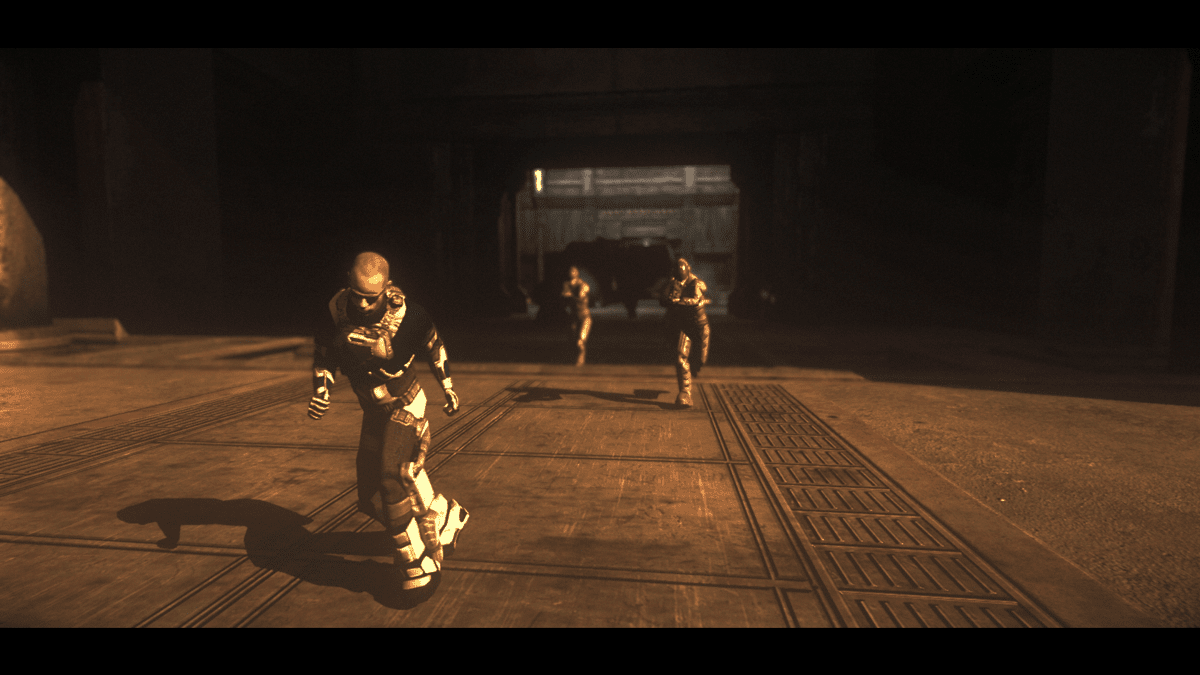
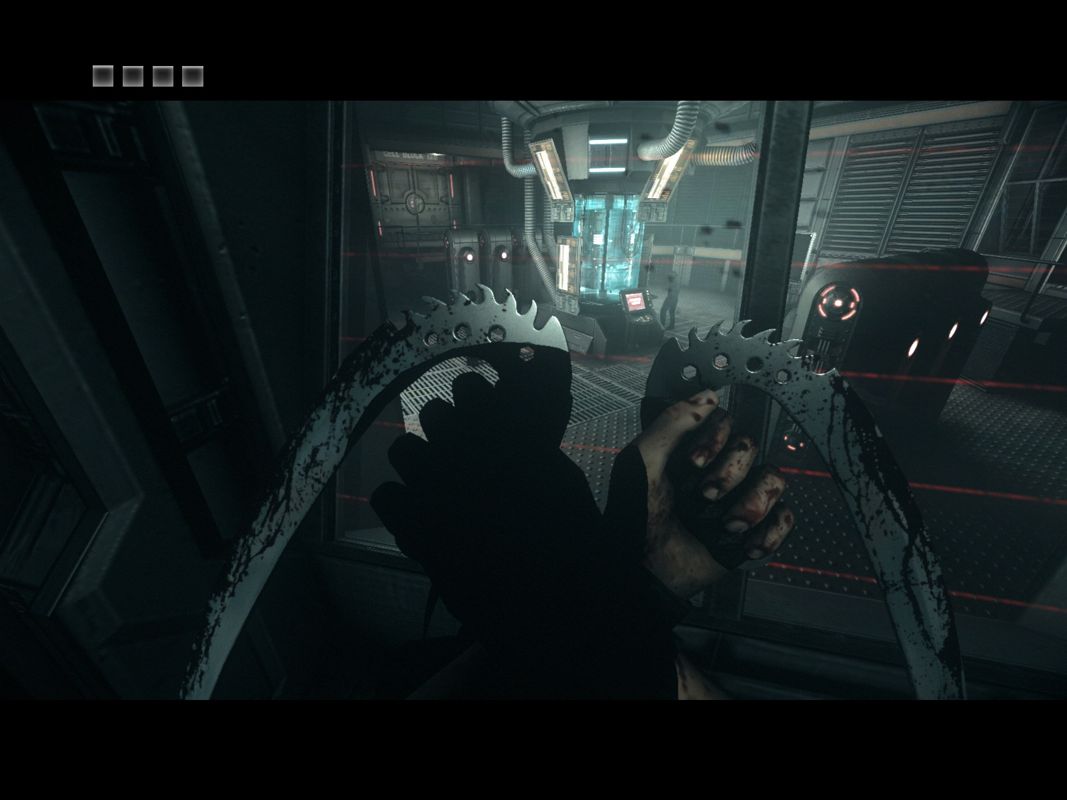
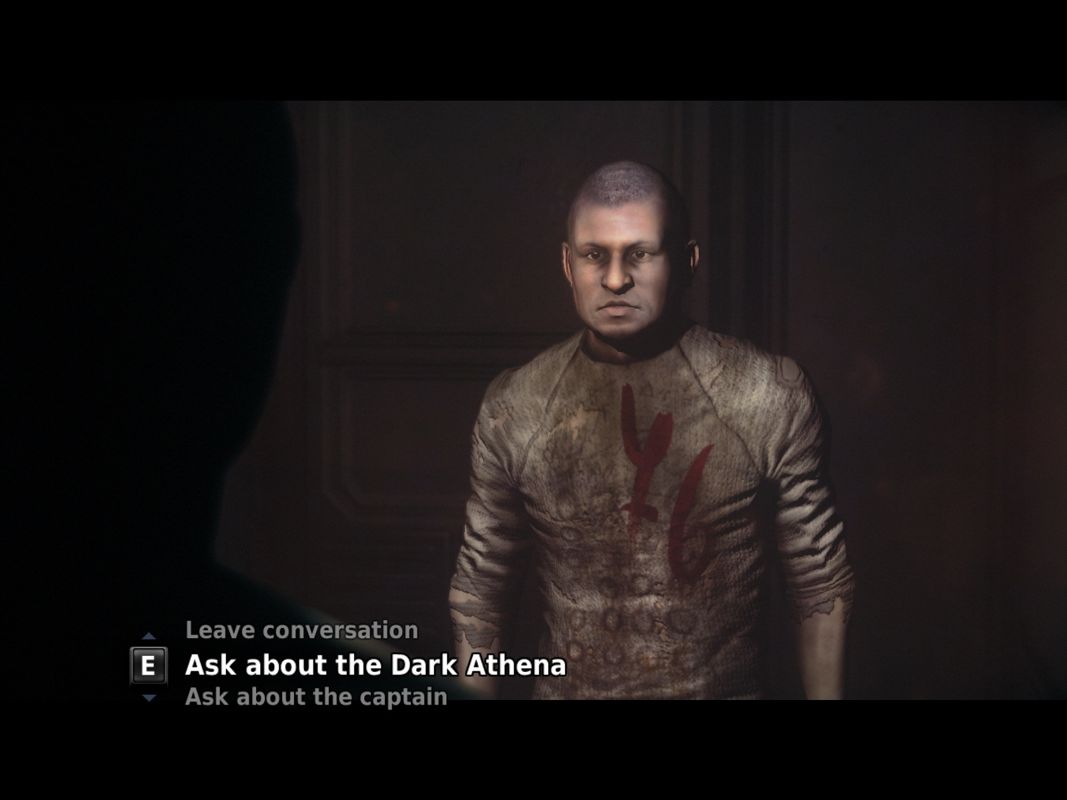
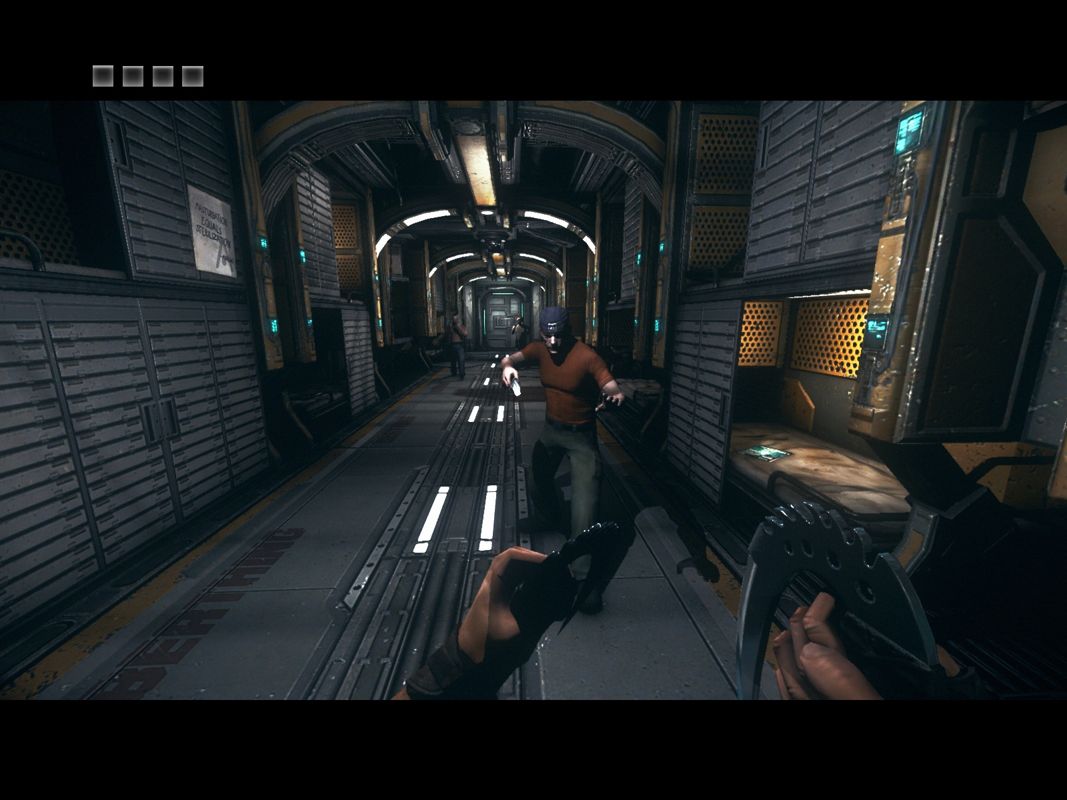
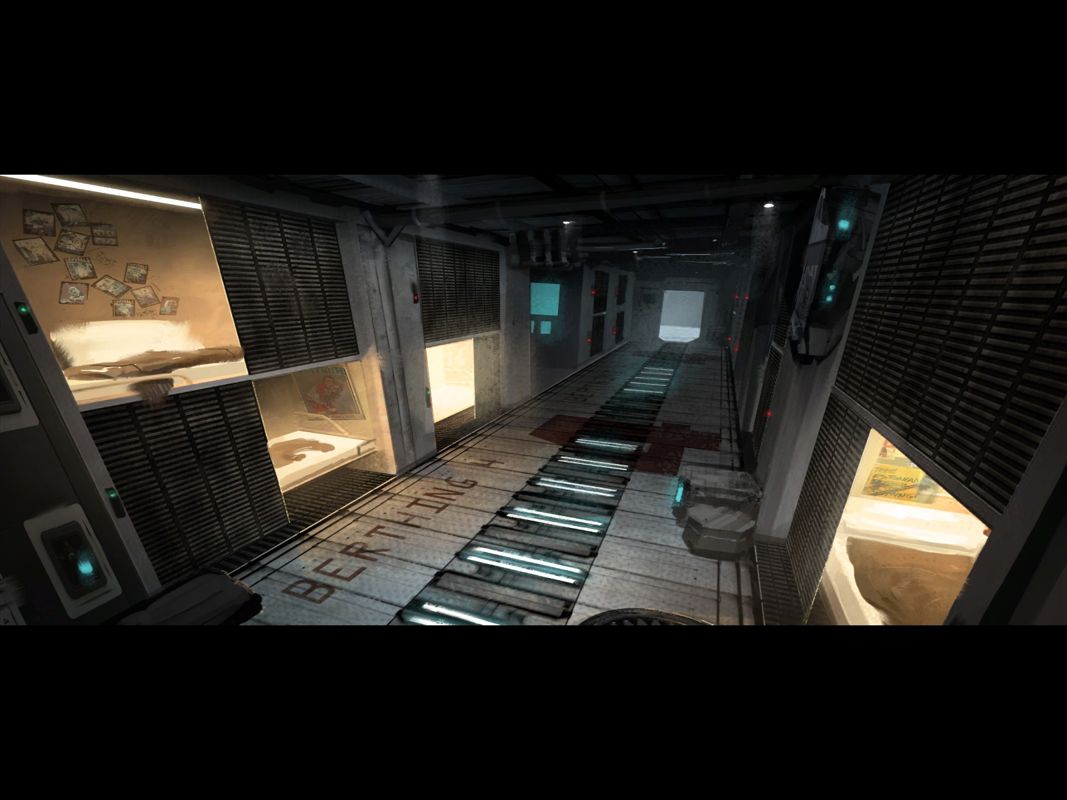
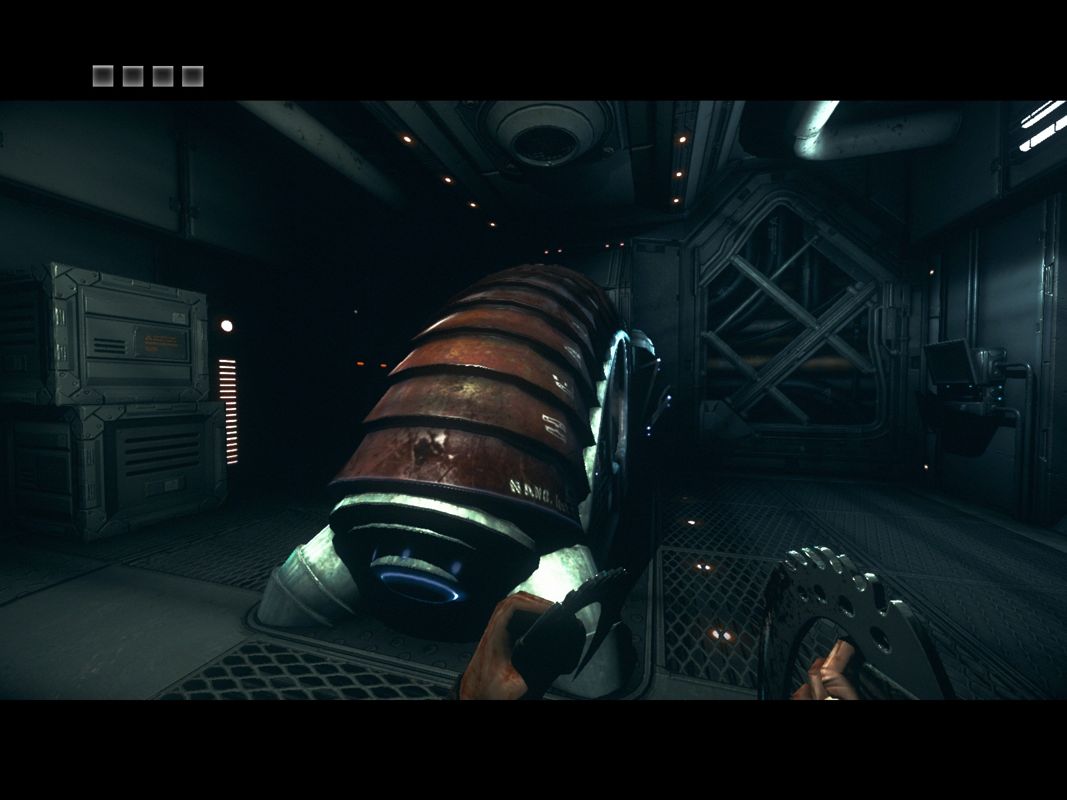
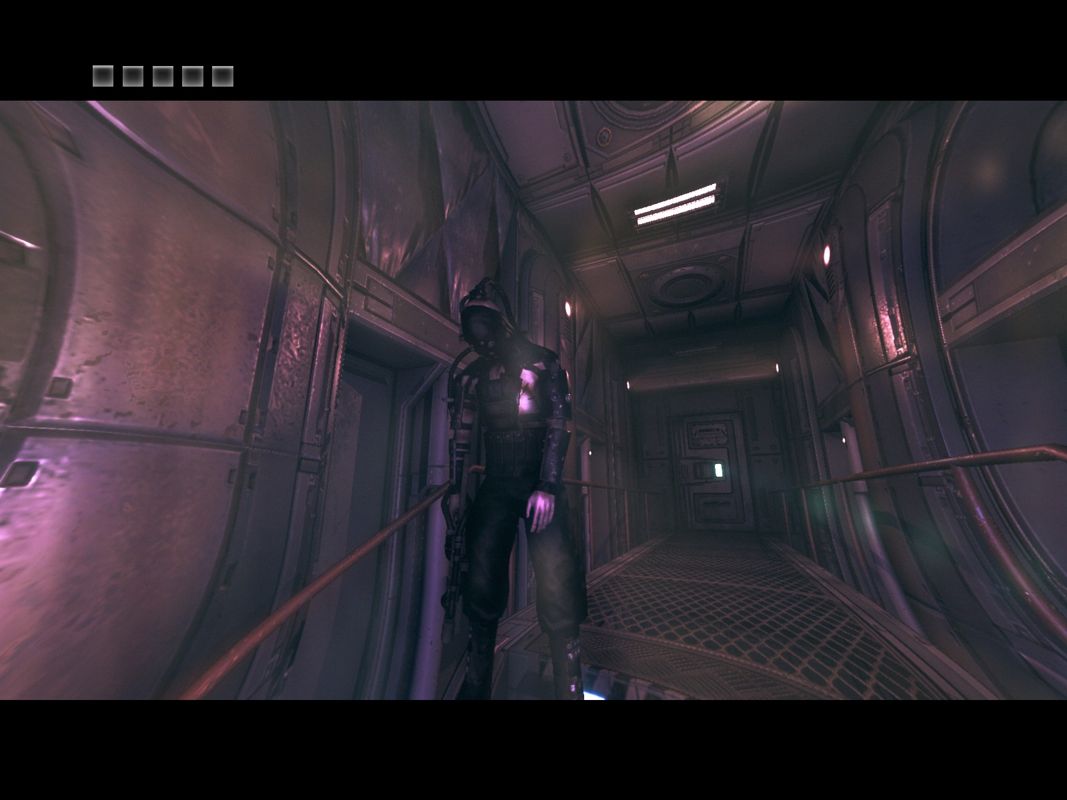
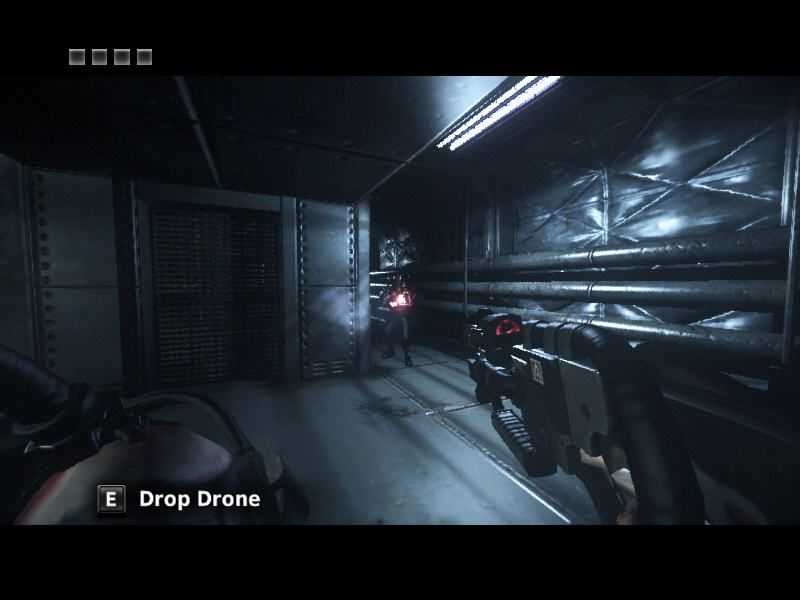
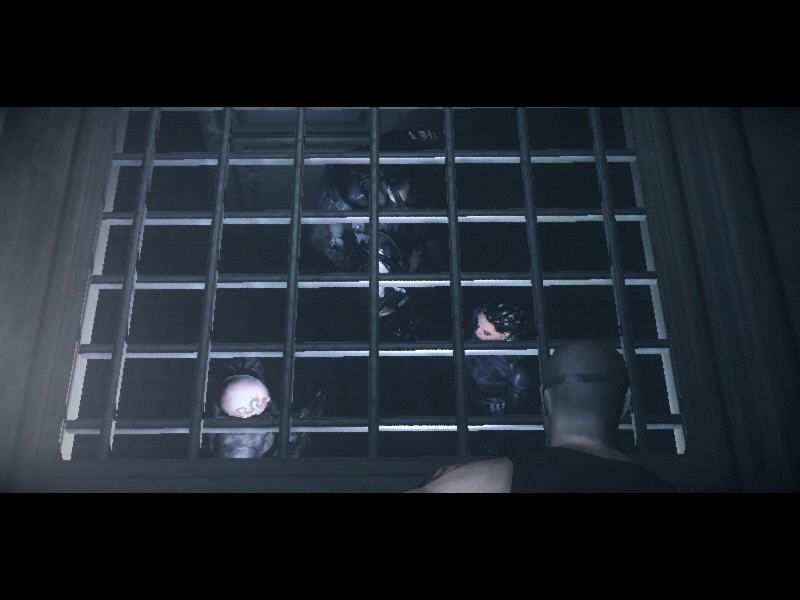
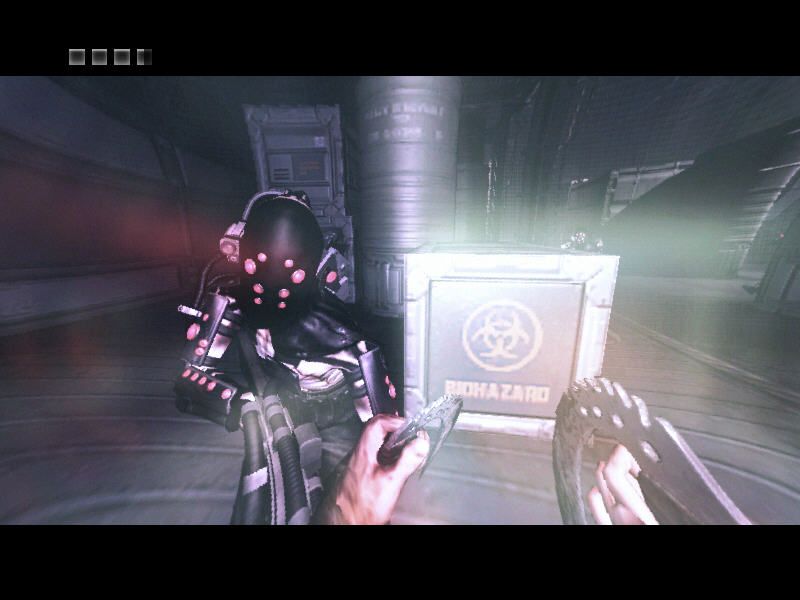
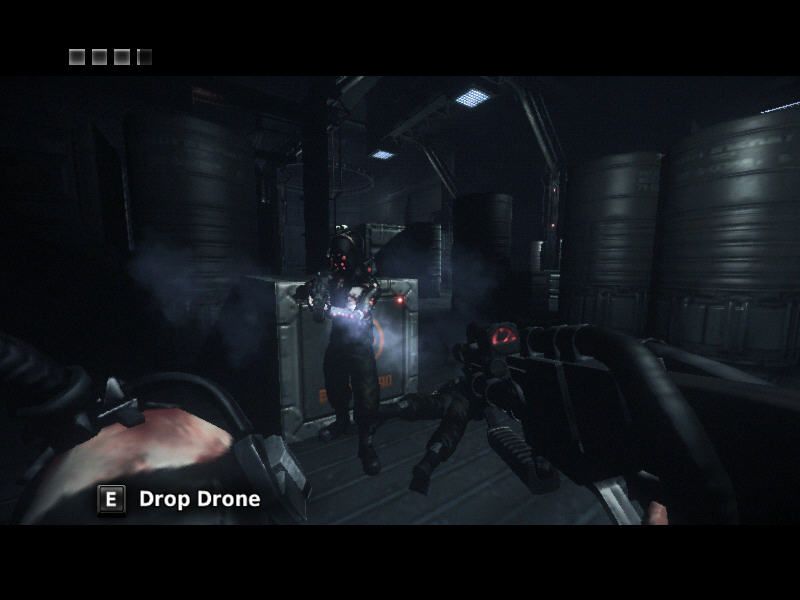
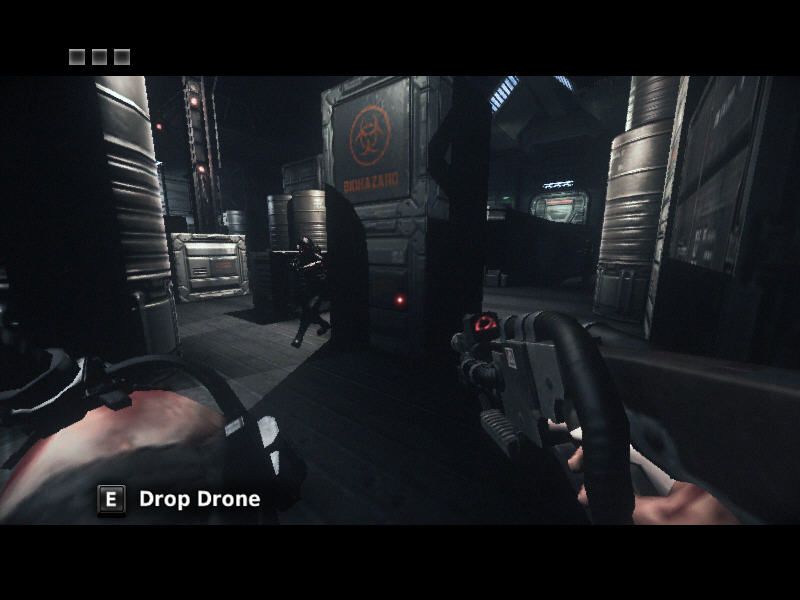
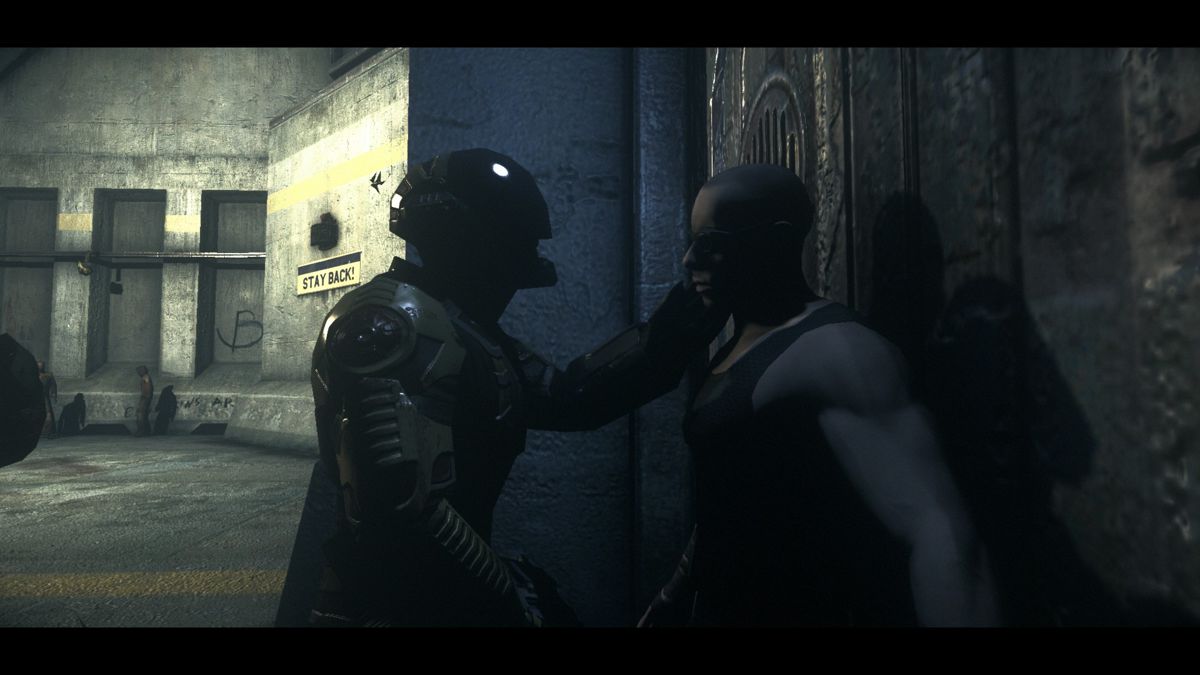
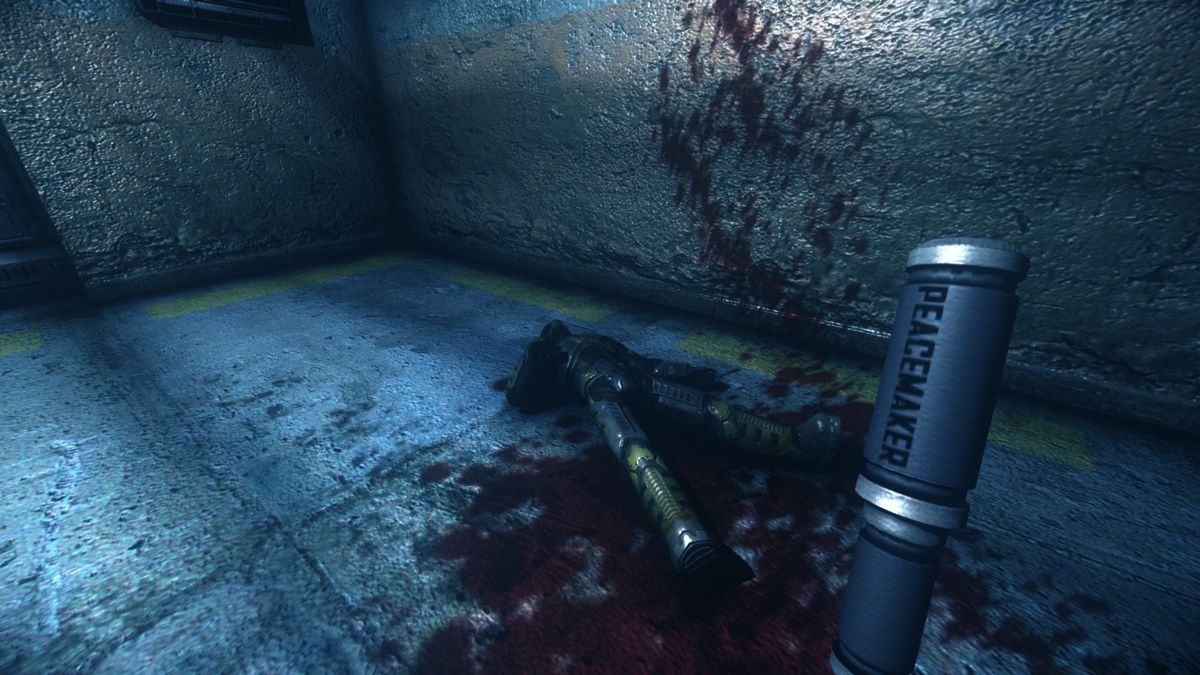
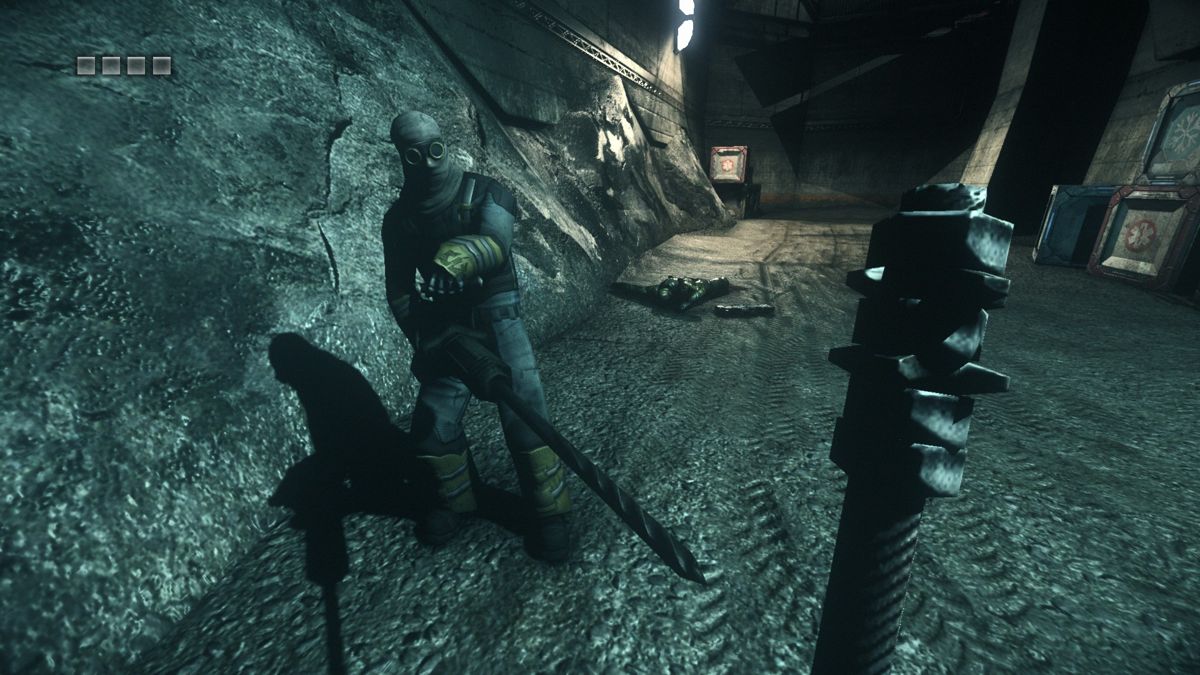
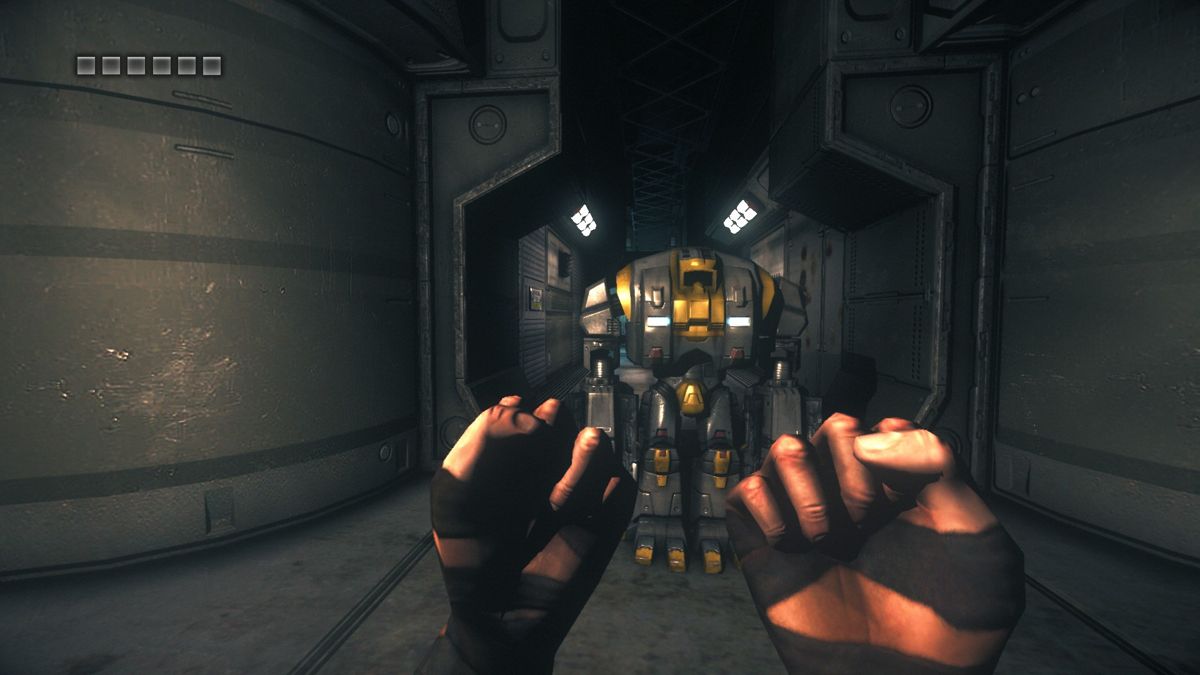

Comments and reviews
Andy 2026-09-25 0 point Windows version
Could you please split the 5.6 gb file n re-upload..in two parts?
Whunter 2026-09-16 1 point Windows version
Attention Windows 11 users: Disable Smart App control and(maybe)fix "Unhandeled Exception error(yes that's how it's spelt in the message). The solution of which can be found on the PCGamingWiki page
Whunter 2026-09-03 0 point Windows version
Unplayable due to dvm.dll file being flagged as dangerous
FaceFister 2026-04-07 1 point Windows version
Does this come with the remake of Escape From Butcher Bay?
Write a comment
Share your gamer memories, help others to run the game or comment anything you'd like. If you have trouble to run The Chronicles of Riddick: Assault on Dark Athena (Windows), read the abandonware guide first!
Download The Chronicles of Riddick: Assault on Dark Athena
We may have multiple downloads for few games when different versions are available. Also, we try to upload manuals and extra documentation when possible. If you have additional files to contribute or have the game in another language, please contact us!
Windows Version
English, French, German, Spanish & Italian languages


 5.7 GB
DownloadRepack by MagiPack
5.7 GB
DownloadRepack by MagiPackMultilingual, includes fixes
6.0 GB
DownloadRetail DVD release, multilingual US versionEnglish, French, German, Spanish & Italian languages
7.0 GB
DownloadRetail DVD releaseCzech, Polish & Hungarian languages


 7.0 GB
DownloadGOG DRM-Free release
7.0 GB
DownloadGOG DRM-Free releaseRussian version
 5.6 GB
Manual
5.6 GB
Manual 


 14 MB
14 MB
Game Extras
Various files to help you run The Chronicles of Riddick: Assault on Dark Athena, apply patches, fixes, maps or miscellaneous utilities.
68 MB
PatchAmazon DLCAdds Sneerock multiplayer map for Deathmatch mode
218 MB
PatchGameStop DLCAdds Viper Run multiplayer map for Butcher Bay Riot mode
217 MB
PatchSneeRock DLCAdds The Tangle multiplayer map for Pitch Black mode
216 MB
PatchWal-Mart DLCAdds Tracker Star multiplayer map for Capture The Flag mode
222 MB
FixLetterboxing Fix by jackfuste, for 16:10, 5:4 and 4:3 screen ratiosShowed many false positive warnings, safe to use
64 KB
MiscPack of bonus materials from GOG releaseIncludes Developer's Diary, wallpapers and soundtrack
383 MB
MiscSpanish translation patchUnofficial translation by ClanDlan, with fixed mistranslations
3 MB
MiscHungarian translation patchUnofficial translation by i2k and Evin, with fixed mistranslations
1014 KB
MiscPolish translation patchFor digital releases in Steam and GOG
5 MB
MiscBrazilian translation patch  691 KB
MiscRussian translation patch
691 KB
MiscRussian translation patchUnofficial translation by ENPY Studio
19 MB
Guide 3 MB
NocdNoDVD (DRM-Free files from GOG release, compatible with all languages)Showed many false positive warnings, safe to use
10 MB
NocdOld NoDVD by Reloaded (compatible with all languages)Showed many false positive warnings, safe to use
65 KB
NocdOld NoDVD for Multi-3 (Czech, Polish & Hungarian languages) versionTages DRM emulator, works only on Windows XP and Windows Vista
119 MB
Mac Version
- Year: 2010
- Publisher: Virtual Programming Ltd.
- Developer: Starbreeze Studios AB, Tigon Studios
Unfortunately, Mac version of the game is unplayable as of 2026, because Mac version was protected with DRM that required an online activation. Even if you have a license code, you cannot activate the game anymore, because the activation server was shut down many years ago. There's currently no working "crack" for the Mac version, so we didn't upload the disc of Mac version. Check MacintoshGarden sometimes, in case if someone will make a working "crack"
9 MB
Game Extras
Various files to help you run The Chronicles of Riddick: Assault on Dark Athena, apply patches, fixes, maps or miscellaneous utilities.
13 MB
Similar games
Fellow retro gamers also downloaded these games: